Corona for Cinema 4D
Corona Proxy
This article explains the settings and values for the Corona Proxy object.
Last updated 1 September 2026
This article explains the settings and values for the Corona Proxy object.
Overview
The Corona Proxy is Chaos Corona's own proxy solution, helpful in decreasing the number of polygons in the scene and thereby simplifying meshes for the viewport to keep scenes manageable and to bake objects with animation to keep playback at a reasonable frame rate.
For additional information about practical use cases, please visit our help portal: How to use proxies

Object Properties
Pick from scene – Allows the creation of a new proxy from an object picked from the current scene.
Duplicate to Mesh – Clones the proxy to a regular mesh object.
Reload from disk – Reloads a previously loaded proxy file from a disk.
Proxy file – Allows the loading of a previously saved object as Corona Proxy. To load a proxy file, use the ellipsis ( ... ) button right next to the empty slot.
Keep in memory – When enabled and the visualization method is set to Full Mesh, the model is always loaded into RAM, and this control is ignored.
Units – Use this parameter to set a specific measurement unit for the proxy object. Depending on the selected unit, the object's size will be affected.
Click here to see the available units.
Scale – Defines the scale of a proxy object.
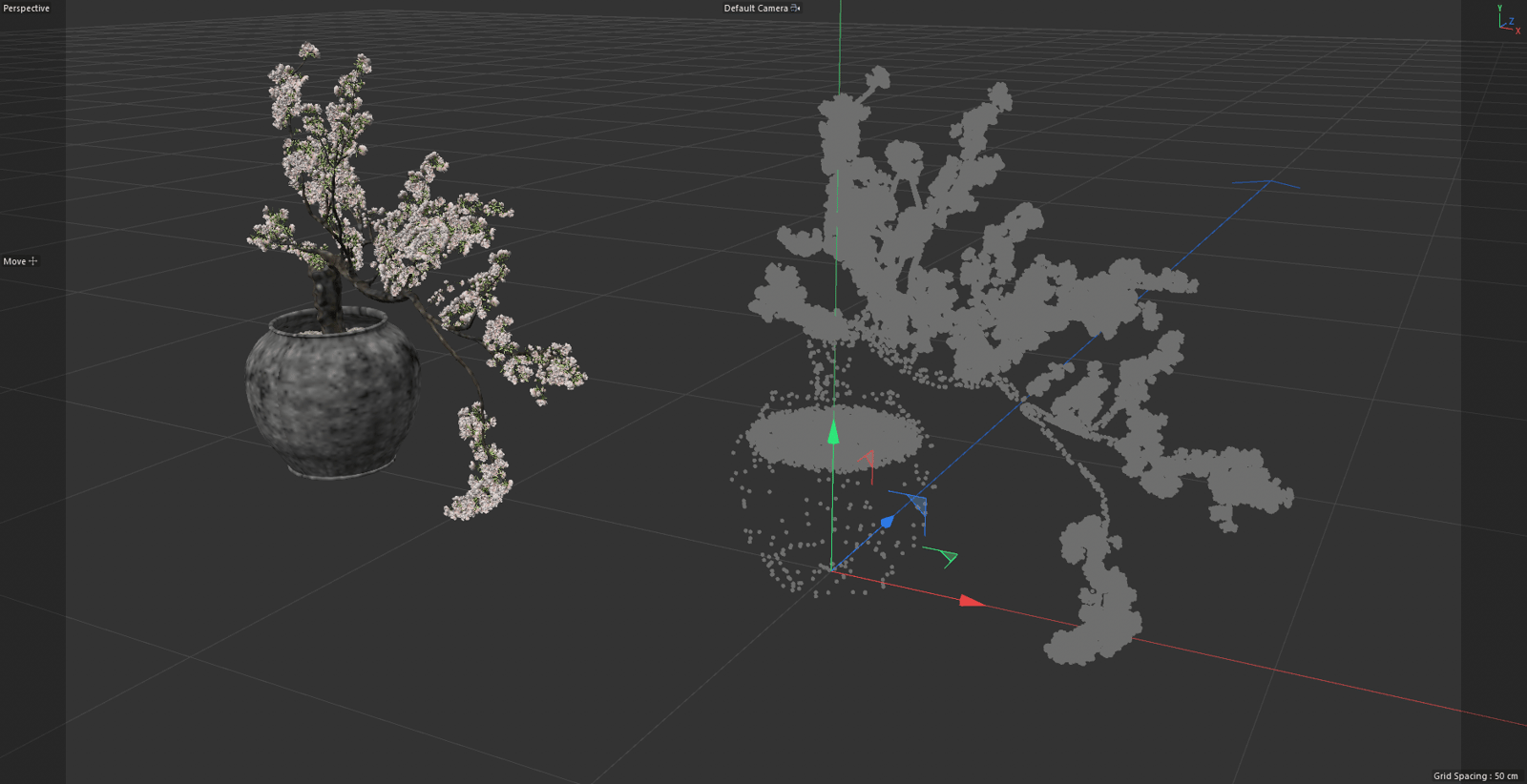
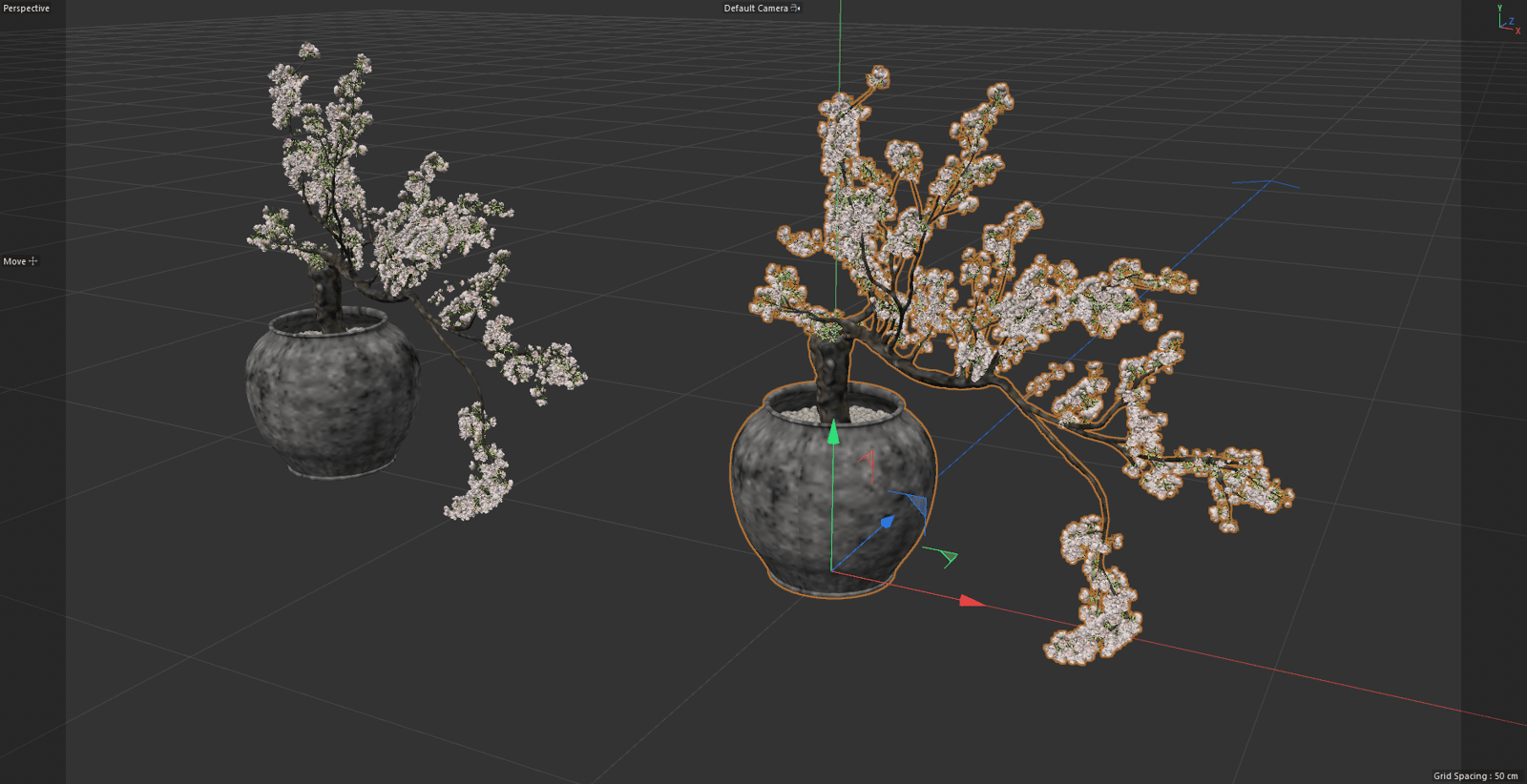
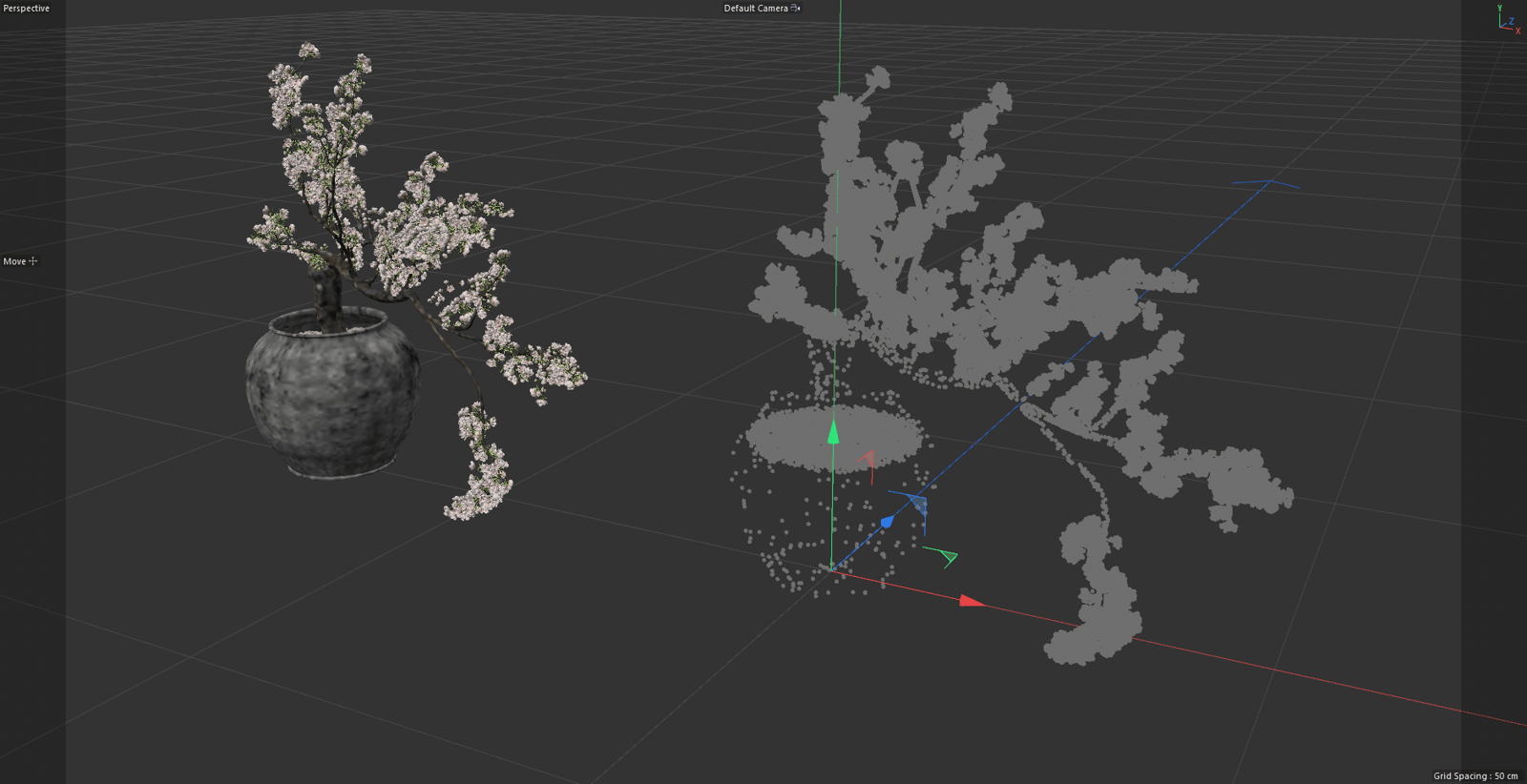
Visualization method – These options set the viewport visualization method.
Click here to see the available modes for the Visualization method...
Point cloud displayed – Defines the level of visibility for the Corona Proxy object in a viewport.

Animation
Enable animation – When enabled and if there's animation data included in the proxy file, then the object's animation will start playing.
Mode – These options allow you to select the animation playback method.
Frame offset – Offsets the animation starting point for the Corona Proxy object.
Speed multiplier – Speeds up or slows down the animation playback for the Corona Proxy object.

Materials
Channel 1, 2... n – All materials applied to a Corona Proxy object are listed in this tab in the form of channels. A single material must be assigned per channel. The total number of channels used for a Corona Proxy will vary depending on the materials originally applied to the mesh.
Eyedropper tool – The use of this tool allows for selecting a material to be applied to a specific material channel.

Examples