Corona for Cinema 4D
Corona Shadow Catcher Material
This article explains the settings and values for the Corona Shadow Catcher Material in Cinema 4D.
Last updated 25 September 2025
This article explains the settings and values for the Corona Shadow Catcher Material in Cinema 4D.
Overview
The Corona Shadow Catcher Material allows you to composite 3D geometry onto a background image (a.k.a. plate) whilst preserving the shadows and reflections (if turned on). Also, you can create an infinite background for your product visualization images.
Matte / Shadow
Mode – This parameter specifies the mode for the compositing backplate.
Backplate – This mode allows using a backplate (real-world photo).
Environment – This mode allows using a Corona Sky or C4D Sky object as the environment.
Backplate – This slot allows you to set the backplate.
Environment – This slot allows to specify the environment object (either a Corona Sky or a standard C4D Sky object can be used here).
Projection mode – This parameter controls how to handle projection for secondary (reflected) rays that hit the material. This generally needs to be set to correspond with the backplate projection (simple backplate or 360° enviro map) to get correct reflections of the shadow catcher on the scene object.
Alpha mode – This parameter controls how the shadow catcher is displayed in the alpha channel. Available modes are:
- Always solid – Resulting alpha channel is always solid/white.
- For compositing – The resulting alpha channel is affected by the shadow projection. The area covered by shadows results in a solid white/gray alpha (depending on the intensity of the shadow), while the surface area that has no shadows projected on it results in a black/transparent alpha.
- Always transparent – Resulting alpha channel is always black/transparent.
Shadow amount – This parameter controls how much light is bounced off the shadow catcher onto other objects (a relative value). Increasing the value forces less light bouncing, therefore making shadows darker.
Project backplate options
Use scene environment for off-screen rays – When enabled, this parameter uses scene environment for off-view rays when using a simple backplate.
Off-screen – This parameter is used to load a texture map or shader for off-view rays when using a simple backplate.

Reflection
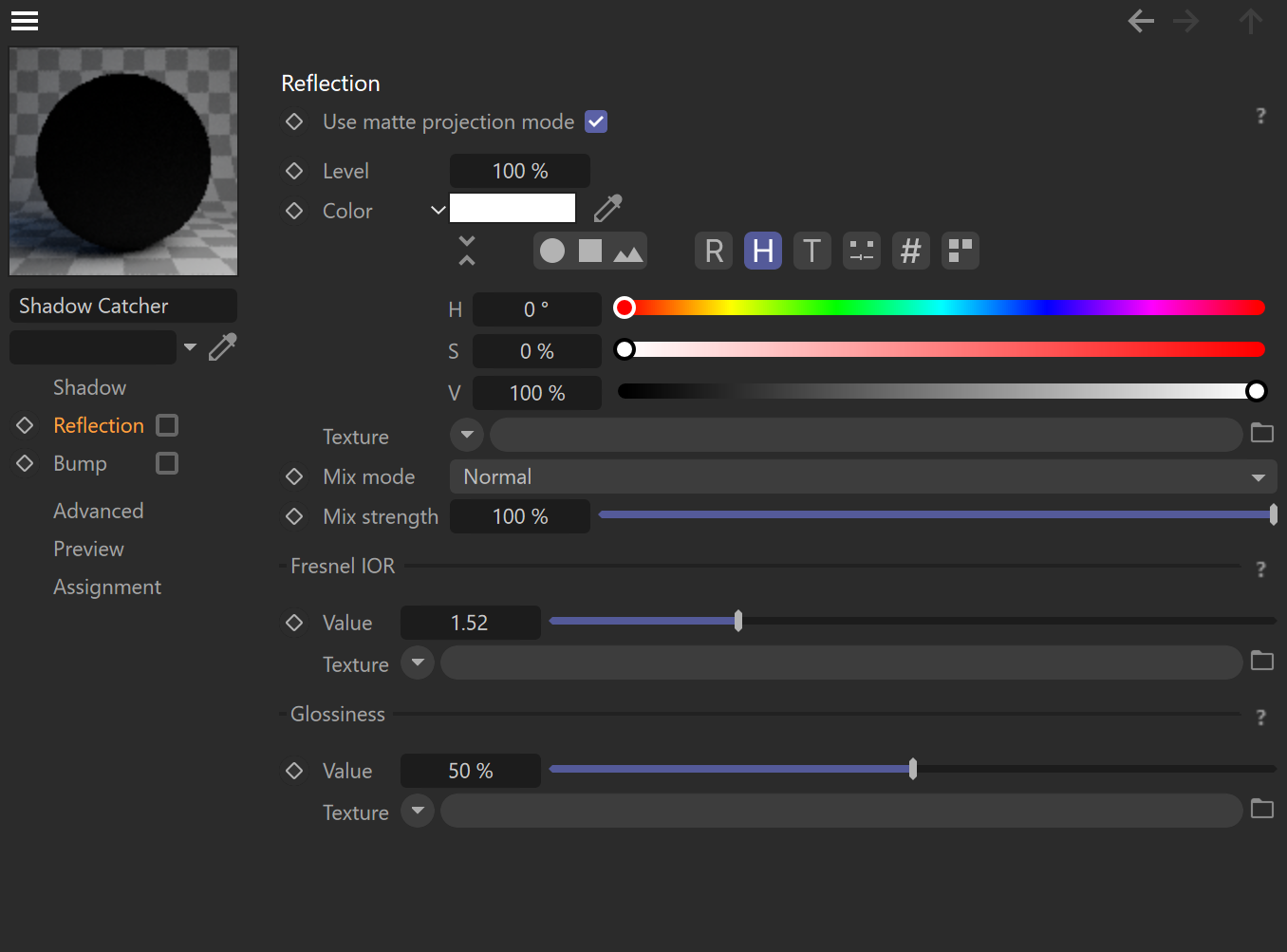
Use matte projection mode – When enabled, all texture maps use the camera projection specified by the Projection mode above. When disabled, only the Environment/Backplate slot uses it and others are not projected.
Level – This is the intensity (also considered as the visibility) of the reflection color.
Color – This is the color used for reflections.
Texture – This slot defines the texture map or shader that are used instead of the above color.
Mix mode – This parameter controls the blending mode of the texture map or shader over the color.
Mix strength – This value controls the intensity of the texture map or shader that is being used.
Fresnel IOR
Value – This value controls the amount of material reflection in a physically plausible way. Higher values create stronger reflection.
Texture – This slot defines the texture map or shader that will be used to control the Fresnel IOR.
Glossiness
Value – This value controls how sharp or blurred the reflection is. A value of 1 gives completely sharp reflections, while a value of 0 gives completely blurred reflections.
Texture – This slot defines the texture map or shader that will be used.
Bump
Strength – This value defines the bump level.
Texture – This slot defines the texture map or shader used to control the Bump.

Examples
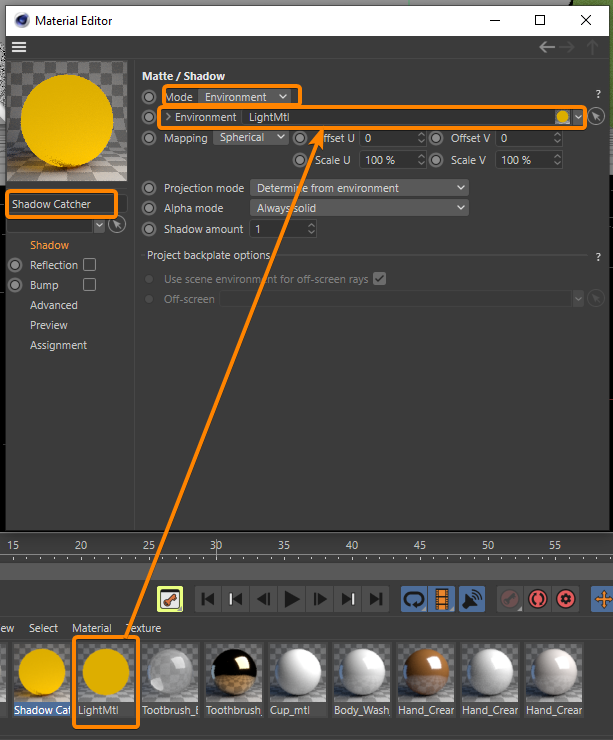

Corona Shadow Catcher Material: Using an HDR image as the background