Corona for Cinema 4D
Corona Slicer Material
This article explains the settings and values for the Corona Slicer Material.
Last updated 10 February 2026
This article explains the settings and values for the Corona Slicer Material.
Overview
With the Corona Slicer Material, you can use any object in your scene to cut away parts of another object where they intersect.
www.youtube.com
Slicer properties
Caps
Enable – Enables or disables the generation of caps for the sliced geometry.
Use cap material – Enables or disables the cap material specified in the Material slot. If disabled, the original object's material is used for the caps.
Material – Allows you to define the material for the capped surface. It can be enabled or disabled using the Use cap material checkbox.
Additional
Inverse slicing – When enabled, everything outside of the slicer is excluded from rendering.
Include/Exclude
Mode – Defines the use of the list of objects below.
Available modes are:
- Include
- Exclude
Objects – Use this list to include or exclude scene objects that will be affected by the slicing geometry. If the mode is set to Exclude and the list is empty, the Slicer material will slice any object intersecting with it.
Include children – If the slicing geometry is a group (using a null object as the parent) or an object that contains nested elements, enabling this option will include them all if you assign the Corona Slicer Material to the group (null object) or parent geometry.

Examples
Corona Slicer Material – Example A
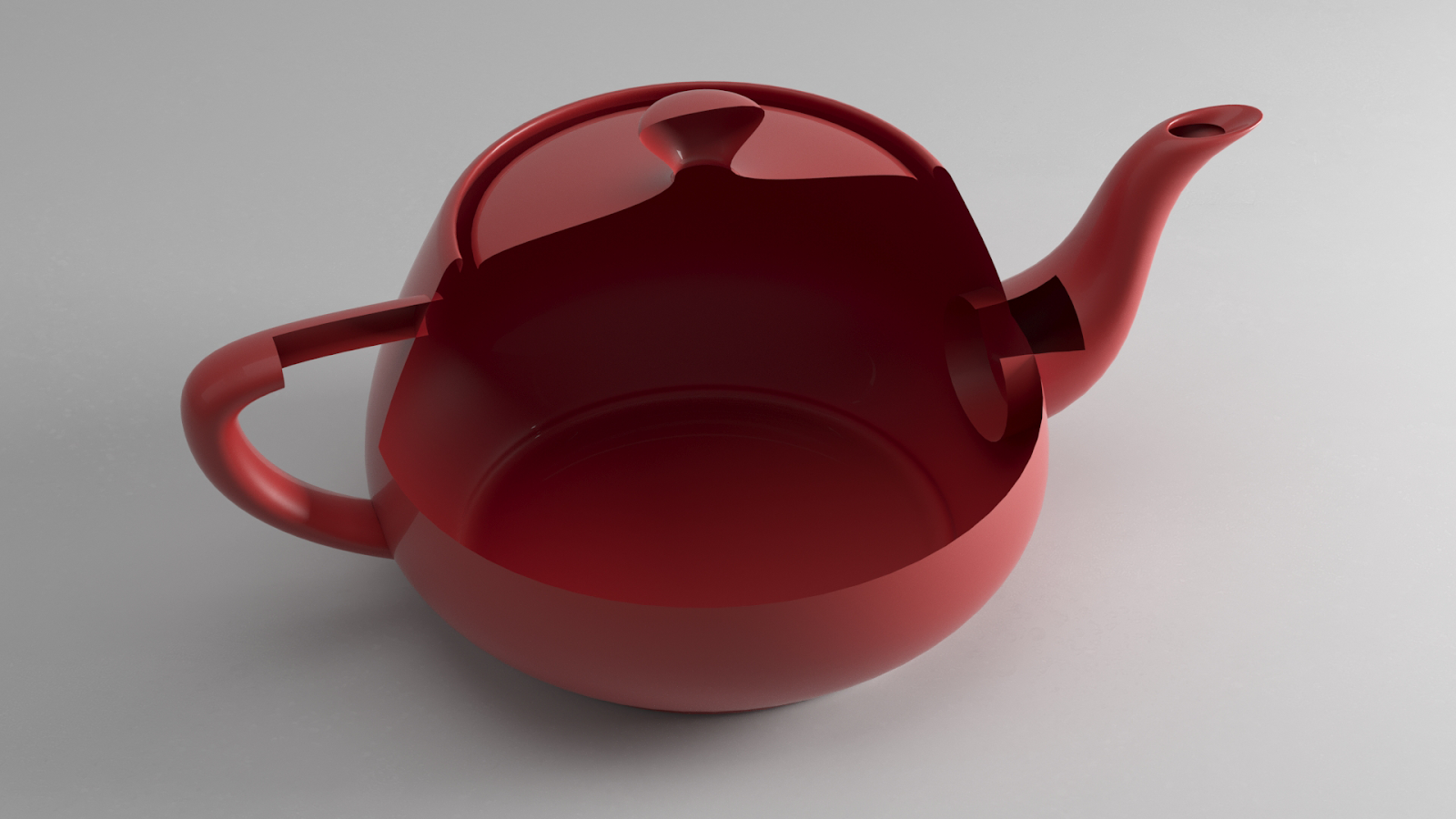
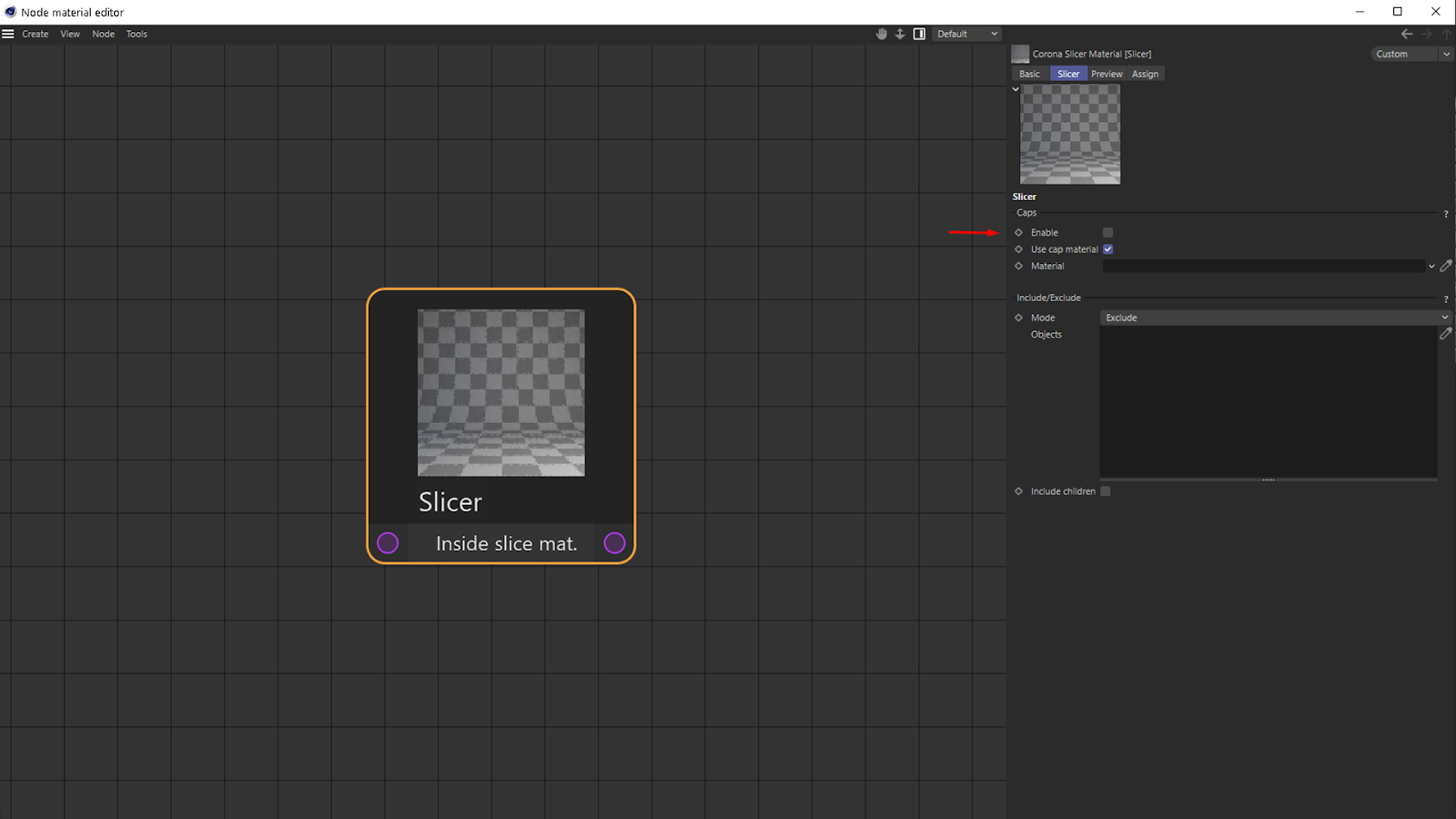
In this case, the teapot will be sliced and the resulting geometry will remain OPEN until you turn on the "Enable" checkbox for the "Caps" section in the Corona Slicer Material:
Corona Slicer Material – Example B
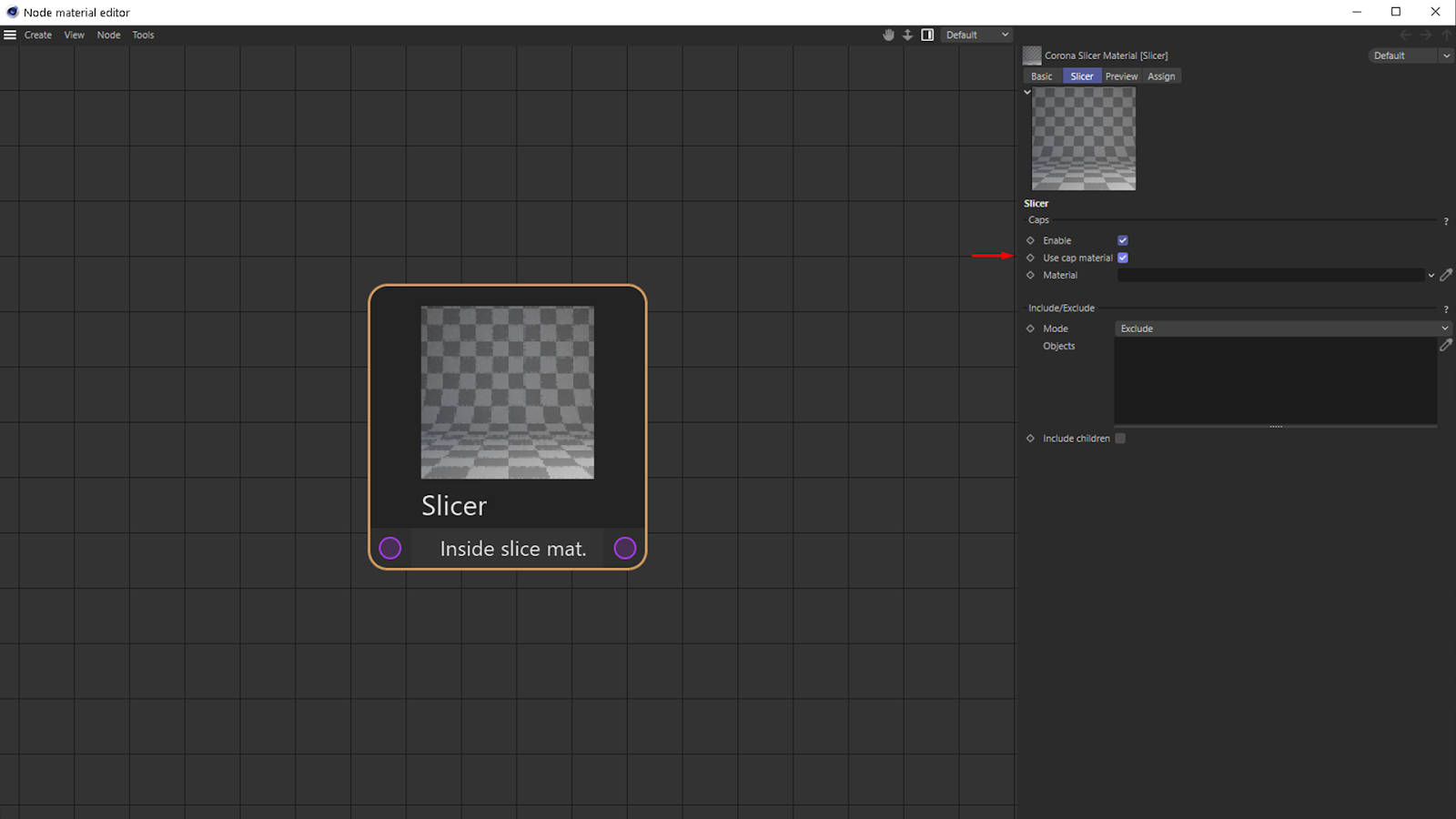
In this case, the teapot is sliced, and the color of the "slicer geometry" is used for the caps:
Click here to see the material setup.

Click here to see the material setup.
Corona Slicer Material – Example C
In this case, the teapot object is sliced, and the surface is using the material defined in the Corona Slicer "Material" section:
Corona Slicer Material – Example D
In this case, by disabling the "Use cap material" checkbox, the teapot will be sliced, and the material of the teapot will be used for the capped surface:

Click here to see the material setup.
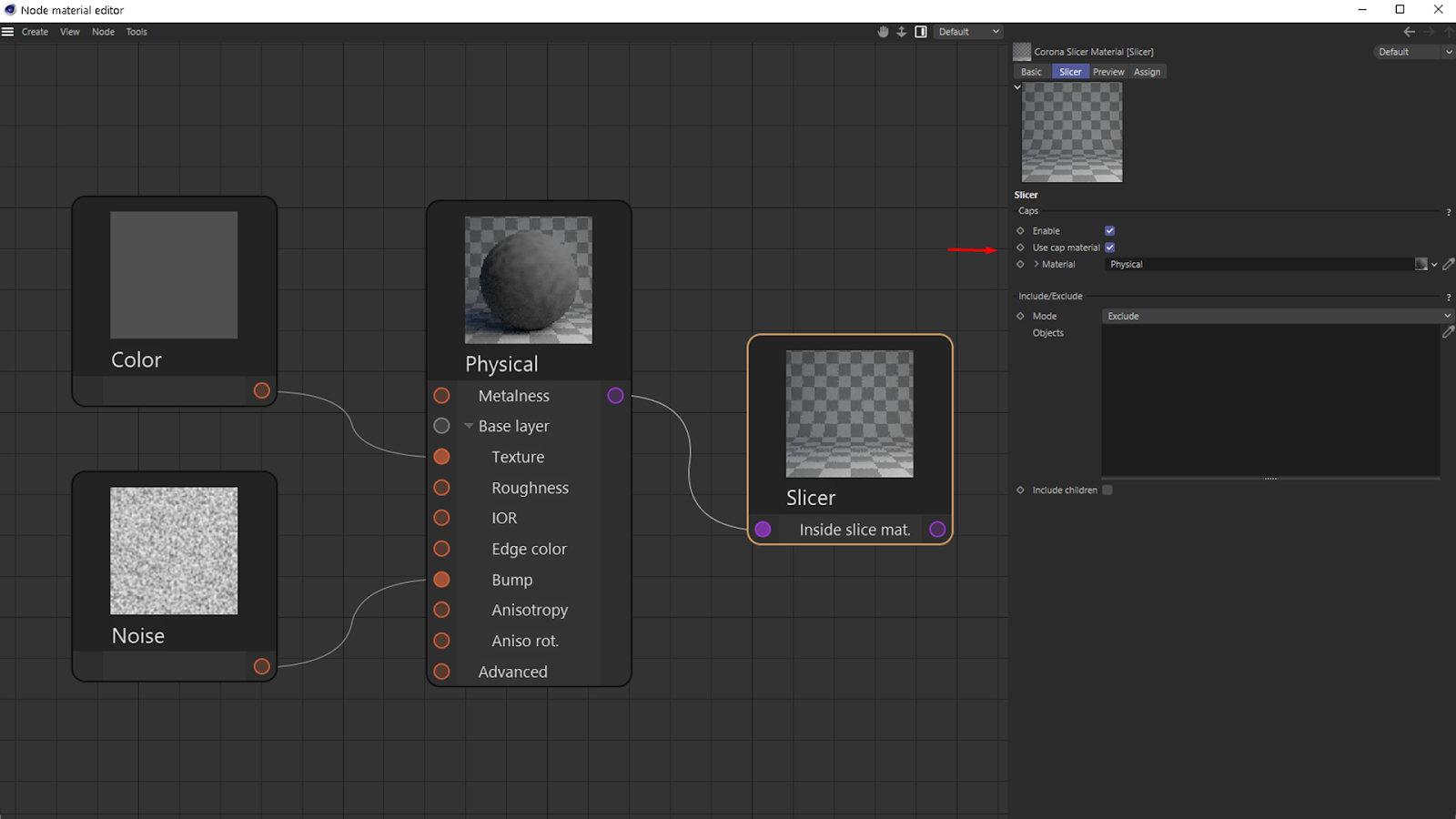

Click here to see the material setup.

Corona Slicer Material – Example E
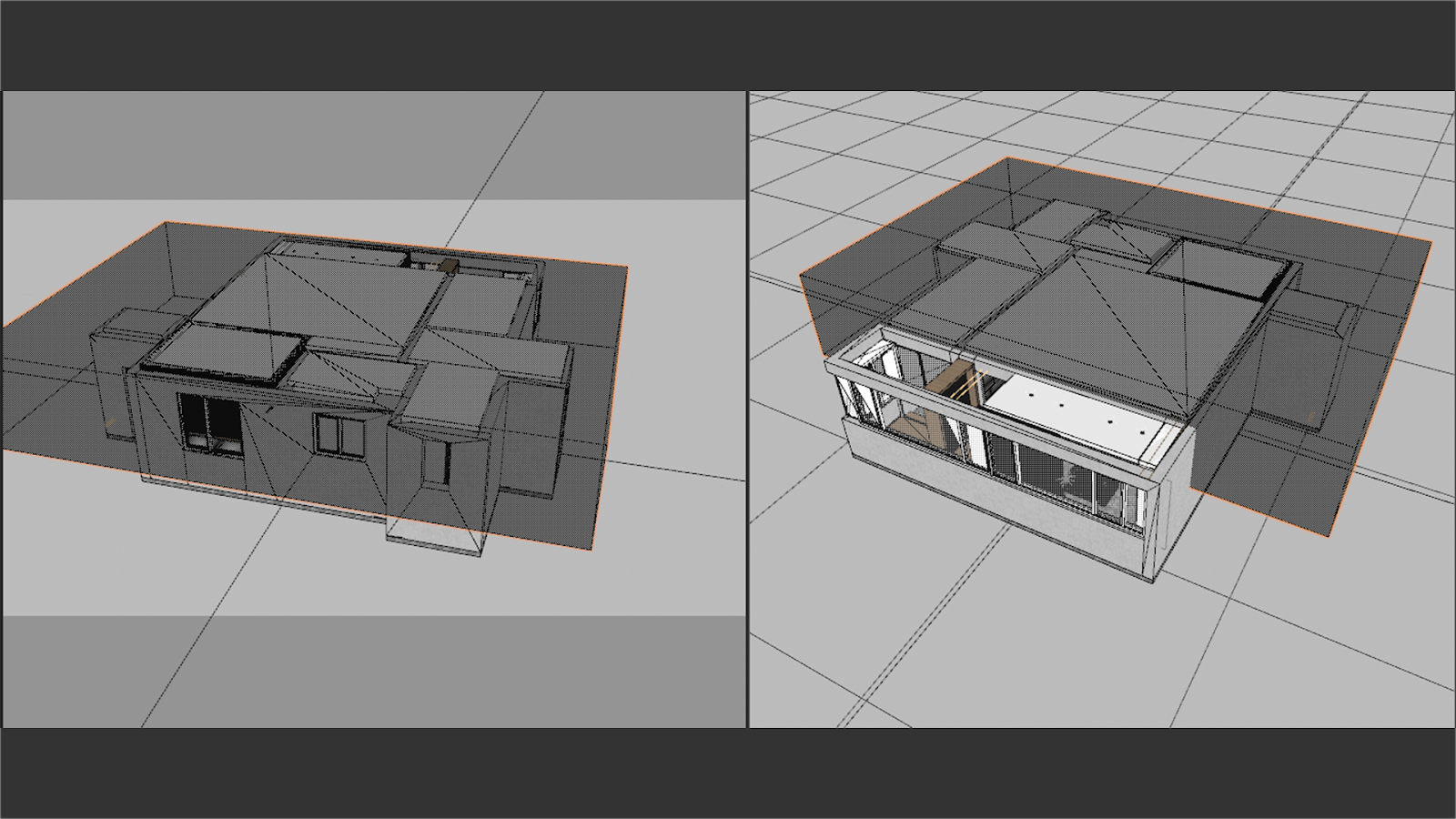
Corona Slicer material visually cuts away part of the objects, the overall lighting is now visible for the inner parts of the objects, but there might be some special cases where you want to keep the shadows like for example in architectural visualization.
Corona Slicer Material – Example F
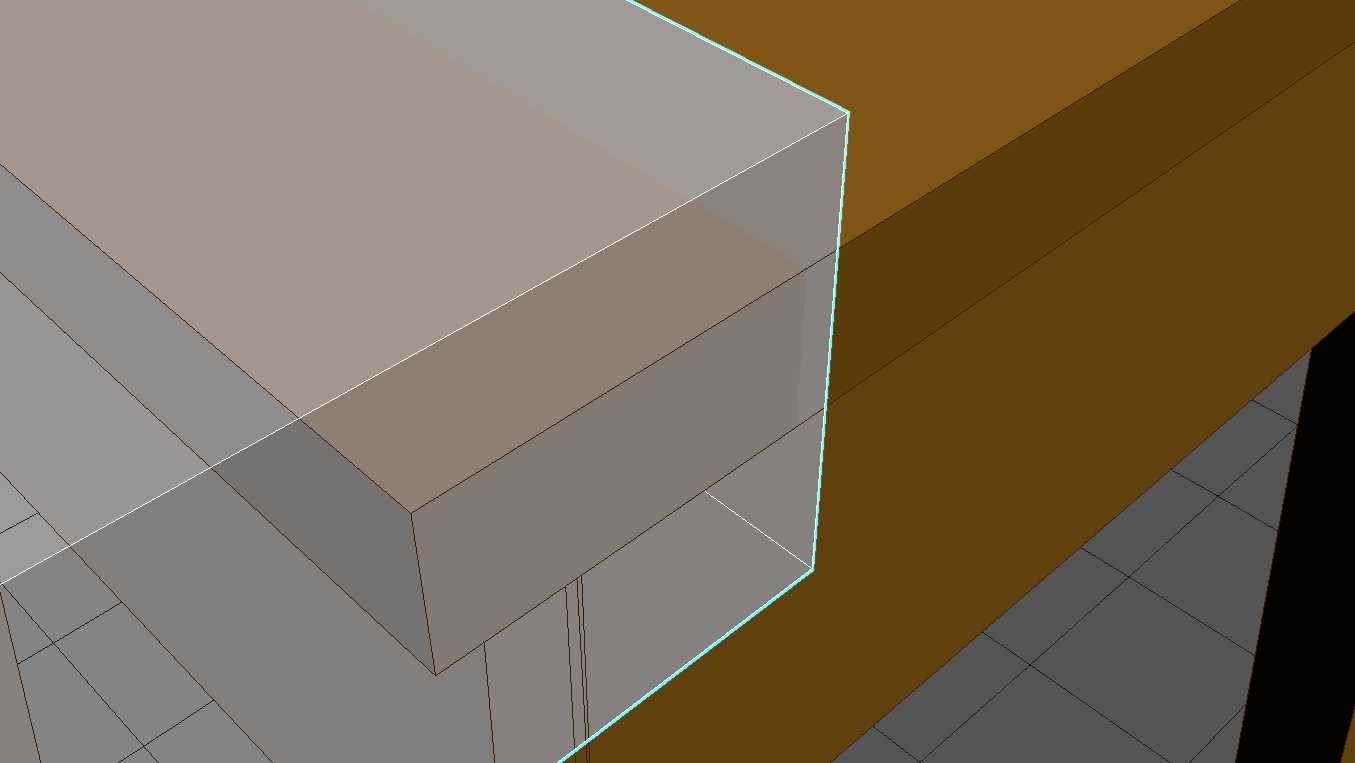
In this example, the slicing geometry is using a Corona Slicer Material but this time the edges of the caps are rounded because of using the Corona Round Edges shader for both the Base material and the Caps material.

Click here to see the material setup.

Click here to see the material setup.

Inverse sclicing
This example illustrates the effect of the Inverse slicing option. The scene shows a jug intersecting a box. The box is used to cut parts of the jug.

Original geometry

Sliced geometry
Inverse slicing is OFF
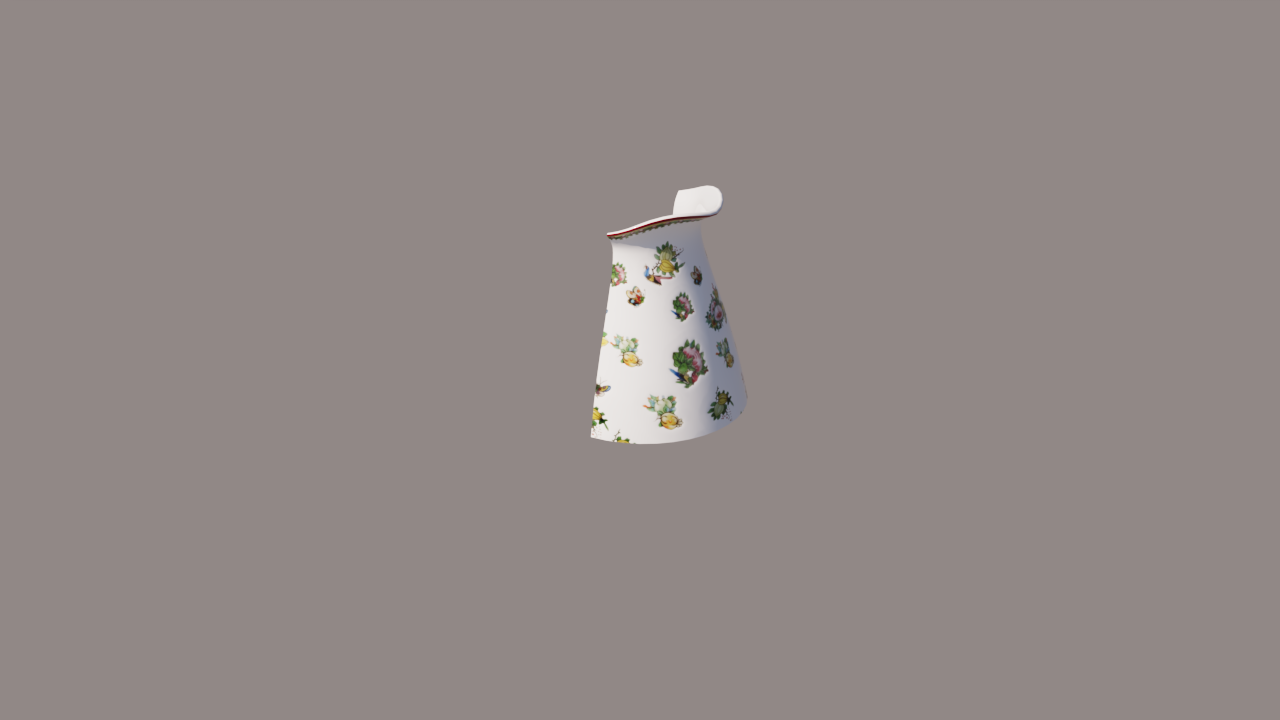
Sliced geometry
Inverse slicing is ON