Enscape for Vectorworks
Enable Enscape
This page provides information on enabling Enscape for Vectorworks.
Last updated 1 September 2026
This page provides information on enabling Enscape for Vectorworks.
Overview
After the Enscape installer has finished running and has been closed, you should then be able to open Vectorworks, whereby Enscape should then be visible as a tool set in the Vectorworks User Interface(UI).
However, you may also find that you have to manually enable Enscape in the CAD via the CAD’s toolbar / menu options. This article explains how that is done for Vectorworks.
Enable Enscape in Vectorworks
Once installed, Enscape will be available as a tool set in Vectorworks. If the tool set is not immediately shown, you may need to start and close Vectorworks once before installing Enscape, in which case you should uninstall Enscape first. After you reinstall Enscape you may then also need to manually add it to your Vectorworks’ workspace. This can be done via the Vectorworks’ menu option Tools > Third-party > Enscape > Add Enscape to workspace.
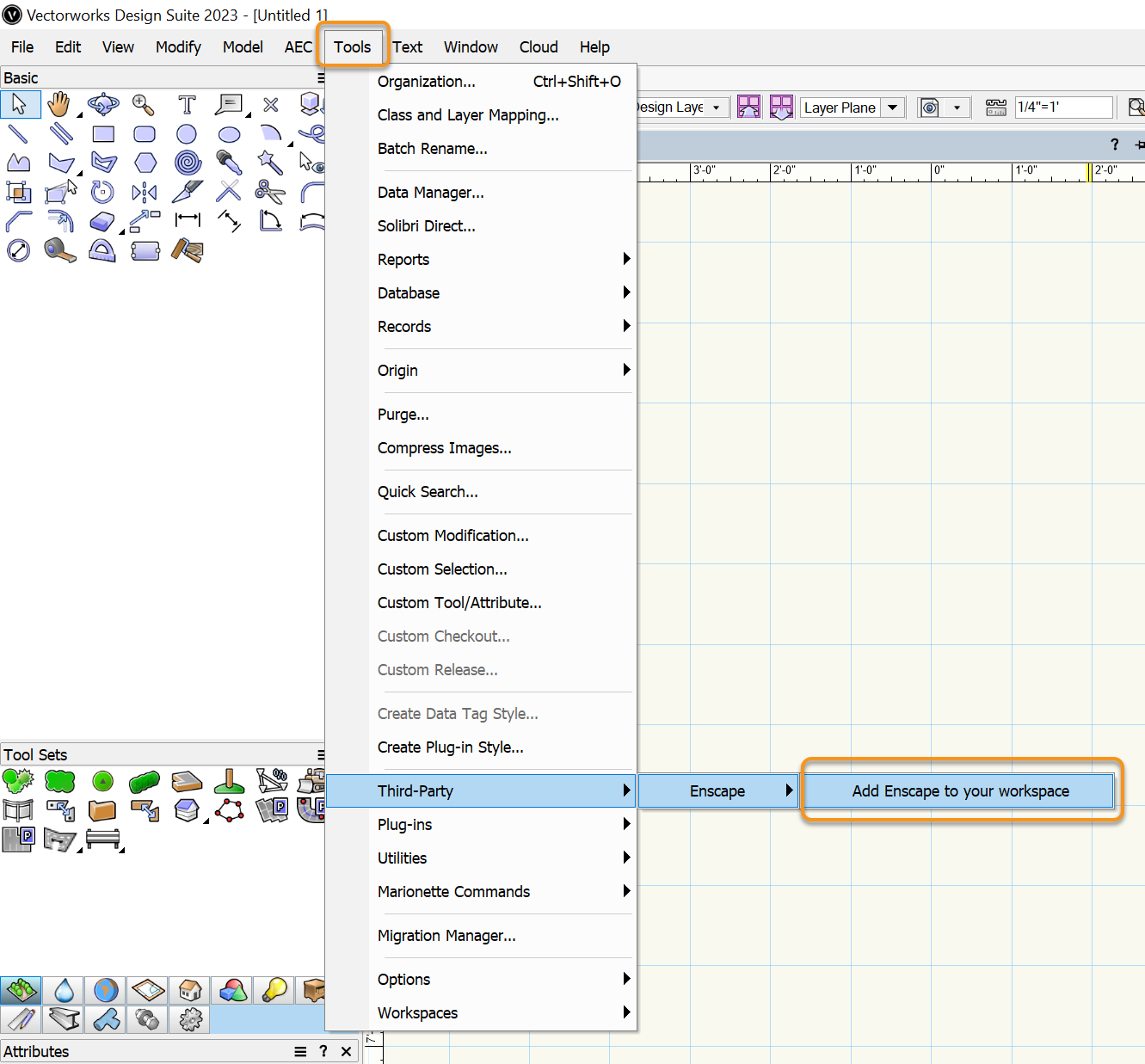
Enable the Enscape tool set
Starting Enscape in Vectorworks
Once enabled, you can open the Enscape tool set to access the Start button. Open the Enscape tool set by clicking on the Enscape tab.
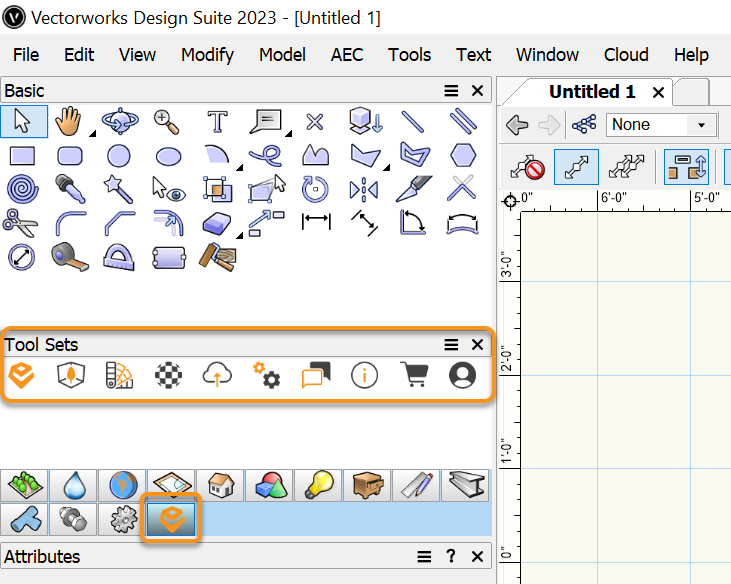
Location of Enscape Tool Set in Vectorworks
Follow these steps to view your Vectorworks project in 3D:
- Open a Vectorworks project file.
- Click on the Enscape logo in the tool set. This will trigger the Enscape toolbar at the top of the screen.
- Clicking the Start button in the Enscape toolbar will trigger the Enscape window to open.
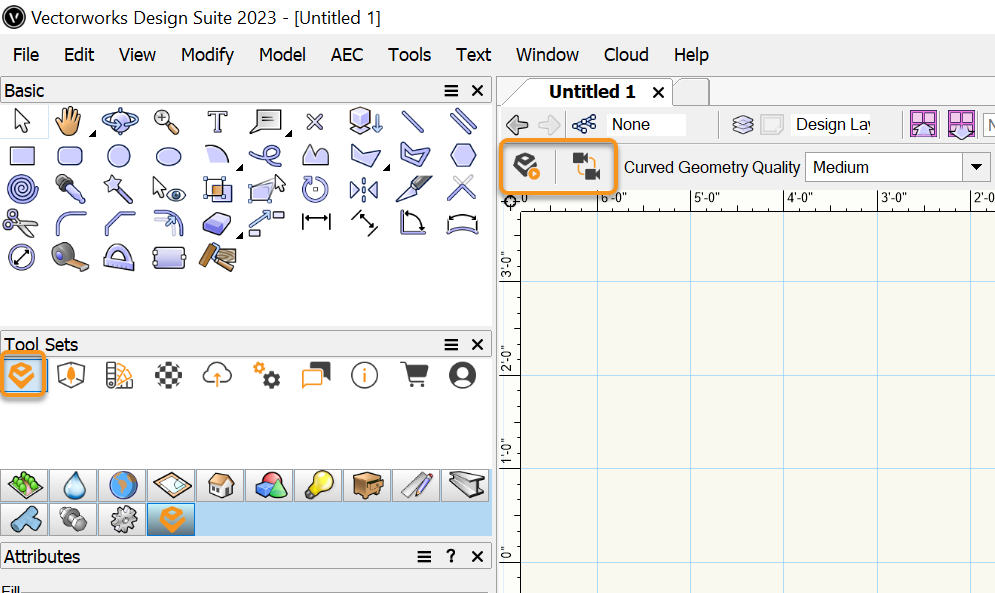
Start Enscape via the toolbar

You can leave Enscape open while you make any desired changes in Vectorworks (e.g. cross sections, materials or geometric changes in the model). Your changes will show up instantly as long as Live Updates is not paused in Enscape (its the same button as the Start Enscape button). Activating Synchronize Views will sync the perspective view from Vectorworks to the Enscape window.
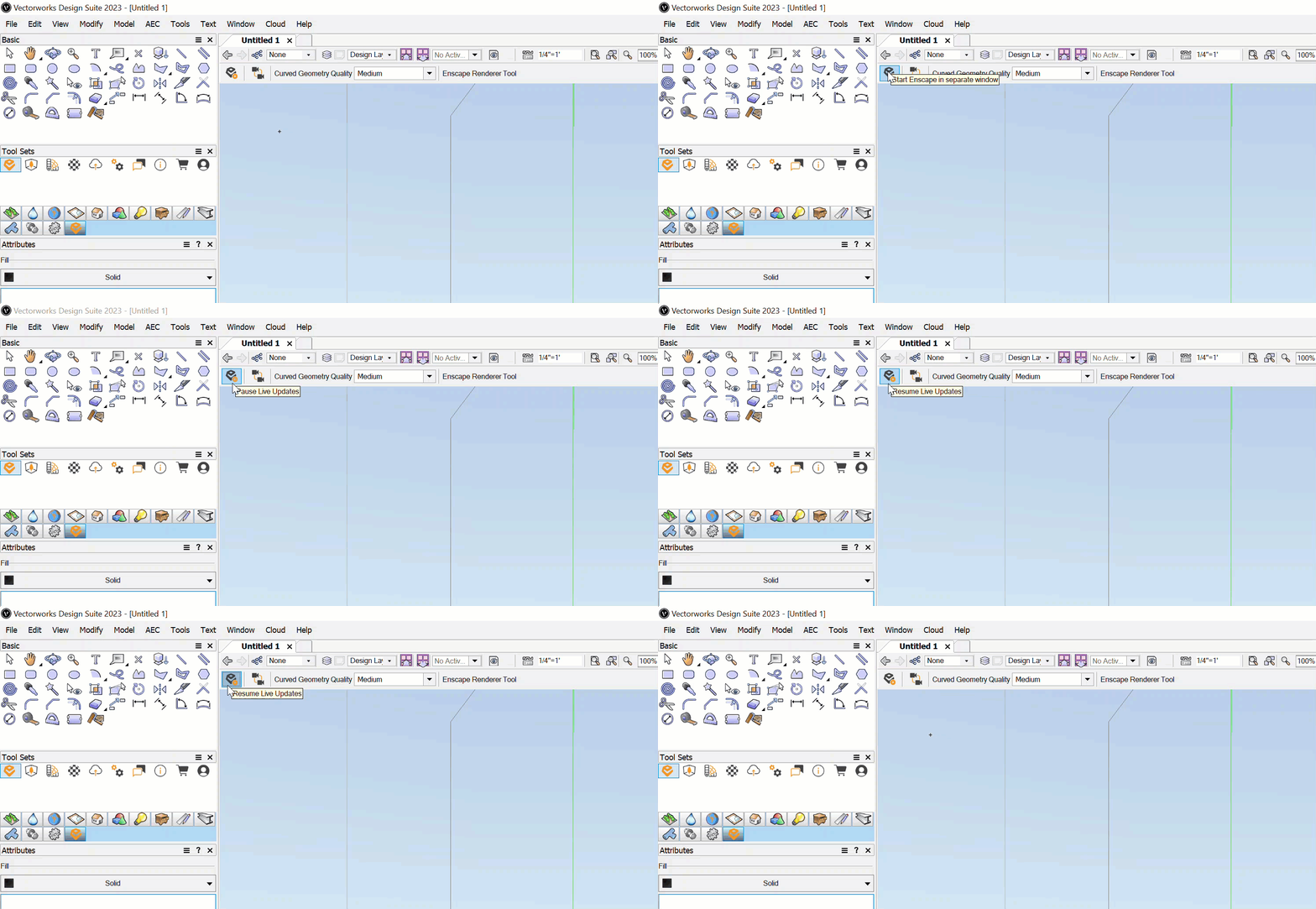
The Start Enscape button which also acts as the Pause / Resume Live Updates in Vectorworks