Enscape
Free Trial
This page describes how to activate and use the Enscape Free Trial.
Last updated 16 June 2026
This page describes how to activate and use the Enscape Free Trial.
Overview
Enscape is offered as part of the Enscape collection. With this collection, you can use the product for 14 days free of charge.
Steps
The Enscape Free Trial activation consists of the following steps:
Step 1. Visit the Free Trial Page
Go to http://chaos.com and click Try to open the Chaos Free Trials page.
Select Enscape and click Get started.
Select the try Enscape for 14 days. Then select a license type (named or floating) and click Start your trial.
If you don’t have an account, you are prompted to create one.
To learn more, see: Chaos Suite offerings.

Step 2. Complete the Checkout Process
Enter your email address and billing details, and complete the checkout process.

3. Activate your Chaos Account (non-registered users)
After completing the checkout process, an account setup email is sent. Use the link in the email to set a password and activate the account.
4. Download and Install Enscape
- Click the Download button to open the Active Products page in http://my.chaos.com.
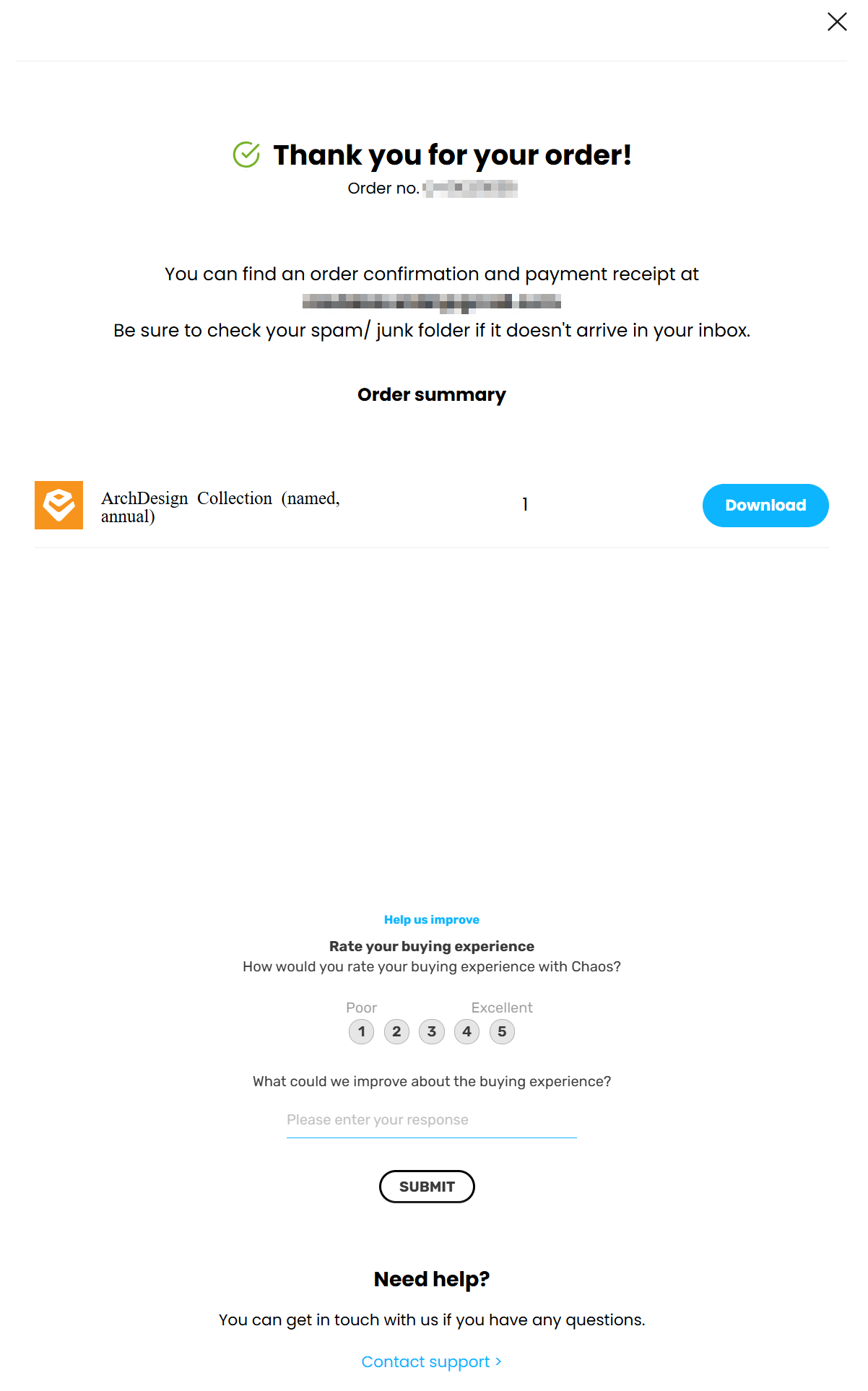
- Click the Download button.

- On the Download page, select the OS version and download the installer. Run the installer after the download completes and follow the on-screen instructions to complete the installation.
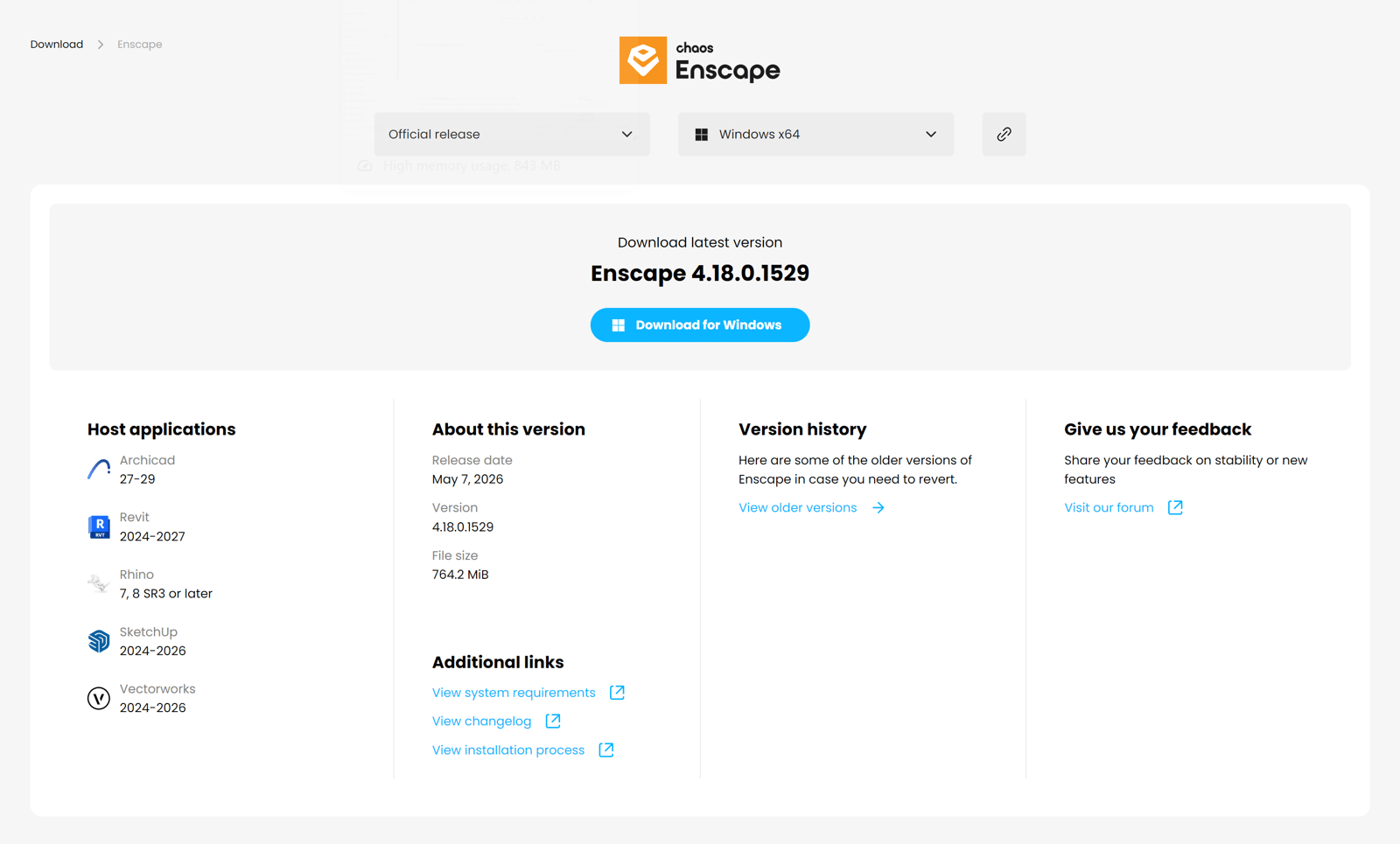
Install Enscape
Follow the First Steps guide to install and activate Enscape.
Canceling the Subscription
To cancel the subscription, go to the Active Products page in http://my.chaos.com. The Cancel subscription link is located under the Auto renewal status.
Click the link, complete the questionnaire, and disable auto-renewal. The trial remains active until the expiration date but is removed from the account afterward and does not renew.
