Enscape
Live Link
This page provides information about the Live Link feature in Enscape.
Last updated 28 May 2026
This page provides information about the Live Link feature in Enscape.
Overview
The Live Link feature provides a direct connection between Enscape and Envision, improving on the existing .vrscene export and import workflow. Live Link transfers Enscape projects from supported host CAD and BIM applications to Envision in a single step. Projects that begin in Enscape for rapid design visualization continue in Envision for higher realism, animated assets, or cinematic output.
Changes made in the host CAD or BIM application layer beneath the existing Envision work are automatically applied without overwriting it. Materials, lighting, entourage, and other modifications applied in Envision sit on top of these base layers and persist when the project is saved, closed, and reopened.
Live Link is initiated through a dedicated button in Enscape or the CAD or BIM application. Envision accepts the first incoming Live Link connection and loads the project. Only one active connection is supported – any new connection interrupts and replaces the previous one.
Live Link Setups
Live Link with Envision can be initiated from either the Enscape or CAD/BIM interface. ArchiCAD is an exception and does not provide a Live Link button in the BIM interface.
Set up Live Link from Enscape
To initiate a Live Link connection from Enscape, do the following:
- Open the CAD/BIM application, navigate to its Enscape toolbar, and click the respective Start Enscape () button to open Enscape. For more information on how to start Enscape from each host CAD/BIM app, please refer to the Start Enscape from each CAD/BIM app section.
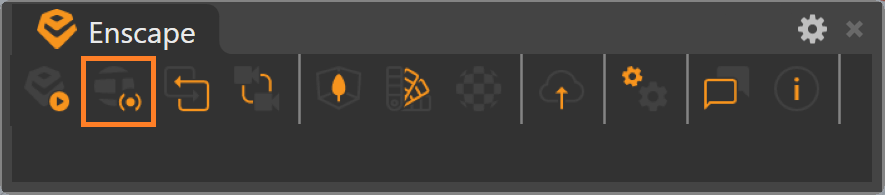
- Once Enscape opens, click Envision Live Link (). This prompts you to go to Envision. Confirm.
www.youtube.com
The video shows the process in Enscape for Rhino.
How to start Enscape from each CAD/BIM app?
Open Enscape in SketchUp

Open Enscape in Revit

Open Enscape in Rhino

Open Enscape in ArchiCAD

Open Enscape in Vectorworks

Set up Live Link from CAD/BIM
To initiate a Live Link from the CAD or BIM application to Envision:
- Click the respective Start Live Link () option. For more information on where the Start Live Link option is located in each CAD/BIM app, refer to the Initiate Live Link sections below.
- The Envision Live Link window appears, prompting you to start Envision. Click Start Envision.
Now a link is established from the CAD or BIM application to Envision, and the project is sent to Envision.
Initiate Live Link from Enscape for SketchUp


Initiate Live Link from Enscape for Revit

Initiate Live Link from Enscape for Rhino
Initiate Live Link from Enscape for Vectorworks

youtu.be
The video shows the process in Rhino.
Set the Live Link Provider in Envision
By default, the Live Link Provider in Envision is set to Enscape Live Link. However, if there is a need to manually set the Provider, follow these steps:
- Open Envision and display the Live Link controls from the Live Link () top toolbar button.
- Set the Live Link Provider to Enscape Live Link from the available dropdown. This is the default provider option, which listens in the background for incoming connections from Enscape.

Setting the Live Link provider to Enscape Live Link inside Envision