Enscape
Material Library
This page provides information about the Enscape Material Library.
Last updated 3 June 2026
This page provides information about the Enscape Material Library.
Overview
The Enscape Material Library comes with a selection of pre-made PBR materials. Import them into the Enscape Material Editor to further adjust their parameters or use them with their default settings. The Material Library can be accessed in one of two ways: from the Enscape toolbar and from the Enscape Material Editor menu.
The Enscape Material Library and the Enscape Material Editor are ready to use even if Enscape is not currently running.

Enscape Material Library
UI Paths
Windows
Enscape Material Library shown here in Revit and SketchUp.

Material Library button in Revit

Material Library button in SketchUp, Rhino, Archicad and Vectorworks
You can also use the Material Library via the Material Editor menu option to replace existing materials:

Opening the Material Library via the Material Editor menu
macOS
Either via the Enscape toolbar in that CAD, shown here in SketchUp.

Material Library button in SketchUp
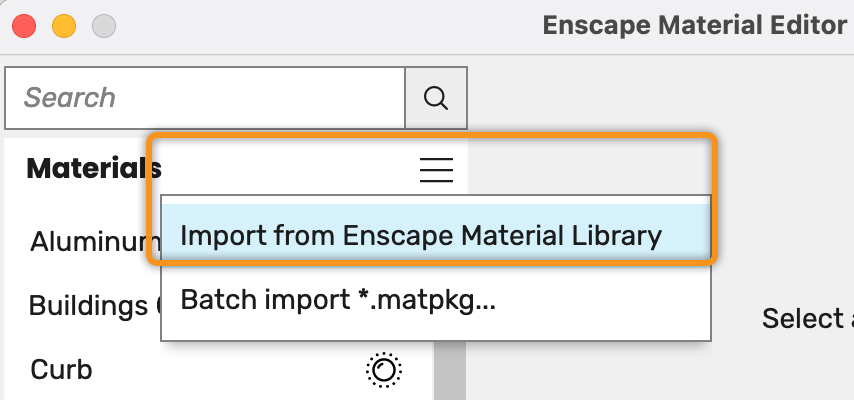
Opening the Material Library via the Material Editor menu
Offline Material Download Link
Share projects by changing the location of the imported textures folder.
Click on the Folder / Path link to change the storage location of imported textures, once you have selected your storage path, hit Save to close the Imported Texture Path dialog.

Click the gear icon () at the bottom left of the Enscape Material Library window to open the Imported Texture Path window. Click on the Folder link to change the storage location of imported textures. Once you have selected your storage path, click Save to close the Imported Texture Path dialog.

Imported Texture Path
Working with the Material Library
Select the materials you want to import and click Import Selection.
Add materials to favorites by clicking the heart icon in the top-left corner of the tiles. The marked materials are then displayed in the Favorites folder. Just click the heart icon again to remove materials from your favorites selection.
New materials added by Enscape over time appear in the New folder and are listed under their respective categories.

Favorite and select a material to be imported to the Material Library
After importing the materials from the Enscape Material Library, they are loaded in the Enscape Material Editor.
See the Materials page to learn how to use the Enscape Material Editor and how to import *.matpkg files.

Material imported into the Enscape Material Editor
Replace Materials in CAD
Current materials in the CAD model can be replaced with ready-to-use materials from the library. This can be performed from the Material Editor.