Enscape
Standalone Executable Export
This page provides information about the Standalone Executable export function for Windows.
Last updated 1 September 2026
This page provides information about the Standalone Executable export function for Windows.
Overview
The Standalone Executable file provides the same experience and quality as the Enscape file, but does not require Enscape or the CAD to run. The Standalone Executable is not featured in the Enscape trial version. All standalone files are VR-compatible. Standalone executables can be exported locally and uploaded to Chaos Cloud for sharing and review.
You can download a free sample Standalone Executable file from the Sample Projects page.
Export a Standalone Executable File to Chaos Cloud
- Click on the 3D Streaming & Standalone Export button.
- Set the mode to Standalone.
- Disable Save locally, unless you want to keep a local copy of the .exe file.
- Enable Upload to Cloud. The Web Standalone exports the entire scene, not specific views. Select the Chaos Cloud folder where you wish to upload the file in the Destination field.
- When ready, click Export.

Once the export completes:
Click on the Share button to open the Share window, where you can share the project directly with members of your Chaos Organization, copy a link to the Chaos Cosmos file for external sharing, embed the file in a webpage, or generate a unique QR code to access the Cloud file from a smartphone. For more information on the sharing options, see the Chaos Cloud Sharing page.

Click on the View in Cloud button ( ) to open the file in Chaos Cloud. There, you can preview your project and share with anyone to collaborate, and comment.

Export a Standalone Executable File Locally
- Click on the 3D Streaming & Standalone Export button.
- Set the mode to Standalone.
- Enable Save locally. Select the destination folder. This is where the render is saved when complete. Enabling the Use subfolder option creates a subfolder within the destination folder. The subfolder is named after the project and the start time of the render.
- Select the views you want to export.
- Disable the Upload to Cloud option.
- When ready, click Export. Your standalone .exe file is exported to the specified location. When ready, a pop-up appears at the bottom right of the Enscape viewport. Click on Show in folder to be taken to the .exe file location.

Successful export pop-up

Settings Menu
All active settings, apart from Virtual Reality, are included in the export. Settings can also be adjusted within the standalone, but they are not saved.

The Settings menu is opened through a tab on the left side of the viewport. When it is collapsed, only a translucent bar is visible. Hover your pointer over the tab, and it automatically expands. If you click the pin icon ( ), the menu stays open. Click the icon again, and the menu will close.

Standalone Export Settings Menu
Virtual Reality
You can also enable and use virtual reality with the standalone. This can be done by going to Settings > Devices > Virtual Reality. To use the virtual reality functions, your machine must meet the Enscape virtual reality system requirements.
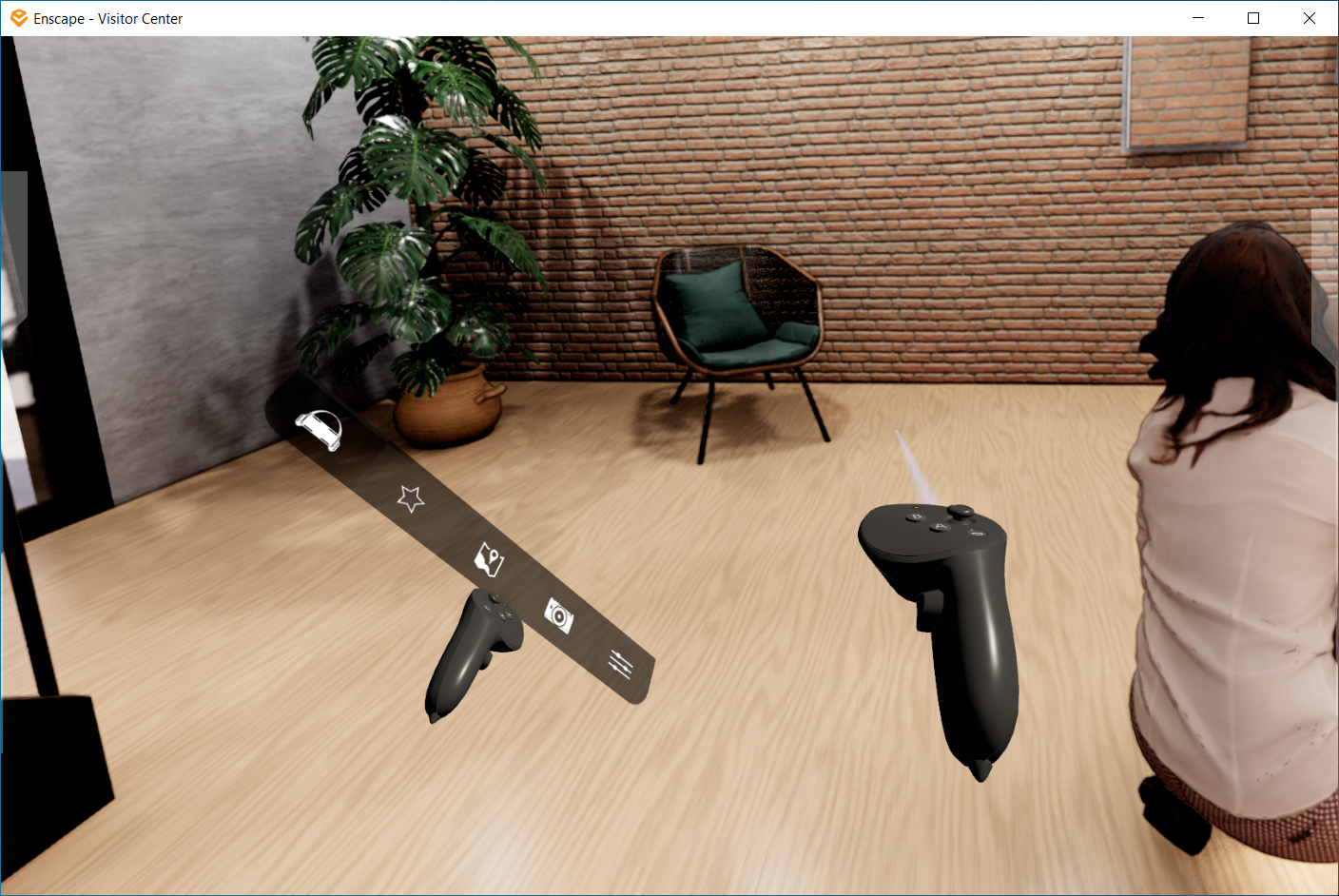
Enable the Standalone Export's Virtual Reality
Favorite Views
Any views marked as favorites in Enscape are included in the Standalone Executable. The Favorite Views menu is found on the side of the Standalone Executable viewport. It can be opened the same way as the Settings menu. Clicking on the thumbnail preview transports the camera to that location in the model. A double-click transports you directly to the desired spot. The Views are exported with their corresponding Time of Day settings.

Marking Views as Favorite Views for use in the Standalone Export
Customization Settings
Any settings you have active prior to exporting are included in the .exe file when created – and this includes your Customization features, which are accessed via the Renderer Window Settings dialog under the Customization tab. Here, you can define your own loading screen, watermark, window icon, and window title.

Customization Settings Options. Left side - Enscape. Right side - Standalone Executable
Sharing Exported Walk-throughs
Exported walk-throughs can be uploaded via a cloud-sharing service of your choice, e.g., Dropbox or Google Drive.
System Requirements
The requirements for the Standalone Executable file are the same as for the full version of Enscape. Have a look at the System Requirements page.
Support
If you experience issues opening a .exe Standalone file, send the log file from the failed attempt to our support. For easier sending, compress the log into a zip file. The log files can be found in the following folder:
<code data-v-c2b1f83f=""><span data-v-c2b1f83f="" class="line">%localappdata%\Enscape\Logs</span></code>