Enscape
Web Standalone Export
This page provides information about the Web Standalone export function in Enscape.
Last updated 1 September 2026
This page provides information about the Web Standalone export function in Enscape.
Overview
The Web Standalone renders scenes in the browser using WebGL 2.0. This removes the need for high-end graphics cards.
To create a Web Standalone, Enscape needs to be running. Navigate to the small arrow next to Executable Standalone to reveal the drop-down menu where the option Web Standalone is located.

Export Web Standalone button

Export Web Standalone button
Export a Web Standalone
Once you are ready to export a Web Standalone, click on the Export Web Standalone button to start the export.
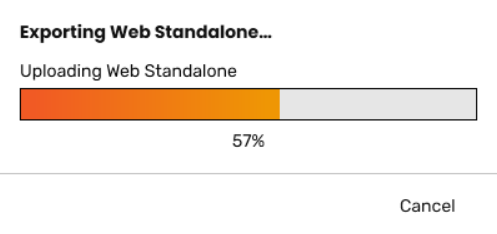
Export Web Standalone uploading progress bar
Once the export is complete, your default browser opens, and your project is displayed.
The Help overlay appears when the web standalone is opened. You can toggle it on and off using the H keyboard key.

Help Overlay in the Web Standalone

Enscape is available in your browser window
Administration - 4.1.1 onwards

In the CAD, you can manage your Web Standalones by clicking on the Upload Management button ( ) in the Enscape ribbon.
This opens the Chaos Account window. Go to the Upload Management tab > Web Standalones tab. It lists all the Web Standalones that you have created, categorized by project.
Click on your desired web standalone link. Additionally, when hovering over the web standalone link, you can find a button to copy the link to your clipboard.
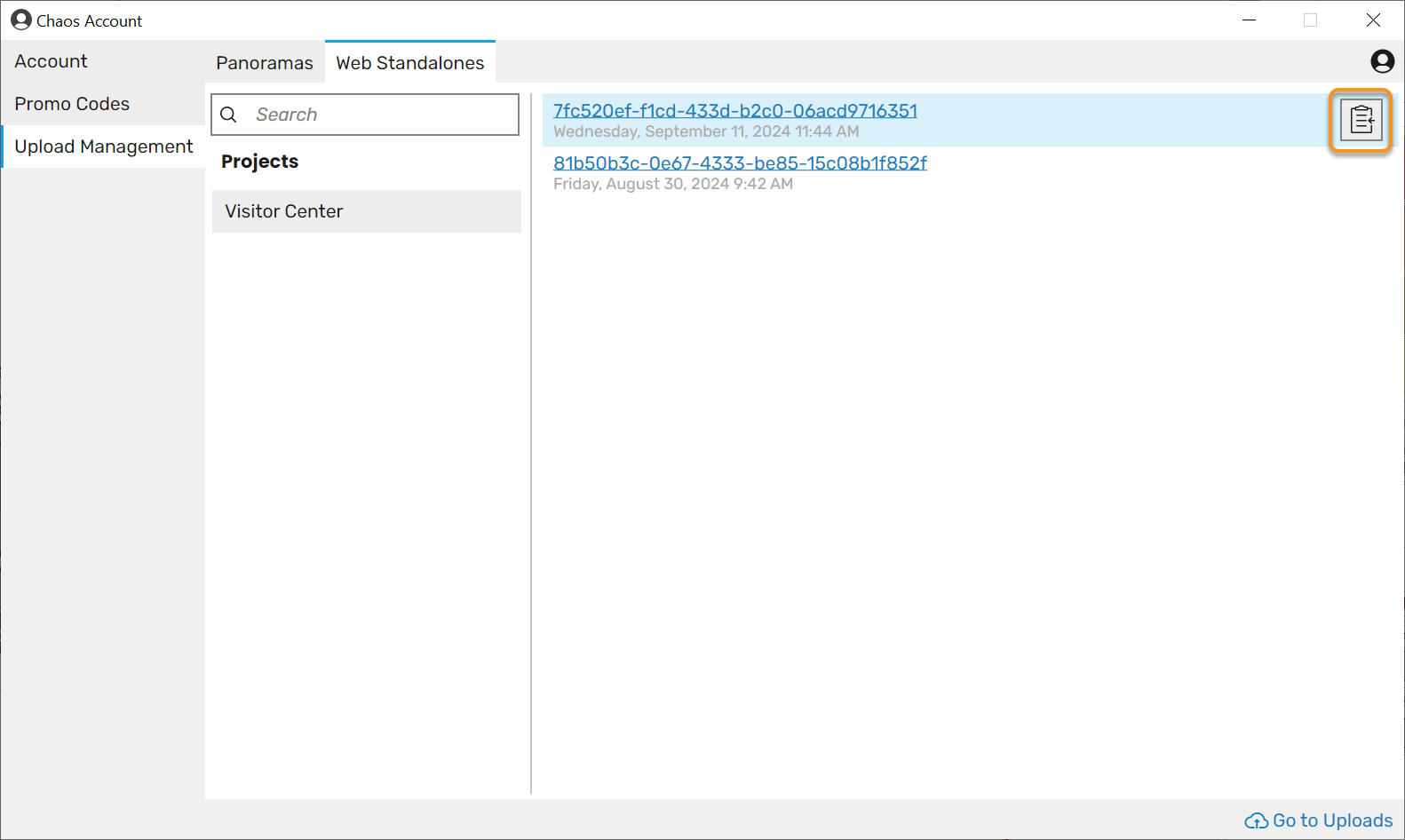
Administration - Prior to 4.1.1
In the your CAD, you can manage your Web Standalones by clicking on the Upload Management button in the Enscape ribbon.
This opens the Chaos Account window. Go to the Upload Management tab > Web Standalones tab. It lists all the Web Standalones that you have created, categorized by project.
When you hover over the web standalone link, there are three additional options. From left to right, Replace another uploaded Web Standalone in the Cloud with this…, the Copy link, and Delete Web Standalone.
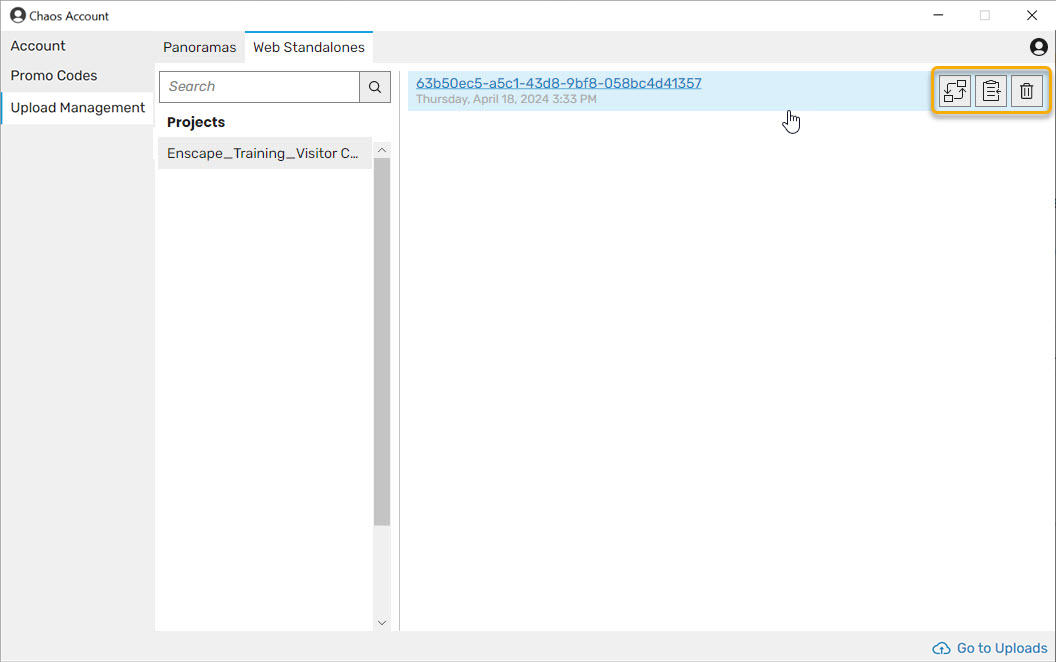
Chaos Upload Management dialog showing the Web Standalones' tab
Replace a Web Standalone
Clicking on the Replace another uploaded Web Standalone in the Cloud with this… button opens the Replace Web Standalone in Cloud dialog. Choose the Web Standalone to replace.

Replace Web Standalone dialog
Once you have selected a file, you are asked to confirm the details of the exchange. Click Replace when ready.

Details of the Web Standalone to be replaced
And then a final confirmation dialog to proceed, as the Web Standalone to be replaced is deleted entirely.

Final confirmation to replace a Web Standalone
You then receive a confirmation notice that the Web Standalone is replaced.
For more information on how to manage Web Standalone files via your Enscape Account, see the Managa Uploads page.
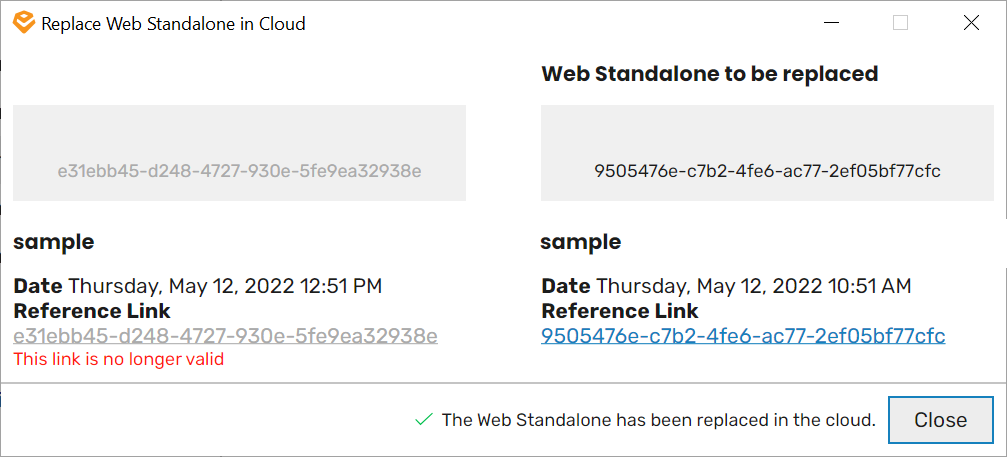
Replacement of Web Standalone successful
Embedding the Web Standalone
You can embed the Web Standalone on your webpage if you need to monitor the number of people viewing your project, for instance. This can be done by embedding the URL into an iframe using the following script:
<code data-v-c2b1f83f=""><span data-v-c2b1f83f="" class="line"><script defer type="text/javascript"</span><span data-v-c2b1f83f="" class="line"> src="data:text/javascript,document.getElementById('collab-frame').addEventListener('mouseover',function(e){e.target.focus()});"</span><span data-v-c2b1f83f="" class="line"> ></script></span><span data-v-c2b1f83f="" class="line"> <iframe</span><span data-v-c2b1f83f="" class="line"> id="collab-frame"</span><span data-v-c2b1f83f="" class="line"> width="850" height="550" style="border: 0;" scrolling="no" loading="lazy"</span><span data-v-c2b1f83f="" class="line"> src="<your web standalone URL placed here>"</span><span data-v-c2b1f83f="" class="line"> allow="fullscreen; xr-spatial-tracking;" referrerpolicy="strict-origin"</span><span data-v-c2b1f83f="" class="line"> ></iframe></span></code>
Technical Limitations
Is your Browser WebGL2 Compatible?
Before viewing an Enscape Web Standalone, check whether your browser supports WebGL 2. You can test your browser’s compatibility by visiting the WebGL website.
Some limitations of the Web Standalone Export are present:
- Render Quality is limited to the equivalent of Draft mode
- Both fog and the Enscape grass material are disabled
- Rendering of transparent materials is currently simplified
- Currently, no support for Internet Explorer/Edge/Safari or iOS devices (iPhone, iPad)
- Performance of larger projects may be of a lower quality than in the full version of Enscape
- Enscape Settings are disabled
- Favorite Views are disabled
- Light View mode is disabled
- Customization: Only Interface Overlay is supported
- Touch controls are currently very basic
- A maximum file size is capped at 500MB
- No VR mode
- Texture resolution is limited to 512*512