These examples show how to render images, create videos and edit images in Veras.
Image-to-Video
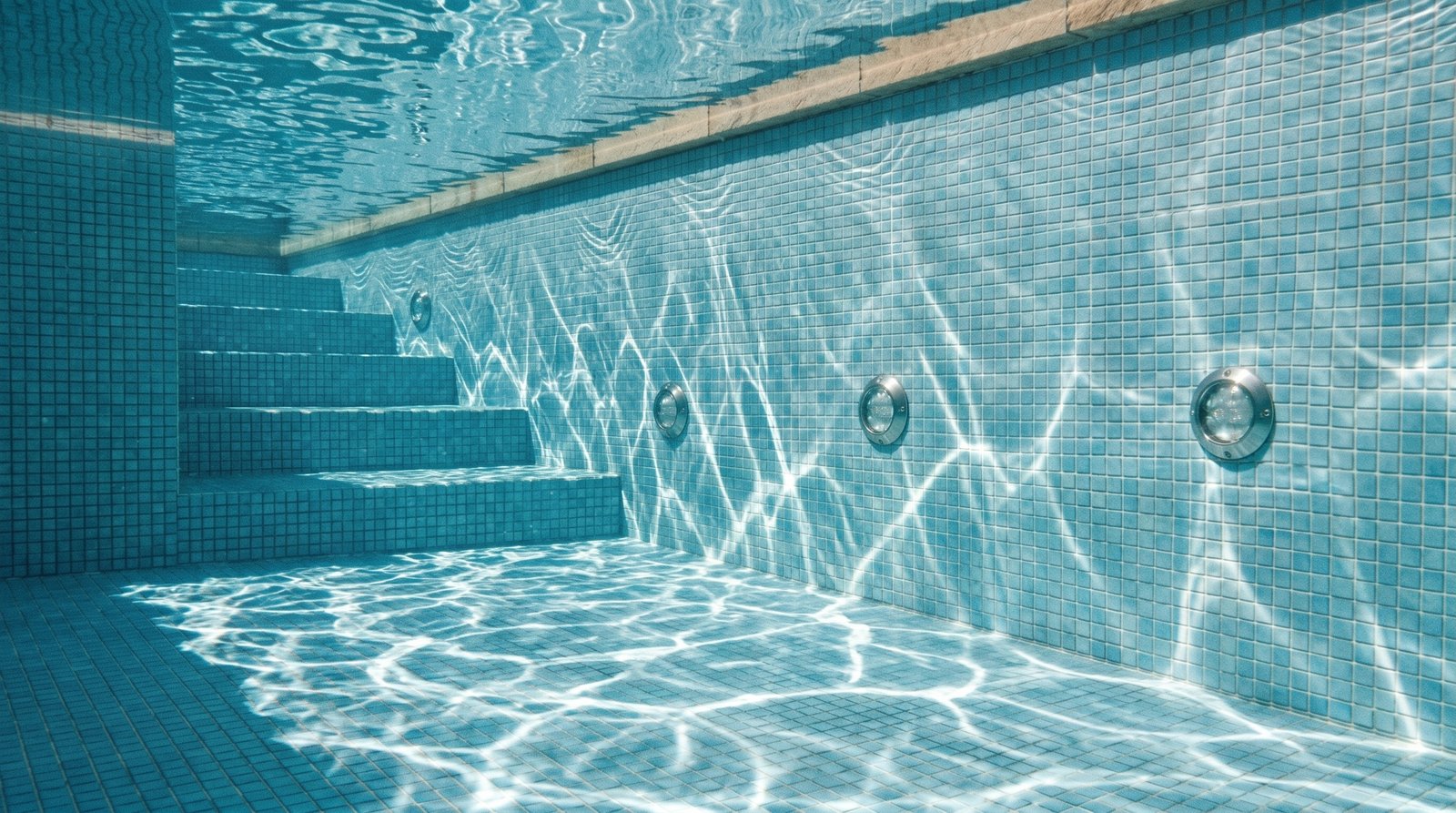
- SketchUp pool scene
- Render in Veras
- Draw her position by hand and add a reference image of her
- Render in Veras
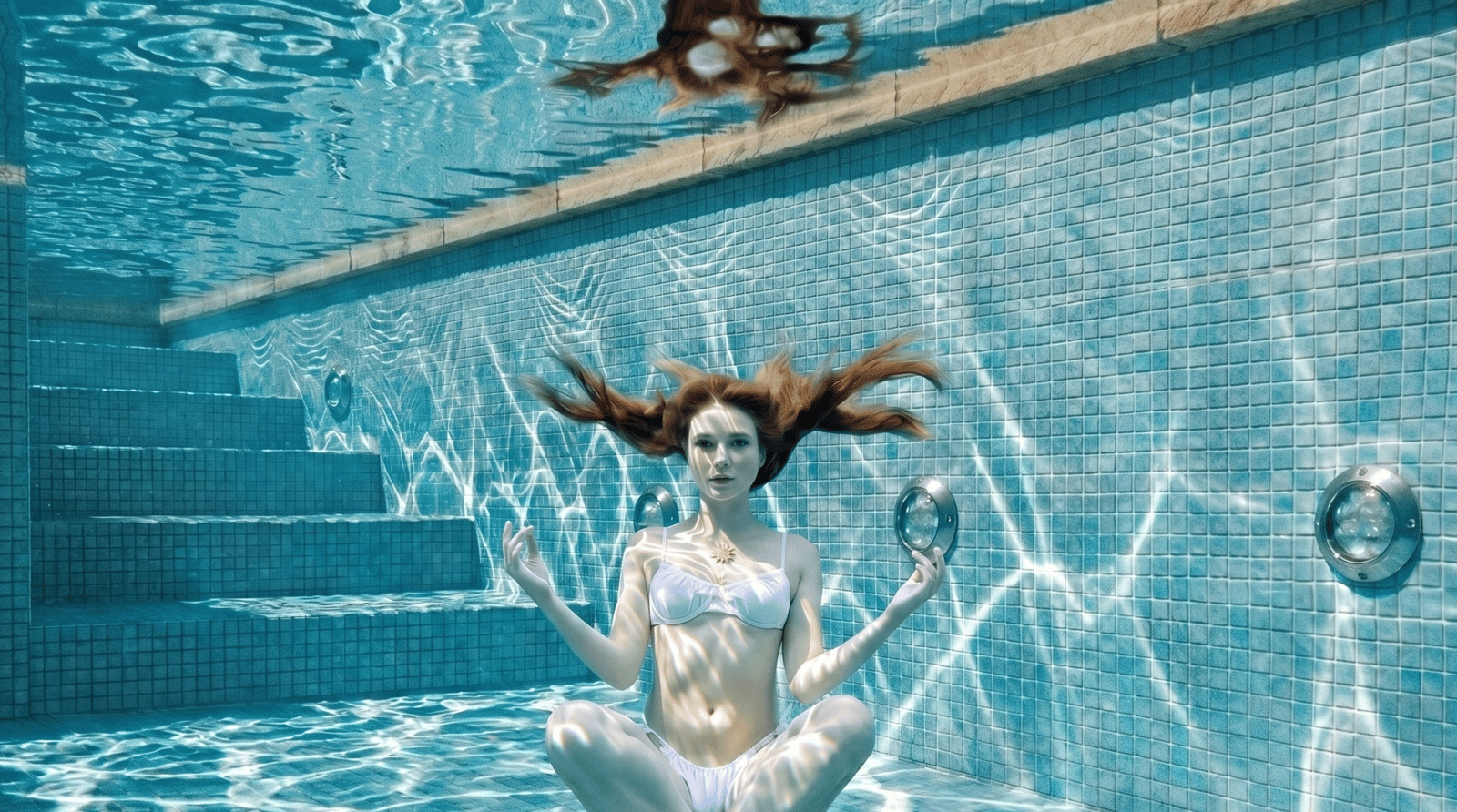
- Add the rendered image as a Source Image and define the Prompt
- Render a video in Veras
Prompt used
- Simple geometry in SketchUp
- Render in Veras and test variations
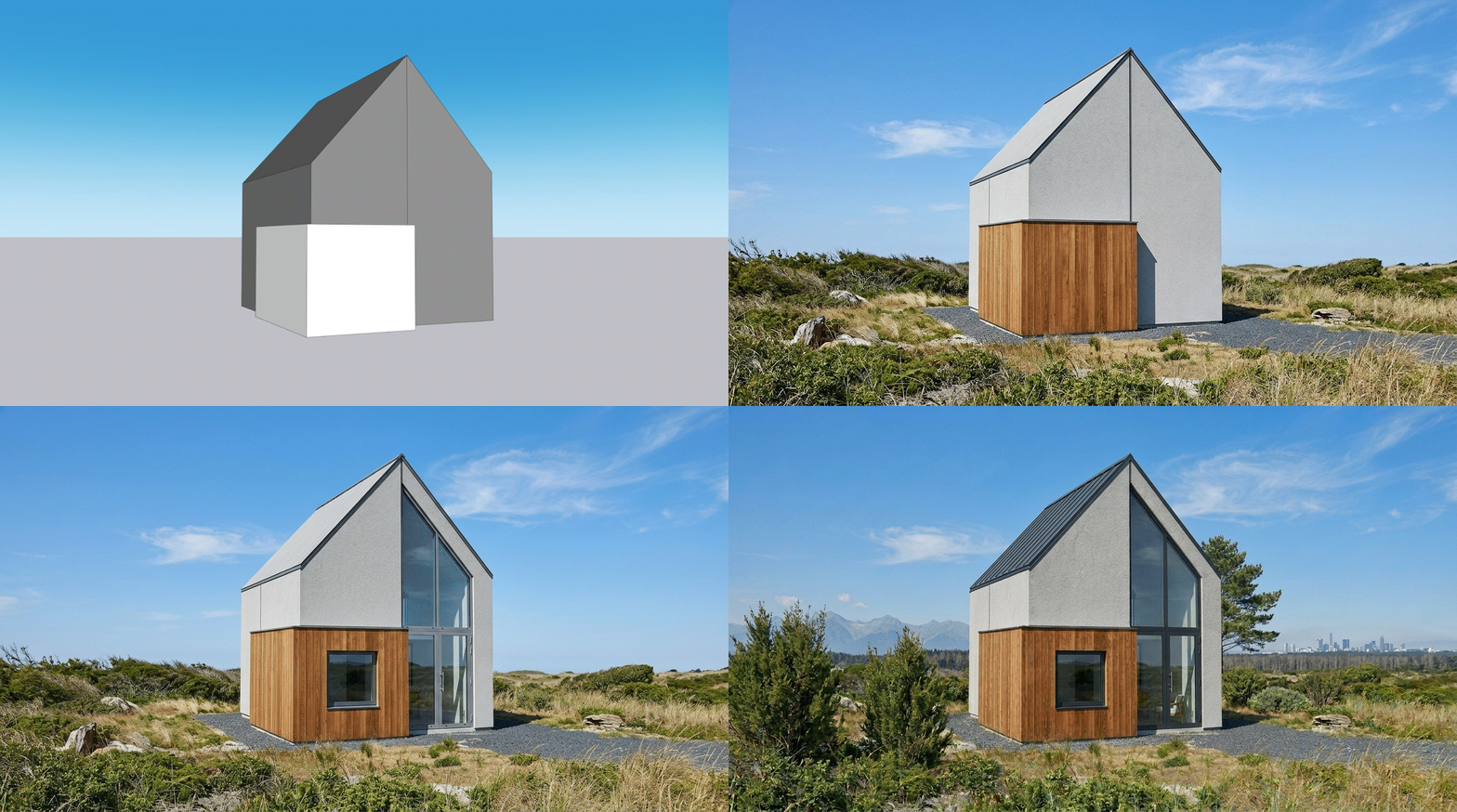
- Choose the final image
- Load it in the Video Tab
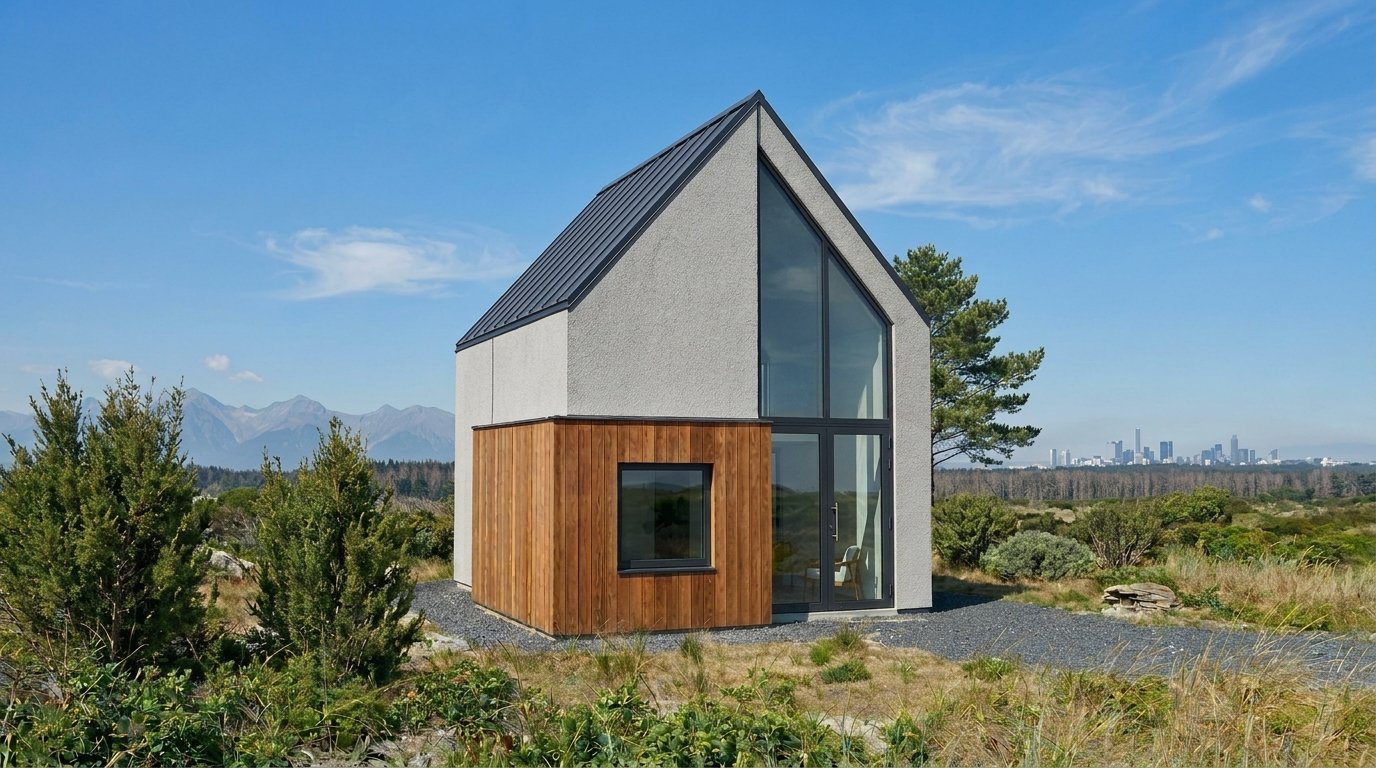
- Set Timelapse in the Prompt
- Render a video in Veras
Prompt used
Edit by Selection only
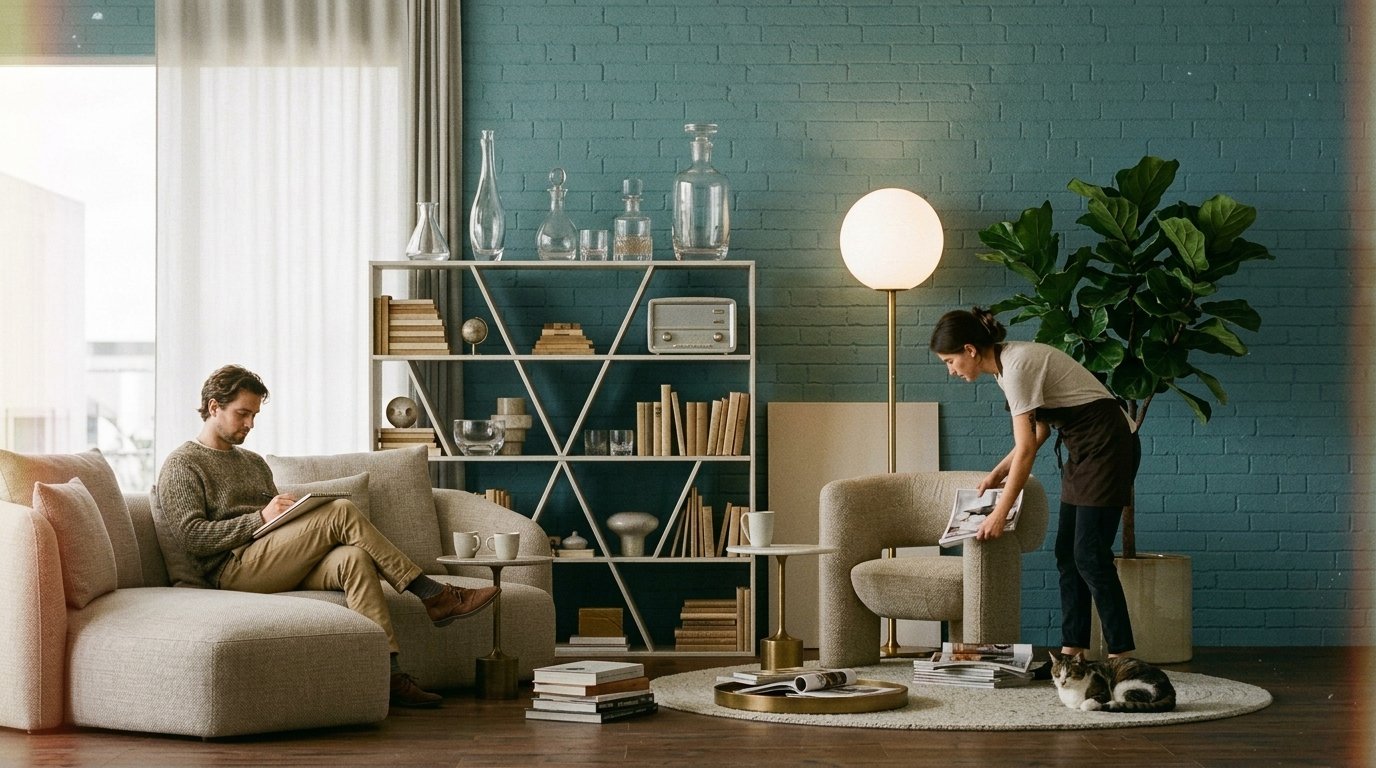
Image rendered in Veras
Different Selection options in Veras 4.8
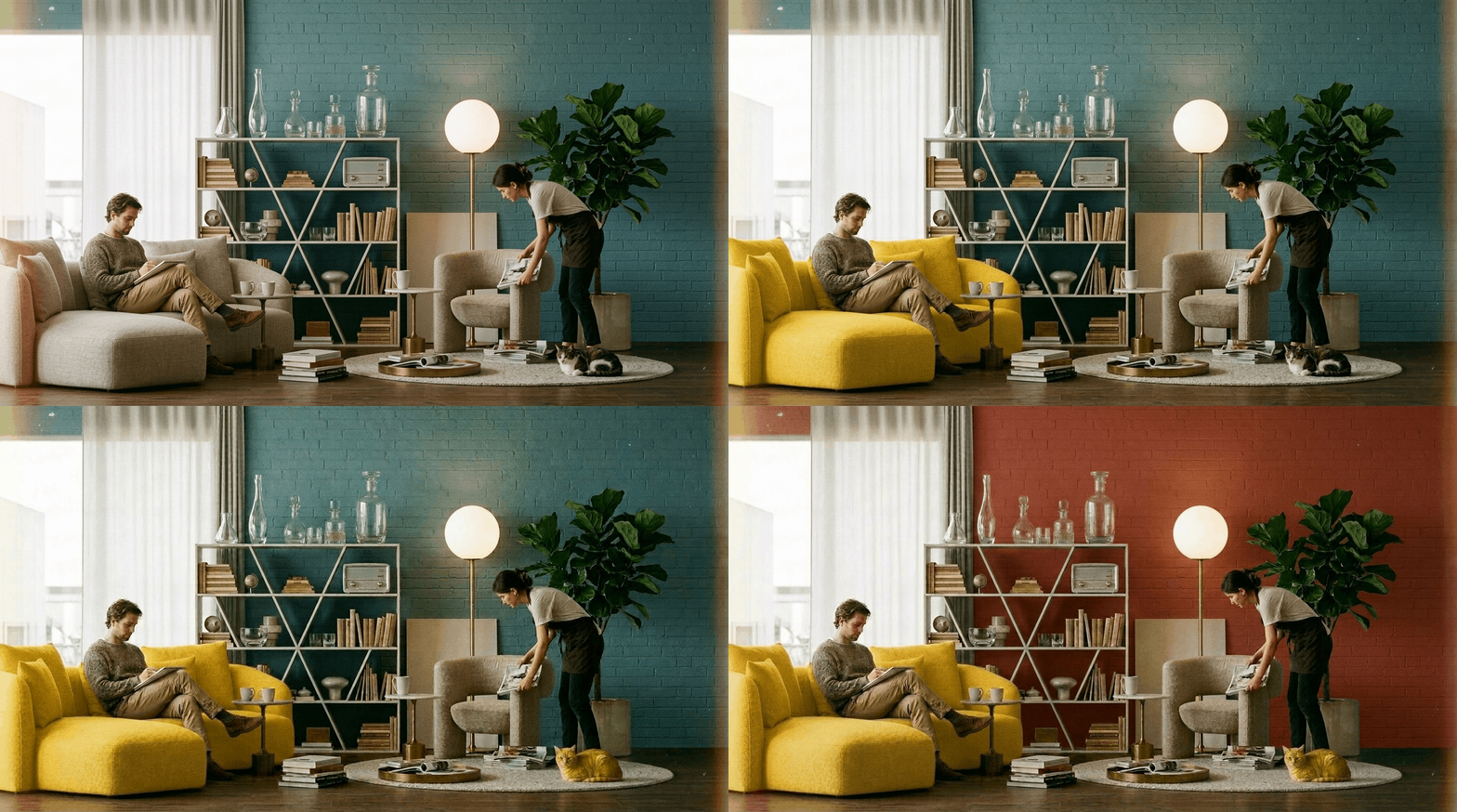
Variations of the initial image using Selection only edits
Rotate to show another angle of your design
Process
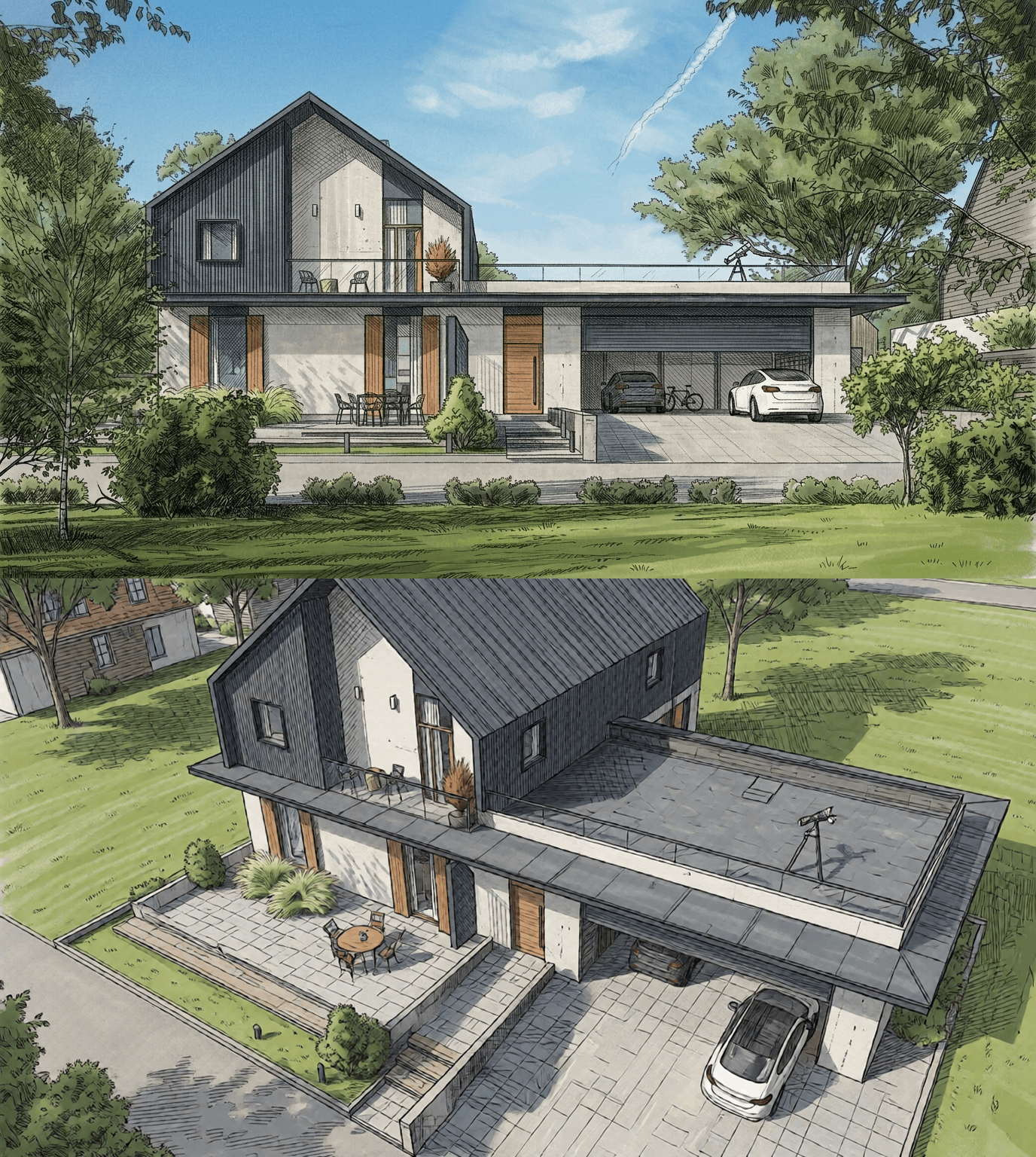
Result
Native Baking
In Revit
In Rhino
In SketchUp
Edit by selection in Replace mode
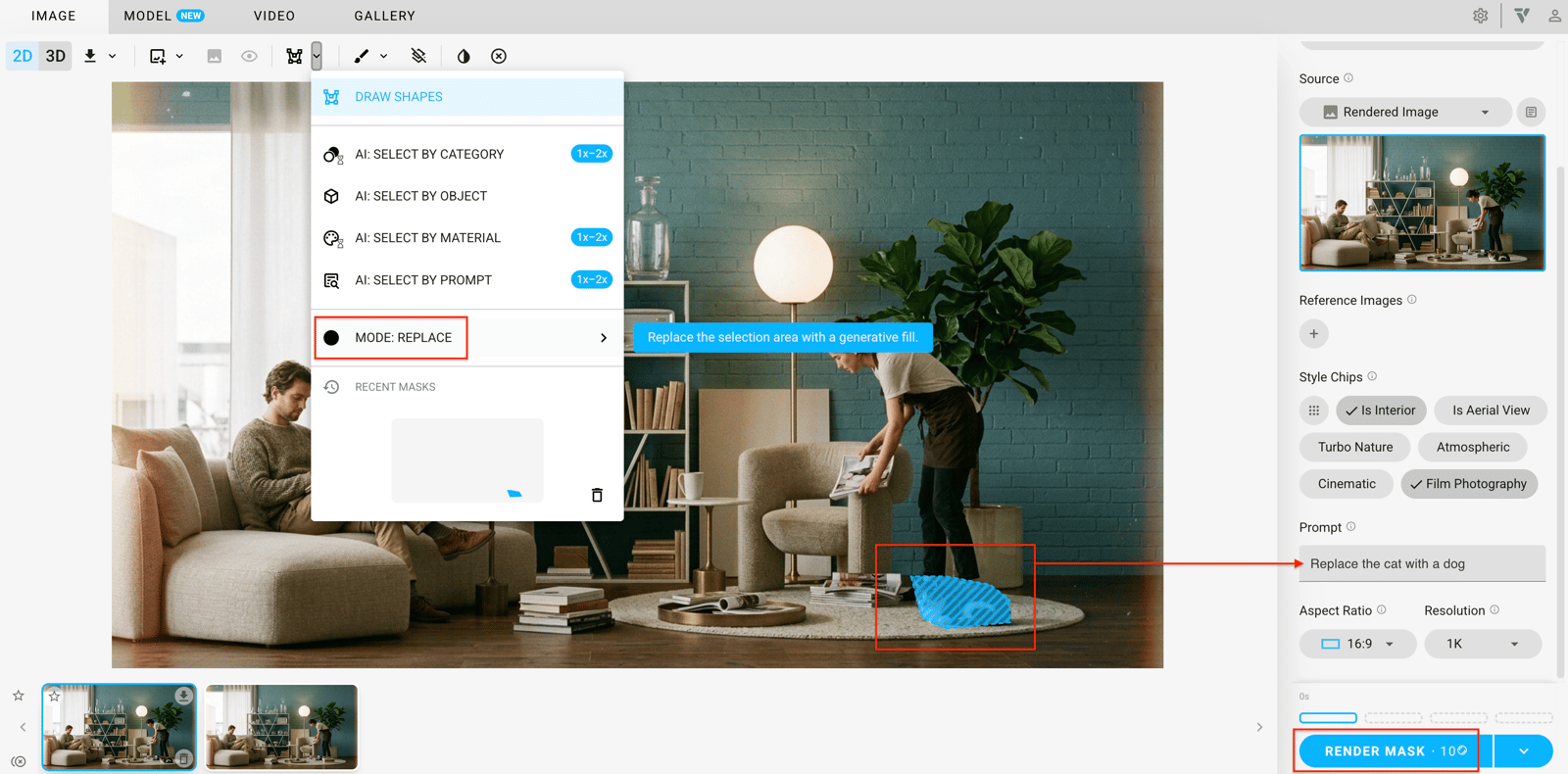
Enter a prompt in the Prompt field, or leave it blank for Veras to suggest a replacement.

The cat is now a dog.
Edit by selection in Modify mode
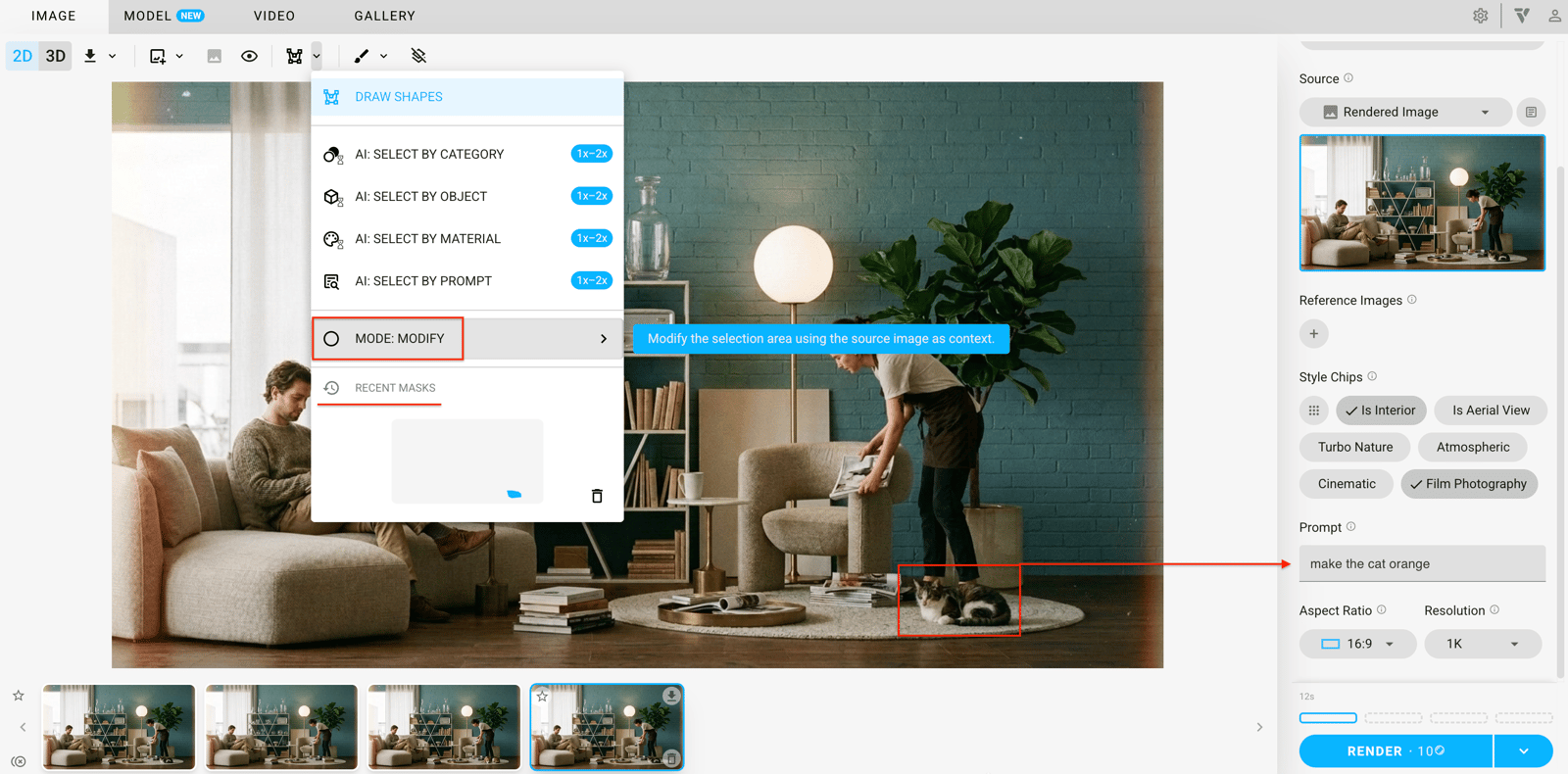
Load the created Masks from the Recent masks menu and use a prompt.
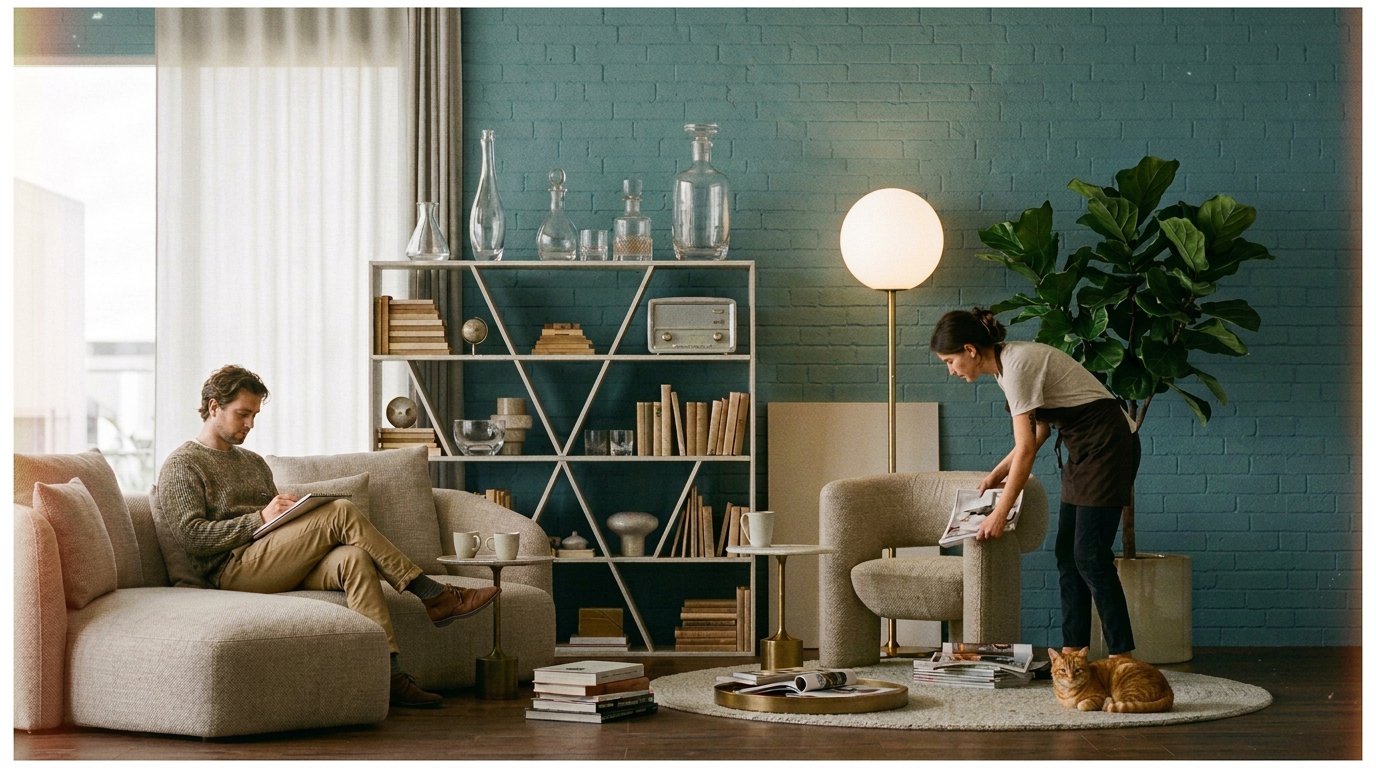
The cat is now orange.
The dog is relaxing. Use Modify selection without a prompt.
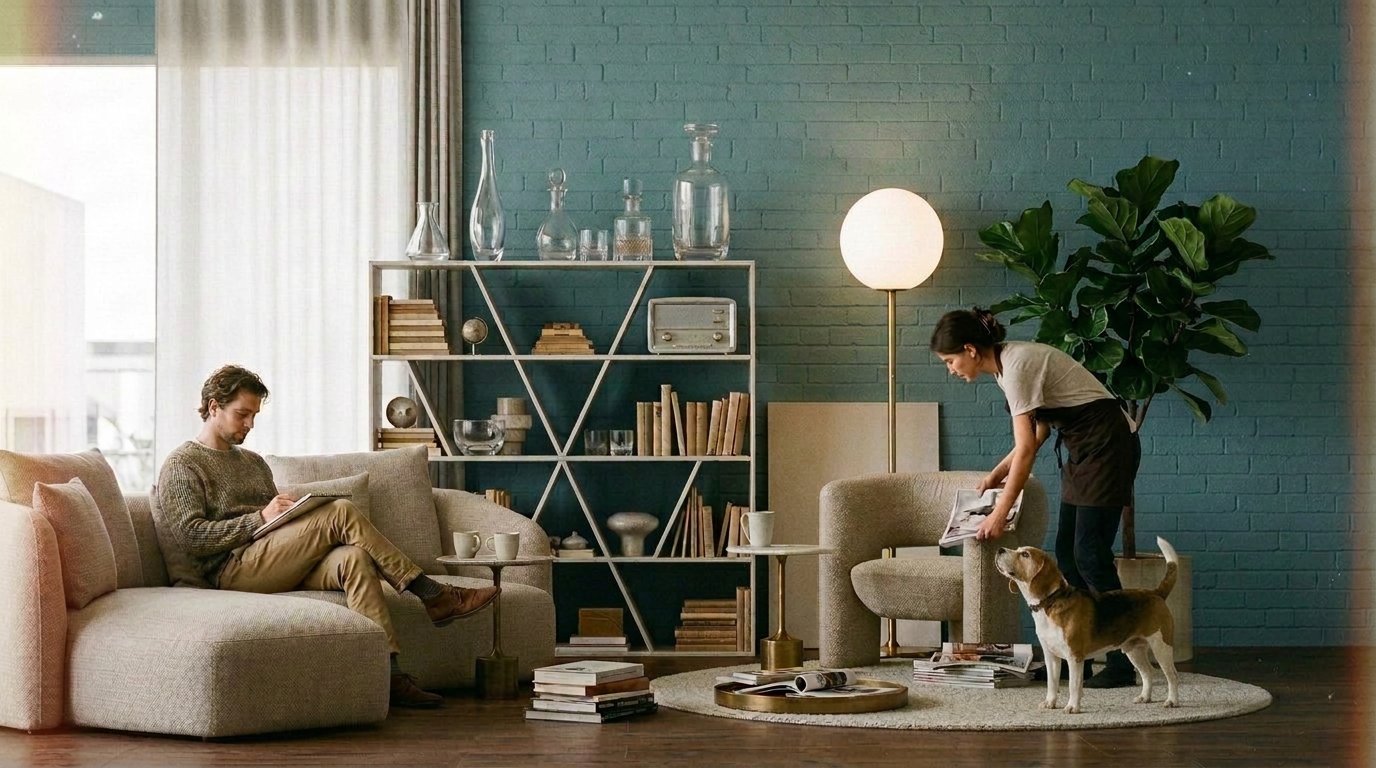
The dog's pose has changed.