V-Ray for 3ds Max
Installation
This guide is to serve as a reference for installing V-Ray for 3ds Max and 3ds Max Design.
Last updated 1 September 2026
Overview
This guide is to serve as a reference for installing V-Ray for 3ds Max and 3ds Max Design.
A complete installation of V-Ray for 3ds Max consists of V-Ray, V-Ray GPU, V-Ray Standalone, V-Ray DR Spawner, V-Ray license server, V-Ray tools, V-Ray SDK, V-Ray Chaos Cloud Client.
If you are a trial user, please refer to the Trial installation of V-Ray for 3ds Max, as the process differs from the one shown on this page.
Installing V-Ray for 3ds Max gives you access to:
- V-Ray
- V-Ray GPU
- Chaos Cosmos
- Chaos Cloud Collaboration
- Chaos Cloud
- Additional V-Ray tools
- V-Ray Standalone
- V-Ray SDK
- V-Ray AppSDK
Running the Installer
Welcome
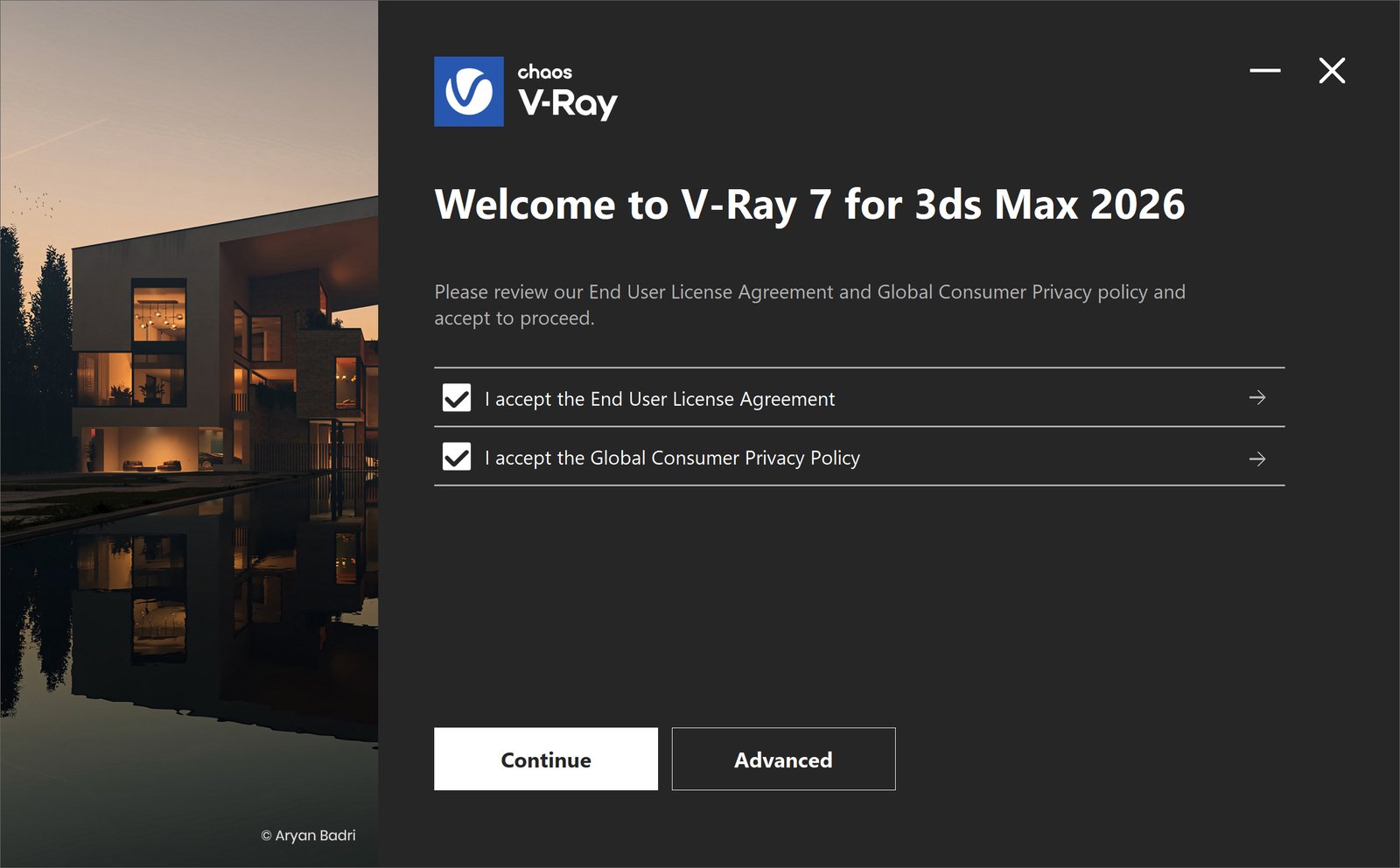
Read and accept the End User License Agreement and the Global Consumer Privacy Policy.
Then, click the Continue button. If you need to customize your V-Ray installation, click the Advanced button.
Cloud Licensing
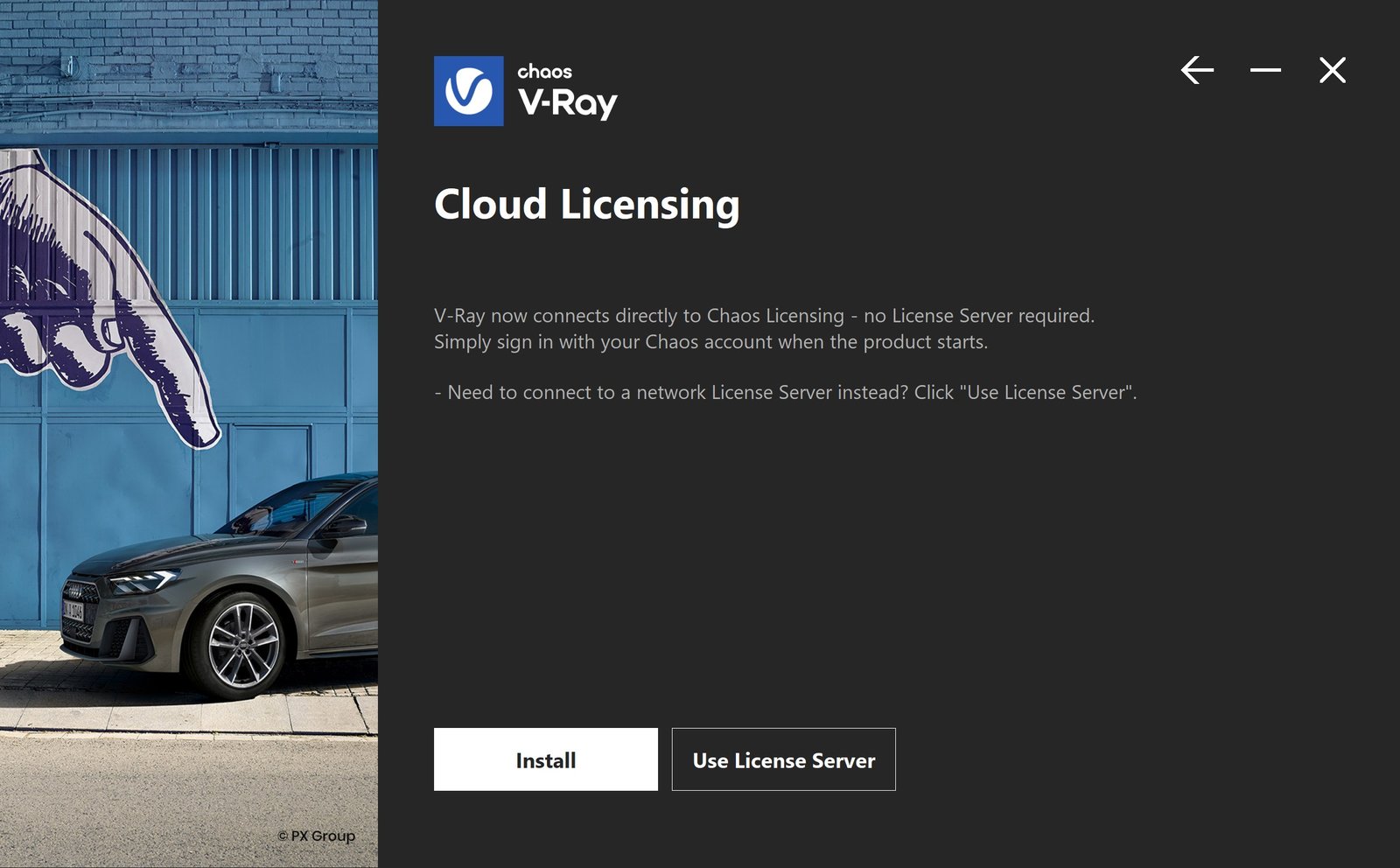
When installing for the first time, V-Ray will use Cloud Licensing by default.
Click Install to continue with Cloud Licensing. If you need to connect to a network License Server, click Use License Server.
Chaos products use two licensing models: Cloud Licensing and the License Server. Cloud Licensing offers maximum flexibility, allowing users to sign in with their Chaos Account and use products from any location with an Internet connection. The License Server allows to set up centralized network setups and requires you to be on the same local network or connect through a VPN.
Chaos Telemetry
V-Ray installation is successful.
Participate in the improvement decisions for future versions of V-Ray. No intellectual property is violated when agreeing to participate in the feedback program. Chaos does not gather scenes, assets, materials, etc. This preference can be changed anytime from V-Ray Render Settings > Settings > About V-Ray > Feedback program settings. For more information, see the Chaos Telemetry page.
Anonymized Telemetry – Includes the most used product functionality and/or parameter values. The data is not personally identifiable and is not tied to the user's individual account.
Personalized Telemetry – Includes the most used product functionality, parameter values, but also contains personally identifiable information tied to an individual user's license. This helps Chaos tailor and optimize the product for better personal use.

Advanced installation settings
V-Ray Type
The available installation types are:
- Workstation – This is a full installation and includes all components as described in the Overview section. It allows you to use V-Ray in 3ds Max, do Distributed or Network Rendering, run V-Ray GPU render server, use V-Ray SDK, and have V-Ray license server on this machine.
- 3ds Max render server – This installation includes V-Ray, V-Ray GPU, V-Ray Standalone, V-Ray DR Spawner and external V-Ray tools. This option does not include the local V-Ray license server application. Please choose this option if you plan to use this machine for Distributed or Network Rendering with V-Ray.
- Standalone render server – This installation includes V-Ray Standalone and V-Ray GPU render server. Please choose this option if you plan to use this machine only for Distributed Rendering with V-Ray Standalone and a V-Ray GPU render server.
Disable AI Features – When enabled, all V-Ray AI features are disabled from the software.

Directories & Feedback
Here, you can specify the installation paths. Please check if the default folders are correct. For more information, see the V-Ray for 3ds Max Autodesk application package page.
- All users – V-Ray is available to all user profiles on the machine.
- Only you – V-Ray is available only to the user profile from which it is installed.

Licensing
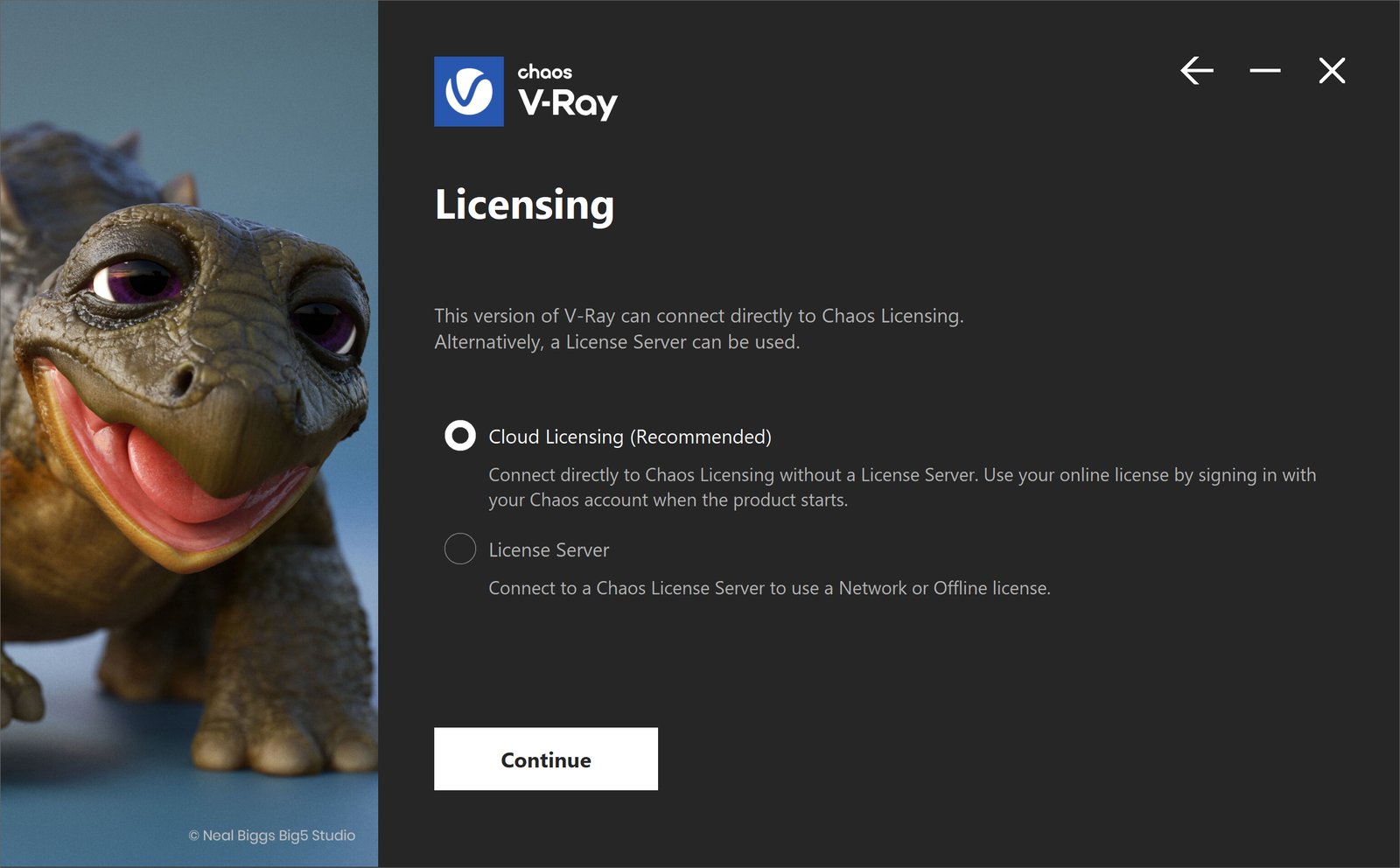
In this step, you can specify whether V-Ray will use Cloud Licensing - a direct connection to the Chaos Licensing Service, or the Chaos License Server.
Cloud Licensing allows you to use your product from any location with an Internet connection by signing in with your Chaos Account.
License Server
The License Server is an additional application that can be used to set up centralized network licensing and / or use offline licenses. The License Server can be installed locally on the same device as the product, or remotely - on a centrally accessible network machine within your local network.
- Local – This option installs the License Server on your machine. For a walkthrough, see the Chaos License Quick Start Guide.
- Remote – This option allows you to configure your Chaos product for floating licenses in a local network. Fill in the IP address of the Chaos License Server in your network in the Primary License Server field. Please leave the port 30304 unchanged. For more details on this setup, see the License Server Deployment page.
