V-Ray for 3ds Max
V-Ray Lister
This page provides information about the V-Ray Lister.
Last updated 1 September 2026
This page provides information about the V-Ray Lister.
Overview
The V-Ray Lister provides an easy and quick way to manage the settings of all cameras and lights in a scene through one window.
The V-Ray Lister has three tabs: Lights and Cameras replace the old V-Ray Light Lister and V-Ray Camera Lister, available in earlier V-Ray versions.
The Lights tab offers a handy way to modify many common attributes of all lights in the scene, both V-Ray lights and standard 3ds Max lights.
The Cameras tab allows you to modify the settings of multiple cameras (V-Ray and standard 3ds Max cameras), as well as to copy and paste settings from one camera to another.
The Geometry tab allows you to modify the settings of V-Ray Geometries.
UI Path:
||V-Ray menu|| > V-Ray Lister
||V-Ray Toolbar|| > V-Ray Lister icon

www.youtube.com
General Settings
Here are the main components of the Lister. They are available for all tabs:
Filters – Filters the objects by Groups, Layers, and Selection sets.
Search bar – Searches for an object. You need to enter at least 3 symbols in the field. If a filter is applied, it searches only from the stack with the filtered objects.
Options – Offers options for loading, saving and resetting layouts.
Load Layout – Opens the Choose settings file to load window and loads a .vrlst layout file. See the Default and Custom Layouts section for more information.
Save Layout – Opens the Choose saved file destination window and saves the current settings as a layout preset in a .vrlst format.
Reset Layout – Resets the layout to its default state.
Display options – Opens the Display options dialog where you can add or remove shown parameters.
Titlebar – All cells except for the first 4 cells can be rearranged. The first 4 cells are always going to stay in the same order. The Name cell is stretchable, while the rest of the cells are not.
Statistics for selection – Shows the number of selected objects.
Deselect – Deselects all objects.

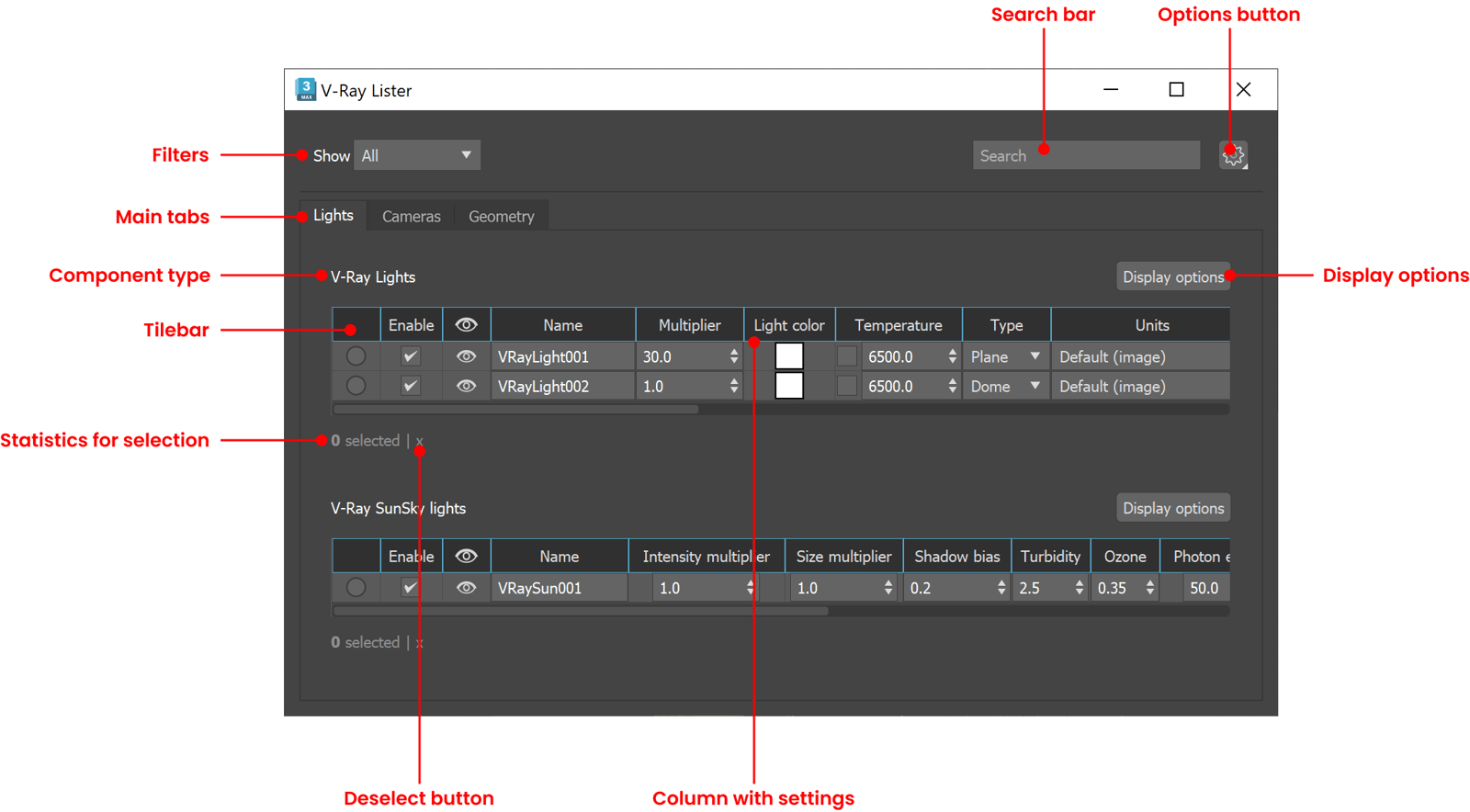
Click on the image to enlarge it
Selection
The following options are available for all tabs:

– Indicates an unselected light, camera, or geometry.

– Indicates a selected light, camera, or geometry.

– Indicates a combination of selected and unselected lights/cameras/geometry under the same row of instances. If all instances are selected, the circle becomes fully blue, and the opposite - if all instanced lights/cameras/geometry are deselected, the circle becomes gray.

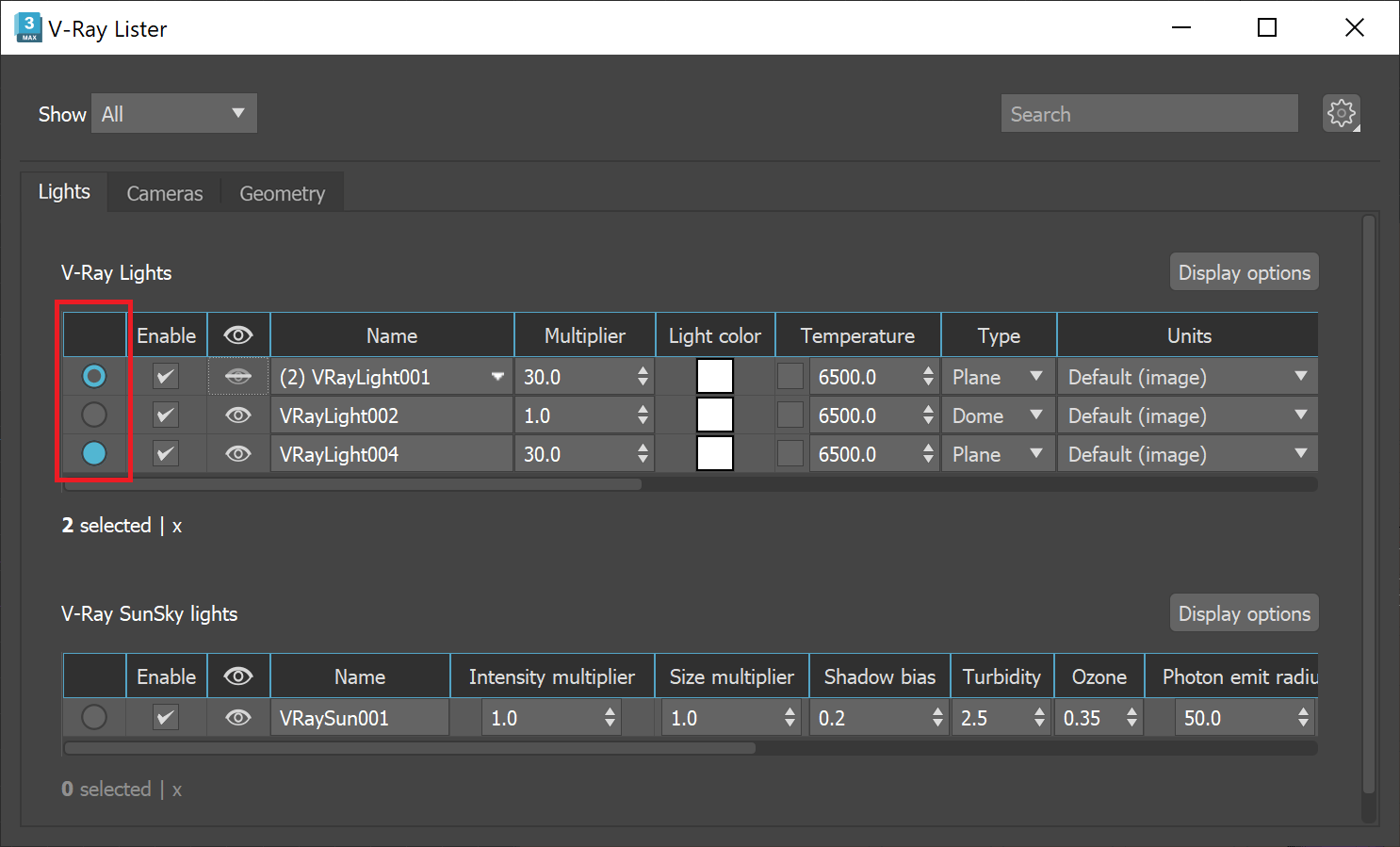
Visibility
The following options are available for all tabs:

– Indicates that the light, camera, or geometry is visible.

– Indicates light, camera, or geometry is invisible.

– Indicates a combination of visible and invisible lights/cameras/geometry under the same row of instances.

Default and Custom Layouts
The VRayLister layout can be customized by reordering the columns and tabs, switching the order of the main Lights and Camera tabs, choosing what parameters to display per light or camera type through the Display options, as well as by tweaking filters, size, position, search. These changes can be saved to a .vrlst layout preset file and then loaded.
A default layout is stored in the vraylisteruser.vrlst file, which is located in: C:\Users\%user%\AppData\Local\Autodesk\3dsMax\20## - 64bit\ENU\en-US\plugcfg where ## stands for the version of 3ds Max used.
Every time you open a new scene, the .vrlst file in the ENU folder is loaded automatically.
To save a layout preset, go to Options button > Save layout and specify the name and location of the file. The saved file serves as a backup file of the layout. You can save as many layouts as you want.
To load another layout preset, go to Options button > Load layout.
Once the VRayLister is closed, the newly loaded layout will override the current one in the vraylisteruser.vrlst file.
Lights Tab
The Lights tab controls common parameters for all lights in the scene.
Lights can be enabled or disabled from the Enable checkbox.
In the Light tab, instanced lights appear as a single entry with a dropdown. Editing any parameters for the entry affects all instances. The dropdown can be used to select a specific instance in the viewport.
For more information on the parameters displayed for V-Ray lights in the Lister, see the respective page for the specific light type.

Cameras Tab
The Cameras tab controls common parameters for all cameras in the scene.

The Look through ( ) icon sets the active viewport to look through the specified camera.
For more information on the parameters displayed for V-Ray Physical Camera in the Lister, see the VRayPhysicalCamera page.

Geometry Tab
The Geometry tab controls common parameters for V-Ray objects in the scene.
Currently, the available geometric objects include VRayProxy, VRayFur, VrayClipper, VRayDecal, VRayScene, and VRayGaussiansGeom.
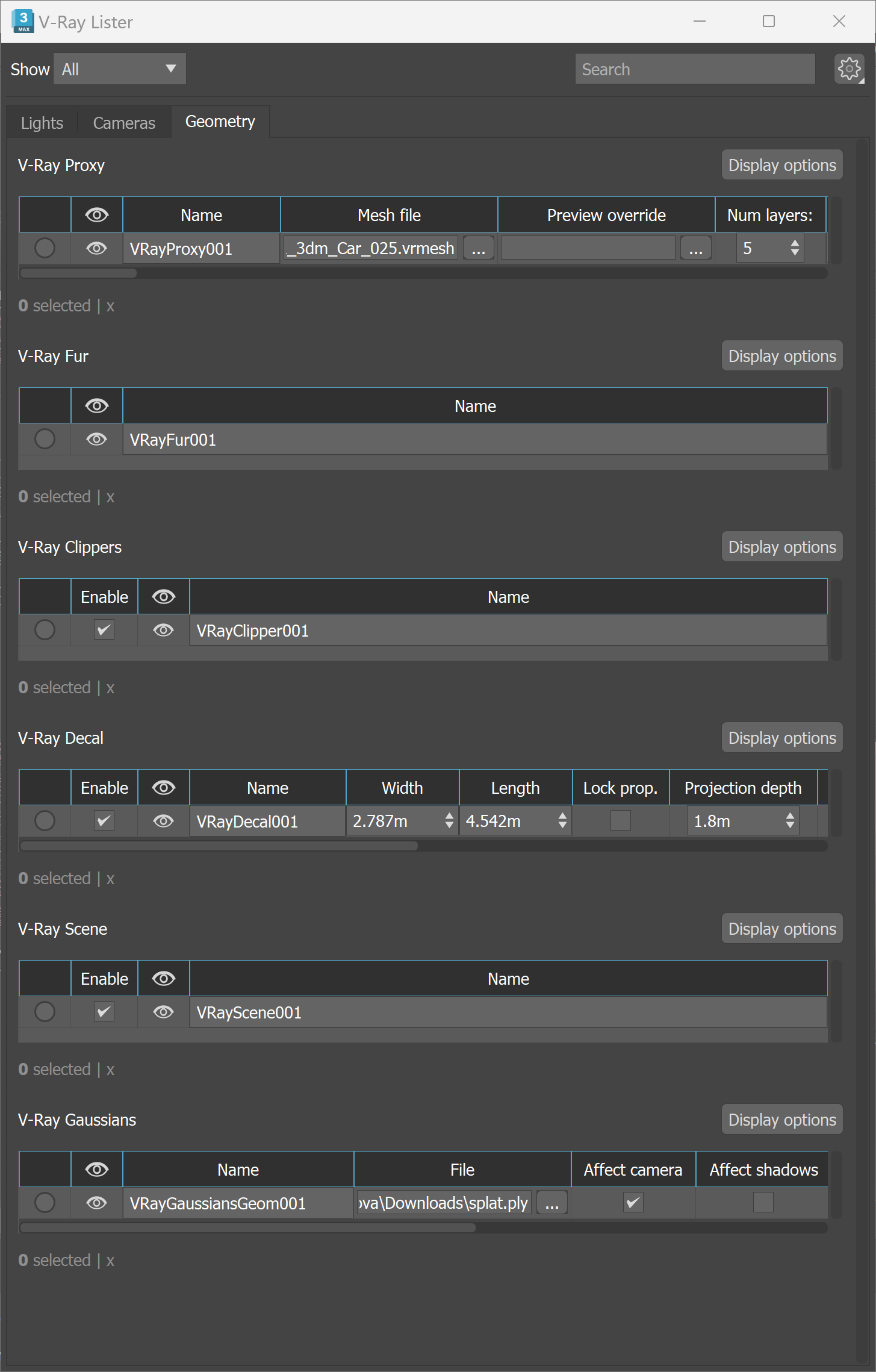
Click on the image to enlarge it