V-Ray for 3ds Max
V-Ray Menu
This page provides information on the V-Ray menu integrated in 3ds Max interface.
Last updated 1 September 2026
This page provides information on the V-Ray menu integrated in 3ds Max interface.
Overview
V-Ray includes a menu with easy shortcuts to some of the most commonly used V-Ray components. The menu can be accessed in the 3ds Max menu bar.
The menu consists of several different submenus:
- V-Ray VFB
- V-Ray Lister
- Create
- Submit to Chaos Cloud
- Chaos Cosmos browser
- Upload image to Chaos Veras
- Enscape .vrscene importer
- .vrscene exporter
- .vrmesh exporter
- .vrmat exporter
- Converters
- Licensing
- Notifications
- Help
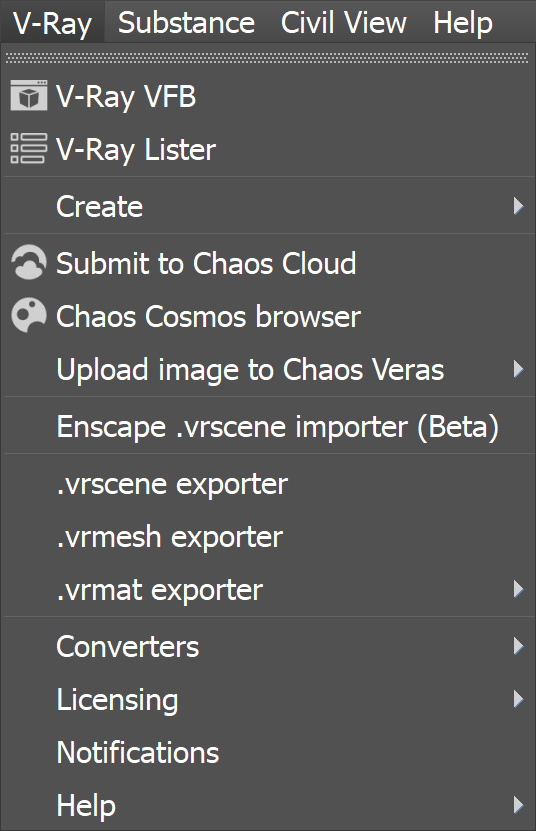
V-Ray Menu
Menu | Description |
|---|
Menu | Description |
|---|---|
V-Ray VFB | Opens the V-Ray Frame Buffer. |
V-Ray Lister | Opens the V-Ray Lister, where you can manage all lights and cameras in the scene. |
Create | Opens the Create submenu, where you can create geometry, lights, cameras, helpers, modifiers, and materials. |
Submit to Chaos Cloud | Opens the Submit to Chaos Cloud rendering window, where you can submit your job and render it in Chaos Cloud Rendering. |
Chaos Cosmos browser | Opens the Chaos Cosmos Browser, where you can find various assets ready for use. |
Upload image to Chaos Veras | Opens the Upload image to Chaos Veras submenu where you can upload an image to Chaos Veras to be used as a source for AI generation. |
Enscape .vrscene importer | Opens the Enscape .vrscene importer, where you can import geometry, shading, lights, and cameras in your 3ds Max scene from .vrscene files exported by Enscape. |
.vrscene exporter | Opens the V-Ray Scene Exporter standalone tool. |
.vrmesh exporter | Opens the VRay mesh export window. |
.vrmat exporter | Opens the VRmat Exporter submenu. |
Converters | Opens the V-Ray Scene Converter submenu. |
Licensing | Opens the Licensing submenu. |
Notifications | Opens the Notifications window. |
Help | Opens the Help submenu. |
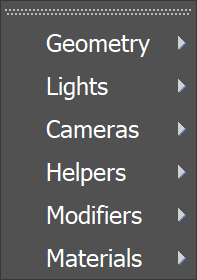
Create Submenu
Menu | Description | Submenu |
|---|
Menu | Description | Submenu |
|---|---|---|
Geometry | Opens a geometry submenu where you can create: | |
Lights | Opens a lights submenu where you can create: | |
Cameras | Opens a cameras submenu where you can create: | |
Helpers | Opens a helpers submenu where you can create: | |
Modifiers | Opens a modifiers submenu where you can apply: | |
Materials | Opens a modifiers submenu where you can create: – VRayMtl |
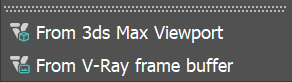
Upload image to Chaos Veras
Menu | Description |
|---|
Menu | Description |
|---|---|
From 3ds Max Viewport | Opens the AI Visualization window (Veras) and sends a viewport screenshot to be used as a generation source. |
From V-Ray frame buffer | Opens the AI Visualization window (Veras) and sends the latest render to be used as a generation source. |
.vrmat exporter Submenu
Menu | Description |
|---|
Menu | Description |
|---|---|
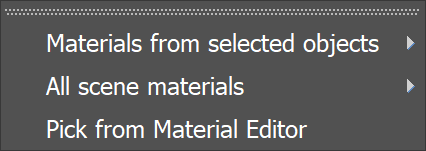
Material from selected objects | Exports materials from selected objects to: – to a single .vrmat file – Opens a browser for saving a single file; name and location are required. – to separate .vrmat files – Opens a browser for saving multiple files; folder selection is required. The separate files inherit the original material names from 3ds Max. |
All scene materials | Exports all materials from the scene: – to a single .vrmat file – Opens a browser for saving a single file; name and location are required. – to separate .vrmat files – Opens a browser for saving multiple files; folder selection is required. The separate files inherit the original material names from 3ds Max. |
Pick from Material Editor | Opens the Material Editor to pick a material. Then opens a browser to save a single file; name and location are required. |
Licensing Submenu
Menu | Description |
|---|
Menu | Description |
|---|---|
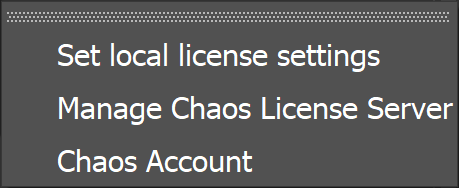
Set local license settings | Opens a window where you can change your Chaos License Server settings. |
Manage Chaos License Server | Opens the Chaos License Server Interface. |
Chaos Account | Opens the Chaos Account management window. |
Chaos Account
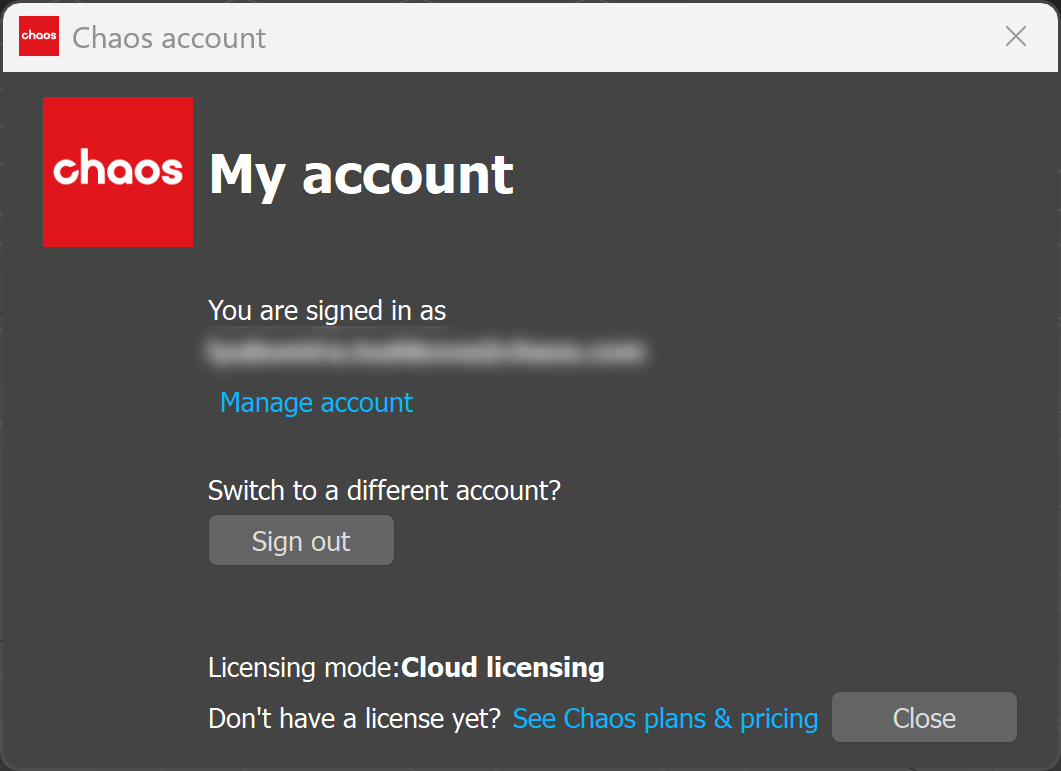
This window shows you which account is currently used as a license holder.
Press the Manage account button to open My Chaos portal and manage the licenses. You can assign, remove, and allocate licenses to different users. For more information, see the My Chaos Portal Guide page.
To switch the current account, press the Sign Out button.
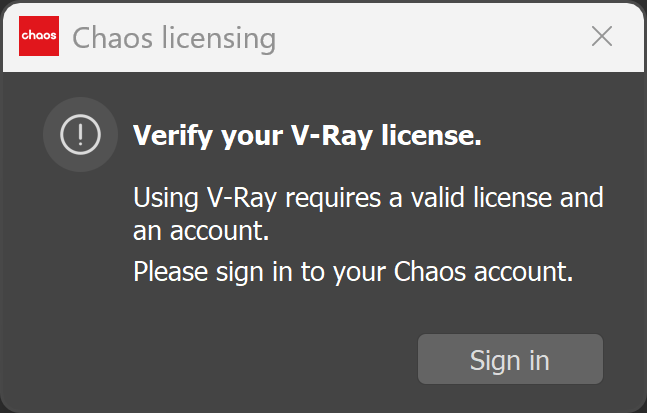
If you haven't signed in during the installation, you can do so in this window:
Licensing mode – shows the current License type - Cloud Licensing or License Server.
See Chaos plans & pricing link leads you to V-Ray's pricing list on Chaos website.
This window blocks all the rest of the UI, so make sure to close it once done to go back to 3ds Max.
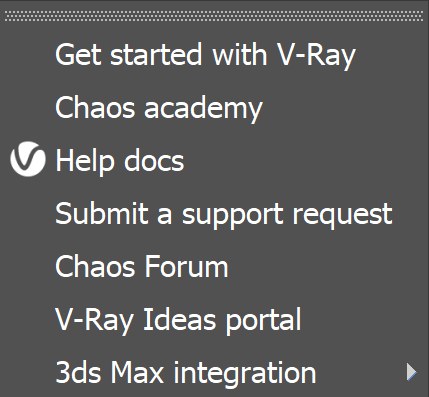
Help Submenu
Menu | Description |
|---|
Menu | Description |
|---|---|
Get started with V-Ray | Opens V-Ray for 3ds Max online learning resources such as tutorials and webinars. |
Chaos academy | Opens the Chaos academy online learning resources page. |
Help docs | Opens the V-Ray for 3ds Max online documentation. |
Submit a support request | Opens Chaos Help Center, where you can contact the Chaos Support team. |
Chaos Forum | Opens Chaos Forum. |
V-Ray Ideas portal | Opens the V-Ray Ideas portal page. |
3ds Max integration | Opens 3ds Max integration submenu with the following options: – Register V-Ray menus - Registers the V-Ray menus, it's equivalent to the registerVRayMenus() MaxScript command. – Set default MAX V-Ray UI |