V-Ray for 3ds Max
V-Ray Scene Converter
This page gives some details on the settings available within the Scene Converter tool.
Last updated 1 September 2026
This page gives some details on the settings available within the Scene Converter tool.
Overview
This window currently contains the V-Ray Scene Converter, the Material Library Processor and the .TX Bitmap Converter. The V-Ray Scene Converter converts scenes from other render engines to V-Ray. This includes Lights, Materials, Maps, and, optionally, Cameras. The Material Library Processor updates Materials and Material Libraries with more up-to-date settings. The .TX Bitmap Converter converts images to tiled, mip-mapped textures.
UI path: ||V-Ray menu|| > Converters > V-Ray scene converter
Scene Converter
Cameras:
Standard Cameras:
Do Not Convert – Leaves the Cameras in the scene as they are.
Convert to V-Ray Physical Camera – (default) When enabled, converts 3ds Max Target and Free Cameras to V-Ray Physical Cameras.
Convert to Autodesk Physical Camera – When enabled, converts 3ds Max Target and Free Cameras to 3ds Max Physical Cameras (for 3ds Max version 2016 and newer).
Materials:
Turn Standard (Legacy) material opacity to V-Ray Material Refraction – When enabled, converts 3ds Max Standard material opacity settings to refraction settings in a V-Ray Material.
Convert Autodesk Physical Material to V-Ray Material – When enabled, converts Physical Material to V-Ray Material. Note that only V-Ray supported parameters are converted when using this option.
Corona Physical Material
Do Not Convert – Corona Physical Materials are not converted.
Lean Conversion – Materials are converted keeping the original texture trees. Channel ‘Level’ parameters would be ignored and assumed to be at 1.0 with this option and the conversion needs to be finished manually.
Look-Preserving Conversion – (default) Materials are converted, using multi-texture constructs to better preserve the end result. This might complicate heavy scenes considerably.
Maps:
Convert Materials' Bitmap Loaders to V-Ray Bitmap Loaders – Converts Bitmaps to VRayBitmaps.
Convert Nodes' and Modifiers' Bitmap Loaders to V-Ray Bitmap Loaders – Uses Bitmaps in Objects and converts Modifiers.
Reset Filtering Blur to 1.0 – Converts Bitmaps’ Filtering Blur.
Convert all V-Ray Bitmap loaders' textures to.TX format – Converts all VRayBitmap textures to .tx.
General Options:
Convert selected nodes only – Converts only selected lights, cameras and the materials of selected objects (with applying the other options above for the selection only). If unchecked, the whole scene is converted.
Start Conversion – Starts the conversion process.

Conversions
The V-Ray Scene Converter is capable of performing the following conversions:
Materials
Original | Result | Notes |
|---|
Original | Result | Notes | |
|---|---|---|---|
Standard Materials | Standard | ||
Raytrace | |||
Architectural | If there is luminance, wraps the material into a VRayBlendMtl and adds a VRayLightMtl on top of it. If there is translucency, wraps the material into a VRay2SidedMtl. | ||
Blend | |||
Shellac | |||
DoubleSided | |||
Corona Materials | CoronaHairMtl | ||
CoronaMtl | |||
CoronaLayeredMtl | |||
CoronaLightMtl | |||
CoronaRaySwitchMtl | |||
CoronaSkinMtl | |||
CoronaPortalMtl | |||
CoronaVolumeMtl | If there is emission distance, wraps the material into a VRayBlendMtl and adds a VRayLightMtl on top of it. | ||
CoronaPhysicalMtl |
Textures
Original | Result |
|---|
Original | Result | |
|---|---|---|
Standard Textures | Normal_Bump | |
Corona Textures | CoronaBitmap | |
CoronaDistance | ||
CoronaRoundEdges | ||
CoronaTriplanar | ||
CoronaFrontBack | ||
CoronaColor | ||
CoronaMultiMap | ||
CoronaMix | ||
CoronaAo | ||
CoronaNormal | ||
CoronaSky | ||
CoronaWire |
Scene Nodes
Original | Result | Notes |
Original | Result | Notes | ||
Lights | Photometric | Uniform Spherical | ||
Uniform Diffuse | ||||
Photometric Web | ||||
environmentMap | mr_Physical_Sky | |||
helpers:DaylightAssemblyHead | mr_Sun | |||
Shadows | All shadow types | |||
Corona | CoronaLight | |||
CoronaSun | ||||
Cameras | Freecamera | VRayPhysicalCamera / Physical | Cameras can be converted to Max Physical cameras with 3ds Max 2016 and later versions. | |
Targetcamera | VRayPhysicalCamera / Physical | |||
Proxy | Corona Proxy (CProxy) |
Modifiers
Original | Result |
|---|
Original | Result | |
|---|---|---|
Corona Modifiers | CoronaDisplacementMod |
Material Library Processor
Basic:
Operation Mode:
Work on the currently open scene – (default) Processes materials for the current scene.
Work on disc-stored files – Processes materials for the scenes in a location.
Pick a Path to Scan… – Specifies root directory for the files to be processed.
Operations:
Switch to GGX BRDF – Sets the Materials' BRDF to GTR/GGX (from Blinn/Phong/Ward). Highlight size and looks will change.
Clean of Legacy Custom Attributes – Scans for and removes legacy custom attributes (for example Mental Ray ones).
Set Cutoff to 0.001 – Sets the Materials' cutoff values to 0.001, down from the old default of 0.01. Useful to avoid sharp cut-offs in reflections.
Swap to V-Ray Bitmap Loaders – Uses standard V-Ray functions (contained in vrutils.ms) to swap the bitmap loaders to V-Ray ones. This only works for Max files, not matlibs.
Reset Blur to 1.0 – Resets blur to 1.0 for the vrayBitmap loaders. They default to a much sharper filtering mode than Max Bitmap Loaders and won't need to lower the blur as it used to be. This only works for Max files, not matlibs.
Output:
Append Max Version to Saved Filename – Appends f.e. "_2023" to the filename./Get "filename_2023.max" or "filename_2023.mat".
Add suffix to the Filename – Appends a custom token to the filename. Insert custom text in the textbox.
Save Max file as: – Saves the processed .max files as .max, treating them as 3d scenes, or as .mat, treating them as a material library.
Overwrite:
always – Overwrites any found file without asking. Preferable for batch processing of non-original source files.
never – Never overwrites any found file without asking. Preferable for batch processing of original source files as the files already on the disc are not overwritten.
ask – Asks for confirmation for each overwrite.
InfoBox – Contains information about the number of materials or files that can be processed
Start – Starts the process.

.TX Bitmap Converter
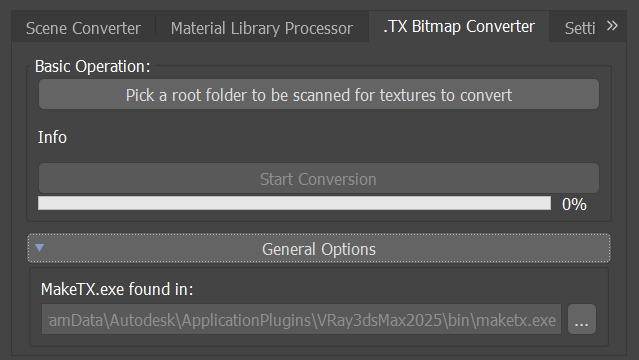
Basic Operation:
Pick a Root folder to be scanned for textures to convert – Specifies root directory for the files to be converted.
Info – Contains information about the number of texture files that can be converted.
Start Conversion – Starts the conversion process.
General Options:
MakeTX.exe found in – Specifies the location of the maketx.exe file to be used for the conversion. By default set to automatically find the version shipped with V-Ray.
Settings
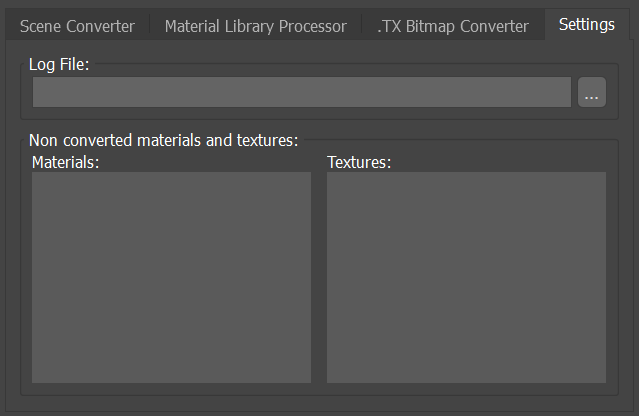
Log File – Specifies the directory for a log file containing process history, including non converted materials and textures for scene conversion.
Non converted materials and textures:
Materials – Lists the materials that couldn’t be converted.
Textures – Lists the textures that couldn’t be converted.
Preferences
The preferences are saved in: C:\Users\<User_name>\AppData\Local\Autodesk\3dsMax\2024 - 64bit\ENU\en-US\plugcfg\vraysceneconverter_settings.json
Save tab – Saves preferred settings for the currently active tab.
Reset tab – Resets the preferred settings of the currently active tab to the default state.
Save all tabs – Saves preferred settings for all tabs.
Reset all tabs – Resets the preferred settings for all tabs to the default state.
