V-Ray for 3ds Max
VRmat Converter
This page provides information on the VRmat Converter standalone tool.
Last updated 21 May 2026
This page provides information on the VRmat Converter standalone tool.
Overview
The V-Ray VRmat converter converts materials in 3ds Max to .vrmat files that can be loaded using the VRayVRmatMtl material.
The usual workflow for .vrmat files is:
- Use the standard 3ds Max Material Editor to create V-Ray materials for the scene and assign them to objects.
- Use the VRMat Converter to save those materials to .vrmat file(s).
- Open a different scene, and use VRayVRmatMtl to load .vrmat file(s) into the current scene.
UI Path: ||Tools menu|| > V-Ray vrmat converter
(If this tool doesn't appear on the Tools menu, see the Notes below.)
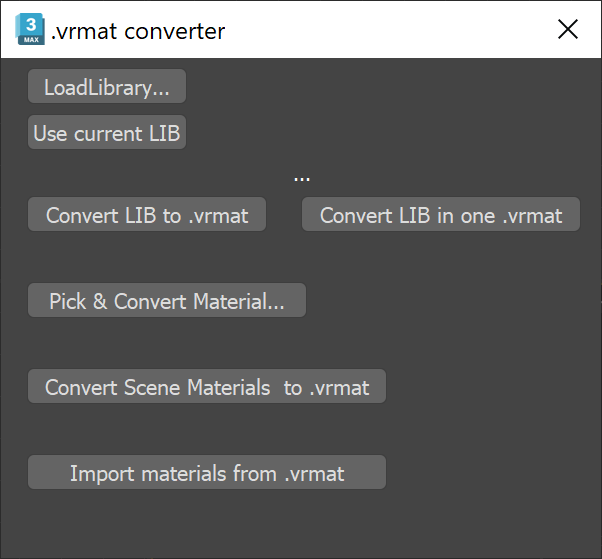
.vrmat Converter
LoadLibrary – Loads a material library file that was previously exported from 3ds Max.
Use current LIB – Uses the current material library from the scene.
Covert LIB to .vrmat – Converts each material in the library to a separate .vrmat file.
Convert LIB in one .vrmat – Converts all materials in the library to a single .vrmat file.
Pick Convert Material – Selects a single material to be converted to a .vrmat file.
Convert Scene Materials to .vrmat – Converts all materials in the scene to separate .vrmat files.
Notes
- In order to see the V-Ray vrmat converter option on the Tools menu, V-Ray needs to register menus inside of 3ds Max. Normally, this is done by the V-Ray installation automatically, but in case the menu option is missing, it can be registered manually by entering the registerVRayMenus() command in the MaxScript listener.