V-Ray for Blender
Chaos Cloud Collaboration
This page provides information about the Chaos Cloud Collaboration options in V-Ray for Blender.
Last updated 16 July 2026
This page provides information about the Chaos Cloud Collaboration options in V-Ray for Blender.
Overview
Chaos Cloud collaboration enables you to share your work with your team and your clients. It includes enhancing features, with which you can make adjustments to your scene post-render. This speeds up reviews and edits, allowing you to get your projects done faster.
Signing into Chaos Cloud Collaboration using your Chaos credentials is required once. After that, you are automatically signed in every time you open the Collaboration window.
For more information on general functionality like commenting and sharing, see the Collaboration page. For more information on the image-enhancing functionality, see the AI Enhancer page.
UI Paths
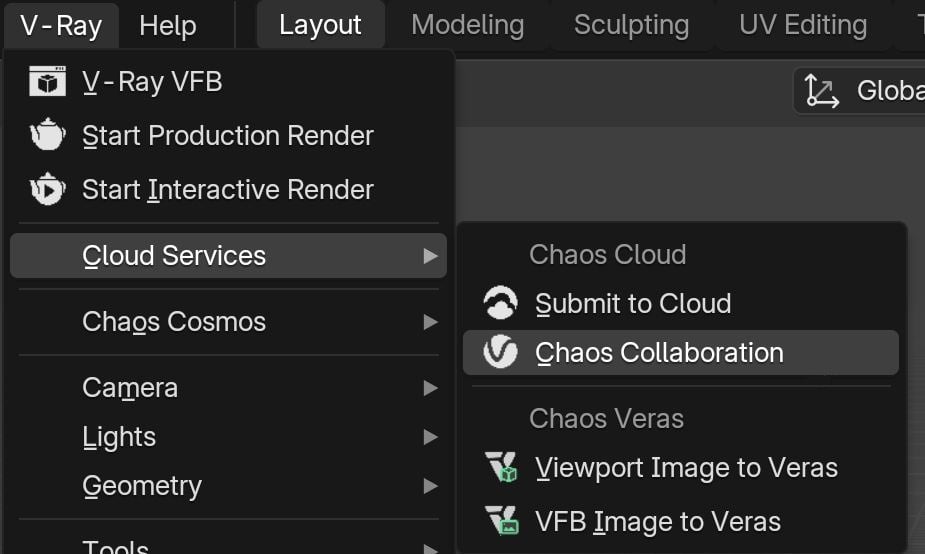
||V-Ray menu|| > Cloud Services > Chaos Collaboration
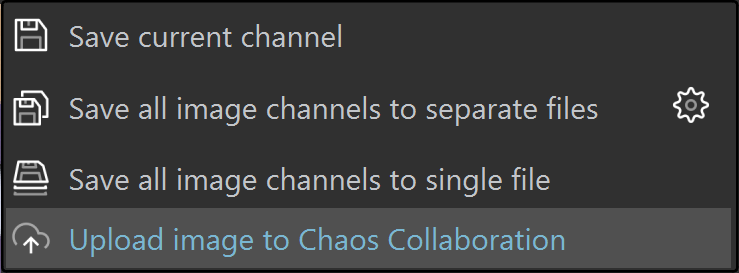
||VFB|| > Save current channel > Upload image to Chaos Collaboration
||VFB toolbar|| > Enhance image on Chaos Collaboration

||VFB|| > File > Upload image to Chaos Collaboration / Enhance image on Chaos Collaboration

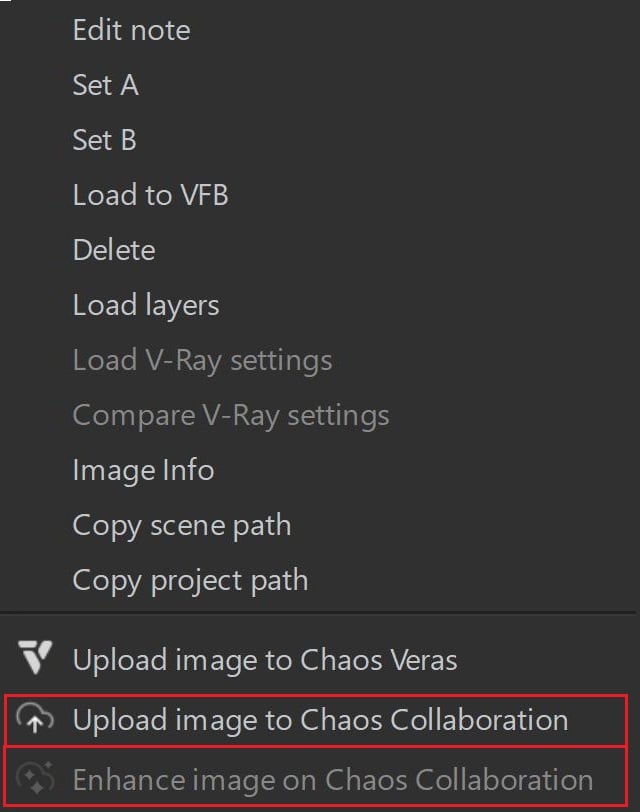
||VFB|| > Render History > (Right-click on any previously saved image) > Upload image(s) to Chaos Collaboration / Enhance image on Chaos Collaboration
Workflow
- Render your scene in the V-Ray Frame Buffer.
If you have not signed into Chaos Cloud yet, you will be prompted to do so when you upload a render to Chaos Cloud. Signing into Chaos Cloud using your Chaos credentials is required once. After that, you are automatically signed in every time you open the Collaboration tab.
You can either directly upload the image or open the Collaboration tab. It is quicker to directly upload, so we are showcasing that workflow.
2. In the VFB, go to the File menu and select Upload image to Chaos Collaboration. Alternatively, you can use the buttons in the VFB toolbar. See the UI Paths section for details.

3. You can rename the upload using the button. Rename it however you want.

4. The button in the Collaboration window allows you to add the current render to the upload files.
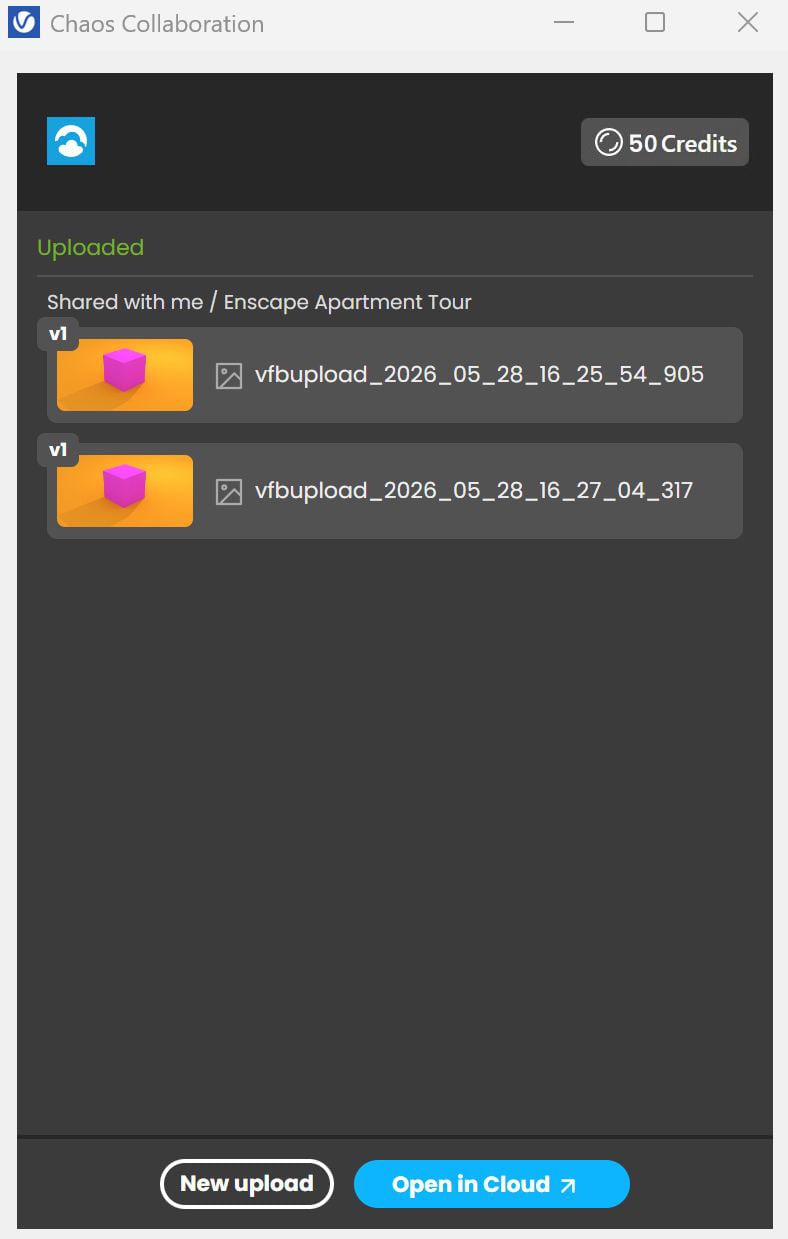
5. When the render(s) are uploaded, you can choose to upload anew or to view your renders in Chaos Cloud.


After you initiate and upload, the Save image to disk icon is automatically replaced with the upload to Chaos Collaboration icon .
Automatically, there is a default project folder where the images are uploaded to Chaos Cloud Collaboration. You can create multiple projects and folders from the browser.
If you’ve uploaded the image to be enhanced, you will see the AI Enhancer tool available when you open the Edit menu of the render. Otherwise, only the AI Upscaler will be available.
youtu.be
Window Options

Single file upload

Multi-file upload
*
1 | Credit balance – Displays the remaining credits for the current account. Click on this button to open the Credit balance window. In it, you can see the currently available credits and the overall credits in your plan. The View usage report link takes you to the Chaos Credits page. From the Get credits button, you can either:
| Credit balance window |
1 | Credit balance – Displays the remaining credits for the current account. Click on this button to open the Credit balance window. In it, you can see the currently available credits and the overall credits in your plan. The View usage report link takes you to the Chaos Credits page. From the Get credits button, you can either:
| Credit balance window | |
2 | Add another file to this upload – Uploads the current image in the VFB to Chaos Cloud Collaboration. | ||
3 | Rename – Renames the Upload file. | ||
4 | Delete – Deletes the current image from the upload list. | ||
5 | Upload destination – Determine where to upload the files. The + button adds a new folder to Chaos Collaboration. | ||
6 | Upload button – When ready, click Upload. The button displays the number of files attached. It is also possible to directly drag the images from the Explorer to the Collaboration tab. | ||
7 | Additional Options – The three-dots menu provides additional options. From here, you can click on Open in browser to transfer the current file upload process to the browser version of Chaos Collaboration. |


* When uploading multiple files at once, the file preview section changes. You can open the file previews from the button. This opens the multi-file preview window. Here you can rename and delete files from your upload queue. When ready, minimize the window from the button.

multiple files preview window
After Upload
New upload – Clears the Collaboration tab and prepares it for the new upload of images.
Open in Cloud – Opens the uploaded images in the Chaos Cloud Browser.