V-Ray for Blender
Denoiser
This page provides information about the Denoiser Render Channel in V-Ray for Blender.
Last updated 12 June 2026
This page provides information about the Denoiser Render Channel in V-Ray for Blender.
Overview
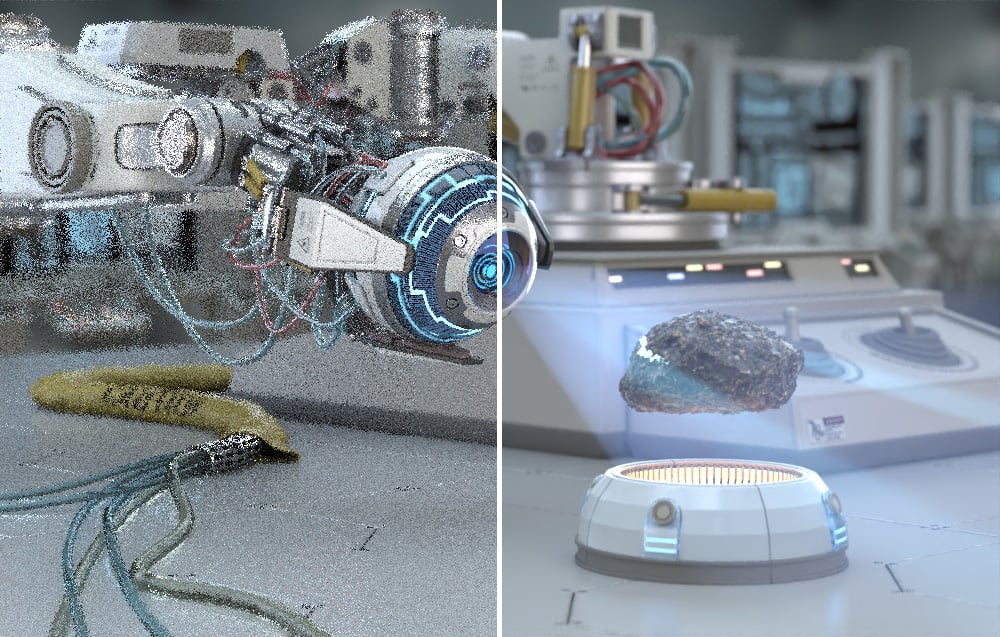
The V-Ray Denoiser takes an existing render and applies a denoising operation to it after the image is rendered normally. The denoising operation detects areas where noise is present and smooths them out.
UI Paths
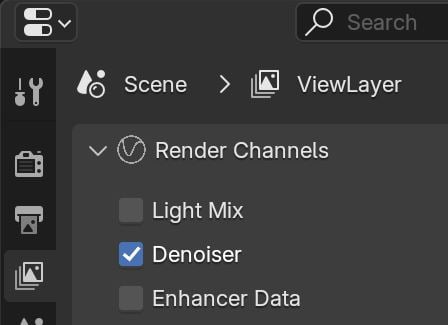
||View Layer Properties|| > Render Channels > Denoiser
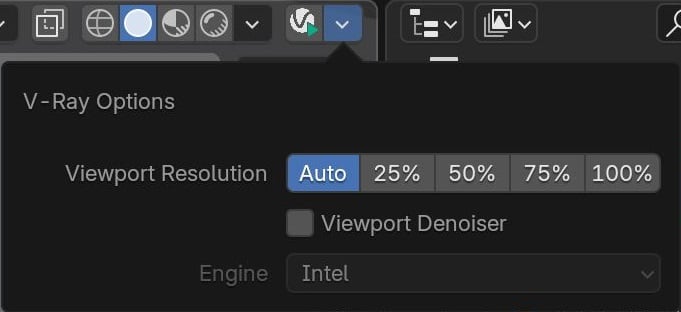
||Viewport toolbar|| > Viewport Denoiser
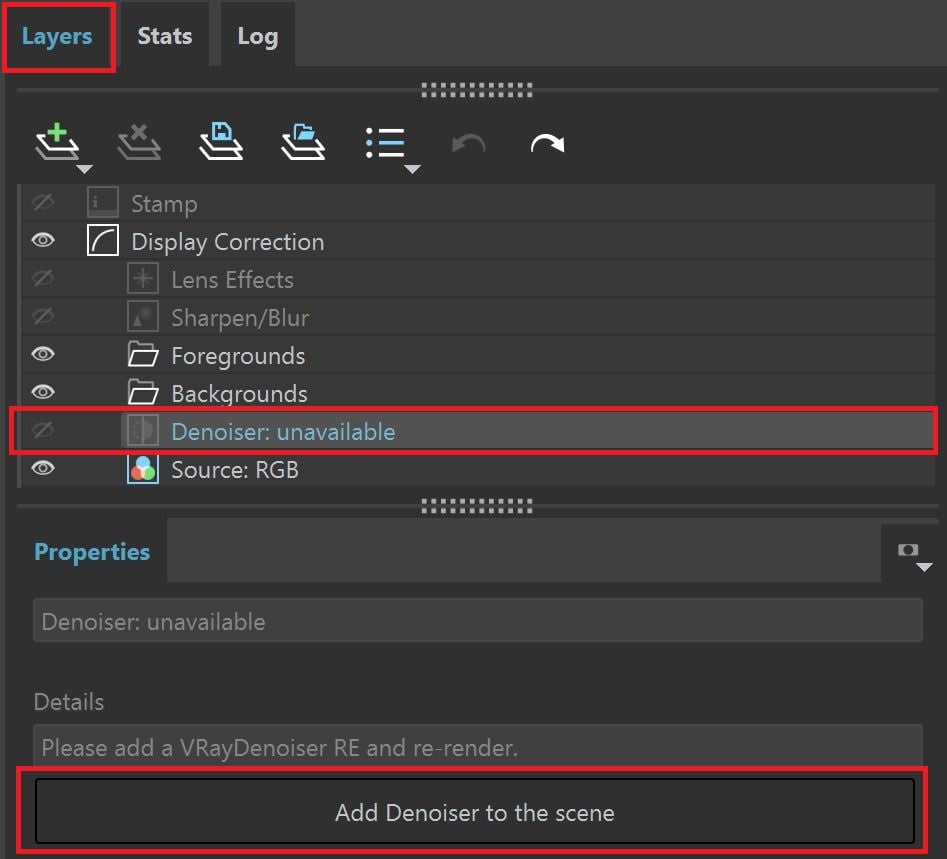
||V-Ray Frame Buffer|| > Layers > Denoiser:unavailable > Add Denoiser to the scene
Viewport Denoiser
In the viewport toolbar you can find a dropdown menu, with which you can activate the Viewport Denoiser. You can activate Viewport Interactive Rendering (IPR) from the viewport toolbar’s Viewport Shading option.
Viewport Denoiser – Enables denoising for the Viewport Interactive Rendering and the Interactive rendering in the V-Ray Frame Buffer.
See the Engines section for more information on the Engine choices dropdown.

Viewport Shading
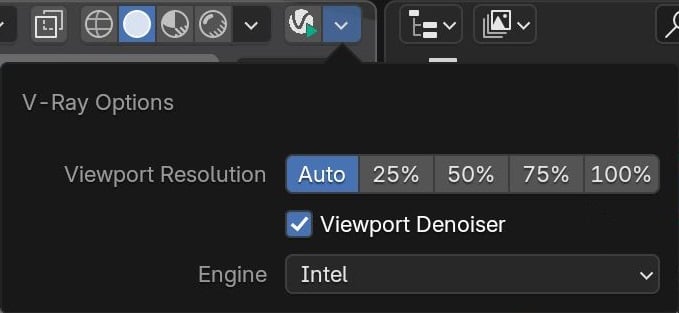
Viewport Denoiser enabled
Properties
See the Render Channels page to find out where you can find these properties.
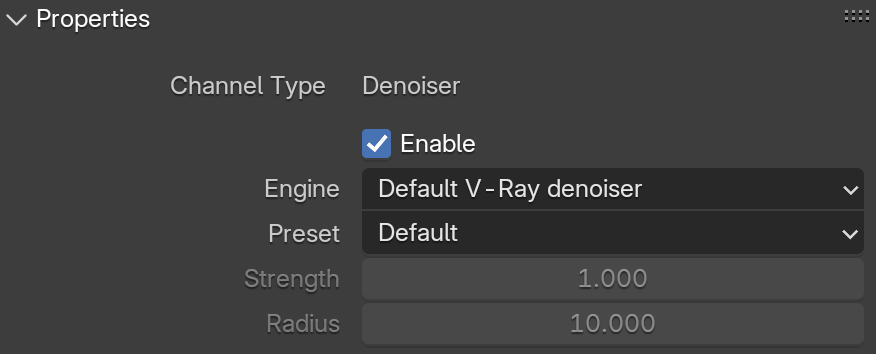
Channel Name – Customizable name for the render channel.
Enable – When enabled, starts denoising the rendered image in the V-Ray Virtual Frame Buffer.
Engine – Allows choosing between the Default V-Ray denoiser, the NVIDIA AI denoiser and the Intel Open Image Denoise. Note that the NVIDIA AI denoiser requires an NVIDIA GPU.
Preset – Offers presets to automatically set Strength and Radius values.
Default (Strength=1, Radius=10) – Applies mid-level denoising.
Mild (Strength=0.5, Radius=5) – Applies a more subtle level of denoising than the Default preset.
Strong (Strength=2, Radius=15) – Applies a stronger level of denoising than the Default preset.
Custom – Allows the Strength and Radius parameters to be set to custom values.
Strength – Determines the strength of the denoising operation. This value is automatically set by preset selection, but can be changed when Preset is set to Custom.
Radius – Specifies the area around each pixel to be denoised. A smaller radius affects a smaller range of pixels, while a larger radius affects a larger range, which increases the noise removal. This value is automatically set by preset selection but can be changed when Preset is set to Custom.
Engines
V-Ray Denoiser offers a choice between the Default V-Ray denoiser, the NVIDIA AI denoiser and the Intel Open Image denoiser. Each has a different denoising algorithm that comes with different benefits.
Default V-Ray Denoiser - V-Ray's denoising algorithm. It can utilize the CPU or the GPU (AMD or NVIDIA GPUs) to perform the denoising. It is consistent when denoising render channels, as it applies the same denoising operator to all render channels. This means that it is recommended for denoising the render channels to be used for compositing the back-to-beauty image.
NVIDIA AI Denoiser - V-Ray's integration of NVIDIA's AI-based denoising algorithm. The NVIDIA AI denoiser requires an NVIDIA GPU to work. It does not matter whether the actual rendering was performed on the CPU or GPU. This means that rendering on the CPU still requires an NVIDIA GPU for denoising with the NVIDIA AI denoiser and has some advantages and drawbacks compared to the Default V-Ray Denoiser. For example, the NVIDIA AI denoiser performs the denoising faster, but is not consistent when denoising render channels. This means that there will be differences between the original RGB image and the one reconstructed from render channels that are denoised with the NVIDIA AI denoiser. It also doesn't support cross-frame denoising and will likely produce flickering when used in animation.
Intel Open Image Denoiser – V-Ray's integration of Intel Open Image Denoise. The Intel Open Image denoiser works with your CPU device and does not use hardware acceleration. This denoiser has no controllable options.
Advanced
Use GPU Acceleration – Uses the GPU device(s) to accelerate the denoising calculations. In case there is no compatible GPU device, denoising automatically falls back to using the CPU, even if the option is enabled. This option is only available for the Default V-Ray denoiser.
Panorama – When enabled, V-Ray considers whether the image is rendered with a spherical panorama camera with a FOV of 360°. This prevents visible seams that can be caused by the denoising process. This option is only available for the Default V-Ray denoiser.
Use NVIDIA Temporal Mode – This option is only available when the Engine is set to NVIDIA AI Denoiser. When enabled, the Denoiser uses information from previous frames to create a smoother transition. Useful for rendering animation. Not compatible with the NVIDIA AI Upscale option. This option is only available for the NVIDIA AI denoiser.
NVIDIA AI Upscale – This option is only available when the Engine is set to NVIDIA AI Denoiser. When enabled, the image is internally downscaled to half of the resolution specified in the Render Settings and then upscaled to the full resolution using NVidia technologies. This allows for up to 4 times faster renders. However, it can cause some loss of detail. We recommend using this option only for preview renders. Render channels that don't have the Denoise option enabled are upscaled using simple interpolations. This option is not compatible with the Use NVIDIA Temporal Mode option. This option is not supported on macOS. This option is only available for the NVIDIA AI denoiser.
OIDN Prefilter – Helps with detail retention, producing sharper and cleaner results. It adds an extra step to reduce noise in the diffuse and normal passes before the final denoising of the image. This function is only available when the denoiser is set to Intel Open Image Denoiser.
Mode – Specifies how the results of the Denoiser are saved.
Only generate render elements – All render channels required for denoising are generated so that denoising can be done with the Standalone Denoiser Tool or the V-Ray Denoiser plugin for Nuke. The information calculated within them is not applied to other render channels, and no VRayDenoiser Render Channel is generated.
Hide the channel with the Denoised Result in the VFB – The Denoiser channel is not present separately in the VFB. The effectsResult channel is generated with the denoised image.
Show the channel with the Denoised Result in the VFB – The channel is generated to contain a denoised version of the RGB Color Render Channel using the specified settings. The original render channels, including the RGB Color Render Channel, are not changed.
Denoise Alpha – Controls whether the alpha is denoised or not.
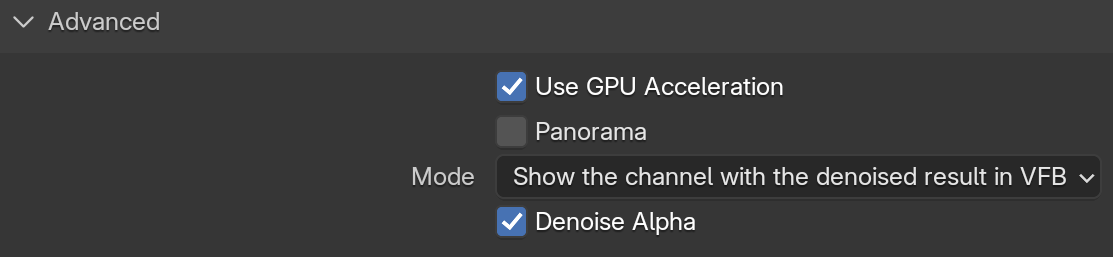
Default V-Ray denoiser
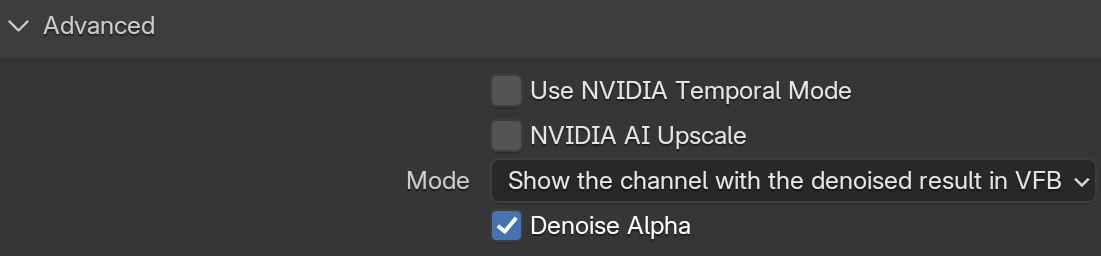
NVIDIA AI denoiser

Intel Open Image Denoise