V-Ray for Blender
Light Mix
This page provides information about the Light Mix Render Channel in V-Ray for Blender.
Last updated 12 June 2026
This page provides information about the Light Mix Render Channel in V-Ray for Blender.
Overview
The Light Mix render channel provides adjustment control to the lights in the scene from inside the V-Ray Frame Buffer. When a Light Mix render channel has been added before rendering, the intensity and color of the lights and light-emitting materials can be changed directly from the VFB during and after rendering. Lights can be enabled or disabled on the go without the need to re-render your final output or navigate to individual light parameters during IPR. Furthermore, modifications made in the Light Mix can be transferred back to the actual lights in the scene with a single click. This feature can handle individual lights as easily as light groups or custom selections.
In the example, you can see how the lights are mixed so that in one instance, it is dusk, with a nice sunset, and in another instance, it is nighttime. These effects were achieved solely by adjusting the lighting.
Read more about Light Mix on the Chaos blog.

UI Paths
||View Layer|| > Render Channels > Light Mix

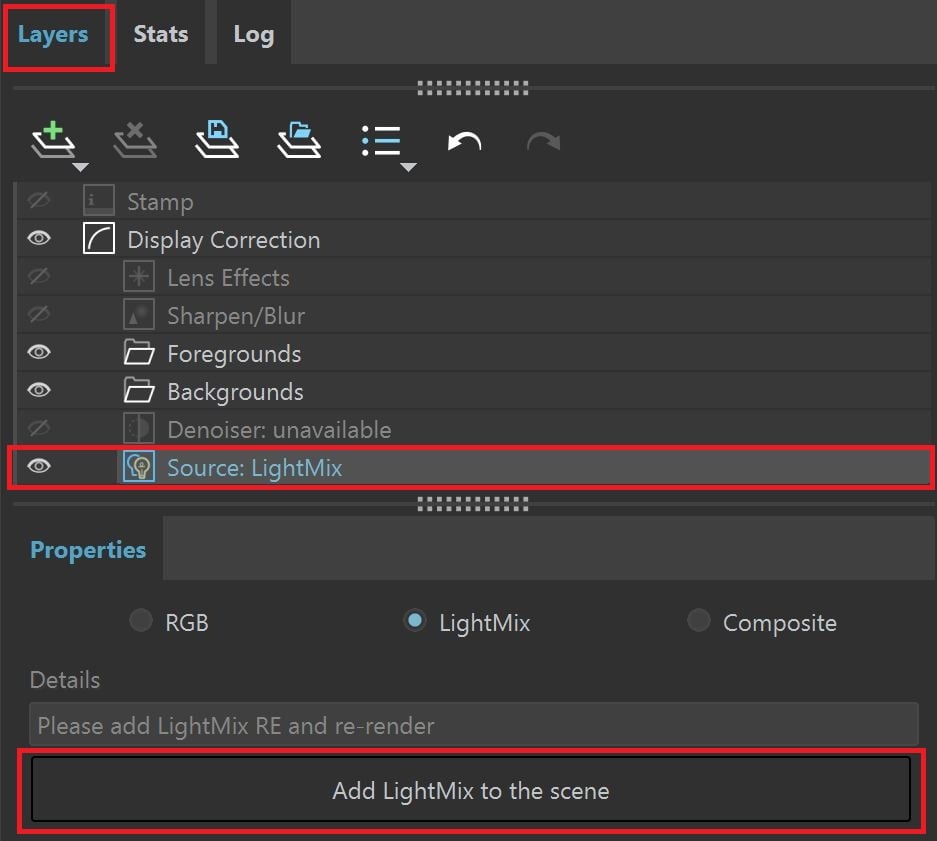
||V-Ray Frame Buffer|| > Layers > Source > LightMix > Add LightMix to the scene
How to Set Up
1. Add the Light Mix render channel to your scene from the View Layer Properties > Render Channels > Light Mix.
2. Open the V-Ray Frame Buffer and start a new render. This automatically changes the Source to Light Mix.
3. Open the Source layer, and in its Properties, you can start adjusting your lights.
youtu.be
Node Properties
See the Render Channels page to find out where you can find these properties.
Group By – Specifies how to group the lightning information:
Individual lights – Lighting information of each light is stored in a separate channel.
Grouped lights – Lighting information of each group of lights is placed in a separate channel. All lights that are not attached to any group in the scene are stored in their individual render channels.
Manual light selects – Render channels are created based on the existing Light Select render elements in the scene. Lights that are not specified there, are collected in a single light channel called Rest.
Separate Emissive Material – When enabled, illuminating materials are also included in the VFB Light Mix controls together with scene lights. The materials which V-Ray respects are: V-Ray Mtl with non-black self-illumination and Light Mtl.
Denoise – Enables the render channel's denoising, provided the Denoiser is enabled.

LightMix VFB Parameters
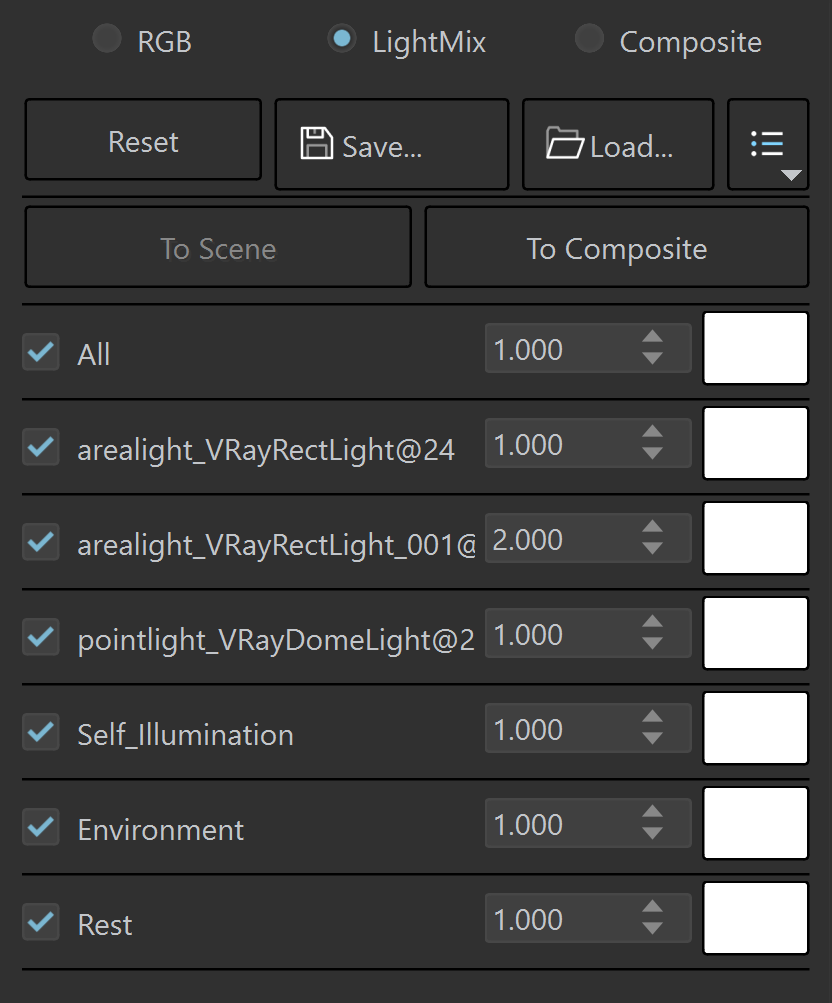
In the V-Ray Frame Buffer, when the Source is set to LightMix, you can enable/disable lights and adjust light intensity and color during and after the render. The modifications can be saved as light mix presets and reused. Light Mix automatically creates Environment and Self_Illumination light channels.
Reset – Resets all changes made to default values.
Save – Saves the changes as a light mix preset.
Load – Loads a light mix preset.
To Scene – Applies the current Light Mix changes to the scene. This sends all changes to colors/intensities back to the scene items (except the items that were left out in Rest). This option is only available when the render has stopped.
To Composite – Sends the Light Selects from Light Mix to Composite for additional post adjustments.
Recent – Shows a list of recent light mix presets.
Checkbox – Enables/Disables the selected light.
Multiplier – Specifies an intensity multiplier.
Color Slot – Specifies a color for the selected light.
There are some special categories
All – Turns on/off all lights.
Environment – Contains the emitting effect of any map placed in the V-Ray Environment node.
Self_Illumination – Contains either all parts of the scene that have a self-illumination material, or only the parts of the scene that haven't been included in any groups specified by Light Selects. Some parts of the scene might also be present in this category if the individual number of self-emitting materials exceeds the maximum range of 62 for all the Light Selects.
Rest – Includes all the individual lights that are not part of any group defined by a Light Select or exceeding the limit of the list (the limit of the list is 62 individual lights or Light Selects).