V-Ray for Blender
Render Settings
This page introduces the Render Settings in V-Ray for Blender.
Last updated 12 June 2026
This page introduces the Render Settings in V-Ray for Blender.
Overview
The V-Ray Render Settings provide control over the parameters that adjust the rendering process. They can be accessed from the Properties Editor within Blender's interface once V-Ray is selected as the active renderer.
The V-Ray Render Settings are divided into the following categories:
- Common – Override shortcuts and Denoiser settings.
- Sampler – Settings related to the selection and manipulation of the Image Sampler type and the Global DMC Sampler.
- GI – Settings related to Global Illumination.
- Globals – Global settings, including displacement and texture settings.
- System – Settings related to the overall operation of V-Ray as well as those for the Lens Effects.
Note: In V-Ray, the two tools that most greatly impact the balance of render quality vs. speed are the Image sampler and GI engine(s). Learning the basics of how these two features work will greatly enhance your ability to adjust settings in V-Ray and maximize image quality while keeping render times to a minimum. See the linked pages for explanations of how these features work.
UI Path: ||Properties Editor|| > Render > Render Engine > V-Ray
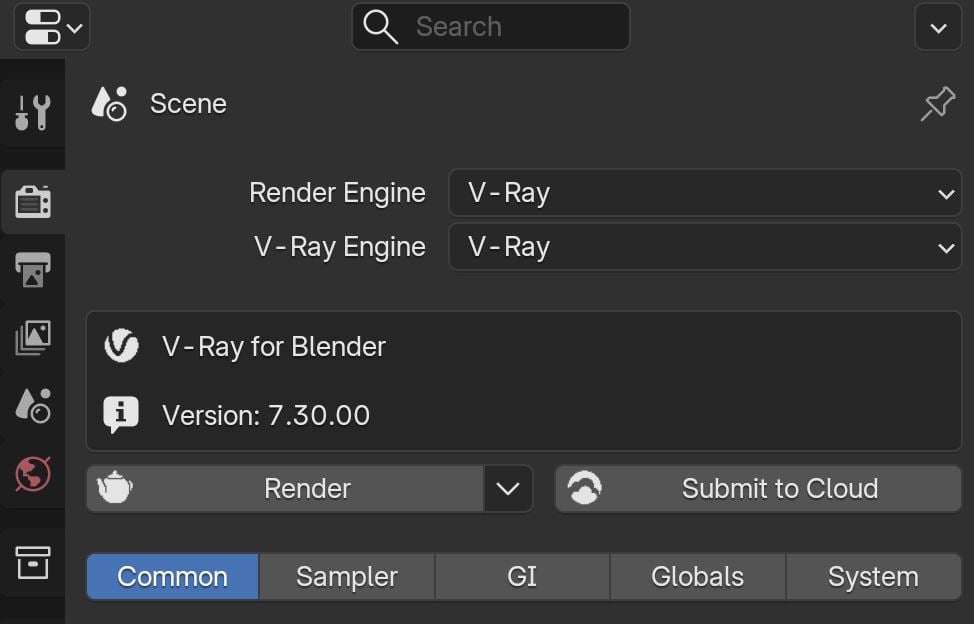
Render Engine
V-Ray allows you to use both CPU and GPU hardware for renders through the Render Engine rollout.
When the engine is set to V-Ray GPU, you can also select the GPU platform:
V-Ray Engine – Allows you to choose between the V-Ray and V-Ray GPU engines. For information on the differences between the V-Ray and V-Ray GPU engines, see the Render Engines page.
GPU Device – Allows you to choose which GPU platform to use for calculations - CUDA or RTX. Cuda is the default engine. When Use RTX (no CPU, Slower start) is enabled, the engine switches to RTX mode. If you have multiple GPUs in your system or you are using CUDA mode, you can adjust which physical devices to include in the render through the Devices button.
For more information, see the Rendering with V-Ray GPU page.

V-Ray CPU engine

V-Ray GPU engine