V-Ray for Blender
V-Ray Mtl Diffuse
The Diffuse tab is part of the V-Ray Mtl parameters.
Last updated 18 September 2025
The Diffuse tab is part of the V-Ray Mtl parameters.
Input Sockets
This section describes the input sockets of the node. They can be used to attach external nodes to determine these values.
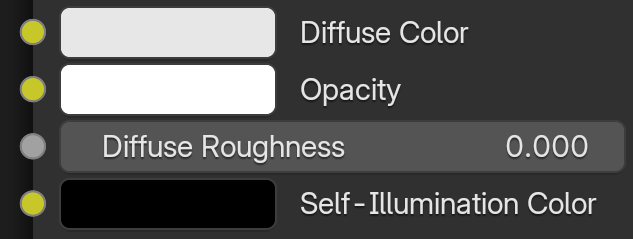
Diffuse Color – Allows a color node to determine the diffuse of the material.
Opacity – Allows a color node to determine the opacity color and intensity. The intensity is derived from the Value property of the attached color.
Diffuse Roughness – Allows a float node to determine the amount of diffuse roughness.
Self-Illumination Color – Allows a color node to determine the self-illumination color.
Properties
Mode – Switch between the shading modes: V-Ray and OpenPBR. When the Mode is set to OpenPBR, some parameters of the material are renamed.
The OpenPBR (Open Physically-Based Rendering) shading mode has a different layer structure in comparison to the V-Ray Material. It is currently not supported with V-Ray GPU. For further information, see the OpenPBR Shading Mode page.
Diffuse Color - The diffuse color of the material. Note the actual diffuse color of the surface also depends on the reflection and refraction colors. A node can also be used to control this property. See the Energy preservation parameter below.
Diffuse Roughness - This can be used to simulate rough surfaces or surfaces covered with dust (for example, skin or the surface of the moon). A node can also be used to control this property.
Opacity Mode – Controls how opacity is sampled.
Clip – (Very fast) The surface is shaded as either fully opaque or fully transparent, depending on the value of the opacity map (i.e., without any randomness). This mode also disables the filtering of the opacity texture. This is the fastest mode but it may increase flickering when rendering animations.
Stochastic – (Optimal) The surface is randomly shaded as either fully opaque or fully transparent so that on average it appears to be with the correct transparency. This mode reduces lightning calculations but might introduce some noise in areas where the opacity map has gray-scale values. The opacity texture is still filtered as normal.
Opacity Color - Here, you can assign opacity to the material where white is completely opaque and black is completely transparent. You can also assign a map by clicking the checkboard button. This way, you can create a material that has a non-uniform opacity. A node can also be used to control this property.
Self-Illumination Color - The self-illumination color of the material. A texture map can be used for the self-illumination color by clicking on the checkbox next to the color slider. When the Mode is set to OpenPBR, this property is renamed to Emission. It functions the same way.
Self-Illumination Affects GI – When enabled, the self-illumination color affects GI computations. When the Mode is set to OpenPBR, this property is renamed to Emission GI. It functions the same way.
Compensate Camera Exposure – When enabled, the illumination of the self-illumination is adjusted to compensate for the exposure correction from the V-Ray Physical Camera.

See previous: | See next: |
See previous: | See next: |