V-Ray for Blender
V-Ray Node Editor
This page provides information about the V-Ray Node Editor in V-Ray for Blender.
Last updated 12 June 2026
This page provides information about the V-Ray Node Editor in V-Ray for Blender.
Overview
The V-Ray Node Editor is a General Node Tree that can create, edit, and manage materials, textures, and geometries in Blender with node-based operations.
Node Tree Types
Select the Node tree you want to edit from the Node Tree Types dropdown.
Shader – The Shader node tree allows you to create and edit V-Ray shader nodes in Blender.
Object – The Object node tree allows you to create and edit V-Ray geometries and objects in Blender.
World – The World node tree allows you to create and edit V-Ray environment objects in Blender.

How to open the Node Editor
- Make sure your renderer is set to V-Ray in the Render Properties tab.
- Set the Editor to V-Ray Node Editor. It automatically opens at the Shader Node Tree.
- Click on Use V-Ray Material Nodes. This creates a default V-Ray Material node in the editor. You can delete the native Principled BRDF node.
- The V-Ray Material node is automatically assigned to the currently selected object, in this case, the cube. You can start editing the material's properties right away, and the changes will be reflected in the render.
Node Editor Toolbar
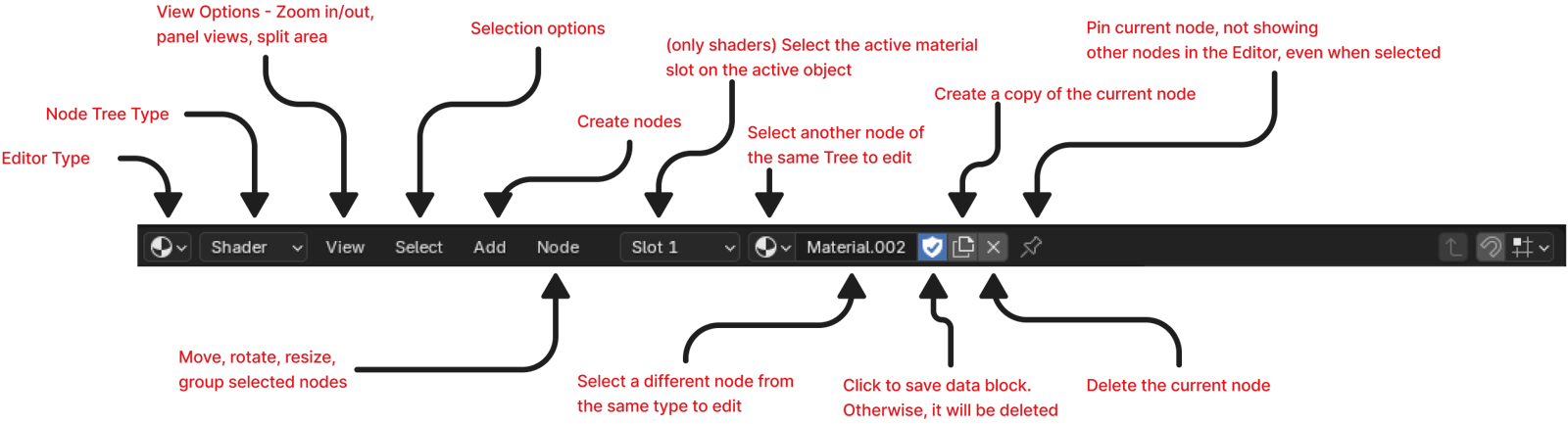
The toolbar at the top of the Node Editor provides some basic but crucial options. See the image for details on what each button in the toolbar does.
Nodes
Depending on the Node Tree, slightly different nodes are available. Some node categories are available for all tree types.
See the V-Ray Nodes page for a list of all available nodes.
Node Wrangler
Similar to the Blender Node Wrangler, the V-Ray Node Wrangler provides workflow tools inside the V-Ray Node Editor. For more information on the specific tools, see the V-Ray Node Wrangler page.
Grouping Nodes
To group a number of nodes, select them and right-click to open the Node context menu. To group the nodes, select the Make Group option. Alternatively, use the shortcut Ctrl + G.
After grouping, the Node Editor automatically enters the group node. To go back to the Output, right-click and click on Exit Group.
To go back inside the Group node, right-click on the Group node and click on Edit group. Alternatively, you can use the Tab keyboard button.
Inside the group, any changes can be made, which will reflect on the output of the Group node.
Any changes made inside the group are reflected when the group is disbanded.
To disband a Group node, right-click on the node and select Ungroup, or use the shortcut Ctrl + Alt + G.
You can also insert nodes into a group from outside the Group node. Select the nodes you wish to add. Right-click on them and click on Insert Into Group, or use the shortcut Shift + Ctrl + G.
