V-Ray for Blender
V-Ray Scene
The V-Ray Scene geometry loads a previously saved .vrscene or .usd file for rendering inside of V-Ray for Blender. V-Ray Scene allows for assets to be shared between all platforms that run V-Ray.
Last updated 1 September 2026
Overview
The V-Ray Scene geometry loads a previously saved .vrscene or .usd file for rendering inside of V-Ray for Blender. V-Ray Scene allows for assets to be shared between all platforms that run V-Ray.
Scenes imported using V-Ray Scene are still foreign, and not all imports can be perfect - things could look different in their original environment and inside V-Ray for Blender.

UI Paths
||V-Ray menu|| > Geometry > V-Ray Scene

UI Paths
||Add menu|| > V-Ray > V-Ray Scene

Properties Locations
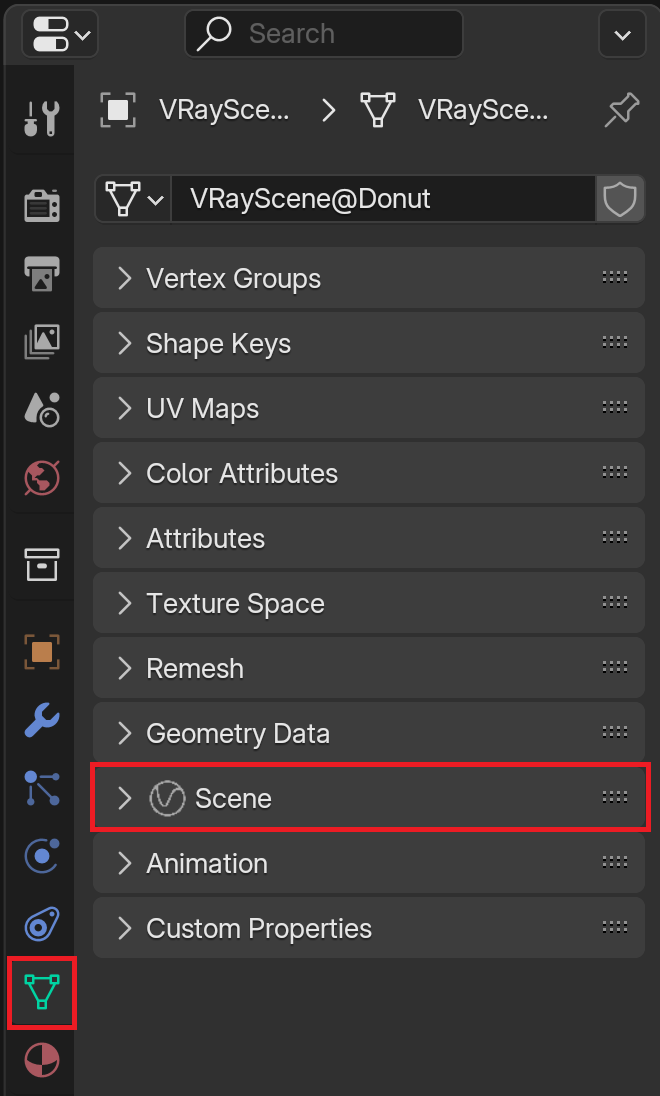
The properties of the V-Ray Scene are located in the Data tab of the Properties Editor. Select the VRayScene object you would like to edit and navigate to the Scene submenu.
Some quick settings are located in the N-panel in the Blender viewport. These are useful for basic quick setups of the V-Ray Scene.
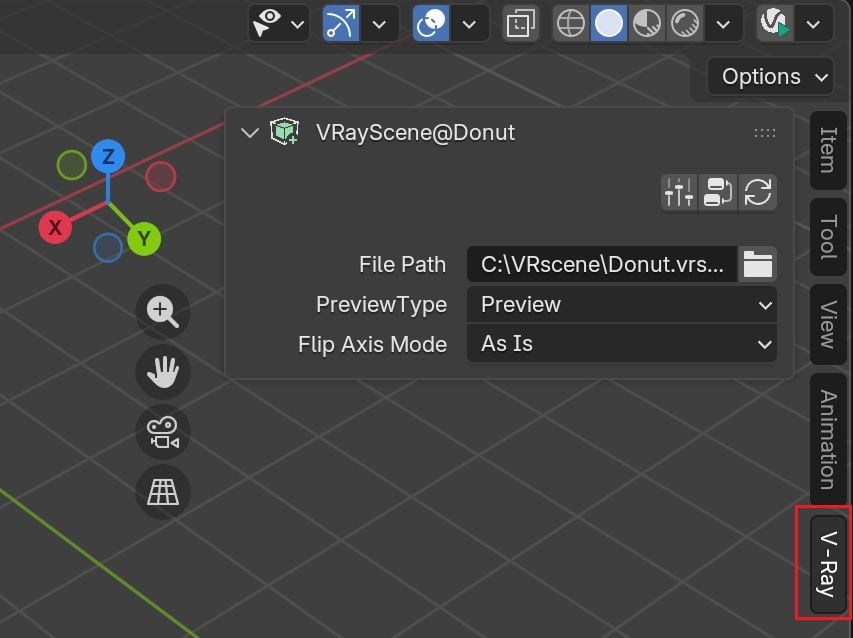
Filepath – Allows you to browse for and specify the imported file.
Preview Type – Specifies one of the following modes for previewing the V-Ray Scene in the viewport:
None – Hides the Scene.
Full – Previews the whole geometry of the Scene with no optimization. Good for small Scene files.
Preview – Displays a preview of the Scene using the value of the Num Preview Faces parameter.
Boxes – Displays a preview of the Scene using bounding boxes.
Num Preview Faces – Determines the number of faces that are used for previewing the Scene file. Lower values speed up the preview, but reduce detail, and vice versa.
Flip Axis Mode – Controls which axis is used as a vertical. The Y or Z axes for the loaded Scene. You can choose between:
None – No changes in the axes are applied.
Auto – It aligns the vertical axis of the Scene with the vertical axis in the scene in cases where the Scene was not exported from Blender. Use the Auto mode when loading a USD file.
Flip – Switches the Y and Z axes.
Include Geometry – When enabled, renders all the geometry in the Scene file.
Include Lights – When enabled, renders all lights in the Scene file.

.vrscene file loaded
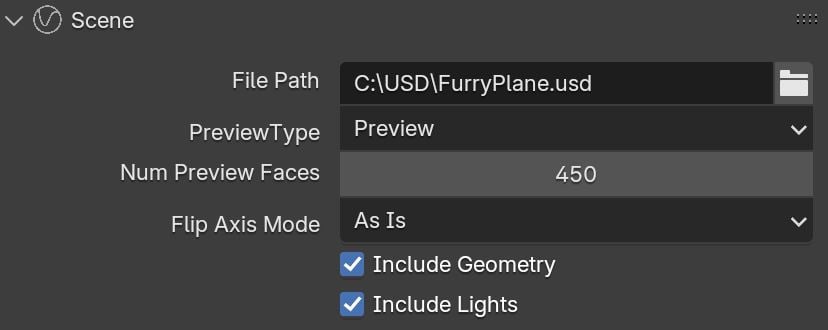
.usd file loaded
Animation Overrides
Playback Type – Sets the way any animation in the Scene plays within your current scene.
Loop – The animation plays from the Scene using the Length setting. If the time range in your current scene is longer than the length of the animation, it repeats the beginning of the animation again.
Once – The animation in the Scene plays just once. The end of the animation holds if the time range is longer than the length of the animation.
Ping-Pong – The animation plays from the Scene, and if the end of the animation is reached, the animation plays in reverse towards the beginning of the animation. It continues back and forth until the end of the time range.
Still – The animation holds the Start frame for the duration of the time range.
Speed – Determines the pace at which the animation plays. The default of 1.0 plays at the speed at which the animation was created.
Offset – Shifts the start frame forward by the given value.
Start – Determines which frame is considered the first frame of the animation when the Offset is set to 0.0.
Length – Sets the length of the animation. If this value is less than the total number of frames, the animation is clipped. If it exceeds the number of frames, the Playback Type option determines how the extra frames are interpreted.

Exporting a V-Ray Scene
To export a scene from V-Ray for Blender to a .vrscene file, go to File > Export > V-Ray (.vrscene). This opens the Export window, where you can adjust some settings of your export.
File path – Choose the location of your export and name your scene.
Compressed – Compresses the geometric information to save space. This option is available only when Meshes in HEX Format is enabled.
Meshes in HEX Format – Exports the geometric information as binary data to avoid errors when rounding out. We recommend keeping this option enabled.
Transforms in HEX Format – Exports information about object matrices as binary data to avoid errors. We recommend keeping this option enabled.
Separate Files – Allows you to choose elements of the scene to be exported separately. The files are given the corresponding suffix - '_view', '_light', '_geometry', '_lights', etc.
Export Animation – When enabled, animation sequences can be exported to the .vrscene file. When the Animation Mode dropdown is set to Custom Range, the Start Frame and End Frame parameters determine the beginning and end of the animation. Otherwise, when the dropdown is set to Frame Range, it is determined by the properties set in the Output Properties tab.

