V-Ray for Cinema 4D
Render ID RE
This page provides information about the Render ID Render Element in V-Ray for Cinema 4D.
Last updated 19 September 2025
This page provides information about the Render ID Render Element in V-Ray for Cinema 4D.
Overview
The Render ID Render Element creates selection masks for all objects in the scene based on IDs automatically assigned by V-Ray during rendering. Each object is assigned a unique integer number, and each number is colored differently. The intended use for the Render ID channel is to quickly create masks for all objects in a scene without having to set up separate Multi Matte Render Elements. The masks can be separated by their integer values or by the color used to represent them in compositing applications. A wide variation of colors is used so no two objects have the same color in the render element.
There is no anti-aliasing with the Render ID Render Element; where the edge of one object meets another object, the pixel color at that spot is the color from the object that contributes most to the pixel value. The Coverage Render Element can be multiplied by the Render ID Render Element in compositing to add anti-aliasing to the Render ID.
Render IDs are not the same as Object IDs: the render ID is automatically assigned by V-Ray during rendering only, while the user assigns Object IDs and can be changed at any time. In addition, while several objects can be assigned the same Object ID, each render ID is unique to a specific scene object. To create a channel that renders object colors based on Object IDs, use the Object ID Render Element.
This render element can be used to mask out objects in the scene based on their render IDs. See the example.
UI Path: ||V-Ray|| > Render Elements > Render ID
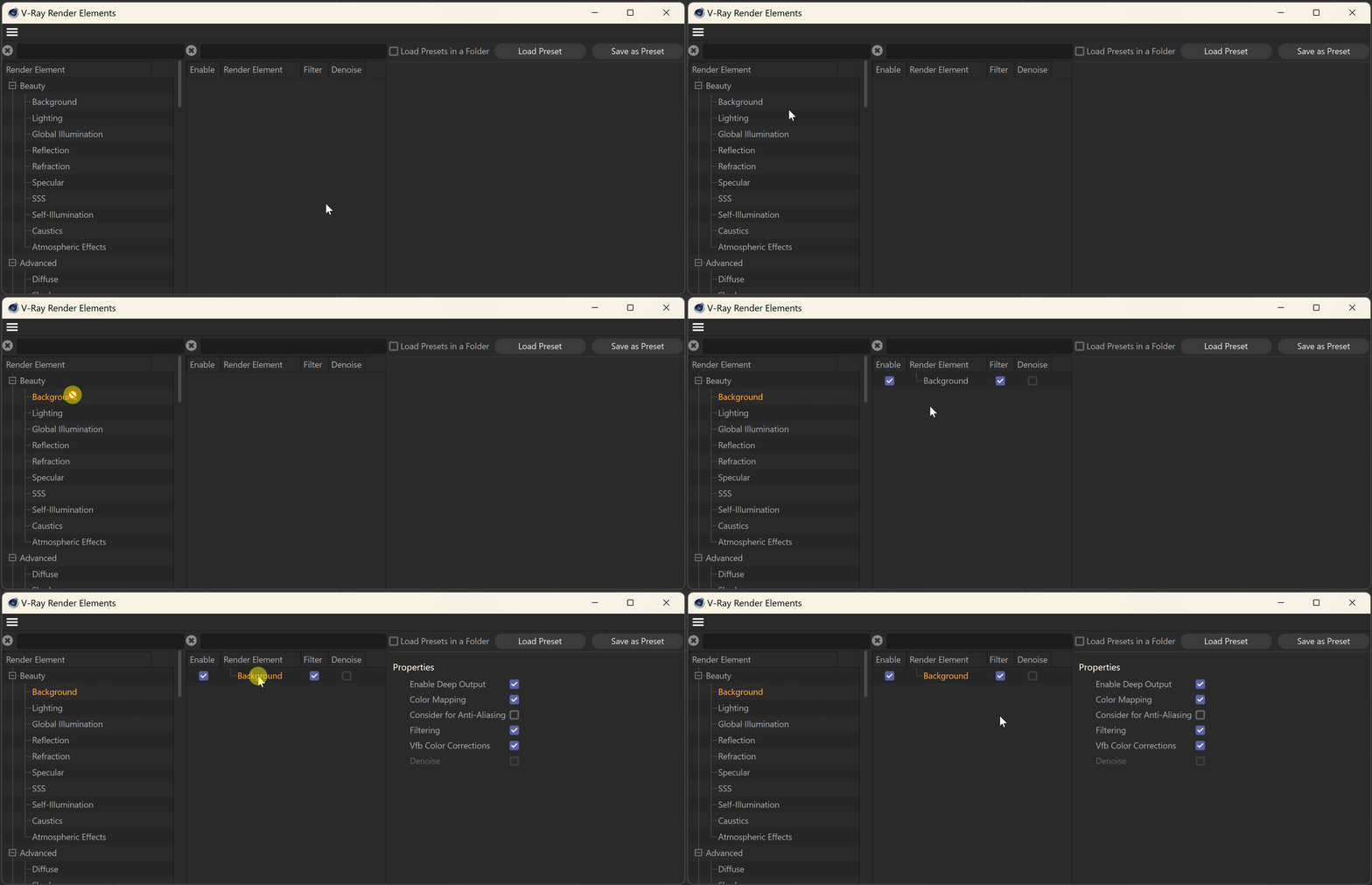
How to add a render element to a scene

Properties
Enable Deep Output – When enabled, the rendering channel is rendered in the V-Ray Virtual Frame Buffer.

Example: Selecting Objects Using Render ID
In this example, the objects in the scene are separated using Render ID masks. Then, a Constant Layer is applied to each to adjust their color. See the render before and after.