V-Ray for Cinema 4D
Rendering with V-Ray GPU
This page provides information on rendering with V-Ray GPU.
Last updated 10 July 2026
This page provides information on rendering with V-Ray GPU.
Overview
Rendering with V-Ray GPU performs the raytracing calculations on the GPU devices installed in the system, rather than the CPU. Since GPUs are specifically designed for massively parallel calculations, they can speed up the rendering process by an order of magnitude.
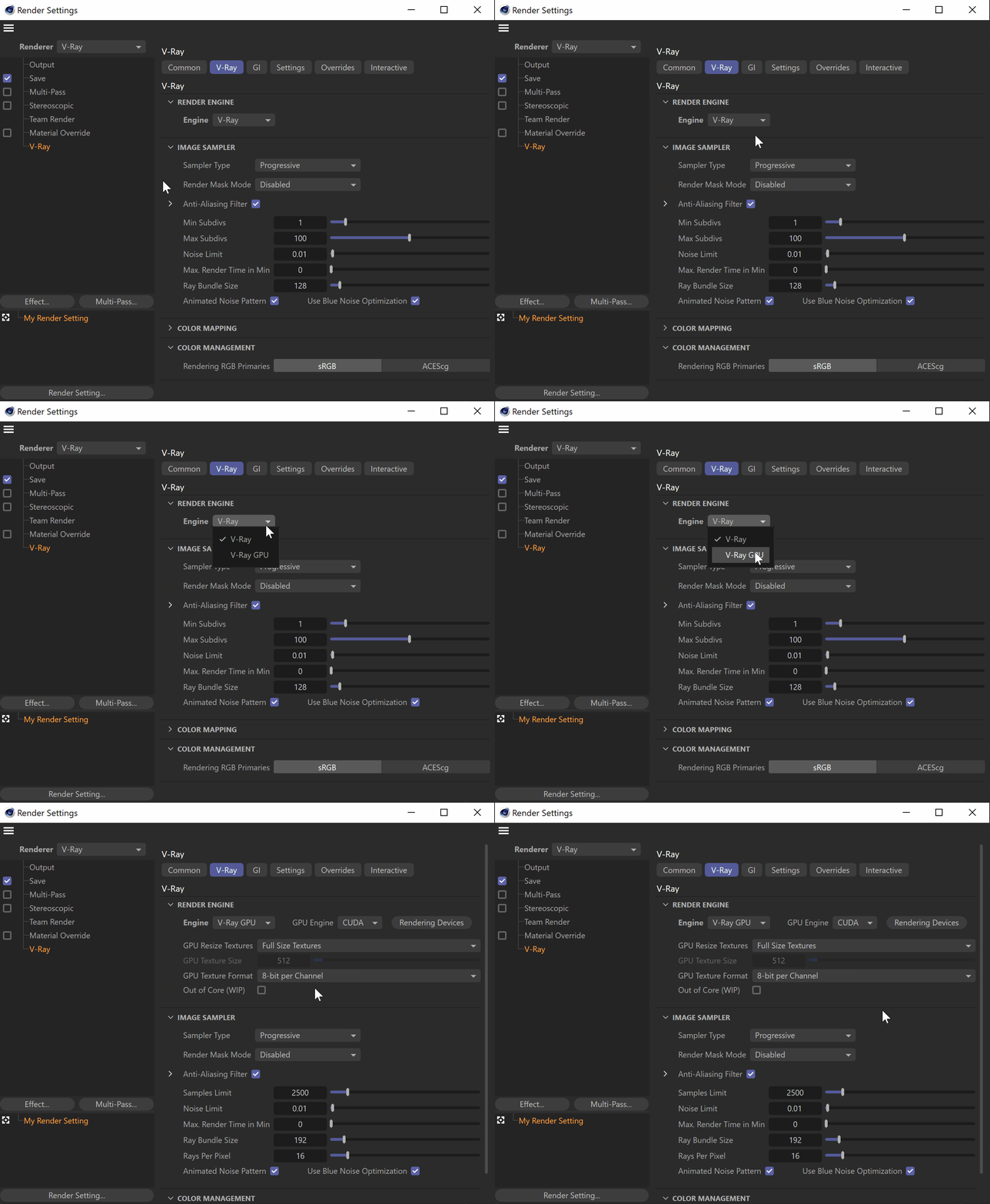
To enable GPU rendering, go to Render Settings (with the V-Ray renderer selected) > V-Ray tab > Render engine > Engine. See the Choose Which Device to Use for Render section below for more information on device selection.
You can use it with both Progressive and Bucket Sampler types.
Supported Hardware and Drivers
V-Ray GPU renders with the NVIDIA CUDA and RTX platforms on Windows, and the Metal platform on macOS.
Below is a list of tests we have performed and the results:
- NVIDIA – When the engine is set to V-Ray GPU (with RTX disabled), the CUDA platform is used. It is supported only in 64-bit builds of V-Ray for Maxwell or later NVIDIA cards. See the NVIDIA CUDA article if your card has the minimum required compute capability.
- NVIDIA RTX – When the engine is set to V-Ray GPU with RTX enabled, V-Ray GPU uses the RT Cores in NVIDIA RTX GPUs.
- AMD HIP – When the engine is set to HIP, the AMD HIP platform is used. HIP is currently supported only for Windows.
- Hybrid Rendering (running CUDA on GPU and CPU): Starting with V-Ray 3.6, V-Ray GPU CUDA rendering can be performed on CPUs and NVIDIA GPUs at the same time. Using Rendering Devices, you can enable your CPUs as CUDA devices and allow the CUDA code to combine your CPUs and GPUs to utilize all available resources.
- Apple Metal GPU – When the engine is set to Apple M1, the Metal platform is used.
V-Ray GPU supports rendering on multiple GPUs. The sections below explain how to choose devices to run IPR GPU.
If V-Ray GPU needs compatible GPU device(s) to use for rendering.
Choosing Which Devices to Use for Rendering
You may not want to use all available GPU devices for rendering, especially if you have multiple GPUs and you want to leave one of them free for working on the user interface, or you may want to combine your CPU and GPU together. See the Hybrid Rendering section for more.

Windows

macOS
To do this, you can use the Device Selection button in the Render Settings (Render Settings > V-Ray > Render Engine > Rendering Devices).
Alternatively, go to Edit > Preferences > Renderer > V-Ray > Options > Device Selection

Balancing the GPU Load
If you have only one GPU on your system, you may find that the user interface becomes sluggish and unresponsive while Interactive is rendering on the GPU. To alleviate this problem, reduce the GPU Rays per pixel and/or the GPU Ray bundle size parameters in the Interactive render settings. For example, you can try values like 64/1 or 32/1. This breaks up the data passed to the GPU into smaller chunks so that the user interface requests can be processed faster. However, note that this reduces the rendering speed. Turn on the statistics display to check the difference in render speed and find the optimal settings for your system.
Hybrid Rendering with CPUs and the CUDA Engine
Starting in 3.60, V-Ray GPU can perform hybrid rendering with the CUDA engine utilizing both the CPU and NVIDIA GPUs. V-Ray can now execute the CUDA source on the CPU, as though the CPU were another CUDA device. To enable the hybrid rendering mode, simply enable the C++/CPU device from the list of GPU devices.
The hybrid rendering mode does not require any special drivers. Furthermore, you can use the CPU as a CUDA device even if you don't have an NVIDIA GPU and/or NVIDIA drivers installed. Meaning, this mode can be used on computers that don't even have GPUs. The hybrid render engine running on a CPU supports the same features as the regular V-Ray GPU CUDA engine.
References
- The NVIDIA CUDA developer zone: https://developer.nvidia.com/category/zone/cuda-zone
- For more information on hardware recommendations, see the Hardware Recommendations article.
- AMD HIP documentation: https://rocm.docs.amd.com/projects/HIP/en/latest/what_is_hip.html
- Apple Metal documentation: https://developer.apple.com/documentation/metal/