V-Ray for Cinema 4D
VRayMultiSubTex
This page provides information about the Multi Sub texture in V-Ray for Cinema 4D.
Last updated 19 September 2025
This page provides information about the Multi Sub texture in V-Ray for Cinema 4D.
Overview
The VRayMultiSubTex distributes multiple textures to many objects via one single material based on specified IDs or a random distribution.
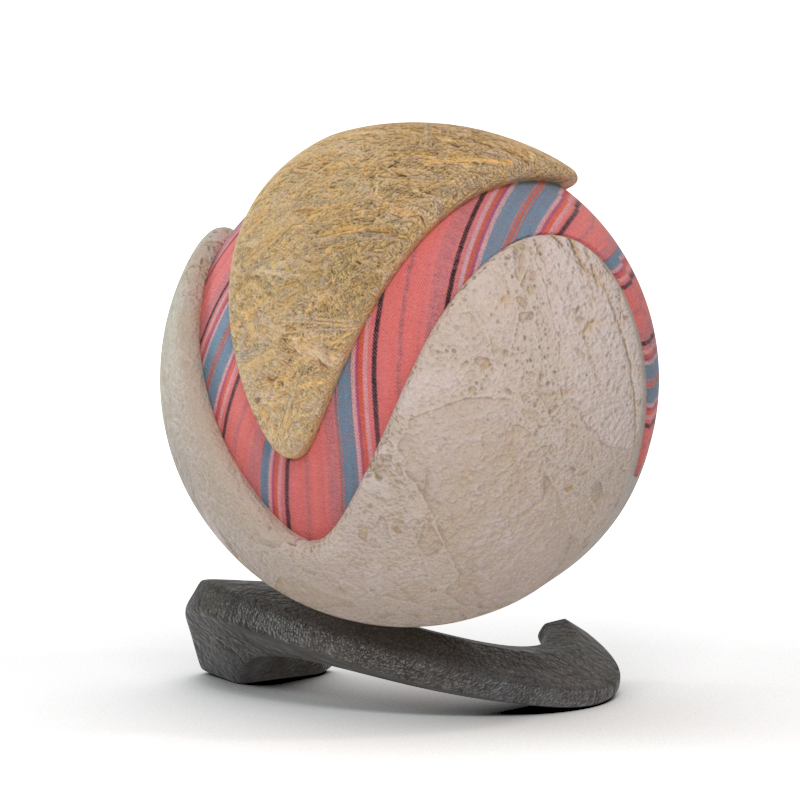
In the image shown here, VRayMultiSubTex's Get ID from parameter has its type set to Object ID. Each part of the ball is assigned a texture. The VRayMultiSubTex is then assigned to the Diffuse channel of a single VRayMtl.
UI Path: Texture > V-Ray > VRayMultiSubTex
General
Default – Specifies a default color or texture for objects without Object IDs.
Mode – Specifies where to get the ID from:
Polygon Selection – The VRayMultiSubTex uses a polygon selection set information.
Object ID – The VRayMultiSubTex considers the Object IDs of the object when feeding the data (color or texture) to the material.
Random by Composite Seed – The VRayMultiSubTex randomizes based on the selected option below.
Use ID Generator Texture – VRayMultiSubTex randomizes textures using the Switch ID parameter, or a Texture assigned to that slot.
Switch ID – A floating point value that calls the texture from the Texture List tab by the ID number. This option is available with the Use ID Generator Texture mode. A Texture can be assigned to override the floating point value and instead determine which texture to call. Keep in mind that VRayMultiSubTex uses the Value property of the texture, which can have values between 0 and 1, therefore, when using Use ID Generator Texture with an applied texture, the IDs of the sub-textures need to have values between 0 and 1.
Id Gen Tex Round Mode – if the Switch value falls between two textures from the Texture list, this determines whether V-Ray rounds to the Nearest value or if it Rounds Down. This option is ignored when Interpolate is enabled.
Interpolate – If the Switch value falls between two textures from the Texture list, this interpolate between them. Otherwise, when disabled, the closest texture from the list is used.
Random by Node Name – Generates a color index based on the name of the node that the texture is applied to.
Random by Polygon Selection – VRayMultiSubTex assigns random colors based on the unique polygon selection of the object's faces.
Random by Mesh Element – VRayMultiSubTex assigns random colors based on element (e.g., teapot lid, etc.) IDs of the object.
Random by Scene Name – The VRayMultiSubTex assigns random color/texture based on each object's full scene path. A full scene path means that it can be used for multiple objects with the same name but located on different levels/branches in the hierarchy of the scene, e.g., instances in different groups. This option preserves the same random result per object, even if one or more objects are added or deleted from the group.
Random by Instance ID – The VRayMultiSubTex assigns random colors based on the IDs of objects instanced with the Particle Instancer.
Random by Object ID – VRayMultiSubTex assigns random colors based on the object's ID.
Random by User Attribute – Randomizes the textures based on a User Attribute assigned to the specific objects and set in the Random User Attr Name field.
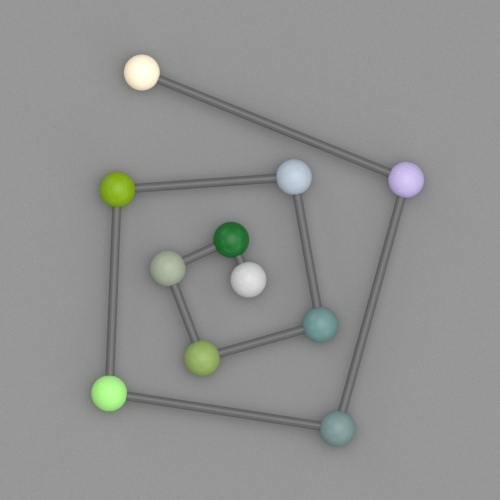
Random Hue/Sat/Gamma – These three parameters control the randomization of the output color. Input value is percentage of the HSV/gamma range and specifies the maximum random deviation, where gamma range is fixed to [1/10,10]. See the Random by Hue/Sat/Gamma example for more information.
Random User Attr Name – Determines the User Attribute to be used when Random by User Attribute is selected.
Seed – When the mode is set to Random by Node Name, this parameter allows the user to change the randomization pattern.
Loop Through Textures – This option works in Object ID mode. When the faces or objects assigned with VRayMultiSubTex map are more than the sub-textures in the map, the Loop Through Textures option goes through all sub-textures and once they finish, reverts to the first sub-texture, continuing until all faces or objects get a sub-texture. In Object ID mode all objects with assigned ID different than 0 get a sub-texture. The ones with Object ID equal to 0 get the Default color.

Texture List
Add Texture – Adds a new sub-texture to the texture list.
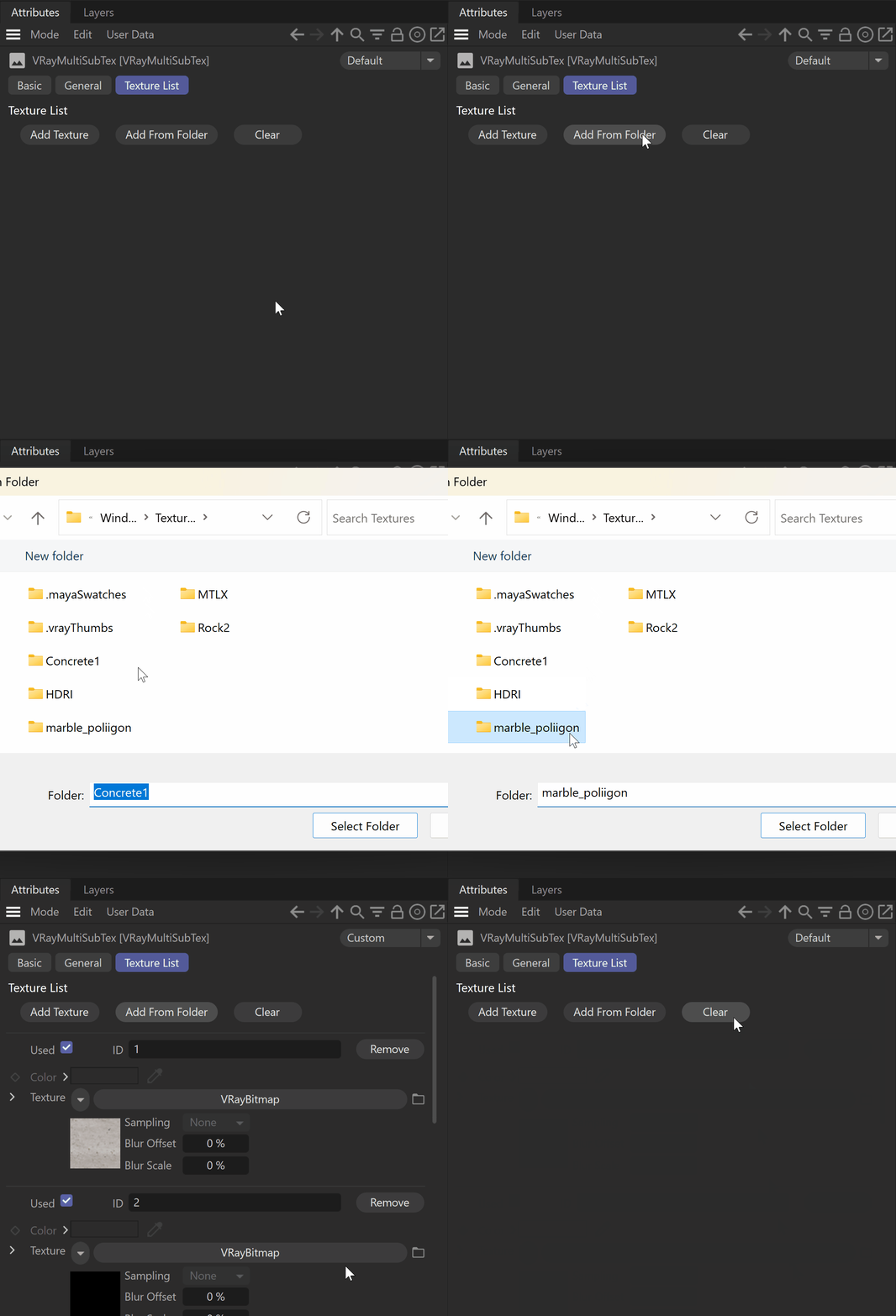
Add From Folder – Selects a folder and uploads all the textures from that folder to the texture list. See the How to Add From Folder... expandable for a visual.
Clear – Clears all the texture slots in the texture list, resetting the texture list to blank.
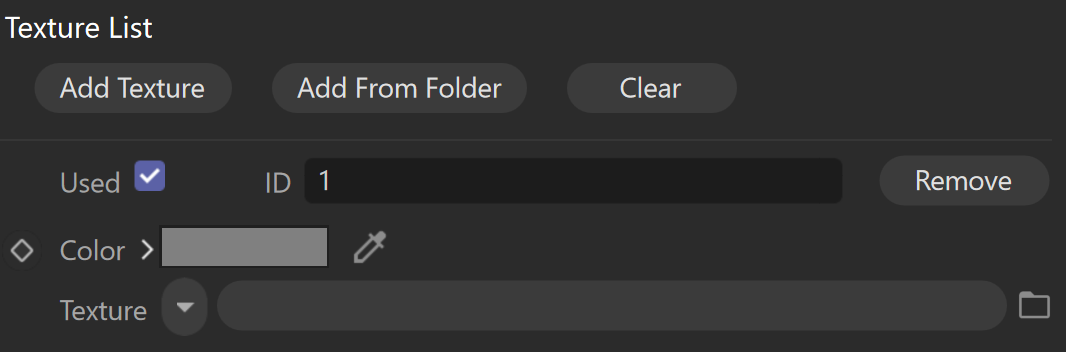
Used – Enables the sub-texture for rendering.
Weight / Selection Tag / ID – This parameter changes, depending on the Mode set in the General parameters.
Weight – Determines the probability the corresponding texture will be picked when the Mode is set to Random by Composite Seed.
Selection Tag – Allows you to specify a Polygon Selection tag, to which to apply this sub-texture when the Mode is set to Polygon Selection. Enter the Name of the polygon selection in this field.
ID (When the Mode is set to Object ID)– This field assigns an ID to the current sub-texture. When the ID of an object, that the MultiSub Texture is assigned to, matches the ID in this field, this sub-texture is applied to that object. This is useful when you want to switch multiple textures over multiple objects without changing the material assignment.
ID (When the Mode is set to Use ID Generator Texture) – The ID of this field needs to match the Switch ID in the General parameters. If a Texture is used, when this ID matches the Value of an area in the texture, this sub-texture is applied there. Keep in mind, when a Texture is applied, this ID should be assigned values between 0 and 1, as the Value of a texture does not exceed these values.
Remove – Removes the corresponding texture from the Texture LIst.
Color – Specifies a color to be used instead of a texture.
Texture – Specifies a multi-sub texture to be used.
How to Add From Folder...

Mode = Random by Composite Seed

Mode = Polygon Selection
Mode = Object ID/Use ID Generator Texture
Example: Random Hue/Sat/Gamma
The following example shows how the Random Hue/Saturation/Gamma changes the scene. Each of the objects has a separate Object ID set and the Get ID from is set to Use Object ID.

No Random Hue/Sat/Gamma applied

Hue = 100%
Saturation = 100%

Gamma = 100%