V-Ray for Maya
ACEScg Workflow Setup
This page provides information about the proper ACEScg color space workflow with V-Ray for Maya.
Last updated 2 July 2026
This page provides information about the proper ACEScg color space workflow with V-Ray for Maya.
Overview
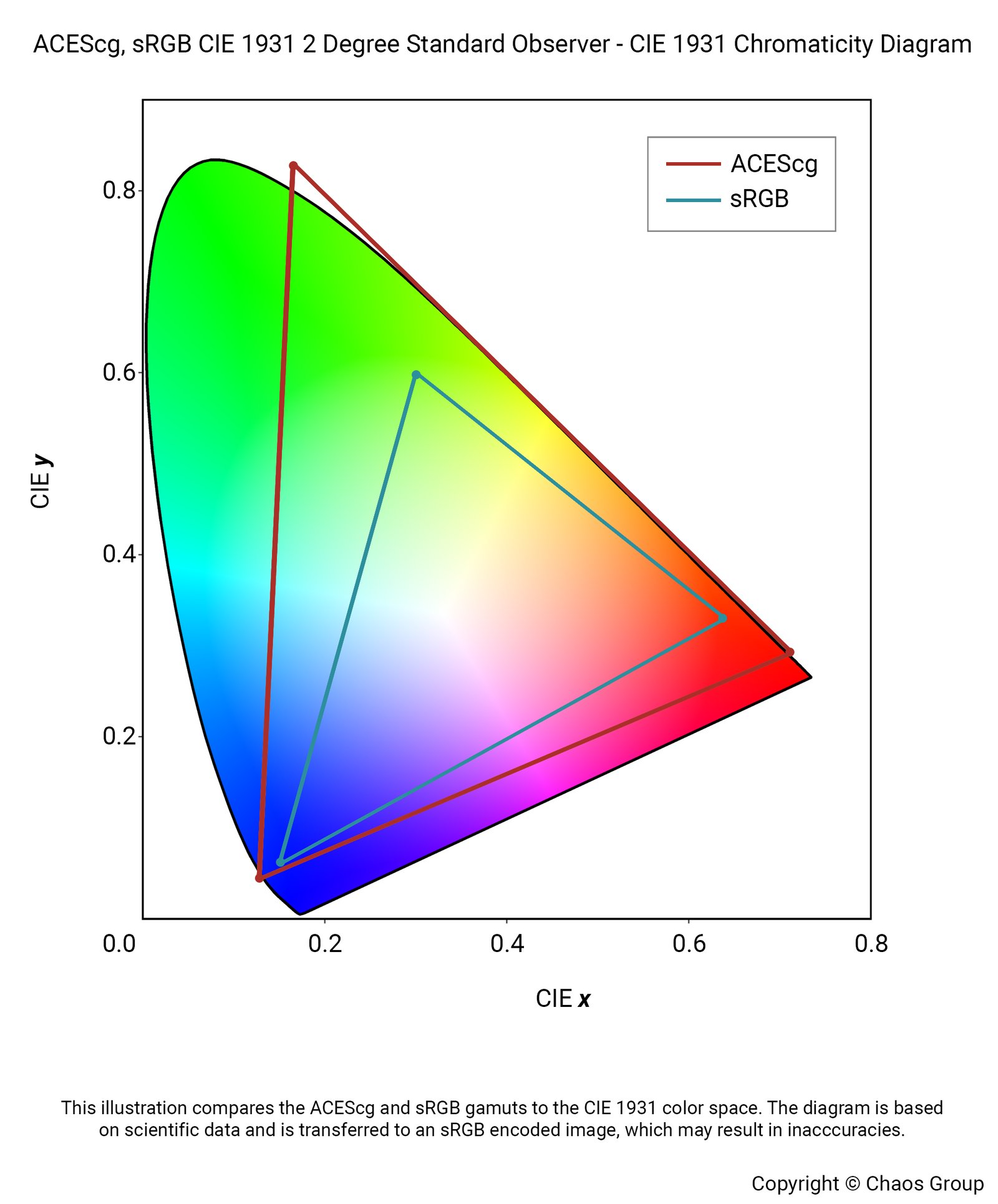
ACES is the Academy Color Encoding System, developed by the Academy of Motion Picture Arts and Sciences. ACEScg is the version of the ACES encoding system for computer graphics, widely adopted in the industry. It has become the industry standard, because compared to sRGB, ACEScg works with a lot more color information, illustrated in this gamut graph.
V-Ray provides an implementation of the ACEScg out of the box and in this tutorial we explain the rendering setup in V-Ray for Maya in this color space. There are two ways of setting up ACEScg for rendering and display: manually and using an OCIO configuration.
V-Ray supports only ACEScg as the primary color space of choice in CGI and not other ACES color spaces such as ACEScc or ACEScct.
Want to follow along but don’t have a license?
Manual Setup
There are two ways to set V-Ray to render in ACEScg.
The recommended approach is to leave V-Ray’s color mapping to its default From Maya Preferences. This lets V-Ray follow Maya’s Color Management and the rules specified there, where by default, ACEScg is the rendering color space in Maya. V-Ray VFB is synced with Maya's Color Management display settings.
Then, you can use the Color Management rules to automatically apply the input color space for different types of textures.

If you have some files that are exceptions to the rule-based system, you can override the color space of a specific file node from its attributes.
For example, in the File texture, go to File Attributes > Color Space and select the color space, in which the texture is encoded.

Alternatively, you can instruct V-Ray to render directly in ACEScg.
Go to Render Settings > V-Ray > Color Mapping > Rendering color space and select ACEScg.
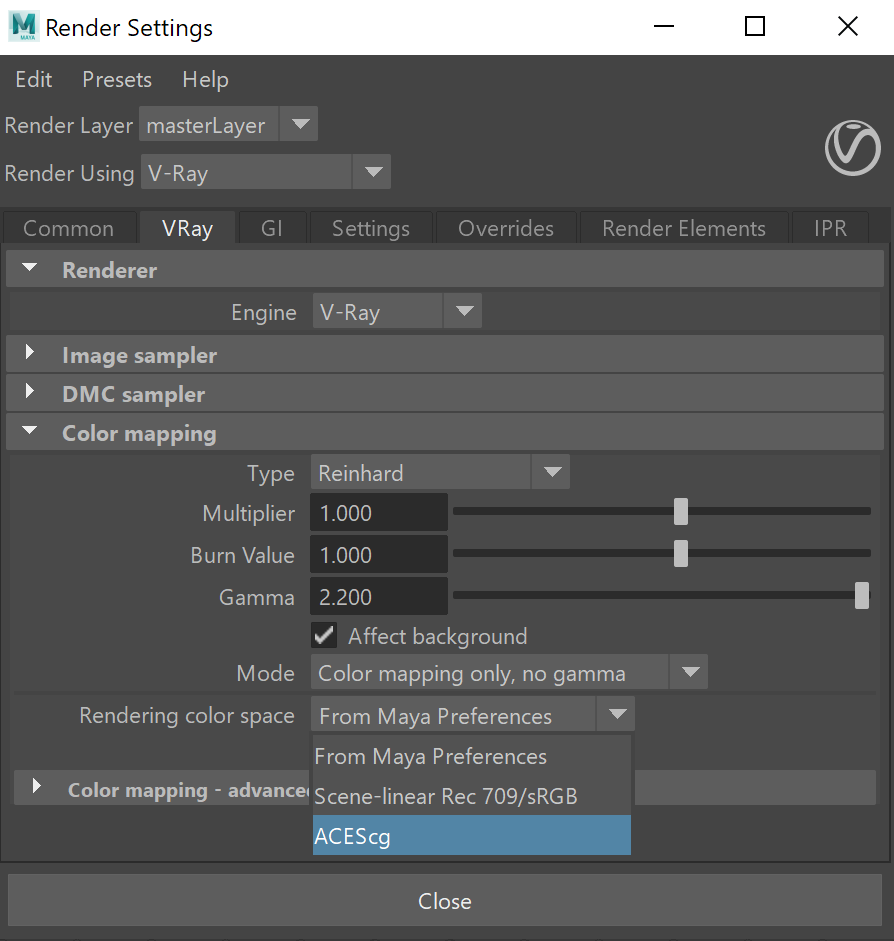
In all cases, in addition to bitmaps, V-Ray converts the light’s temperature settings, the V-Ray Sun & Sky, the VRayTemperature texture and the VRayMtl dispersion to the rendering color space.
The V-Ray Frame Buffer provides a filmic tonemap correction in AMPAS mode that emulates the OCIO display transformation, which can be used instead of an OCIO configuration.

OCIO Configuration
An automated OCIO configuration can be set with the OCIO environment variable.
There are a few steps you need to follow to set this up:
- Download the Open Color IO configuration package from GitHub: https://github.com/AcademySoftwareFoundation/OpenColorIO-Config-ACES/releases
- Set the OCIO environment variable and point it to the config.ocio file.
For example, to set up the OCIO configuration with aces_1.3:
<code data-v-c2b1f83f=""><span data-v-c2b1f83f="" class="line">Windows: set OCIO=C:\OpenColorIO-Configs\cg-config-v1.0.0_aces-v1.3_ocio-v2.0ocio</span><span data-v-c2b1f83f="" class="line"> </span><span data-v-c2b1f83f="" class="line">Linux: export OCIO=/home/user/OpenColorIO-Configs/cg-config-v1.0.0_aces-v1.3_ocio-v2.0.ocio</span><span data-v-c2b1f83f="" class="line"></span><span data-v-c2b1f83f="" class="line">macOS: export OCIO=/home/user/OpenColorIO-Configs/cg-config-v1.0.0_aces-v1.3_ocio-v2.0.ocio</span></code>
See the Getting Started with Environment Variables page for more information.
After launching Maya, Color Management should be enabled and locked to the OCIO configuration file specified in the OCIO environment variable. If needed, you can adjust the settings for rendering color space, display and view transforms and color space rules.
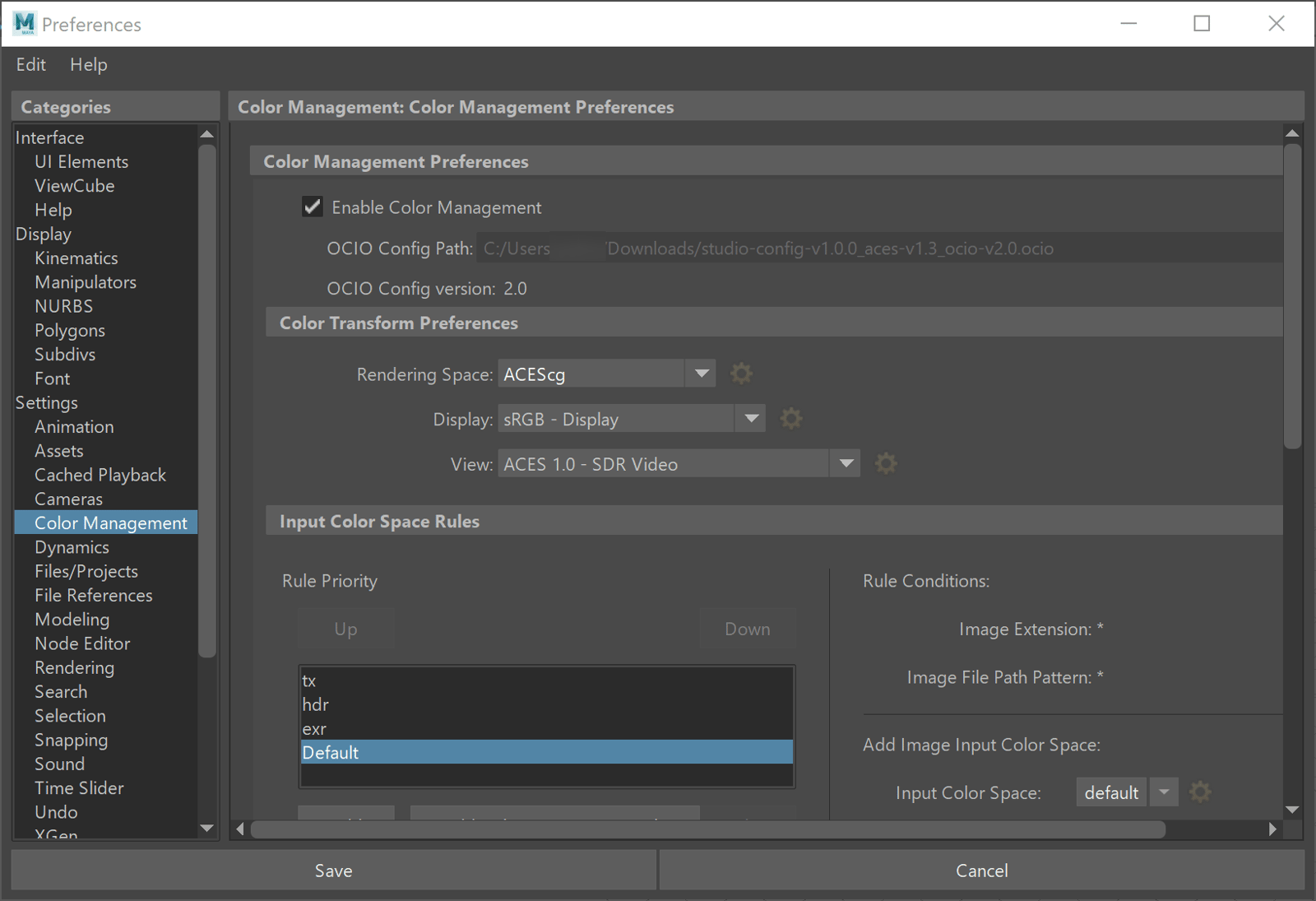
By default, the VFB is synced to the Maya Color Management settings.

The automated OCIO configuration can be further adjusted with the following VFB OCIO environment variables:
VRAY_VFB_OCIO – Automatically switches the OCIO button of the V-Ray VFB on.
VRAY_VFB_OCIO_INPUT_COLORSPACE – Specifies default OCIO input color space.
VRAY_VFB_OCIO_VIEW_TRANSFORM – Specifies default OCIO view transform.
VRAY_VFB_OCIO_DISPLAY_DEVICE – Specifies default overriding OCIO display device.
For example, set a default OCIO input color space, display device, and view transform:
Windows
Linux
macOS
<code data-v-c2b1f83f=""><span data-v-c2b1f83f="" class="line">set OCIO=C:\OpenColorIO-Configs\cg-config-v1.0.0_aces-v1.3_ocio-v2.0ocio</span><span data-v-c2b1f83f="" class="line">set VRAY_VFB_OCIO=1</span><span data-v-c2b1f83f="" class="line">set VRAY_VFB_OCIO_INPUT_COLORSPACE=ACEScg</span><span data-v-c2b1f83f="" class="line">set VRAY_VFB_OCIO_DISPLAY_DEVICE=ACES</span><span data-v-c2b1f83f="" class="line">set VRAY_VFB_OCIO_VIEW_TRANSFORM=ACES 1.0 - SDR Video</span></code>
<code data-v-c2b1f83f=""><span data-v-c2b1f83f="" class="line">export OCIO=/home/user/OpenColorIO-Configs/cg-config-v1.0.0_aces-v1.3_ocio-v2.0.ocio</span><span data-v-c2b1f83f="" class="line">export VRAY_VFB_OCIO=1</span><span data-v-c2b1f83f="" class="line">export VRAY_VFB_OCIO_INPUT_COLORSPACE=ACEScg</span><span data-v-c2b1f83f="" class="line">export VRAY_VFB_OCIO_DISPLAY_DEVICE=ACES</span><span data-v-c2b1f83f="" class="line">export VRAY_VFB_OCIO_VIEW_TRANSFORM=ACES 1.0 - SDR Video</span></code>
<code data-v-c2b1f83f=""><span data-v-c2b1f83f="" class="line">export OCIO=/home/user/OpenColorIO-Configs/cg-config-v1.0.0_aces-v1.3_ocio-v2.0.ocio</span><span data-v-c2b1f83f="" class="line">export VRAY_VFB_OCIO=1</span><span data-v-c2b1f83f="" class="line">export VRAY_VFB_OCIO_INPUT_COLORSPACE=ACEScg</span><span data-v-c2b1f83f="" class="line">export VRAY_VFB_OCIO_DISPLAY_DEVICE=ACES</span><span data-v-c2b1f83f="" class="line">export VRAY_VFB_OCIO_VIEW_TRANSFORM=ACES 1.0 - SDR Video</span></code>
The values for the input color space, display device, and view transform variables need to match the settings available in the configuration file. This example may not work with OCIO configurations other than the one used in the example. For example, VRAY_VFB_OCIO_VIEW_TRANSFORM needs to match a "ACES 1.0 - SDR Video" view transform from the configuration file.
When rendering with V-Ray Standalone or using distributed rendering, the OCIO environment variables must be set accordingly on all machines used for rendering.
The OCIO configuration files used in V-Ray VFB aren't automatically collected with the rest of the scene assets when sending a job for rendering to another machine. Use the OCIO configuration files from a shared location or copy the files manually to your render nodes to avoid mismatch in render output.
See the Getting Started with Environment Variables page for more information.

OCIO Configuration File Support
V-Ray 6, update 2, adds support for OCIO v2.1.
V-Ray 7 adds support for OCIO v2.3.
V-Ray 7, update 1.1, adds support for OCIO v2.4.