V-Ray for Maya
Distributed Rendering Settings
This page provides information on the Distributed Rendering rollout in the Render Settings.
Last updated 12 February 2026
This page provides information on the Distributed Rendering rollout in the Render Settings.
Overview
Distributed rendering is a technique that distributes a single render job across multiple frames within a network of computers.
For a complete step-by-step guide on how to set up your machines for distributed rendering, see the Distributed Rendering page.
UI Path: ||Render Settings window|| > Settings tab > Distributed rendering rollout

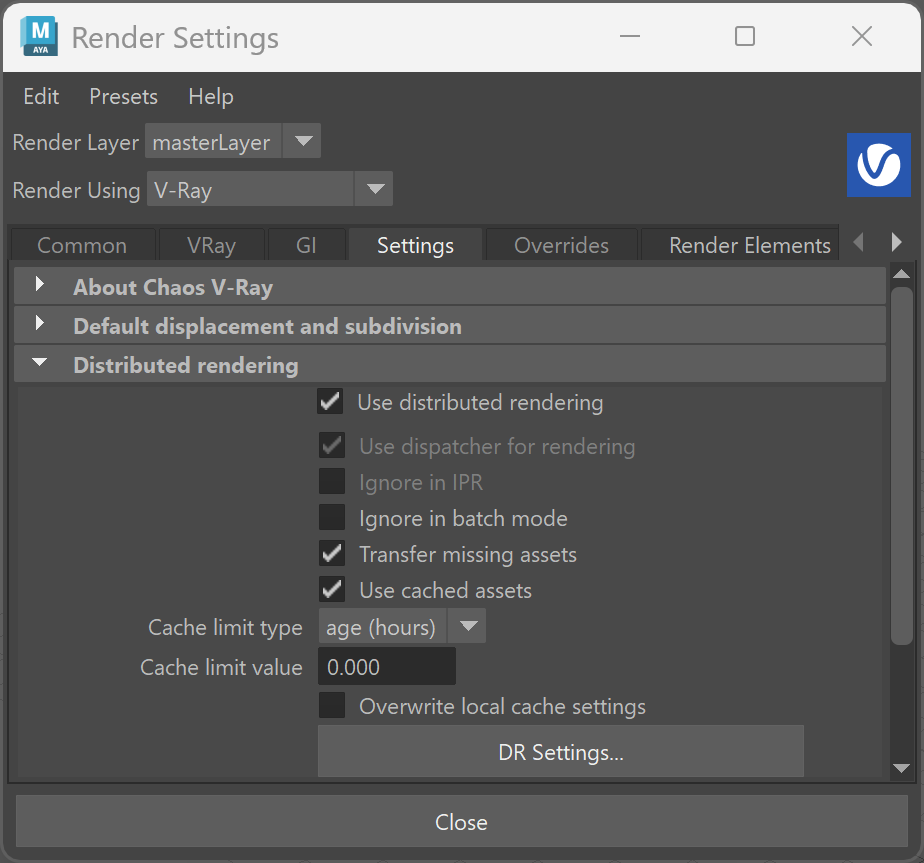
Parameters
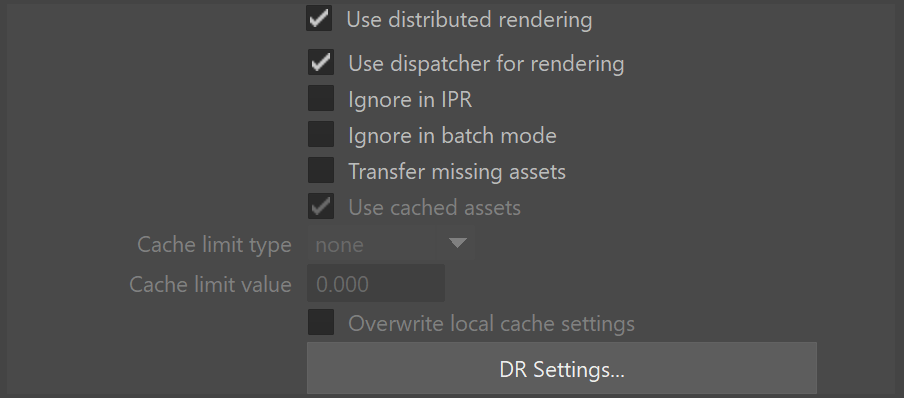
Use distributed rendering – Enables additional parameters and settings to distribute the rendering across additional computers. Note: The vray_dr_list.xml file stores the settings information for your DR setup.
Use dispatcher for rendering – When this option is enabled, the local dispatcher participates in the rendering process. When the option is disabled, it only sends work to servers. This is ignored when using a remote dispatcher, as it is set as a command-line argument for remote dispatchers.
Use local machine – The client/local machine will function as a render server along with the other computers used to complete the rendering task. Disabling will mean all rendering will be done on other machines apart from the DR setup. This option is available for builds with the legacy DR workflow.
Ignore in IPR – When enabled, IPR will only run on the local machine rather than the whole distributed rendering network.
Ignore in batch mode – Distributed rendering will not be utilized when rendering is set to Batch Mode.
Transfer missing assets – Allows render servers to automatically download missing rendering assets from the client machine, including textures, V-Ray proxy files, IES profiles, GI solution caches (irradiance maps, light caches), etc.
Used cached assets – Tells the render servers to keep the downloaded rendering assets between different DR sessions. If disabled, the render assets are automatically deleted when the render server disconnects from the client machine at the end of the rendering process. When enabled, assets are kept in a folder on disk. By default, it is named vray_assets_cache and located in the temporary folder for the user who runs the V-Ray DR spawner. The location of the assets cache can be modified with the environment variable VRAY_ASSETS_CACHE_PATH. Modified assets are generally detected and re-transferred to the render servers even though they may already exist in the render servers' caches.
Cache limit type – Allows you to specify under what conditions the assets cache is cleaned up. The possible values are:
None – Assets are never deleted from the render servers' cache.
Age (hours) – Assets are kept for the specified amount of time. At the end of the rendering, the render servers will delete assets that have been transferred before the specified time limit.
Size (GB) – When the size of the assets on a render server exceeds the specified amount, the least recently used assets are automatically deleted at the end of each render until the folder size is less than the limit.
Cache limit value – The specific value of the limit for the asset cache. This is either hours or GB, depending on the value of the Cache limit type.
Overwrite local cache settings – Available when Transfer missing assets and Use Cached Assets is enabled. Enabling this option will cause the render nodes to ignore their local settings for how long they retain a transferred asset, if any such settings have been specified. Instead, the nodes will use the settings from the host's Maya render settings.
Distributed Rendering Settings
Dispatcher name or IP address – Specifies the IP address of the dispatcher machine. If left empty, the local machine will be used as a dispatcher.
Port number – Specifies the port number where the DR server operates. The default port number is 20209; it is not recommended to change it unless you are familiar with the implications.
Server name or IP address – A text field to enter the name or IP address of the machine to use as a DR server.
Port number – Specifies the port number where the DR server operates.
Server alias/description – A text field to place notes about the particular DR server.
Add server – Allows a manual way to add a server by entering its IP address or network name.
Remove server –Deletes the currently selected server(s) from the list.
Toggle status – Toggles the state of the selected server(s) between enabled and disabled.
Edit – Modifies the information for the selected entry in the list.
Limit used DR servers – When several DR servers are available, sets an upper limit to the number of servers used for rendering.
Sort list by – Organizes the server list by Server name / IP address, Port number, Status, or Server alias/description.
Resolve servers – Refreshes the list of server names to IP addresses.
Close – Closes the Distributed Rendering settings window.

XML Configuration File
Distributed Rendering settings are no longer saved in a collection of .tmp files but instead are all included in a single XML file called vray_dr_list.xml. If an XML file is not found, V-Ray will print a warning and automatically convert old .tmp files to XML. The default XML location is as follows:
Windows: C:\Users\<username>\Documents\maya
Linux: /home/<username>/maya
OS X: /Users/<username>/Library/Preferences/Autodesk/maya
Additionally, the environment variable VRAY_FOR_MAYA_DRLISTS_PATH can be used to set an alternative XML file path. This allows multiple users to use their own DR settings on the same machine.
The following is an example of an XML configuration file that can be downloaded here:
<code data-v-c2b1f83f=""><span data-v-c2b1f83f="" class="line"><?xml version='1.0' encoding='UTF-8'?></span><span data-v-c2b1f83f="" class="line"><hostlist></span><span data-v-c2b1f83f="" class="line"><serversLimit>4</serversLimit></span><span data-v-c2b1f83f="" class="line"><server></span><span data-v-c2b1f83f="" class="line"><host>someaddress</host></span><span data-v-c2b1f83f="" class="line"><port>20209</port></span><span data-v-c2b1f83f="" class="line"><alias>render host name here</alias></span><span data-v-c2b1f83f="" class="line"><enabled>0</enabled></span><span data-v-c2b1f83f="" class="line"></server></span><span data-v-c2b1f83f="" class="line"><server></span><span data-v-c2b1f83f="" class="line"><host>127.0.0.1</host></span><span data-v-c2b1f83f="" class="line"><port>20209</port></span><span data-v-c2b1f83f="" class="line"><alias>My own computer</alias></span><span data-v-c2b1f83f="" class="line"><enabled>1</enabled></span><span data-v-c2b1f83f="" class="line"></server></span><span data-v-c2b1f83f="" class="line"></hostlist></span></code>
For users who do not wish to switch to the new XML method, V-Ray provides Python functions for compatibility. These are mentioned in a warning after the first automatic file conversion. First, the vray module must be imported:
<code data-v-c2b1f83f=""><span data-v-c2b1f83f="" class="line">import vray</span></code>
To convert an XML file back to TMP, use the following:
<code data-v-c2b1f83f=""><span data-v-c2b1f83f="" class="line">vray.vray_dr_manager.vrayDRConvertXMLToTmp()</span></code>
To convert a TMP file to XML, use this function:
<code data-v-c2b1f83f=""><span data-v-c2b1f83f="" class="line">vray.vray_dr_manager.vrayDRConvertTmpToXML()</span><span data-v-c2b1f83f="" class="line"></span></code>
Notes
- When you cancel a DR rendering, it may take some time for the render servers to complete their tasks, and they may not be immediately available for another render.
- Servers can be added, removed, enabled, or disabled while a distributed render is running. During a progressive or IPR rendering, nodes can only be added or enabled while the rendering is in progress. While rendering, some of the options will be disabled. Stop the render to make adjustments to such options.
- Distributed rendering on macOS via Autodesk Backburner requires special settings. See the Distributed Rendering page for more information.
- Depending on whether the "Use dispatcher for rendering" option is used or not, only the dispatcher and the servers participate in the rendering. If the dispatcher is the local machine and it is enabled to participate in the rendering process, you get the same result as "Use local machine" from the old distributed rendering workflow.