V-Ray for Maya
Input
This page provides information about the Input tab of the V-Ray Volumetric Grid.
Last updated 19 September 2025
This page provides information about the Input tab of the V-Ray Volumetric Grid.
Overview
The Input rollout determines the path of the input files for rendering and preview as well as the playback effects. Note that some playback settings require a fractional input frame, in which case the frame is blended between the previous and the next one.
Parameters
Use the referenced scene name | inPathReferenced – When enabled and calculating the path for a referenced container, the original referenced scene name is used instead of this scene name.
Cached Frames – Shows information about the cached frame range.
Preview and Render Path | inPath, inPathResolved – Gives the directory and the name template for the input files.
Click the "..." button to open a menu with the following options:
Browse – Opens a dialog for choosing one of several cache file types. The V-Ray Volume Grid can import the following cache files: Phoenix FD *.aur, Field3D *.f3d and OpenVDB *.vdb.
Help – Opens the Help page for the Input tab of the V-Ray Volumetric Grid.
Click Here to expand additional $(VARIABLE) and Channel Mapping information
Channel Smoothing
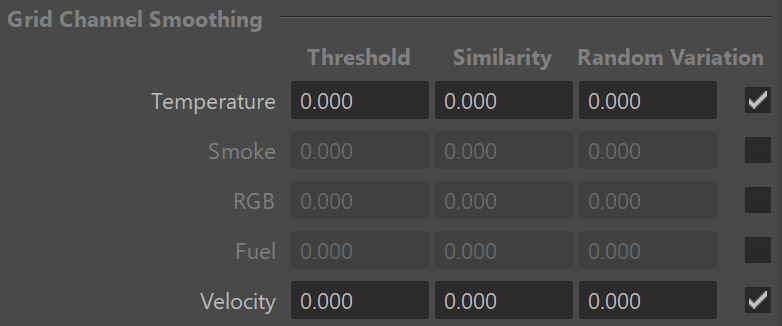
The controls in this section allow you to smooth the grid channels loaded from cache files for preview and rendering. You can use this to prevent grid artifacts on meshed grid channels such as the Liquid surface, Smoke or Temperature, to remove unwanted noise in these channels, or to get smooth motion blur by smoothing the Velocity grid channel.
Threshold | inSmoothTemp[0], inSmoothSmoke[0], inSmoothUVW[0], inSmoothFuel[0], inSmoothVel[0] – If this value is 0, the entire grid will be smoothed evenly. The higher the threshold is raised, the less voxels will be affected and only the sharpest gradients will be smoothed. The highest value you could use here depends on the range of the values of the smoothed channel - for Smoke and Liquid it's usually in the [0,1] range, while for Velocity it could go as high as several hundred and for Temperature it could be over a thousand. If you set this value too high, no voxels will be smoothed at all.
Similarity | inSmoothTemp[1], inSmoothSmoke[1], inSmoothUVW[1], inSmoothFuel[1], inSmoothVel[1] – Increasing this value will allow you to smooth only the finer small-scale noise without changing the areas of the fluid which are already smooth. Note that just like the Threshold option, this value also depends on the range of the selected channel. If you want to remove only some sharp fine disturbances from the simulation without blurring other areas, set the Threshold to 0, increase the Similarity to the highest values the selected channel can take and then start reducing it until the small-scale noise is removed, while the larger fluid shapes are retained. This option won't take effect if the Threshold parameter is raised to the maximum.
Random Variation | inSmoothTemp[2], inSmoothSmoke[2], inSmoothUVW[2], inSmoothFuel[2], inSmoothVel[2] – This parameter introduces noise of uniform scale in the channel before smoothing is applied. This can be useful if you want to give the fluid a more homogeneous pattern and this way it can also help hide grid artifacts. Note that just like the Threshold option, this value also depends on the range of the selected channel. You can use this option to only add noise to the channel without smoothing it - in order to do this, set both Threshold and Similarity to the highest values of the selected channel and this way they will not take effect.
Enable | inSmoothTempEnbl, inSmoothSmokeEnbl, inSmoothUVWEnbl, inSmoothFuelEnbl, inSmoothVelEnbl – This checkbox enables frame smoothing for the specified input channel.
3rd Party Channels Mapping
Different applications use different channels and might have different names for them. When loading f3d/vdb files, the V-Ray Volume Grid tries to automatically make the conversion to the supported channels. If a channel is not mapped by default, a channel can be manually set from the drop-down menu.
All mappings are kept in a single string attribute, accessible by the name "userChannelMappings". An example mapping string is:
2,density;10,fuel;1,temperature;4,vel.x;5,vel.y;6 ,vel.z;
The string is composed of pairs of a channel index and a string channel name.The following channels with the respective indices are supported:
Smoke - 2
Temperature - 1
Fuel - 10
Velocity.x - 4
Velocity.y - 5
Velocity.z - 6
Red - 7
Green - 8
Blue - 9
Wavelet Energy - 14
Wavelet.u - 19
Wavelet.v - 20
Wavelet.w - 21

Using Environment Variables with Volume Grid Paths
There are path environment variables in every OS, and they can be used with Volume Grid cache file paths.
For example, to access environment variables in Windows 10 and Windows 8, follow these steps:
- In Search, search for and then select System (Control Panel).
- Click the Advanced system settings link.
- Click the Environment Variables... button.
- In the System variables section, using Edit System Variable (or New System Variable) window, specify the value of the PATH environment variable.
Using this, you can create a path (variable), give it a name, and use it for cache files in the V-Ray Volume Grid.
For example, the path D:\V-Ray\Cache can be given the environment variable name "Cache". In the Volume Grid Input rollout, you can specify the path as the following:
$env(Cache)\cache_name###.aur
This will load the cache files in D:\V-Ray\Cache.
Note that in order to reference environment variables, the following pattern must be used:
$env(<variable_name>)