V-Ray for Maya
Live-Link to Chaos Vantage
This page presents an overview of the Live-Link to Chaos Vantage feature.
Last updated 24 July 2026
This page presents an overview of the Live-Link to Chaos Vantage feature.
Overview
Chaos Vantage is a powerful real-time renderer. You can utilize the Live-Link to Chaos Vantage in multiple ways:
- You can start a Live Link in Vantage and see your changes in real time. See the Start Live-Link to Vantage section.
- You can start a Live Link directly in the Maya viewport. See the Live-Link in Maya Viewport section.
- You can render an animation with Chaos Vantage. See the Start Animation Rendering within Vantage section.
Visit the Chaos Vantage page for more information on Chaos Vantage.
youtu.be
Installation
Before installing Vantage, make sure you have the latest official V-Ray for Maya build. Click on the download button to get the latest version. Make sure you have appropriate licenses and hardware. If you experience problems, please contact us using the Support Form.
Download the latest Chaos Vantage build from the download button. Make sure you have appropriate licenses. If you experience problems, please reach us using the Support Form.
Start Live-Link to Vantage
The Live Link feature acts as a live preview of your scene, allowing you to instantly see any change you make in Maya through the Chaos Vantage viewport. Live-Link cannot start while a render is running. In such cases, an error message appears in the Script Editor.
To start a Live-Link to Chaos Vantage, either click on the Vantage icon in the V-Ray Shelf, or:
Right-click the Vantage icon and select Initiate a Live-Link to Chaos Vantage.

Click on the image to enlarge it
V-Ray menu > Live-Link to Chaos Vantage > Initiate a Live-Link to Chaos Vantage

Click on the image to enlarge it
youtu.be
Live-Link in Viewport
The Live-Link in viewport function supports both static renders and animations. Playblast is not supported by the Live-Link in viewport function, so instead we suggest opting for animation.
The Live-Link preview in viewport function allows you to have a Vantage preview of your scene directly in the Maya viewport. It sends a vrscene to Vantage, but this time goes a step further and receives the rendered result back in Maya. Chaos Vantage starts and runs in parallel, but you can view your changes directly in the viewport.
If your system runs on Linux or macOS, you need to set up a remote host (a Windows machine) with Vantage running. Vantage needs to be started on the host and to be waiting for connections on the same port as your machine. For more information on setting up a Vantage host, see this tutorial.
StartVantageViewport
mp4
77 MB
hover over the video to see its controls
You can initiate the Live-Link in viewport function from the following places:
- ||Maya viewport toolbar|| > Show Chaos Vantage live link in viewport

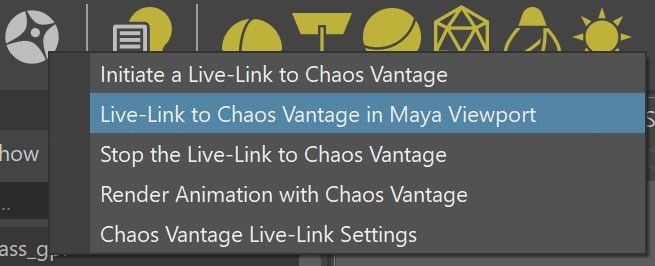
- ||V-Ray shelf|| > Vantage dropdown > Live-Link to Chaos Vantage in Maya Viewport
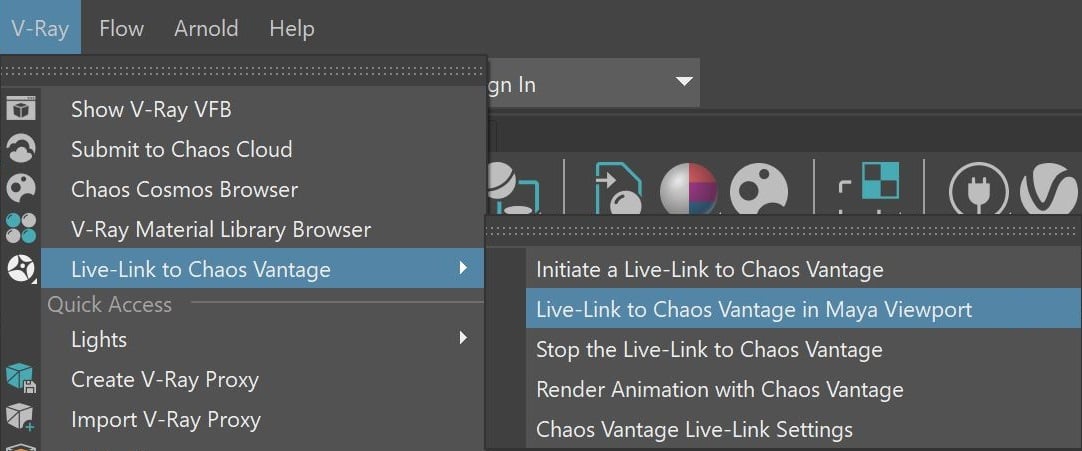
- V-Ray menu > Live-Link to Chaos Vantage > Live-Link to Chaos Vantage in Maya Viewport
Start Animation Rendering within Vantage
The Animation Rendering feature acts as a quick animation preview, allowing you to send the scene animation for a preview sequence in Chaos Vantage.
To start rendering animation with Chaos Vantage:
Right-click the Vantage icon and select Render Animation with Chaos Vantage.

Click on the image to enlarge it
V-Ray menu > Live-Link to Chaos Vantage > Render Animation with Chaos Vantage

Click on the image to enlarge it
youtu.be
Options
Initiate a Live-Link to Chaos Vantage – Initiates a Live Link session between Maya and Chaos Vantage.
Live-Link to Chaos Vantage in Maya Viewport – Starts a Live Link session within the Maya viewport. Chaos Vantage starts in parallel.
Stop the Live-Link to Chaos Vantage – Stops the Live Link session.
Render Animation with Chaos Vantage – Exports and sends the current animation range to Chaos Vantage. Note that the animation considers the Time Slider's Animation Start/End options and the scene's FPS. Chaos Vantage prompts you to accept or change the animation settings, and to select a directory, where the animation is written.
Once the animation starts rendering, Maya's interface is disabled to prevent unwanted changes to the animation. To abort the animation, use the LiveLink Animation window that pops up.
Chaos Vantage Live-Link Settings – Allows you to change the Live Link port and select what happens with the live-link upon animation render end.

Settings
Port number – Sets the port for the live link server. Always make sure you are using the same port in both Maya and Chaos Vantage.
Keep live link active on render end – When enabled, after the animation is finished (rendering and saving the frames), the live-link between Maya and Vantage remains active. If disabled, once the animation is done, the Live-Link is stopped.

Supported Features
Not all V-Ray for Maya and Maya plugins are supported. For a full list, please visit the Supported Features page.