V-Ray for Maya
V-Ray Menu
This page provides information on the V-Ray menu integrated in Maya's main toolbar.
Last updated 10 July 2026
This page provides information on the V-Ray menu integrated in Maya's main toolbar.
Overview
V-Ray includes a menu with easy shortcuts to some of the most commonly used V-Ray components.
The menu consists of three sections: the first one displays the V-Ray VFB and submits render jobs to Chaos Cloud; the second one offers quick access to commonly used options in V-Ray for Maya; and the third section covers the help functions in V-Ray for Maya.
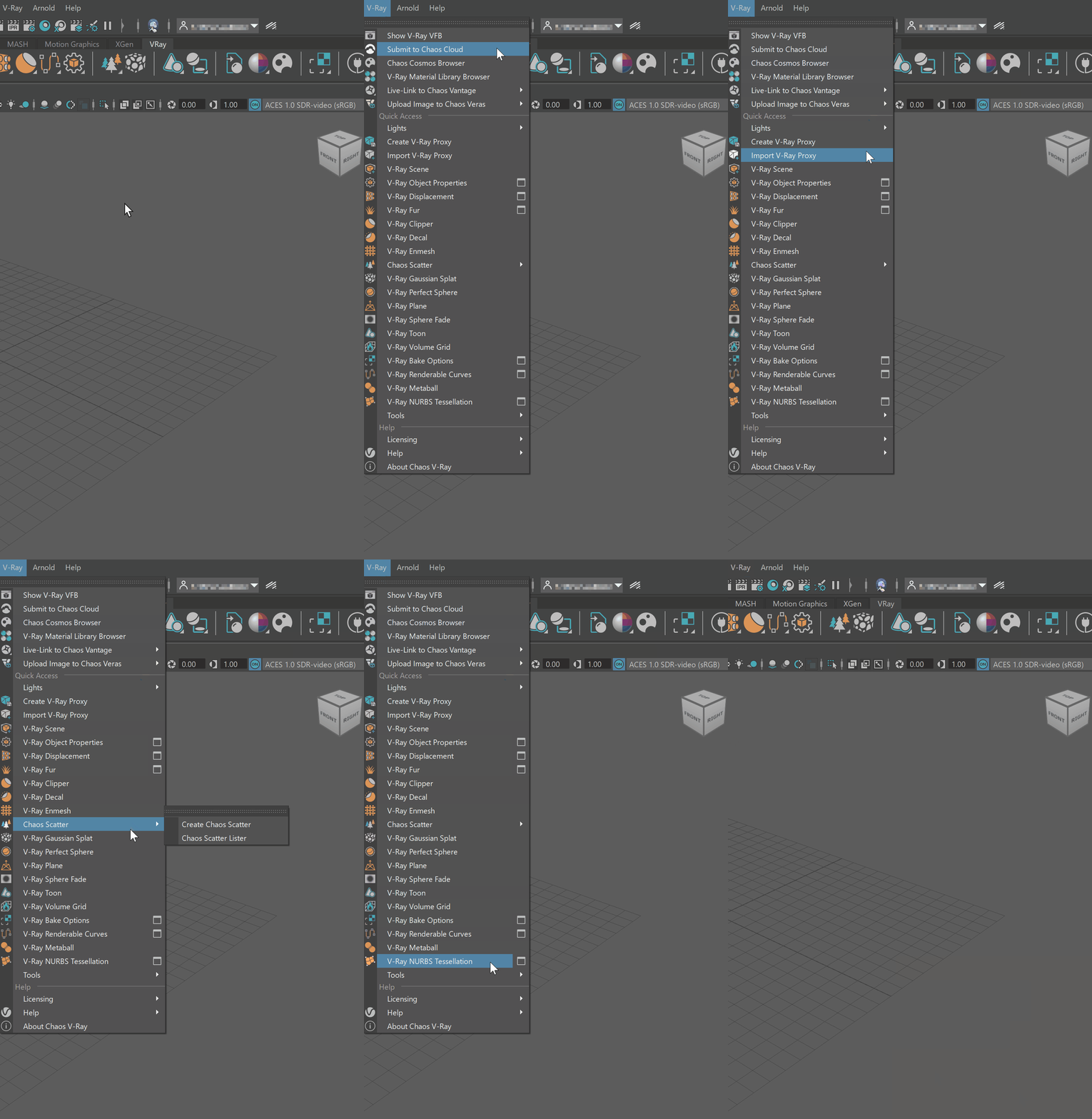
V-Ray Menu
Menu | Description |
|---|
Menu | Description |
|---|---|
Show V-Ray VFB | Opens the V-Ray Frame Buffer. |
Submit to Chaos Cloud | Opens the Submit to Chaos Cloud window, where you can submit your job and render it in Chaos Cloud. |
Chaos Cosmos Browser | Opens Chaos Cosmos Browser, where you can find various assets ready for use. |
V-Ray Material Library Browser | Opens the V-Ray Material Library Browser if it is downloaded in advance with an earlier V-Ray version. If the V-Ray Material Library folder is empty, opens the Chaos Cosmos Browser instead. |
Live-Link to Chaos Vantage | Opens the Vantage submenu. |
Upload Image to Chaos Veras | Opens the Veras submenu. |
Lights | Opens the V-Ray Lights submenu. |
Create V-Ray Proxy | Creates a V-Ray Proxy object. |
Import V-Ray Proxy | Imports a V-Ray Proxy object into the scene. |
V-Ray Scene | Opens the V-Ray Scene Manager. |
V-Ray Object Properties | Opens the VRayObjectProperties submenu where you can: - Apply multiple object properties nodes to selection - Apply single object properties nodes to selection - Remove object properties from selection - Remove object properties from selection and sub-hierarchy - Force create object properties node |
V-Ray Displacement | Opens the VRayDisplacement submenu where you can: - Apply multiple VRayDisplacement to selection - Apply single VRayDisplacement node to selection - Remove VRayDisplacement from selection - Remove VRayDisplacement from selection and sub-hierarchy - Force create VRayDisplacement node |
V-Ray Fur | Opens the VRayFur submenu where you can: - Add VRayFur to selection (works for meshes only) - Remove VRayFur from selection - Remove VRayFur from selection and sub-hierarchy - Force create VRayFur properties node. |
V-Ray Clipper | Creates a VRayClipper. |
V-Ray Decal | Creates VRayDecal. |
V-Ray Enmesh | Creates V-Ray Enmesh. |
Chaos Scatter | Opens the Chaos Scatter submenu. |
V-Ray Gaussian Splat | Creates a V-Ray Gaussian Splat. |
V-Ray Plane | Creates a procedural infinite-plane primitive for V-Ray. |
V-Ray Sphere Fade | Creates a VRaySphereFadeVolume that renders just small parts of the scene by putting them in a special spherical locator. |
V-Ray Toon | Creates a VRayToon node that produces cartoon-style outlines on objects in the scene. |
V-Ray Volume Grid | Creates a VRayVolumeGrid node. |
V-Ray Bake Options | Opens the V-Ray Bake Options submenu where you can: - Assign single V-Ray bake options to selection - Assign multiple V-Ray bake options to selection - Remove V-Ray bake options from selection - Remove V-Ray bake options from selection and sub-hierarchy - Force create VRayBakeOptions properties node - Show default V-Ray bake options - Bake with V-Ray... |
V-Ray Renderable Curves | Opens the VRayRenderableCurves submenu where you can: - Apply multiple VRayRenderableCurve to selection - Apply single VRayRenderableCurve node to selection - Remove VRayRenderableCurve from selection. - Remove VRayRenderableCurve from selection and sub-hierarchy - Force create VRayRenderableCurve properties node |
V-Ray Metaball | Creates a VRayMetalball. |
V-Ray NURBS Tessellation | Opens the VRayNURBSTessellation submenu where you can: - Apply multiple VRayNURBSTessellation to selection - Apply single VRayNURBSTessellation to selection - Remove VRayNURBSTessellation from selection. - Remove VRayNURBSTessellation from selection and sub-hierarchy - Force create VRayNURBSTessellation properties node |
Tools | Opens the V-Ray Tools submenu. |
Licensing | Opens the Licensing submenu. |
Help | Opens the Help submenu. |
About Chaos V-Ray | Opens the About window. |

Live-Link to Chaos Vantage submenu
Initiate a Live-Link to Chaos Vantage – Starts a Live Link session in Chaos Vantage.
Stop the Live-Link to Chaos Vantage – Stops the Live Link session.
Render Animation with Chaos Vantage – Exports and sends the current animation range to Chaos Vantage. Note that the animation considers the Time Slider's Animation Start/End options and the scene's FPS. Chaos Vantage prompts you to accept or change the animation settings, and to select a directory, where the animation is written.
Once the animation starts rendering, Maya's interface is disabled to prevent unwanted changes to the animation. To abort the animation, use the LiveLink Animation window that pops up.
Chaos Vantage Live-Link Settings – Allows you to change the Live Link port and select what happens with the live-link upon animation render end.

Upload Image to Chaos Veras Submenu
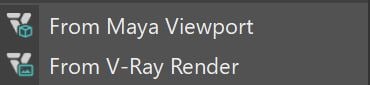
From Maya Viewport – Opens the Veras Visualization window and sends a viewport screenshot to be used as a generation source.
From V-Ray Render – Opens the Veras Visualization window and sends the latest render to be used as a generation source.
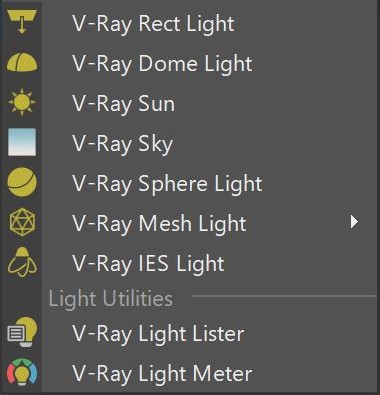
V-Ray Lights submenu
Menu | Description |
|---|
Menu | Description |
|---|---|
V-Ray Rect Light | Creates a VRayLightRect, also known as Area Light. |
V-Ray Dome Light | Creates a VRayLightDome. |
V-Ray Sun | Creates a VRaySun. |
V-Ray Sky | Creates a VRaySky. |
V-Ray Sphere Light | Creates a VRayLightSphere. |
V-Ray Mesh Light | Opens a VRayLightMesh submenu where you can: - Turn selection into lights (works for meshes only) - Turn selection into lights (apply single VRayLightMesh) - Remove light modifiers from selection - Remove light modifier from selection and sub-hierarchy - Force create VRayLightMesh properties node. |
V-Ray IES Light | Creates a VRayIES. |
V-Ray Light Lister | Opens the V-Ray Light Lister window. |
V-Ray Light Meter | Creates a VRayLightMeter node. |
Chaos Scatter submenu
Menu | Description |
|---|
Menu | Description |
|---|---|
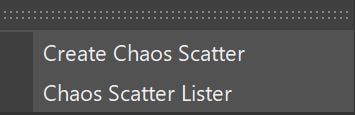
Create Chaos Scatter | Creates a Chaos Scatter object. |
Chaos Scatter Lister | Opens the Chaos Scatter Lister window. |
V-Ray Tools submenu
Menu | Description |
|---|
Menu | Description |
|---|---|
Create V-Ray PluginNode | Opens the V-Ray plugin submenu where you can create: - Texture |
Import V-Ray Material from File | Opens the V-Ray Material Importer dialog. |
V-Ray Stereo Rig | Creates a V-Ray Stereo Rig. |
Archive V-Ray Scene | Opens the Archive V-Ray Scene window where you can export a .vrscene package archive with all asset files. |
Convert to New VRayProxy Node | Converts old V-Ray Proxy objects (VRayMesh) to the new VRayProxy node. |
Convert Scene from V-Ray | Opens the Convert Scene for V-Ray window where you can convert a material to a VRayMtl. |
Migrate Legacy Scenes | Opens the Migrate Legacy Scenes window, which migrates features that are deprecated and not fully compatible with V-Ray 5. |
Opacity Cutout | Opens the Opacity Cutout window, which converts low-poly opacity mapped objects to actual geometry cutouts. |
Export Materials to USD | Opens the Export Materials to USD window, which allows V-Ray materials to be exported to USD files. |
Export Materials to MaterialX (Experimental) | Opens the Export Materials to MaterialX window, which allows V-Ray materials to be exported to .mtlx file. |
Check for Missing Cosmos Assets | Opens the Check for Missing Cosmos Assets window, which relocates or downloads missing Cosmos assets. |

Licensing submenu
Menu | Description |
|---|
Menu | Description |
|---|---|
Chaos Account | Opens the Chaos Account window. |
Manage Chaos Licensing | Opens the local Chaos Licensing interface (http://localhost:30304). If you are using a remote Licensing connection, note that this option still opens the localhost. |

Chaos Account
This window shows you which account is logged in currently.
Click the Manage account button to open My Chaos portal and manage the licenses. You can assign, remove, allocate licenses to different users. For more information, see the My Chaos Portal Guide page.
To switch the current account, click the Sign Out button.
If you haven't signed in yet, you can do so in this window:
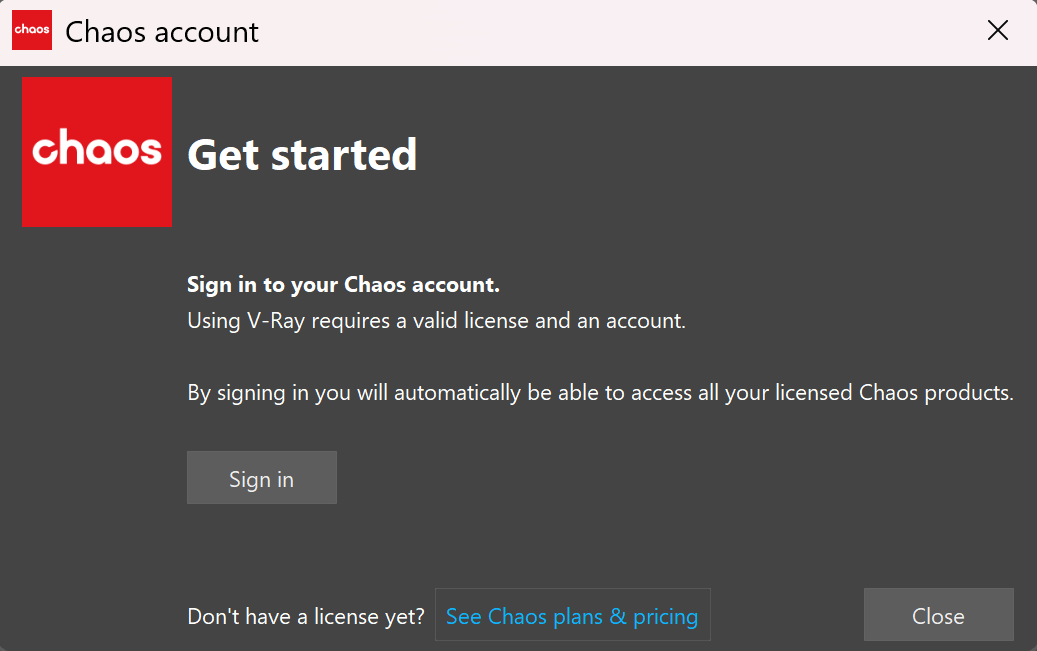
You can see your current license type in the Licensing mode line.
See Chaos plans & pricing link leads you to V-Ray's pricing list on the Chaos website.
This window blocks all the rest of the UI, so make sure to close it once done to go back to Maya.

Help submenu
Menu | Description |
|---|
Menu | Description |
|---|---|
Tutorials | Opens the Tutorials page of the V-Ray for Maya online documentation. |
Documentation | Opens the V-Ray for Maya online documentation. |
V-Ray Ideas Portal | Opens the V-Ray Ideas Portal, where users can submit, vote, and collaborate on creative suggestions. |

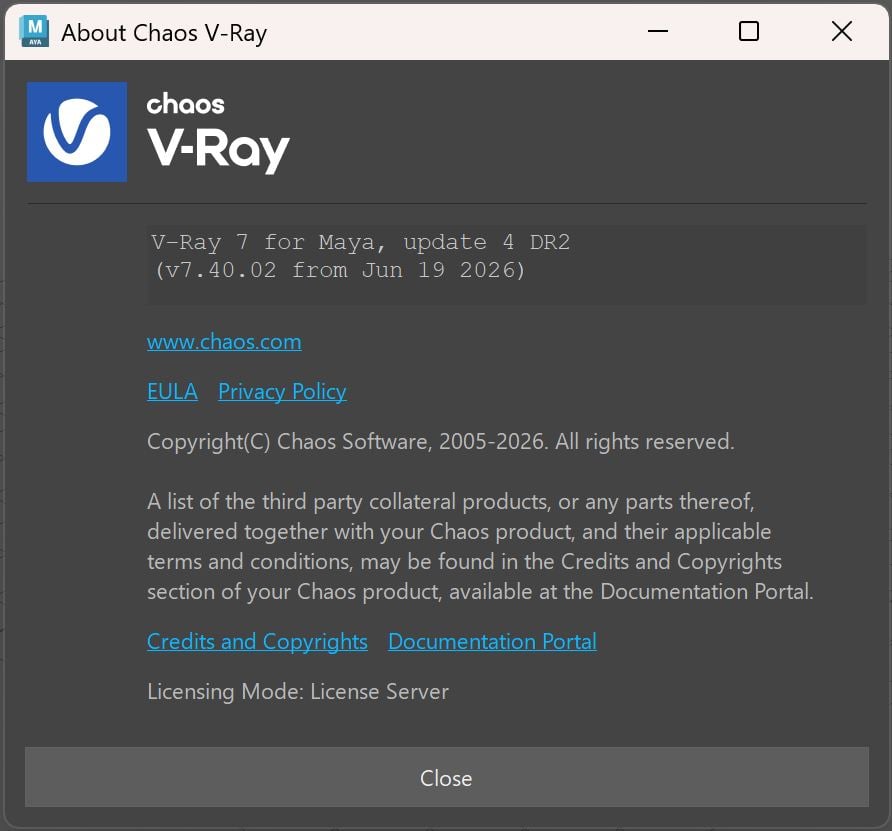
About Chaos V-Ray
Provides information about the V-Ray version that can be copied. It also provides copyright information and links to the Chaos website and documentation, the Chaos End-User License Agreement, and the Chaos Global Consumer Privacy Policy.
You can see the current licensing type in the Licensing Mode line.
The About Chaos V-Ray window is accessible from V-Ray menu > About Chaos V-Ray.