V-Ray for Maya
V-Ray Shelf
This page provides information on the V-Ray Shelf.
Last updated 10 July 2026
This page provides information on the V-Ray Shelf.
Overview
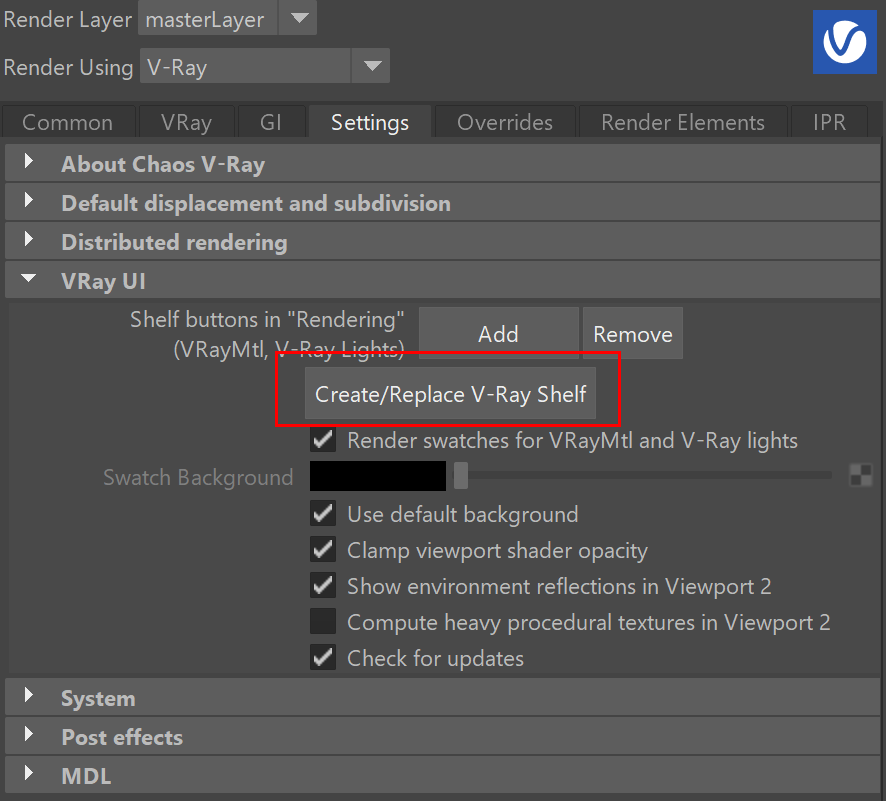
V-Ray includes a shelf with easy shortcuts to some of the most commonly used V-Ray components. The shelf can be enabled from the Settings tab of the Render Settings window.

UI Path
Shelf Functions
The V-Ray Shelf provides the functions listed below. Note that all buttons check if V-Ray (or respectively IPR) is the current renderer, and if not, will prompt you to set the renderer to V-Ray.
Button | Description |
|---|
Button | Description |
|---|---|
Show V-Ray VFB – Opens the V-Ray Virtual Frame Buffer (VFB). Right click to reset the V-Ray VFB position. Also provides the option to toggle the Use V-Ray VFB option, which enables V-Ray to render the images in the V-Ray Frame Buffer. | |
Submit to Chaos Cloud – Sends your render job to Chaos Cloud for rendering. | |
Initiate a Live Link to Chaos Vantage – Starts a Live-Link session between V-Ray for Maya and Chaos Vantage. Second left click stops the active Live-link. Right click to initiate or stop a Live-Link connection, Live-Link session in the viewport, render animation or access the settings. | |
V-Ray Light Lister – Opens the V-Ray Light Lister window. | |
VRayLightDome – Creates a V-Ray Light Dome. | |
VRayLightRect – Creates a V-Ray Light Rectangle. | |
VRayLightSphere – Creates a V-Ray Light Sphere. | |
VRayLightMesh – Right click to assign Mesh Light properties to the selection. From the dropdown menu, you can also remove the light modifiers. Left click to create an empty vrayLightMeshProperties node. Alternatively, if any objects are selected, left-clicking adds a single node to all selected objects. | |
VRayLightIES – Creates a Photometric Light | VRayIES. | |
VRaySun – Creates a V-Ray Sun and V-Ray Sky system. Right click to access the Select and Delete options. | |
VRaySky – Creates a V-Ray Sky Texture. Right click to access the Select and Delete options. | |
Import V-Ray Proxy – Loads a VRayProxy file. | |
Create V-Ray Proxy – Creates a VRayProxy file from the selected object. | |
VRayScene Manager – Opens the V-Ray Scene Manager, where you can manage VRayScene files. | |
Create V-Ray Volume Grid – Creates VRayVolumeGrid, which is used to load, shade and render grid-based simulation cache files. | |
Create V-Ray Decal – Creates V-Ray Decal, providing an easy way to project one material on top of another regardless of the target UV set. | |
Create V-Ray Plane – Creates VRayPlane, a procedural infinite-plane primitive for V-Ray. | |
VRayFur – Right click to assign Procedural Fur | VRayFur. From the dropdown menu, you can also remove VRayFur. Left click to create an empty vrayFurProperties node. Alternatively, if any objects are selected, left-clicking adds a single node to all selected objects. | |
VRayNURBSTessellation – Right click to assign V-Ray NURBS Tessellation attributes. From the dropdown menu, you can also remove the NURBS attributes. Left click to create an empty vrayNURBSTesselation node. Alternatively, if any objects are selected, left-clicking adds a single node to all selected objects. | |
Create V-Ray Mesh – Creates V-Ray Enmesh, a render time patterned geometry over a mesh surface. | |
VRayDisplacement – Right click to assign and/or remove V-Ray Displacement. Left click to create an empty vrayDisplacement node. Alternatively, if any objects are selected, left-clicking adds a single node to all selected objects. | |
Create V-Ray Clipper – Creates V-Ray Clipper. Right click to access additional Clipper node(s) selection options. | |
VRayRenderableCurves – Right click to assign and/or remove Renderable Curves Attributes. Left click to create an empty vrayRenderableCurve node. Alternatively, if any objects are selected, left-clicking adds a single node to all selected objects. | |
VRayObjectProperties – Right click to assign and/or remove V-Ray Object properties to a selection. Left click to create an empty vrayObjectProperties node. Alternatively, if any objects are selected, left-clicking adds a single node to all selected objects. | |
Create Chaos Scatter – Left-click to create a Chaos Scatter object in the scene. Right-click to access the Chaos Scatter Lister option. | |
Create V-Ray Gaussian Splat – Creates a V-Ray Gaussian Splat, which is used to create a 3D scene from videos or images. | |
Create V-Ray Toon – Creates Toon Rendering Attributes | VRayToon. Right-click to access additional selection options. | |
Shadow Catcher – Assigns Shadow Catcher properties to the selected object. Right-click to access additional options. | |
Import V-Ray Material from File – Imports a V-Ray Material from a .vrscene file into Maya. | |
V-Ray Materials – Right click to create V-Ray Materials and assign them to the selected objects. Left click creates a VRayMtl. | |
Chaos Cosmos Browser – Opens the Chaos Cosmos Browser. You can browse, place, and render pre-made 3D assets. | |
VRayBakeOptions – Right click to assign and/or remove V-Ray Bake Options. Left click to create an empty vrayBakeOptions node. Alternatively, if any objects are selected, left-clicking adds a single node to all selected objects. | |
VRayPluginNode – Right click to create from V-Ray plugin. No left click functionality. | |
V-Ray Help – Opens the V-Ray Documentation Website. |