V-Ray for Maya
Volumetric Rendering In-Depth
This page provides some useful tips for rendering volumetric effects.
Last updated 19 September 2025
This page provides some useful tips for rendering volumetric effects.
Volumetric vs Volumetric Geometry mode when rendering on the CPU
The Volumetric Geometry mode is provided as an option for the following reasons:
- Generation of Render Elements for compositing - for a complete list of the supported Render Elements in both Volumetric and Volumetric Geometry mode, please check the Render Elements page.
- Blending of multiple atmospheric effects in the scene - e.g. you use an Aerial Perspective and a Volume Grid Simulation - if the mode is set to Volumetric, one would be entirely behind the other in the rendered image.
Limitations:
- The Volumetric Geometry mode does not work with Probabilistic Volumetrics.
- The Volumetric Geometry mode tends to be slower to render. Ideally, you should work in Volumetric mode all the time and switch to Volumetric Geometry only when generating the Render Element passes.
- The Approximate and Approximate+Shadows Scattering options under Rendering → Smoke Color are not supported in Volumetric Geometry mode. It would default to Disabled scattering.
- You may need to increase the V-Ray Settings → Overrides → Materials → Max.Transparency Levels option which will slow-down rendering. When rendering in Volumetric Geometry mode, procedural geometry made up from multiple transparent layers is generated at render-time. Think of it as sprites used in video games - a sequence of slices facing the camera.
AUR vs VDB Cache Format
Furthermore, resimulation results when using VDBs as a base usually differ from the results when using AUR files due to differences in the default compression methods.
Core Volumetric Shader Settings
The Step % option specifies the ray marching step of the camera rays as a percentage of the cell size. As the renderer traces rays through the volume grid, this value controls how often to get information from the grid. If the Step % is more than 100, some cells will be skipped and artifacts may appear. A lower percentage might be necessary so that fine details are not lost when custom changes are made to the Opacity curves for Fire / Smoke.
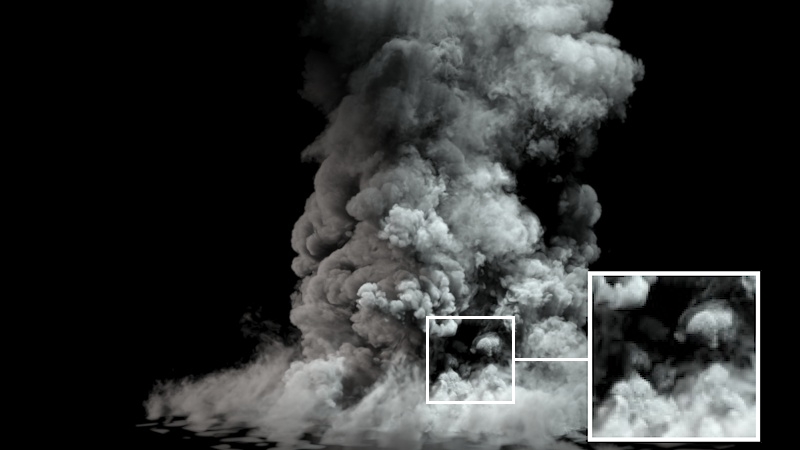
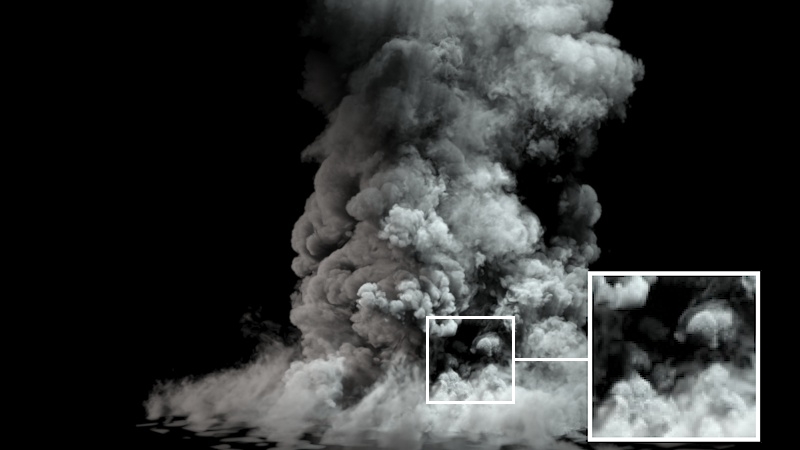
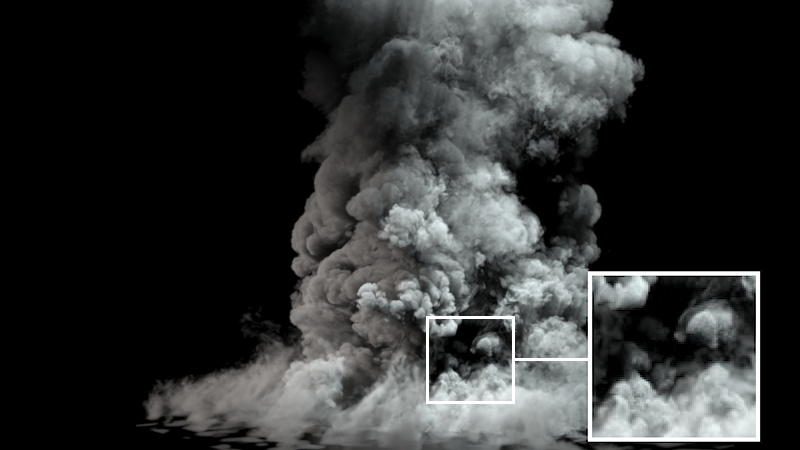
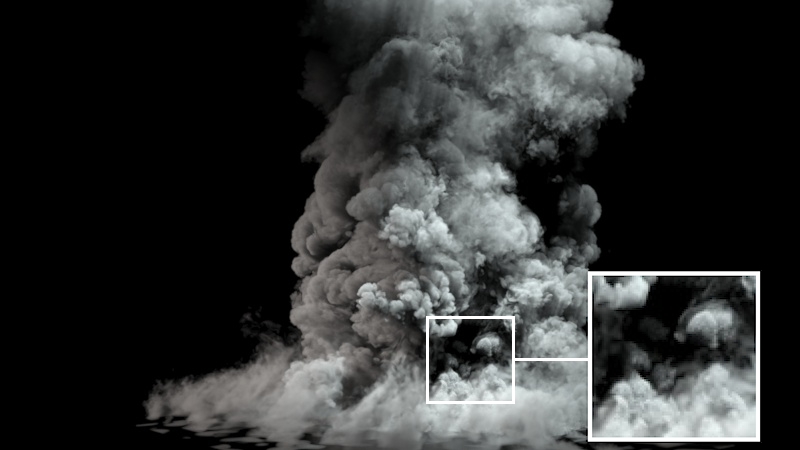
The Shadow Step % is similar to the Step % in a sense that it is responsible for the sampling quality of the volume but for the shadows cast by the volume over itself and the surrounding objects only. The higher you can set the Shadow Step %, the faster the rendering will go. Eventually the shadows will become washed out for very high values, so that is where you must stop increasing the Shadow Step %.
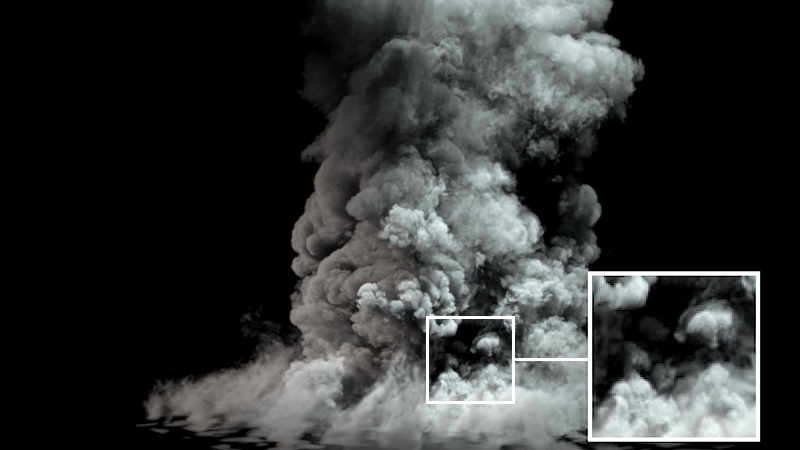
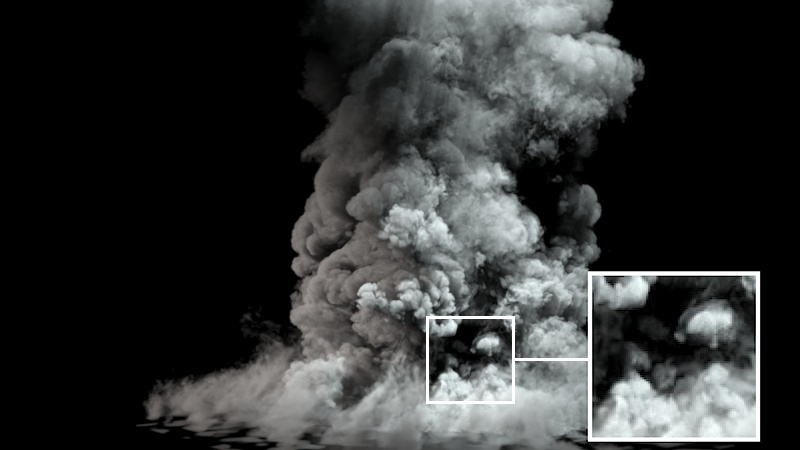
Disable the Use Light Cache option if:
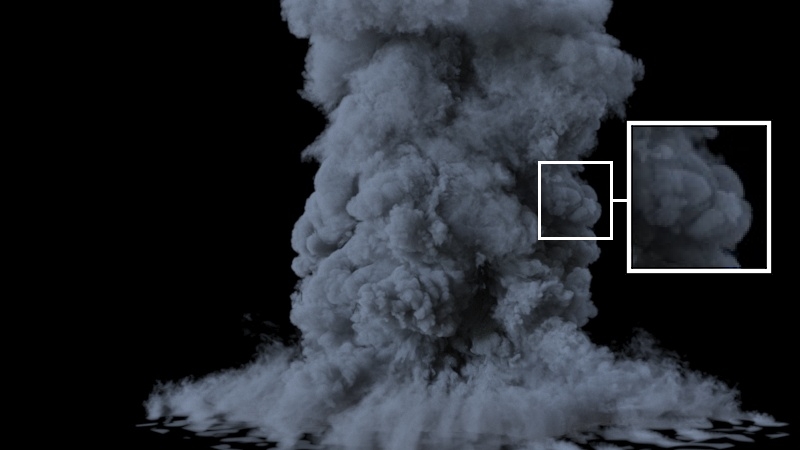
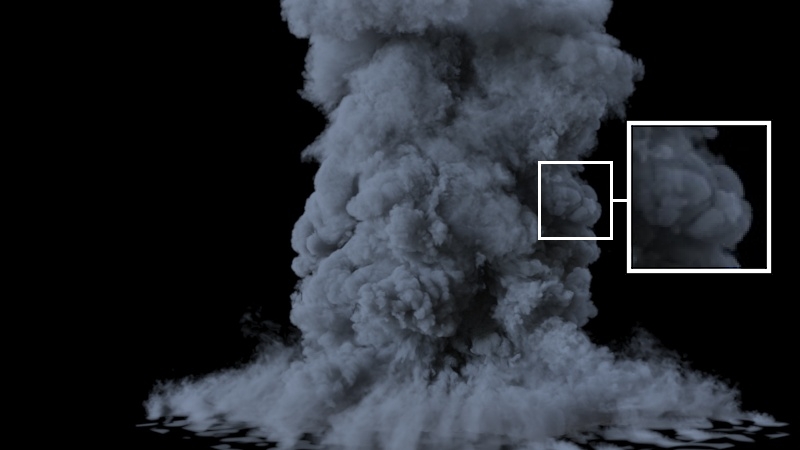
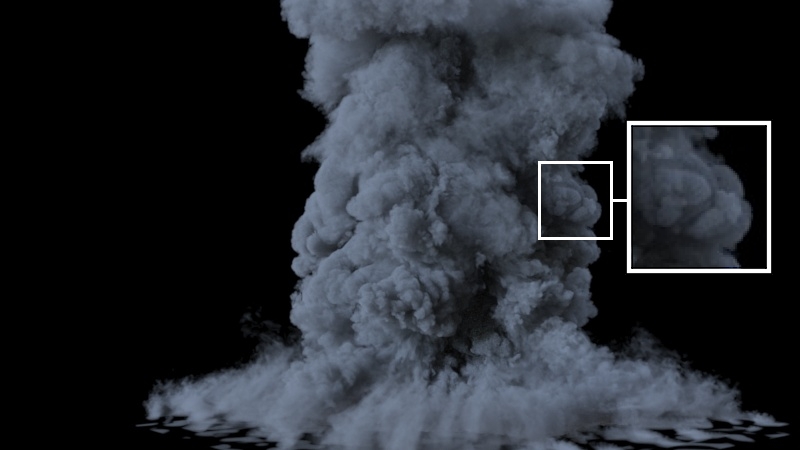
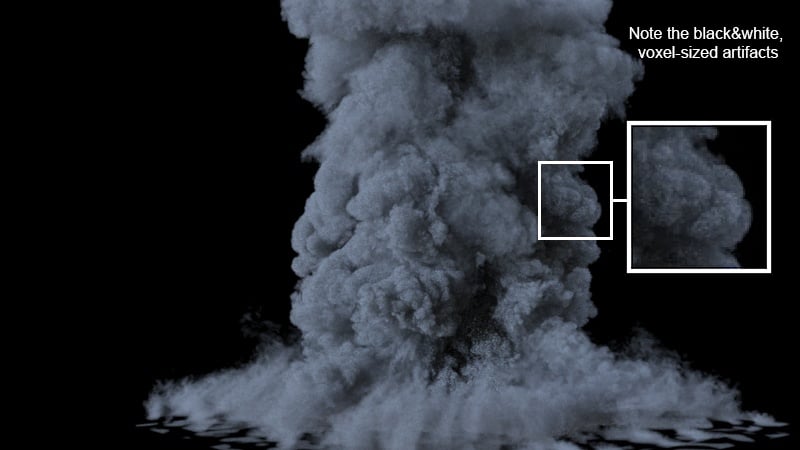
To resolve these, increase the Max Subdivs in the V-Ray Settings window.
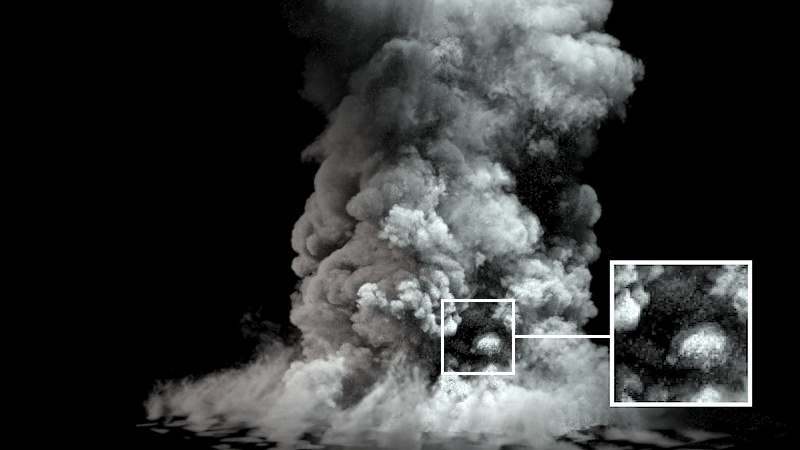
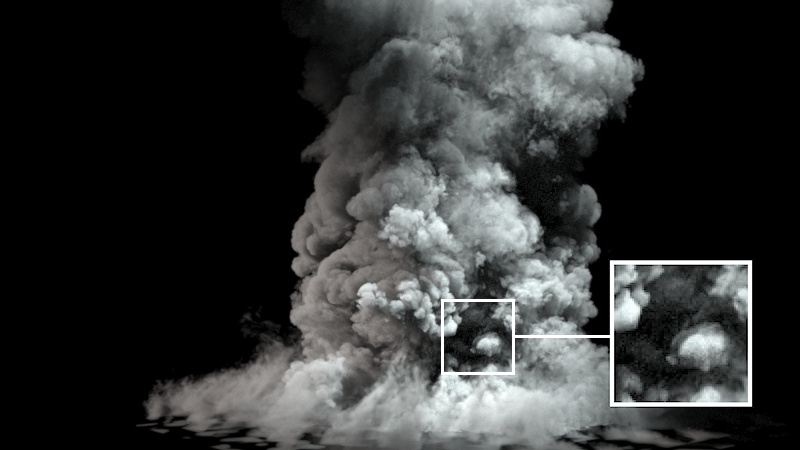
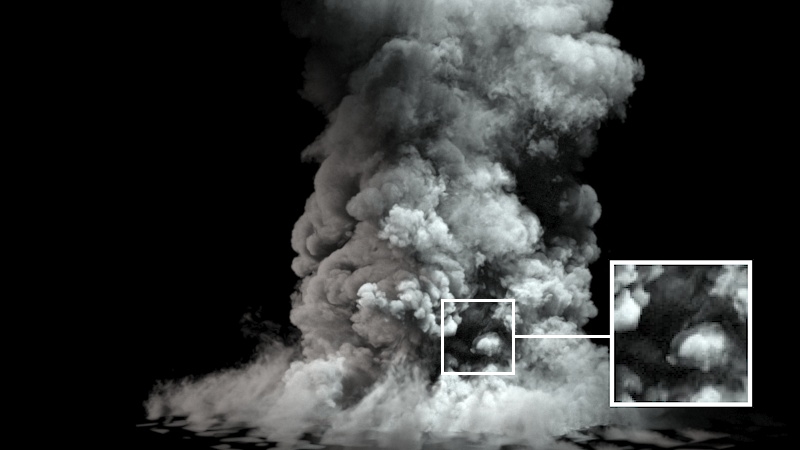
If using any textures for modulating / replacing the Fire, Smoke Color or Smoke Opacity, disable them to check how the rendering speed compares. Some textures and complex texture networks can be slow to evaluate and render.
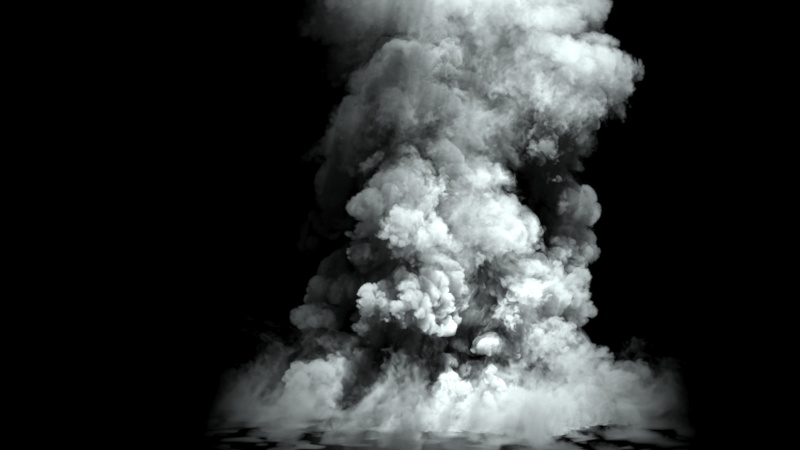
This parameter only affects the rendering speed - the quality of the rendered image is not affected.
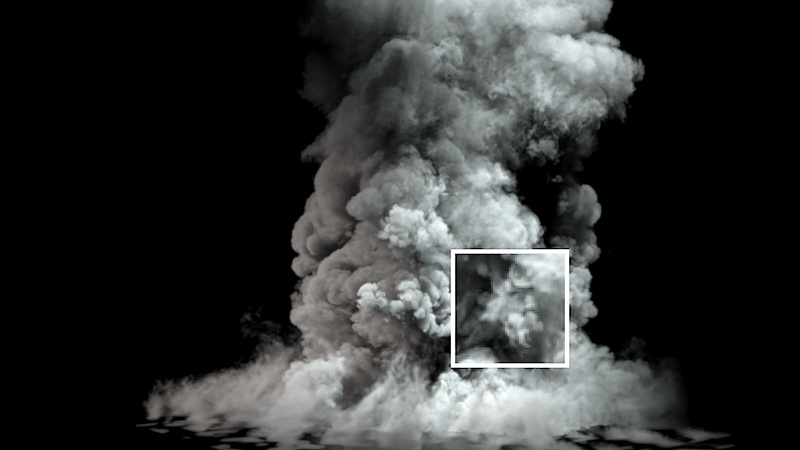
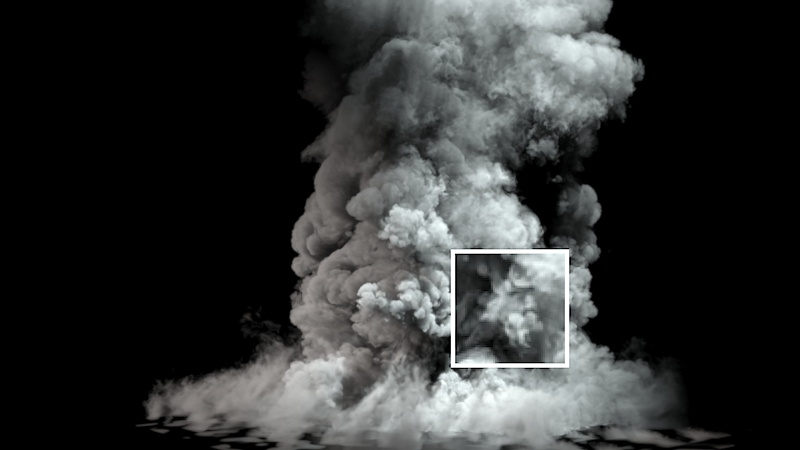
If the opacity of a voxel is below the specified value, the voxel will not be shaded at all. This option is a huge time saver for volume rendering. It should always be kept at 0.001 or higher unless the Smoke is getting cut off abruptly.
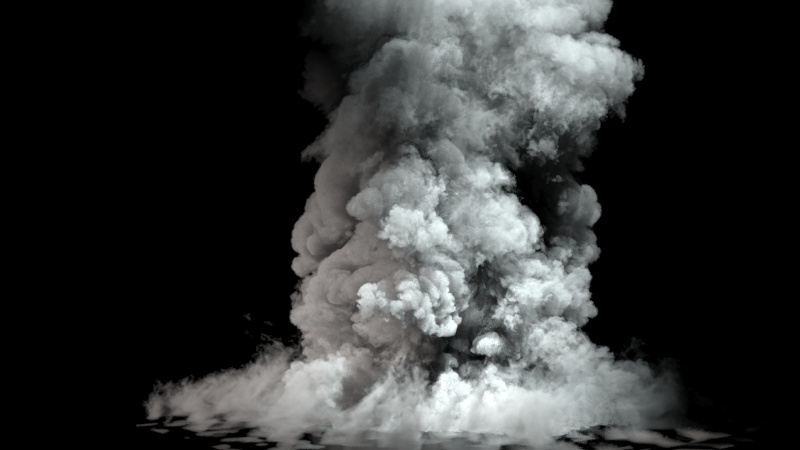
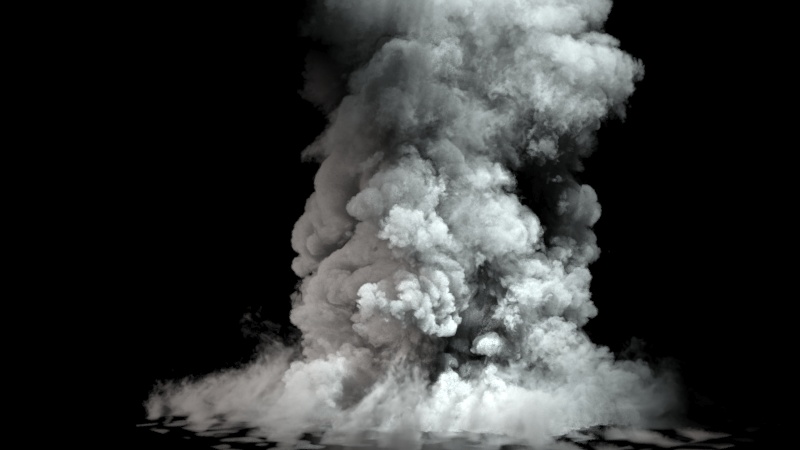
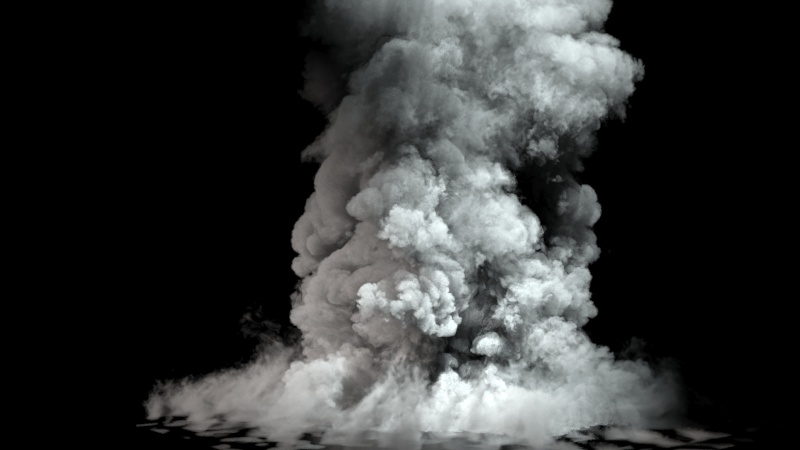
Ray-Traced (GI only) is the more realistic setting, but it would be very slow to render with large grids using V-Ray Adv (CPU). You could use this option when:
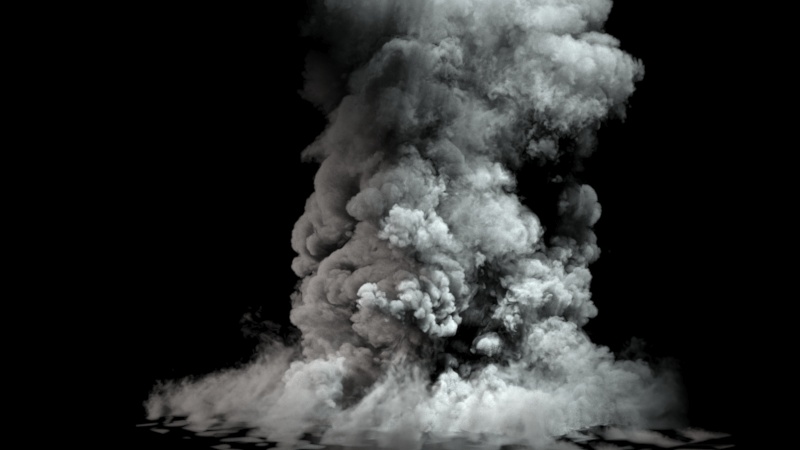
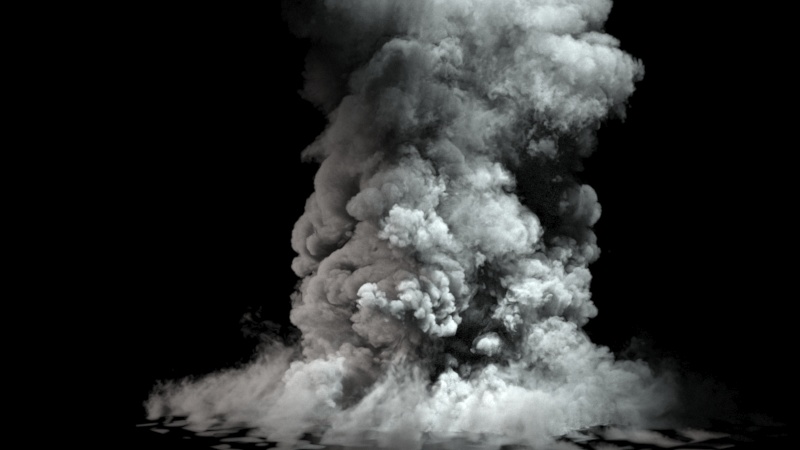
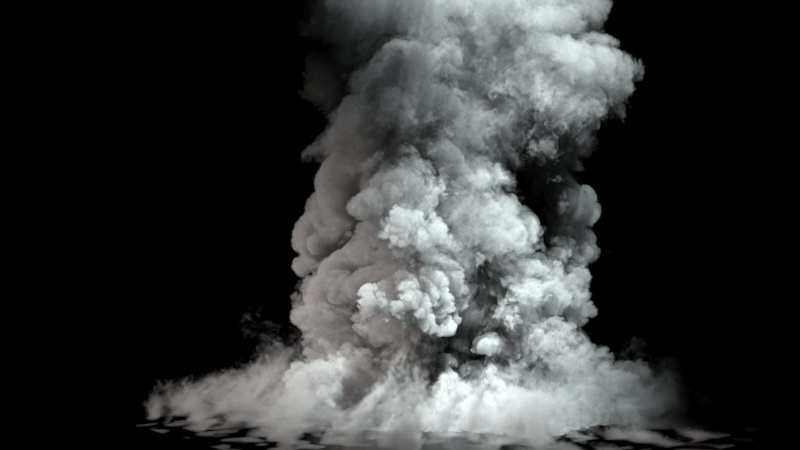
If you want to get a better sense of volume for the look of the smoke, instead of increasing its opacity, you could decrease the External Scatter Mult - this would prevent light from going too deep in the smoke and you would get stronger shadows in the volume with the same opacity.
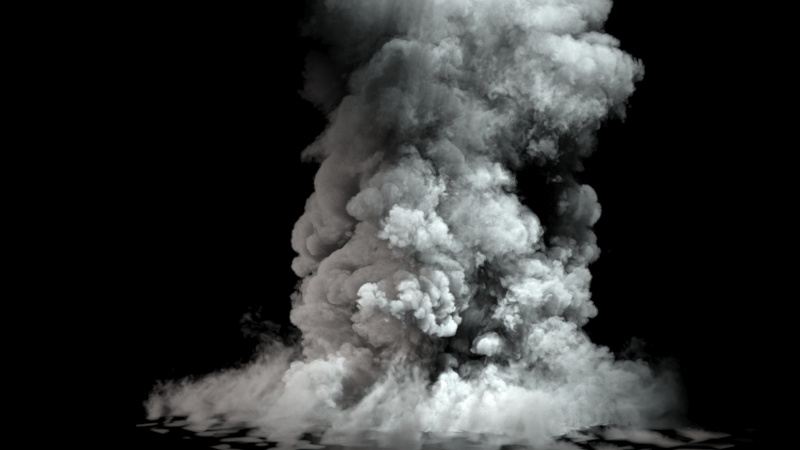
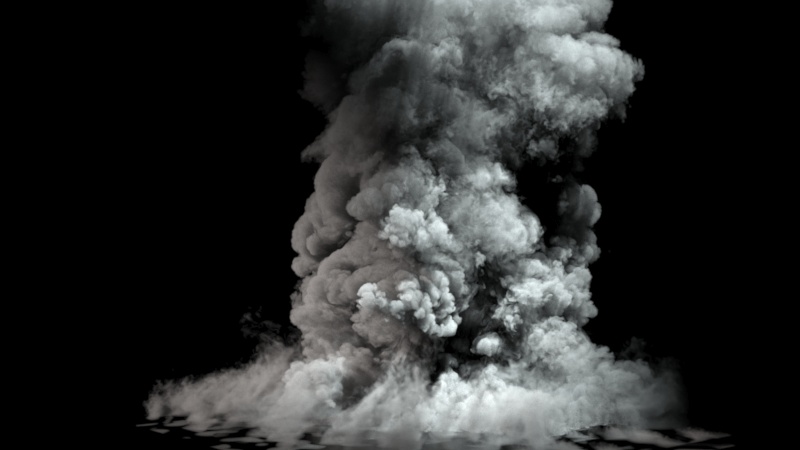
When rendering with V-Ray GPU, the Fire Lights options are ignored entirely. Global Illumination should be enabled from the V-Ray Settings if you need the Smoke and/or the scene to be illuminated by the fire.
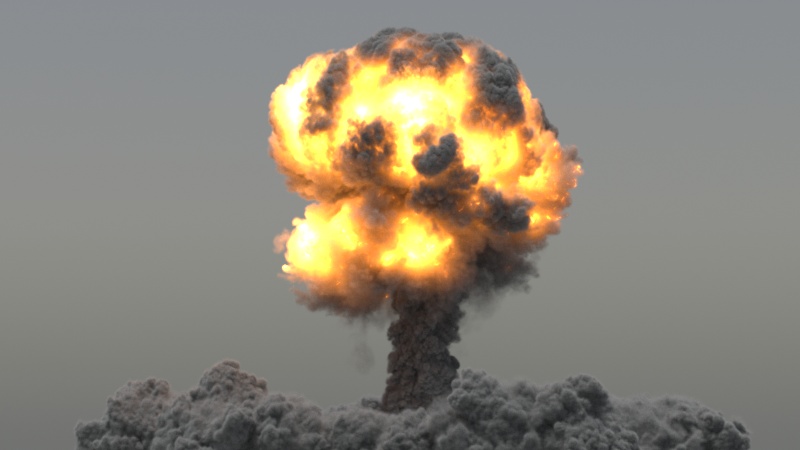
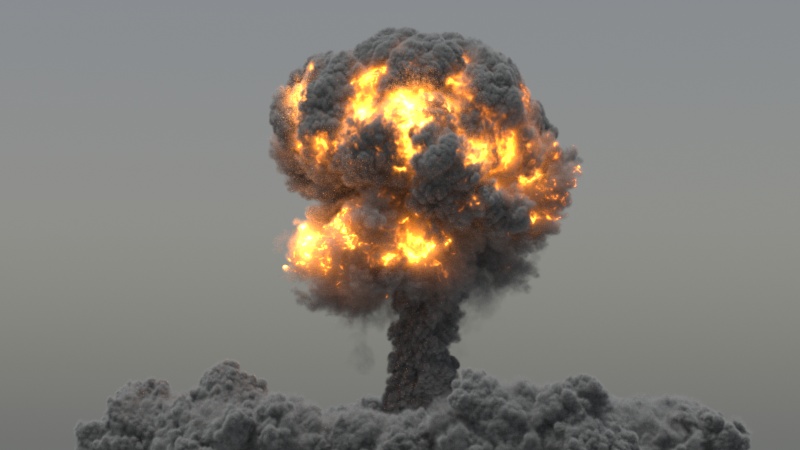
Grid-Based Self Shadowing ignores any geometry inside the grid and shines right past it. This also applies for intersecting grids. If this behavior is undesirable, switch to Ray-Traced Self-Shadowing mode.

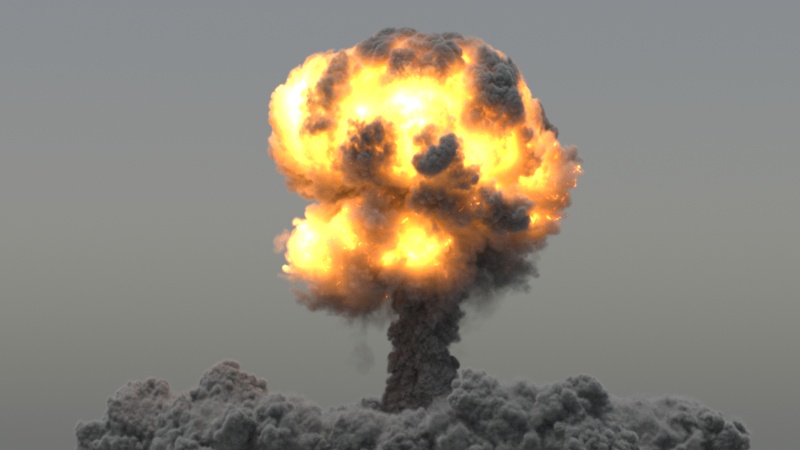
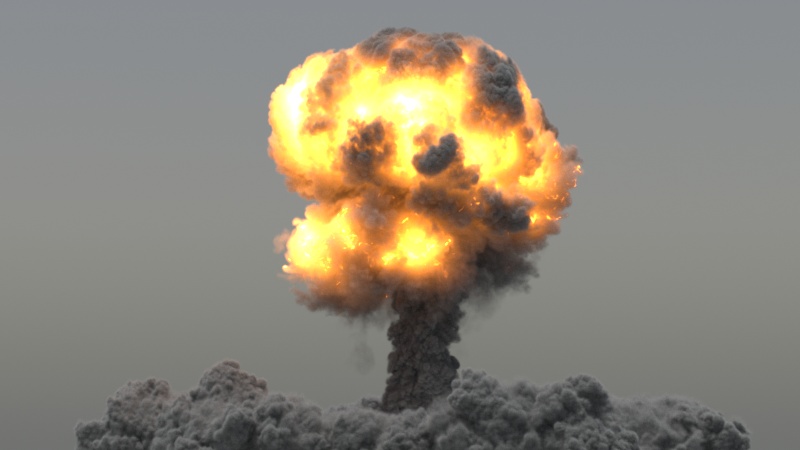
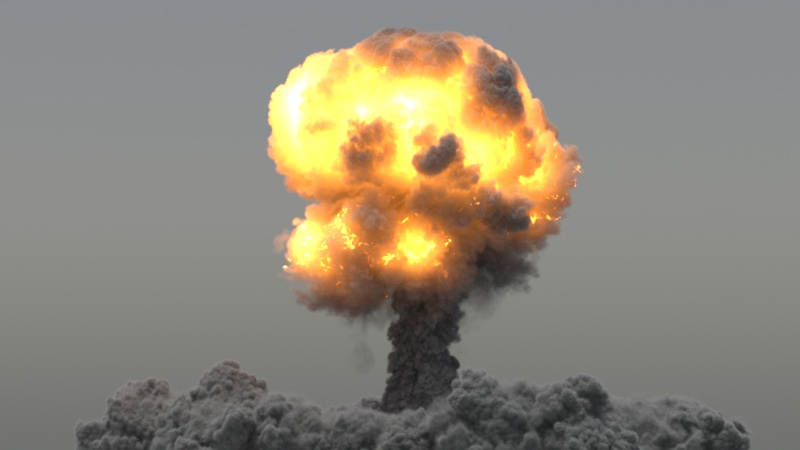
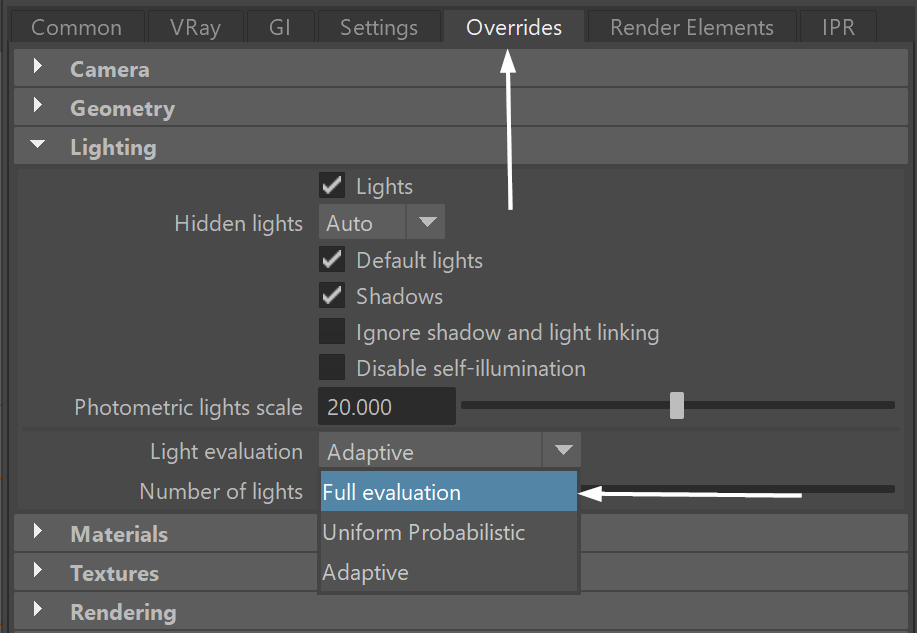
For very simple scenes, setting the V-Ray Settings → Global Switches → Advanced → Adaptive lights drop-down to Full Lights Evaluation may speed up the rendering of volumetric effects.
For more information on Adaptive Lights, take a look at the Understanding Adaptive Lights article.
Smoke Opacity and Probabilistic Volumetrics
If V-Ray's Global Illumination is enabled, the number of GI Samples will heavily affect the render times. Both high and low values will increase the render time - you should aim to find a good value somewhere in the middle.
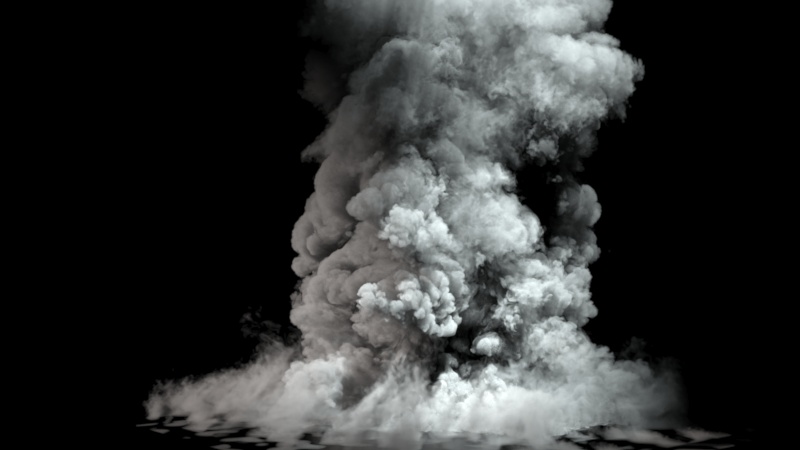
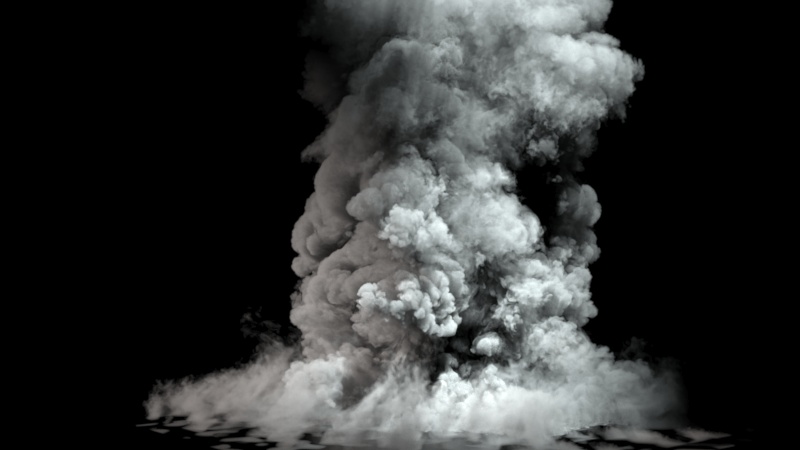
V-Ray Adv vs V-Ray GPU Rendering of Volumetric effects
The following options are not supported by V-Ray GPU: