V-Ray for Nuke
Installation
This page provides information for installing V-Ray for Nuke.
Last updated 18 September 2025
This page provides information for installing V-Ray for Nuke.
Overview
This section describes the installation of V-Ray for Nuke using the provided installer.
Windows
The V-Ray installer will automatically remove any previous installations. This will allow you to seamlessly upgrade from previous versions. If you experience problems you can manually uninstall the previous versions to perform a clean install. For more information please refer to the Uninstall V-Ray page.
Nuke Version | Installer Name |
|---|
Nuke Version | Installer Name |
|---|---|
Nuke 12.0 x64 | vray_adv_52000_Nuke12.0_x64.exe |
Nuke 12.1 x64 | vray_adv_52000_Nuke12.1_x64.exe |
Nuke 12.2 x64 | vray_adv_52000_Nuke12.2_x64.exe |
Nuke 13.0 x64 | vray_adv_52000_Nuke13.0_x64.exe |
Before running the installation, make sure your Windows account has administrative privileges.
To start the installation, double-click the installation file.
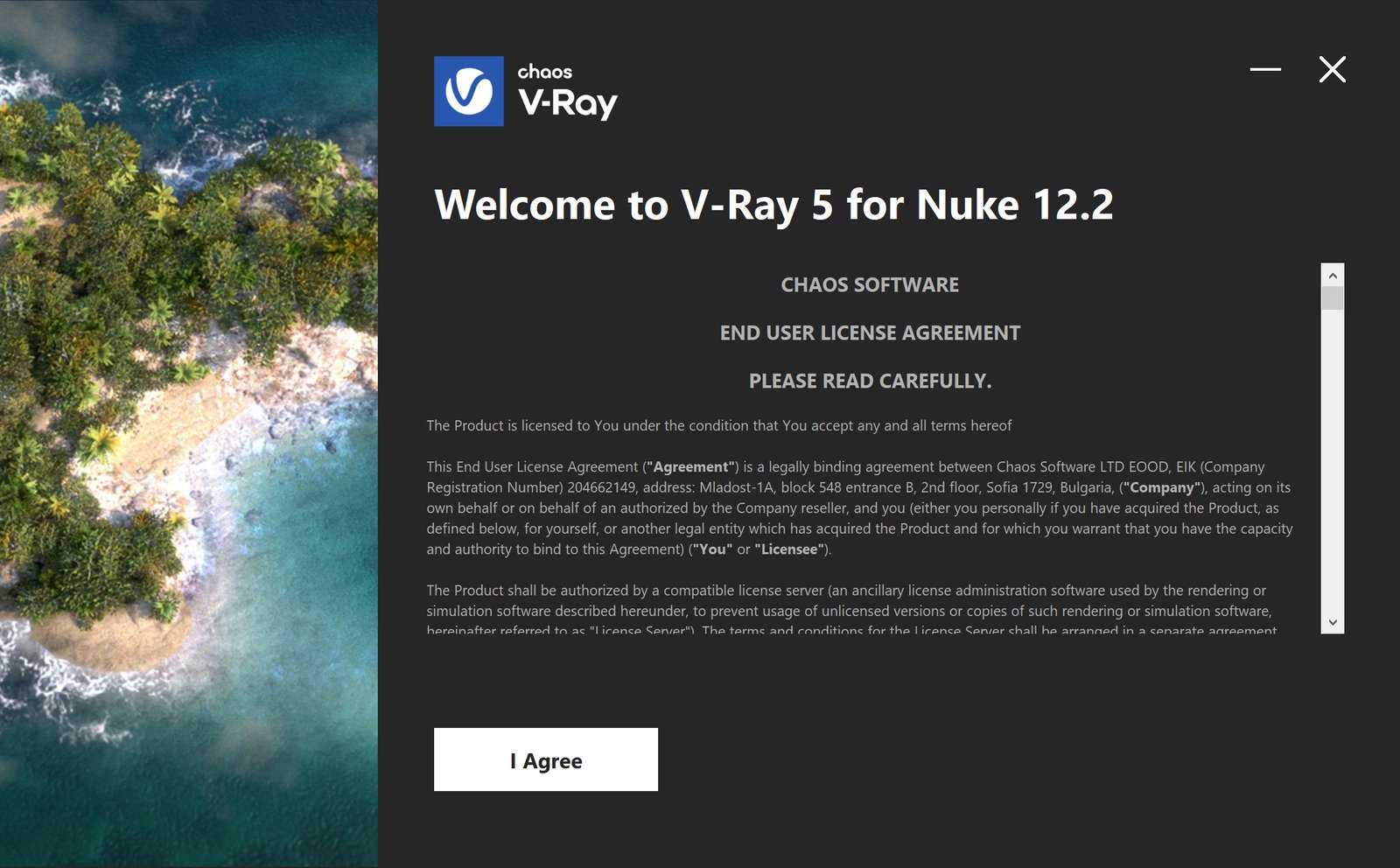
Once you've carefully read the License Agreement, click I Agree if you agree to the terms.
Select your installation type and proceed to click the Install button.
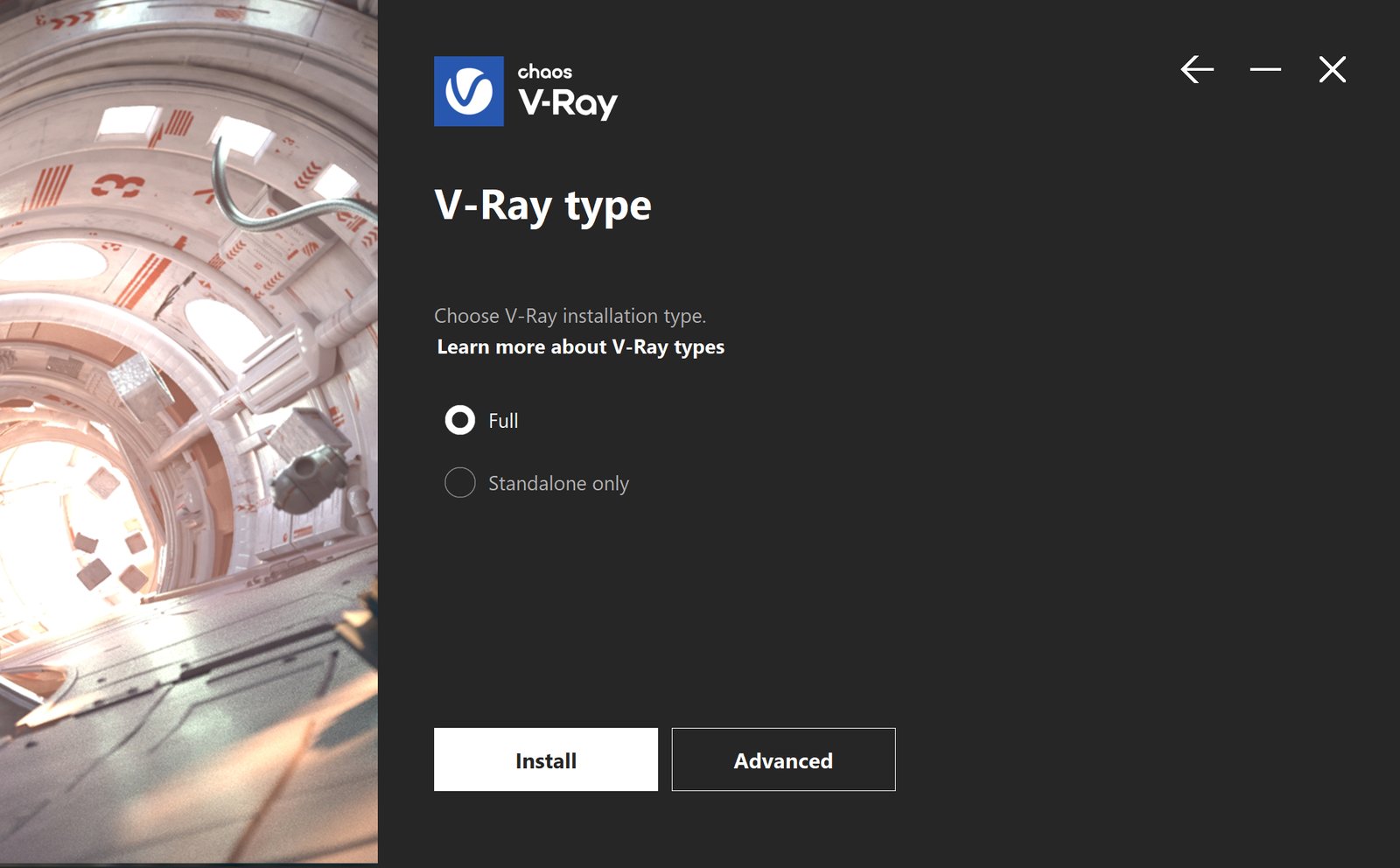
V-Ray type
The available installation types are:
Full – This is a full installation and includes all components as described in the “Installation overview” section.
Standalone only – This installation includes V-Ray Standalone. Please choose this option if you plan to use this machine only for Distributed Rendering with V-Ray Standalone.
If you need to customize your V-Ray installation, press the Advanced button.
Click here to expand for Advanced options...
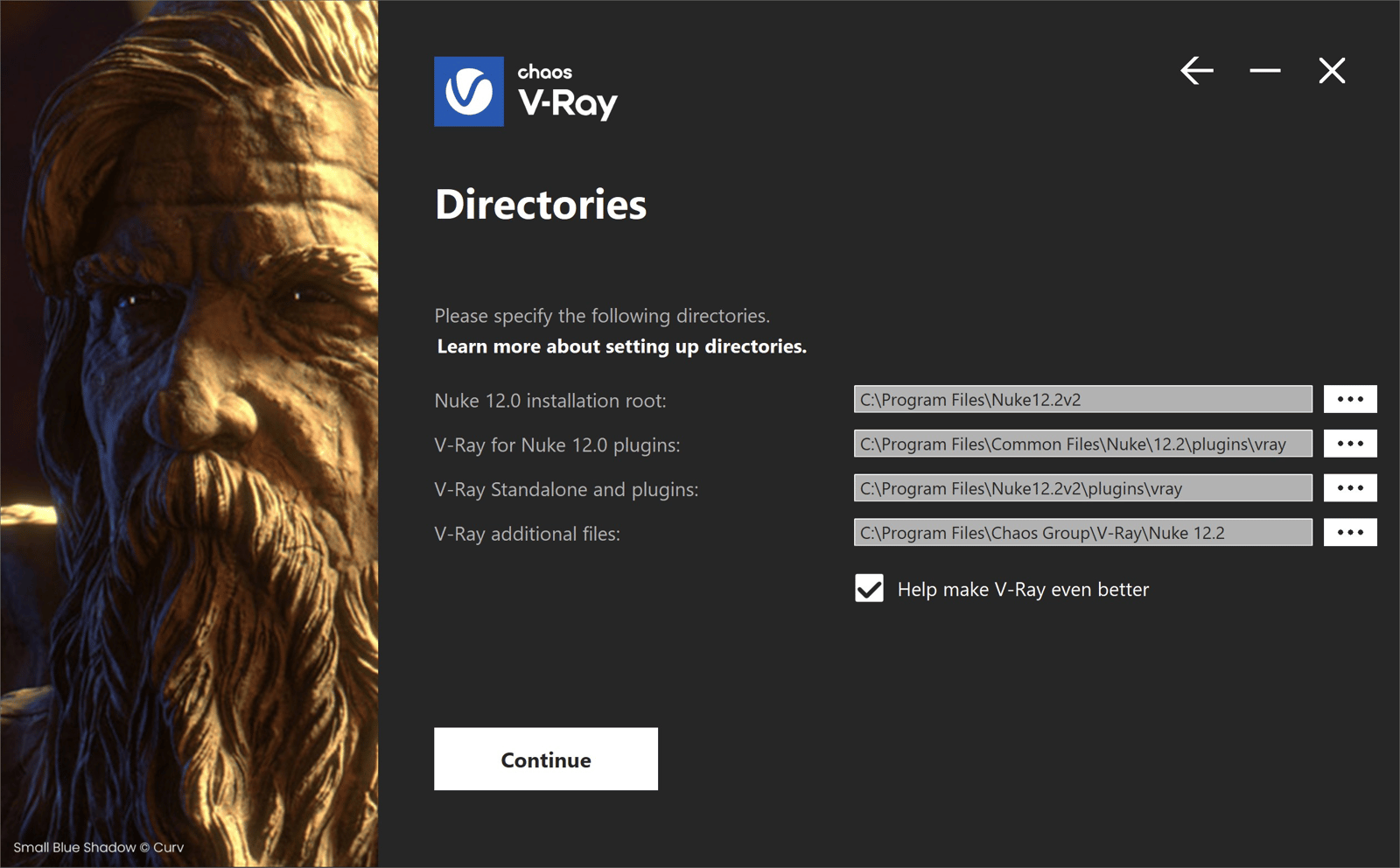
Directories
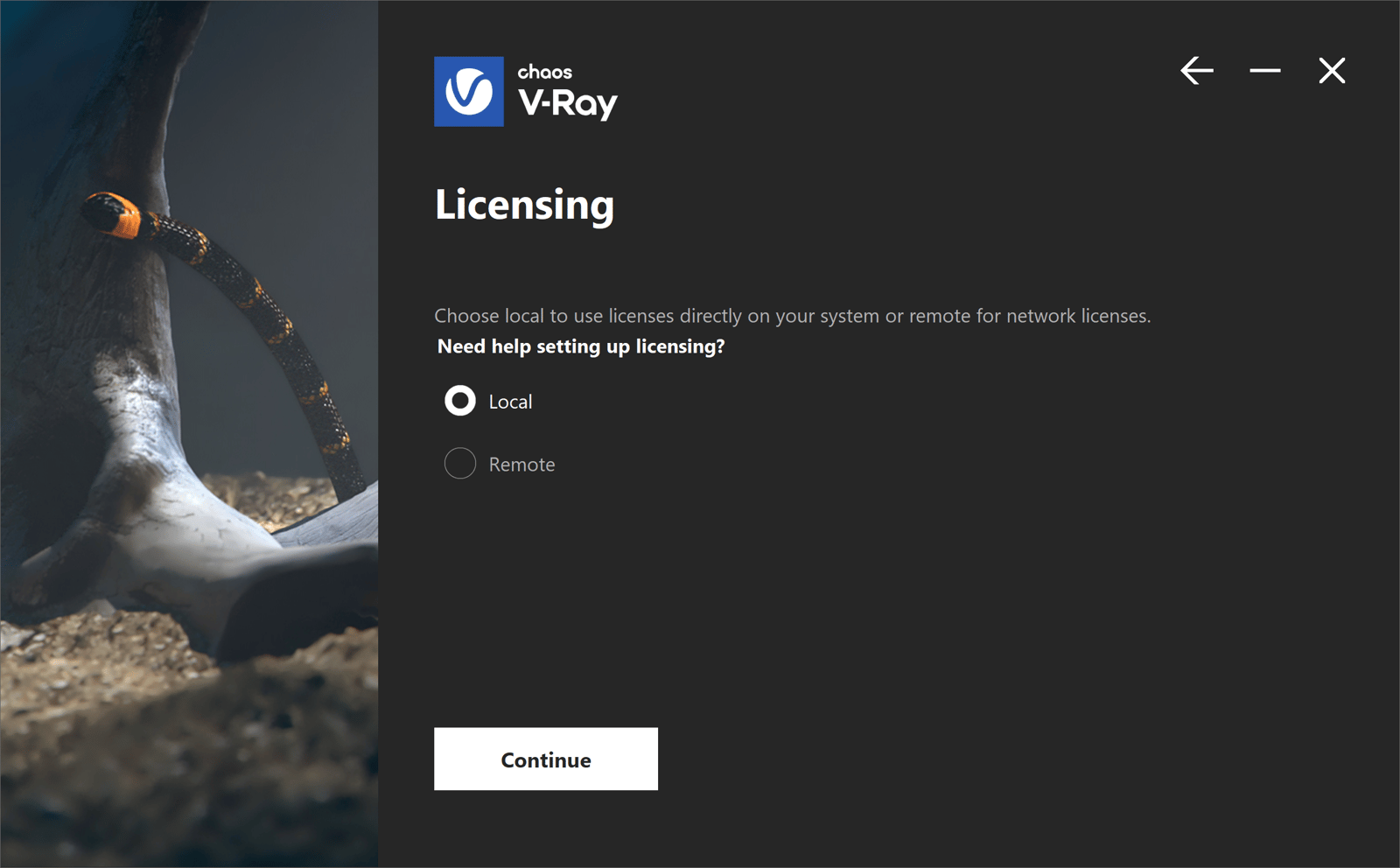
Licensing
If you choose the Local Licensing Option, you are presented with the License Server installation.
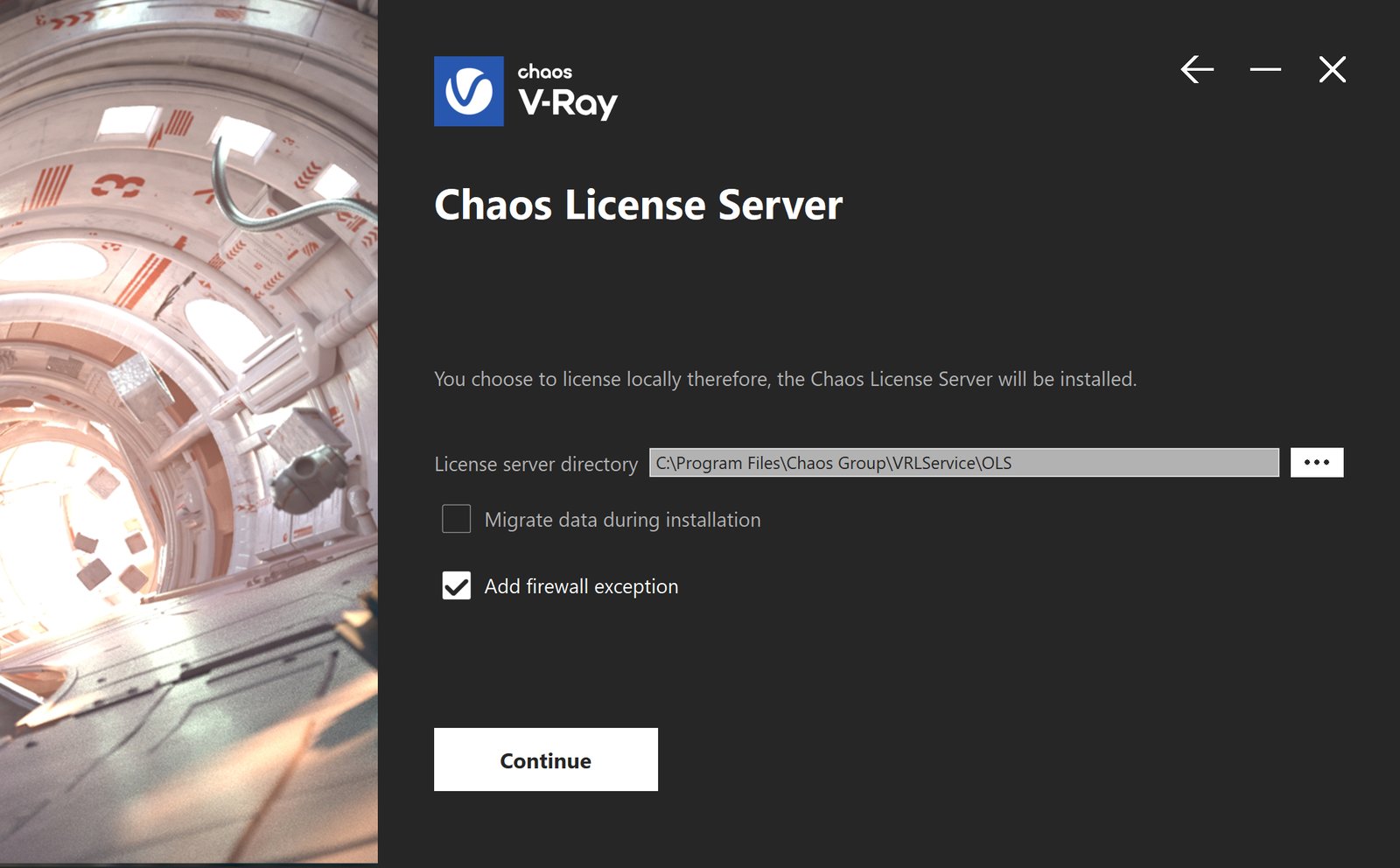
Chaos License Server
At this step you can choose the license server directory.
Migrate data during installation – When enabled, transfers all of your settings made with older versions of the License Server, such as enabled dongle subsystem, proxy settings, etc. Disabling this option will install License Server with all settings at their defaults and any custom settings from the previous installation will be lost.
Add firewall exception – Enabling this option allows the default licensing port (TCP 30304) in the firewall. If you disable it at this step, you will need to manually add firewall exceptions later.
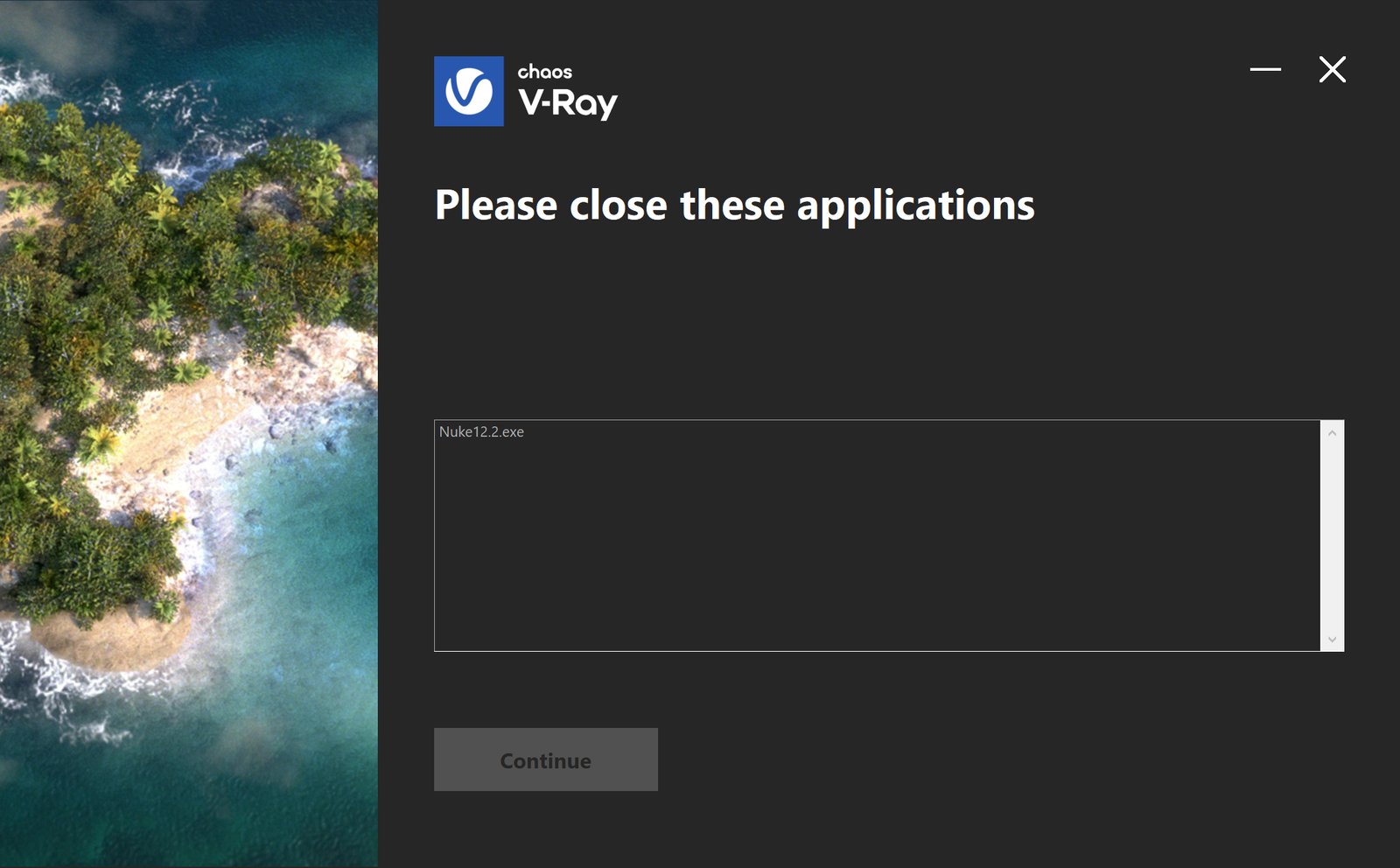
If the installer detects any applications that need to be closed, they will be listed before being able to continue. Please close them and click Continue.
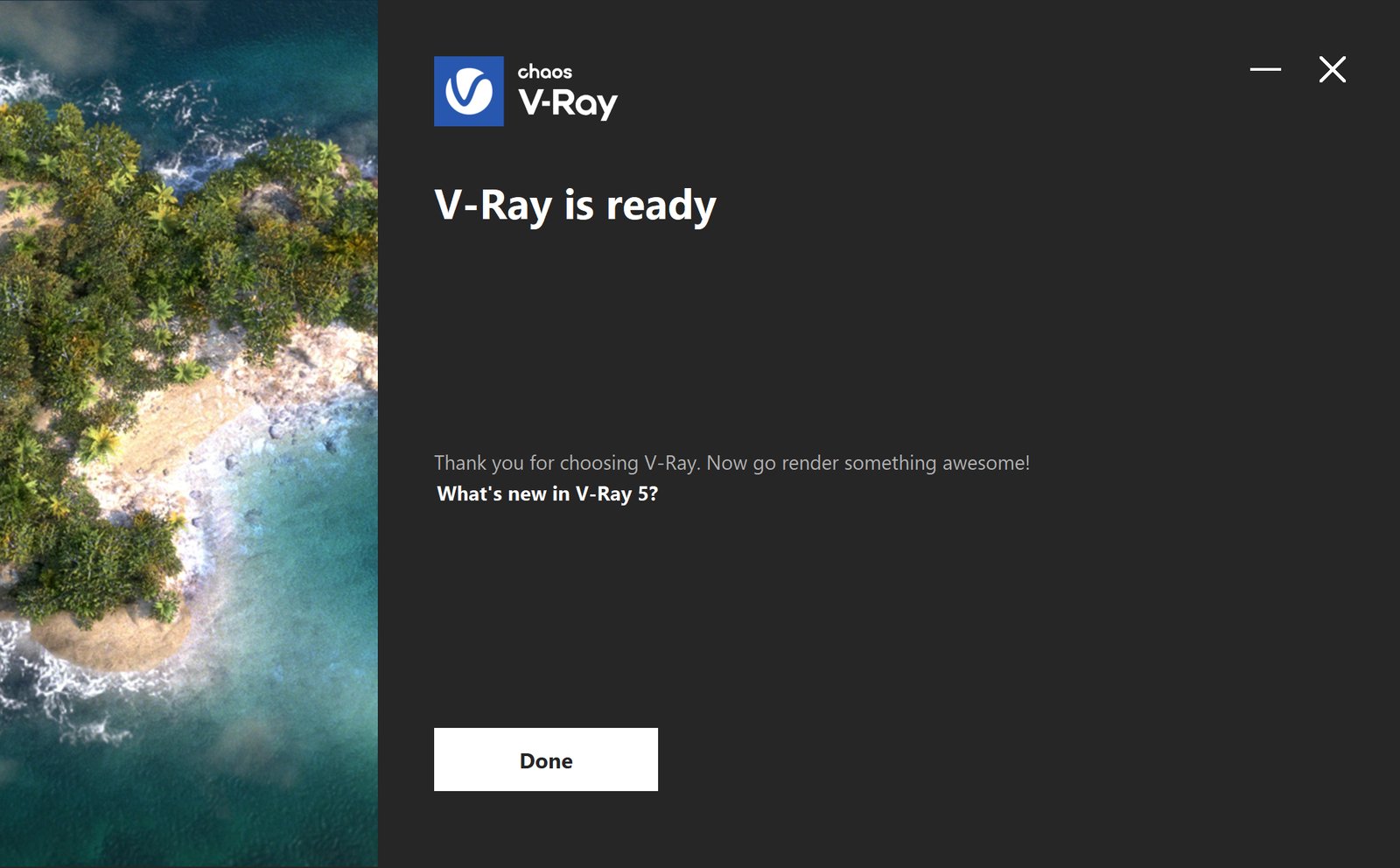
Now V-Ray is ready to render! Don't forget to activate your license before use. No Chaos product can be used without a license!
Linux
To install V-Ray for Nuke you have to be logged as root on your Linux account and execute the installer to run it:
Nuke version | Installer name |
|---|
Nuke version | Installer name |
|---|---|
Nuke 12.0 | vray_adv_52000_Nuke12.0_linux_x64 |
Nuke 12.1 | vray_adv_52000_Nuke12.1_linux_x64 |
Nuke 12.2 | vray_adv_52000_Nuke12.2_linux_x64 |
Nuke 13.0 | vray_adv_52000_Nuke13.0_linux_x64 |
Once you've carefully read the License Agreement, click I Agree if you agree to the terms.
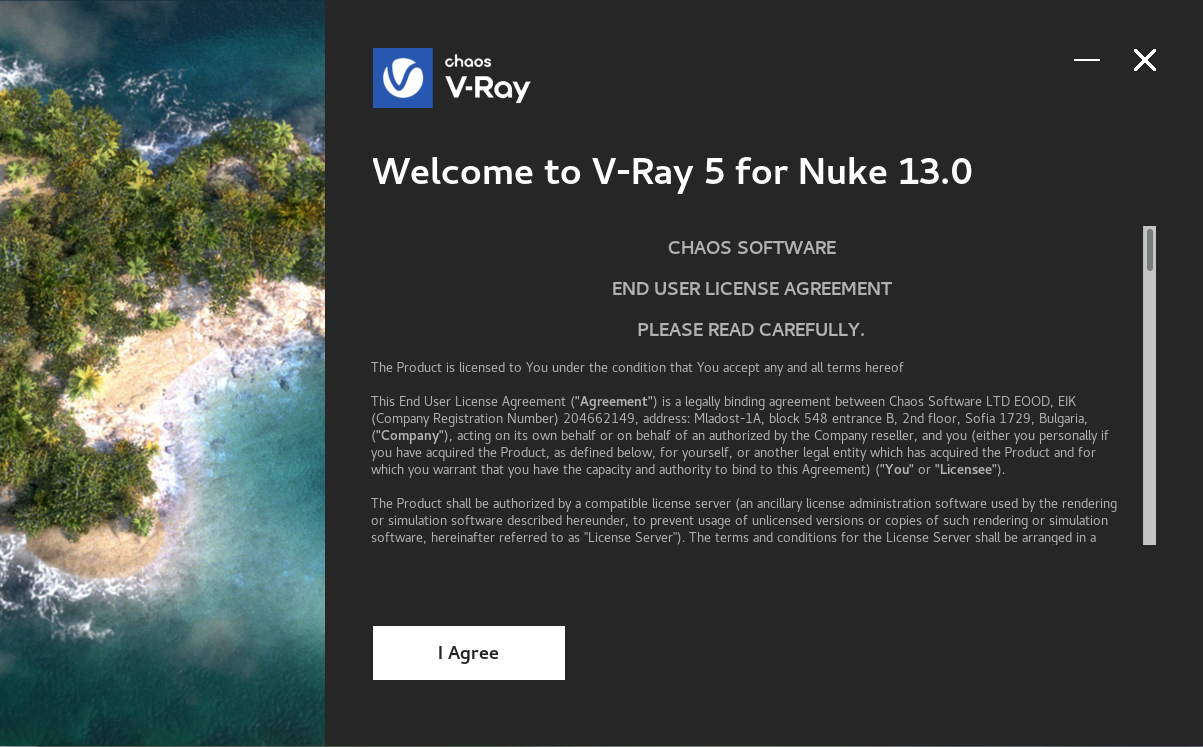
Select your installation type and proceed to click the Install button.
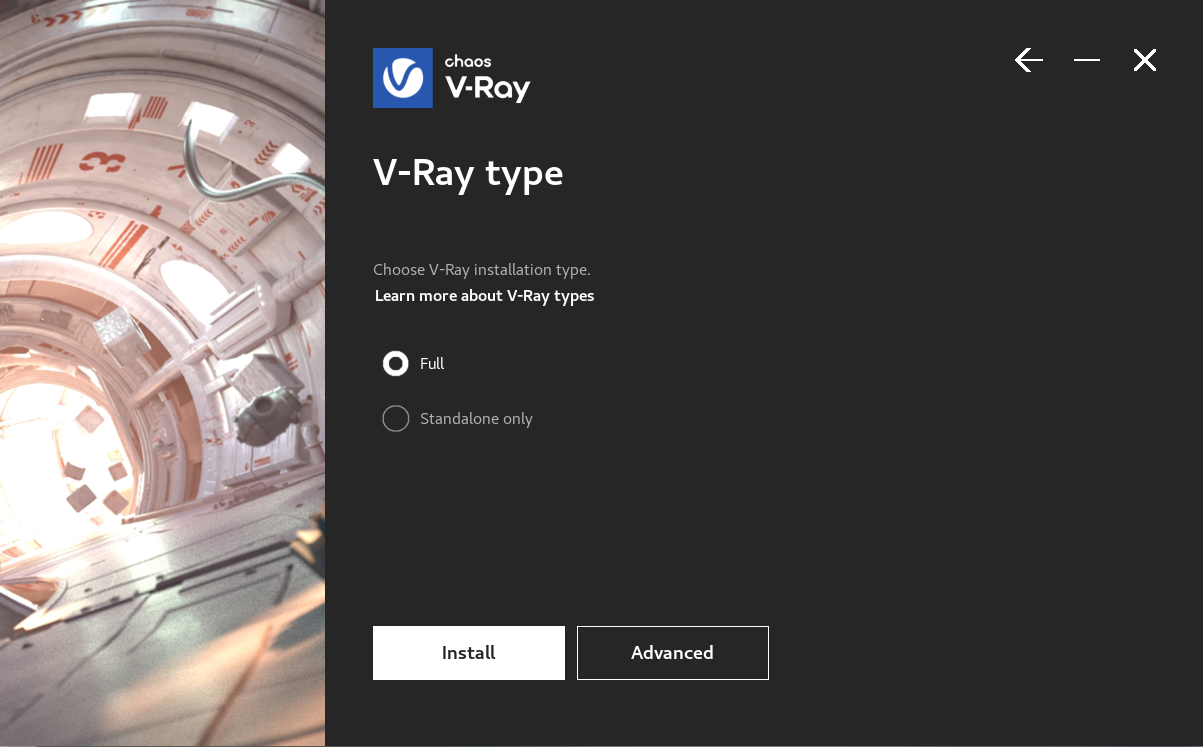
V-Ray type
The available installation types are:
Full – This is a full installation and includes all components as described in the “Installation overview” section.
Standalone only – This installation includes V-Ray Standalone. Please choose this option if you plan to use this machine only for Distributed Rendering with V-Ray Standalone.
If you need to customize your V-Ray installation, press the Advanced button.
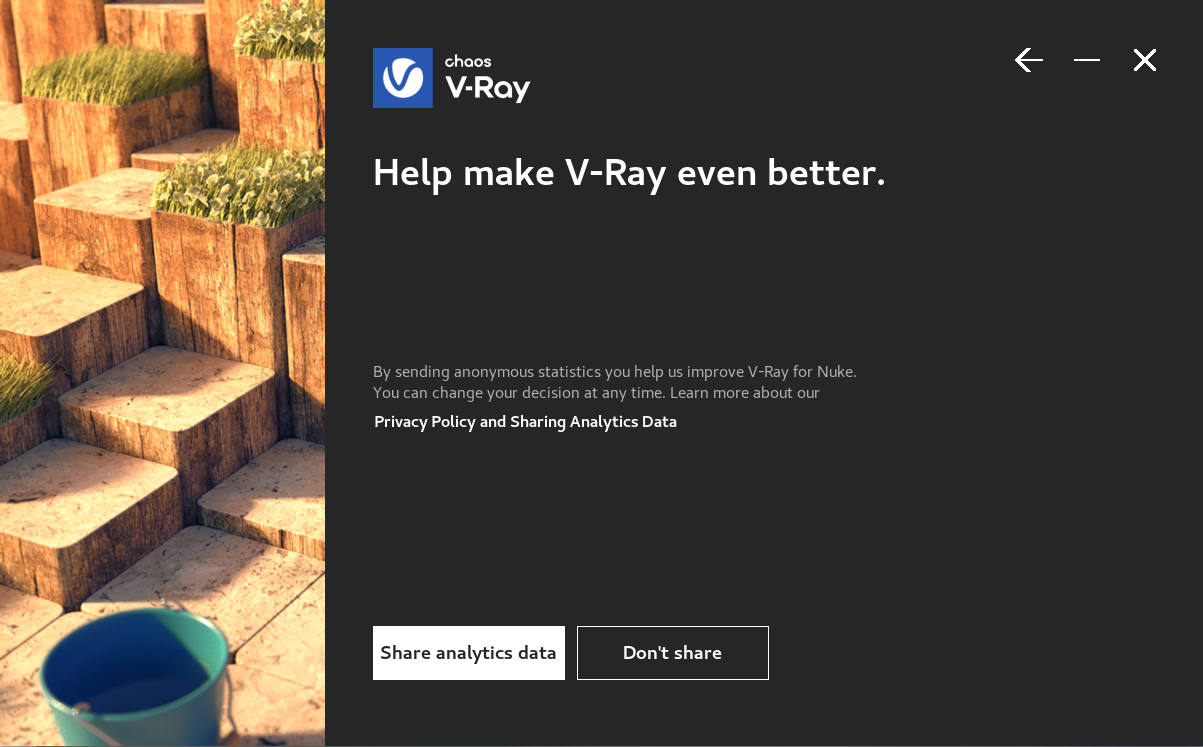
Help make V-Ray even better
Participate in the improvement decisions for future version of V-Ray. No intelligence property is violated when agreeing to participate in the feedback program. We do not gather scenes, assets, materials, etc. What we receive is user preferences on just a few key render settings and the resulting render times. The point of this feature is to improve V-Ray's performance and the user experience. This preference can be changed at any time later on from the About V-Ray > Feedback program settings. For more information, see the Chaos Telemetry page.
If you need to customize your V-Ray installation, press the Advanced button.
Click here to expand for Advanced options...
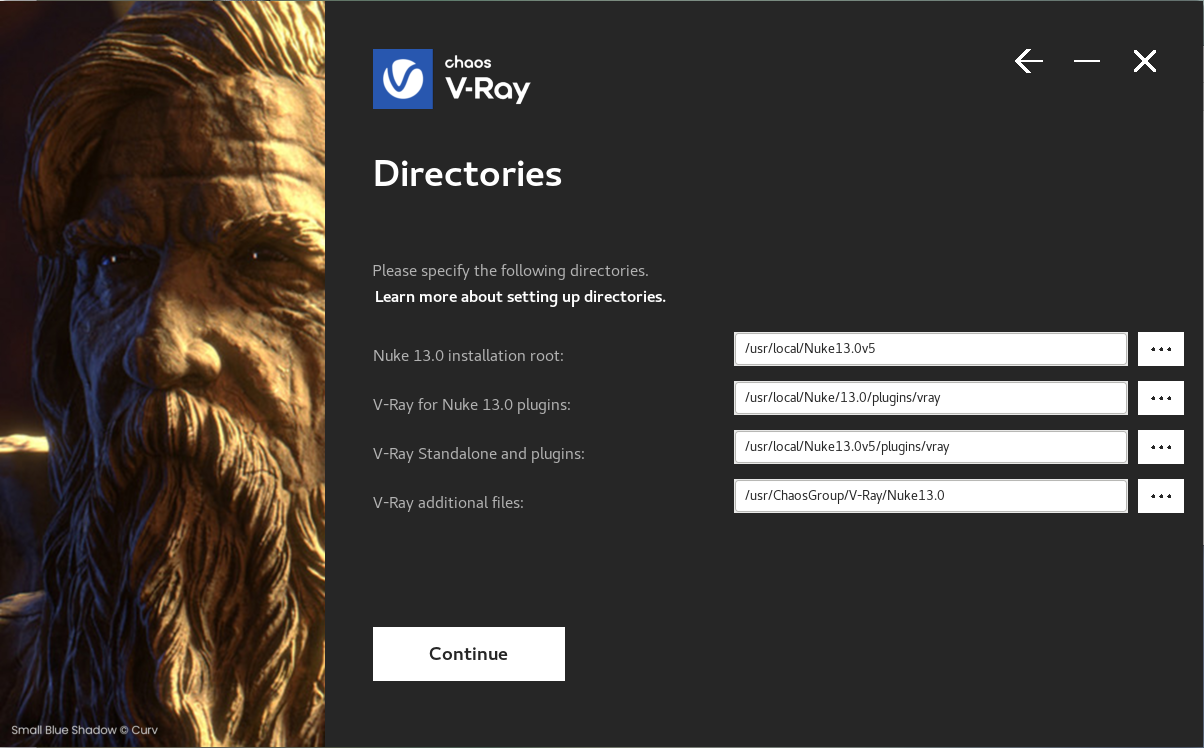
Directories
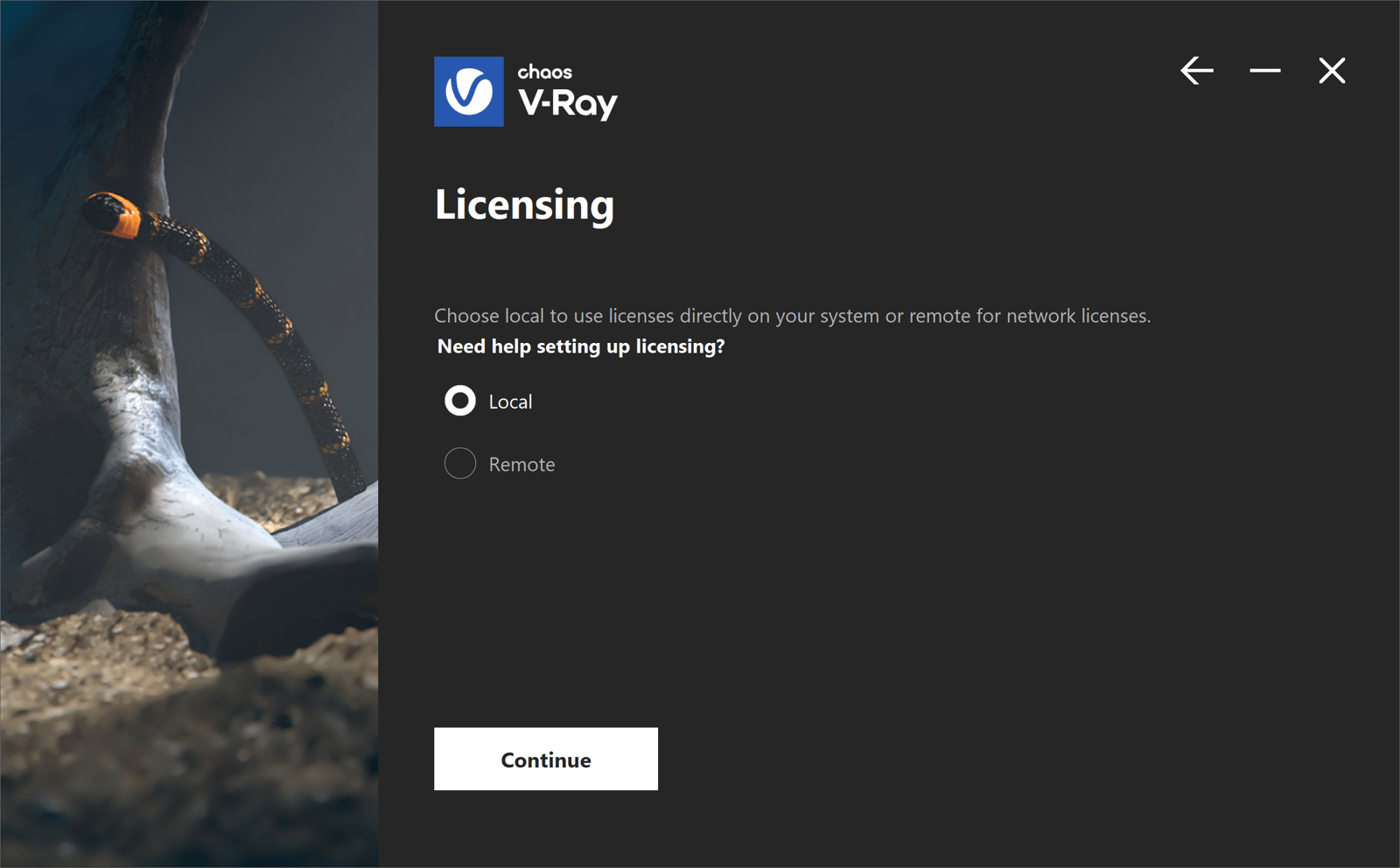
Licensing
If you choose the Local Licensing Option, you are presented with the License Server installation.
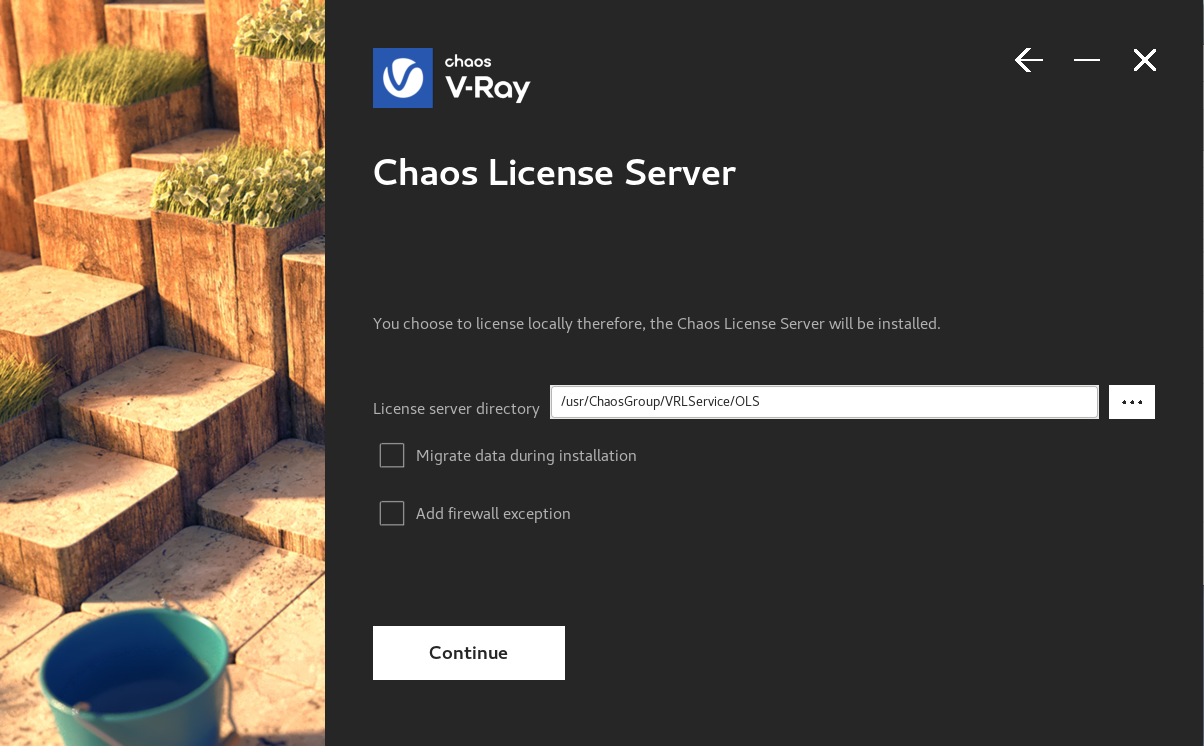
Chaos License Server
At this step you can choose the license server directory.
Migrate data during installation – When enabled, transfers all of your settings made with older versions of the License Server, such as enabled dongle subsystem, proxy settings, etc. Disabling this option will install License Server with all settings at their defaults and any custom settings from the previous installation will be lost.
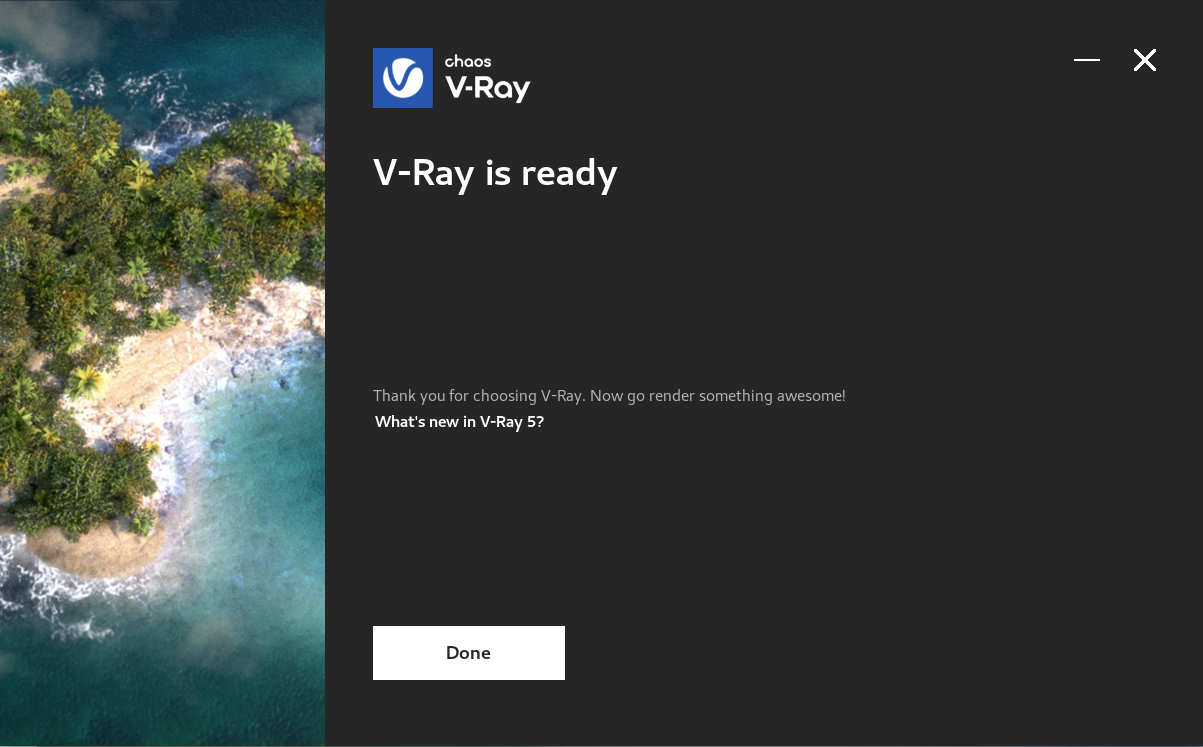
Now V-Ray is ready to render! Don't forget to activate your license before use. No Chaos product can be used without a license!