V-Ray for Rhino
Lighting Analysis
This page provides information about the Lighting Analysis Render Element in V-Ray for Rhino.
Last updated 18 May 2026
This page provides information about the Lighting Analysis Render Element in V-Ray for Rhino.
Overview
The Light Analysis Render Element provides a visual representation of the lighting intensity in the rendered frame. It maps Illuminance and Luminance information as color gradient or a grid of measured values onto the frame.
The Illuminance and Luminance channels are internally created during rendering.
During the rendering, the Lighting Analysis might display some approximation to the false-color image, but that is not the final result. After the rendering is finished, every parameter change made in the Asset Editor automatically updates the render result in the VFB.
V-Ray for Grasshopper offers a Lighting Analysis Element component. To see more information, see the V-Ray Element Lighting Analysis page.


UI Paths
||V-Ray Asset Editor|| > Render Elements (right-click) > Lighting Analysis
||V-Ray Asset Editor|| > Create Asset (left-click) > Render Elements > Lighting Analysis
Parameters
Quantity – Chooses which lighting information to be analyzed.
Illuminance (lx) – Uses the Illuminance of the rendered frame in lux.
Luminance (cd) – Uses the Luminance of the rendered frame in candelas.
Minimum Value – Specifies which values are mapped to blue.
Maximum Value – Specifies which values are mapped to red.
Scale – Specifies how values are mapped to colors onto the frame.
Linear – The colors are mapped in linear scale.
Logarithmic – The colors are mapped in logarithmic scale.
Display Mode – Specifies the analyzed data display mode.
False colors – Fills the frame with a gradient ranging from blue (low values) to red (high values). For the out of range values,it uses respectively black and white.
Grid overlay – Displays the values at distinct grid points over the frame. They use the same grading colors.
Draw Legend – When enabled, shows a legend of the false colors at the bottom of the render.

Examples: Lighting Analysis

Light Analysis Render showing Illuminance with False Colors display
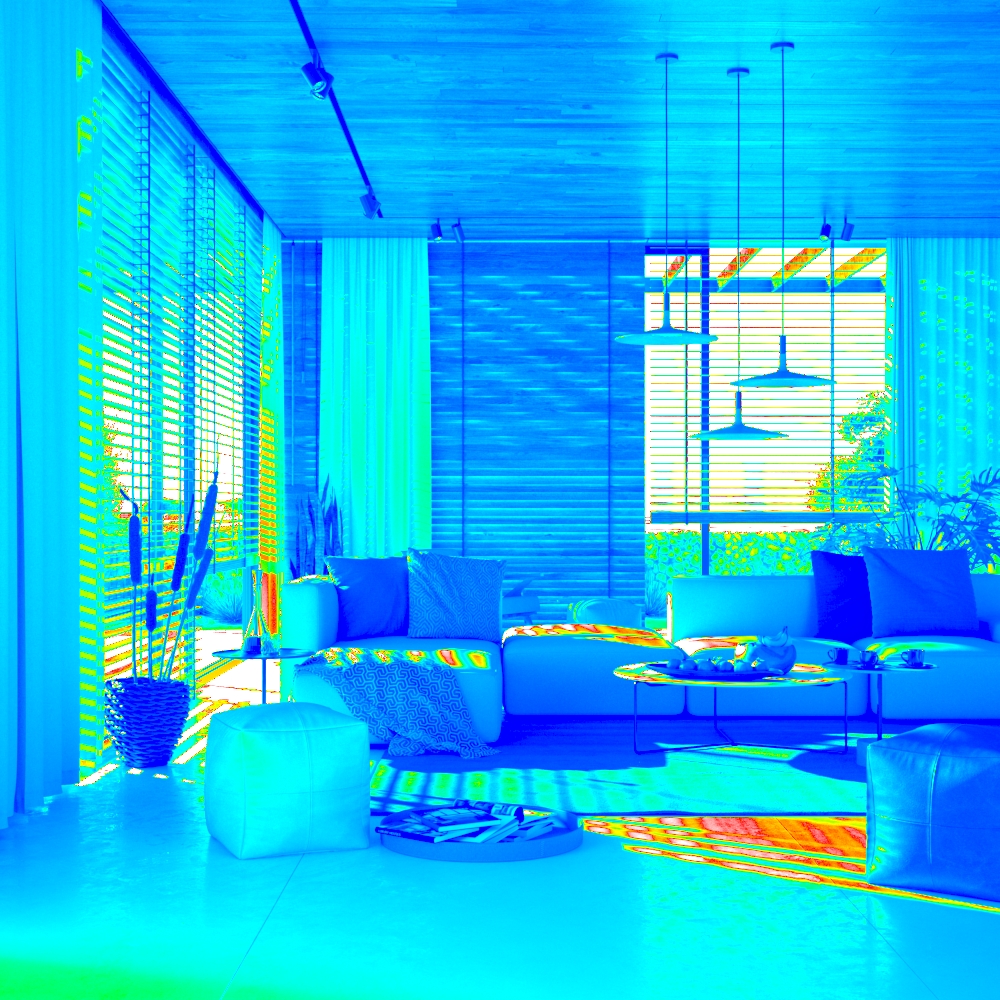
Light Analysis Render showing Luminance with False Colors display
Light Analysis Render showing Illuminance with Grid Overlay display
Notes
- When using Progressive image sampler, the regularity of updates of the lighting analysis channel is controlled by the Update effects option in the Render rollout of the Settings menu.
- You can reset the Input Number Slider's value to its default value by right-clicking on the slider and selecting the Reset context menu option.