V-Ray for SketchUp
Chaos Cloud Collaboration
This page provides information about the Chaos Cloud Collaboration for SketchUp.
Last updated 8 June 2026
This page provides information about the Chaos Cloud Collaboration for SketchUp.
Overview
The Collaboration window provides a collaboration tool for sharing your work with other users. You can upload images from the VFB to the Chaos Cloud Collaboration, where other users can add comments and annotations.
Signing in Chaos Cloud Collaboration using your Chaos credentials is required once. After that, you are automatically signed in every time you open the Collaboration window.
Find more information about the workflow and Virtual tours.
www.youtube.com
UI Paths
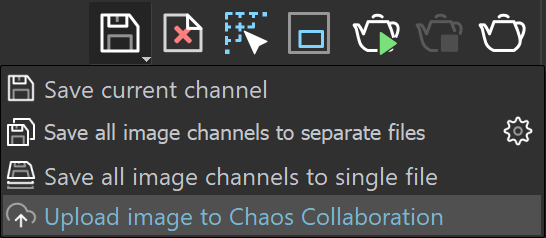
||VFB|| > Save (dropdown menu) > Upload image to Chaos Collaboration
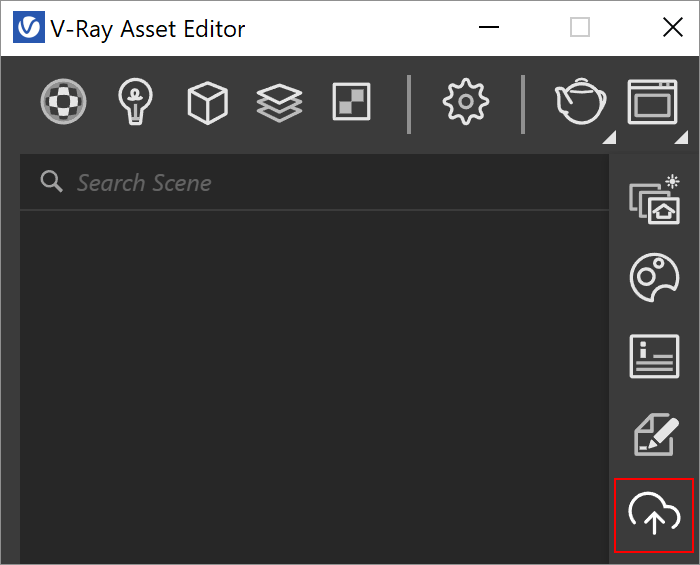
||V-Ray Asset Editor|| > Shortcuts menu > Open Chaos Collaboration
SketchUp Menus Ribbon
||Extensions|| > V-Ray > Chaos Cloud Collaboration
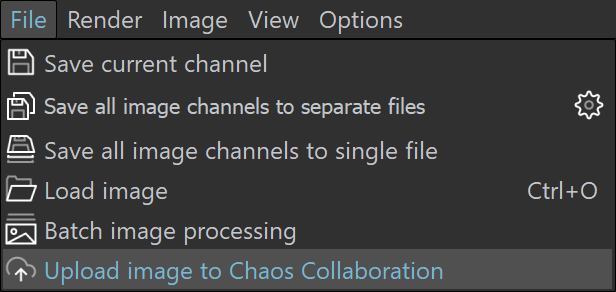
||VFB|| > File (dropdown menu) > Upload image to Chaos Collaboration
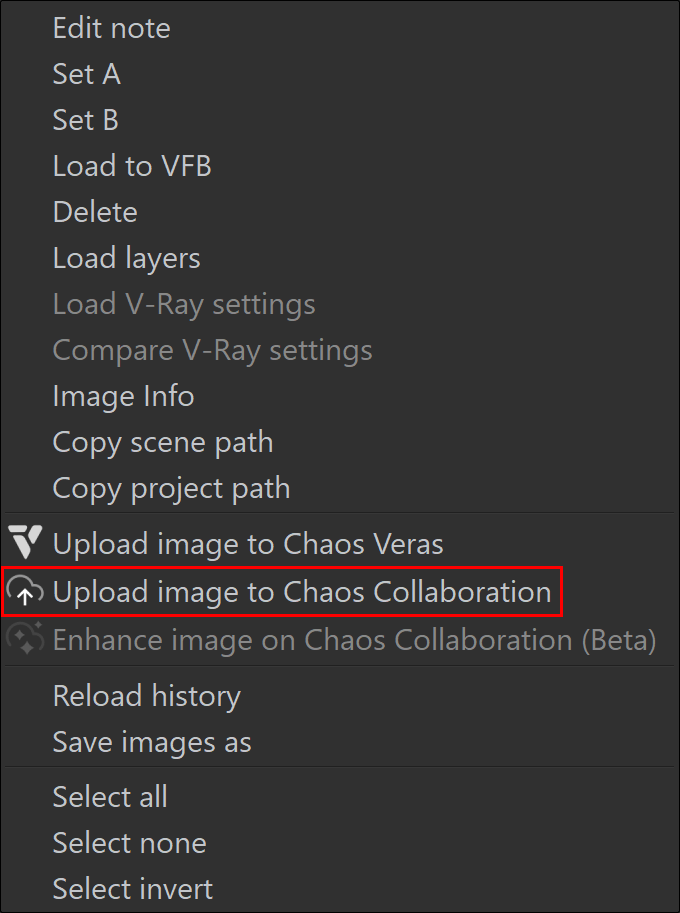
||VFB|| > Render History > (Right-click on any previously saved to history image) > Upload image(s) to Chaos Collaboration
Workflow and Controls

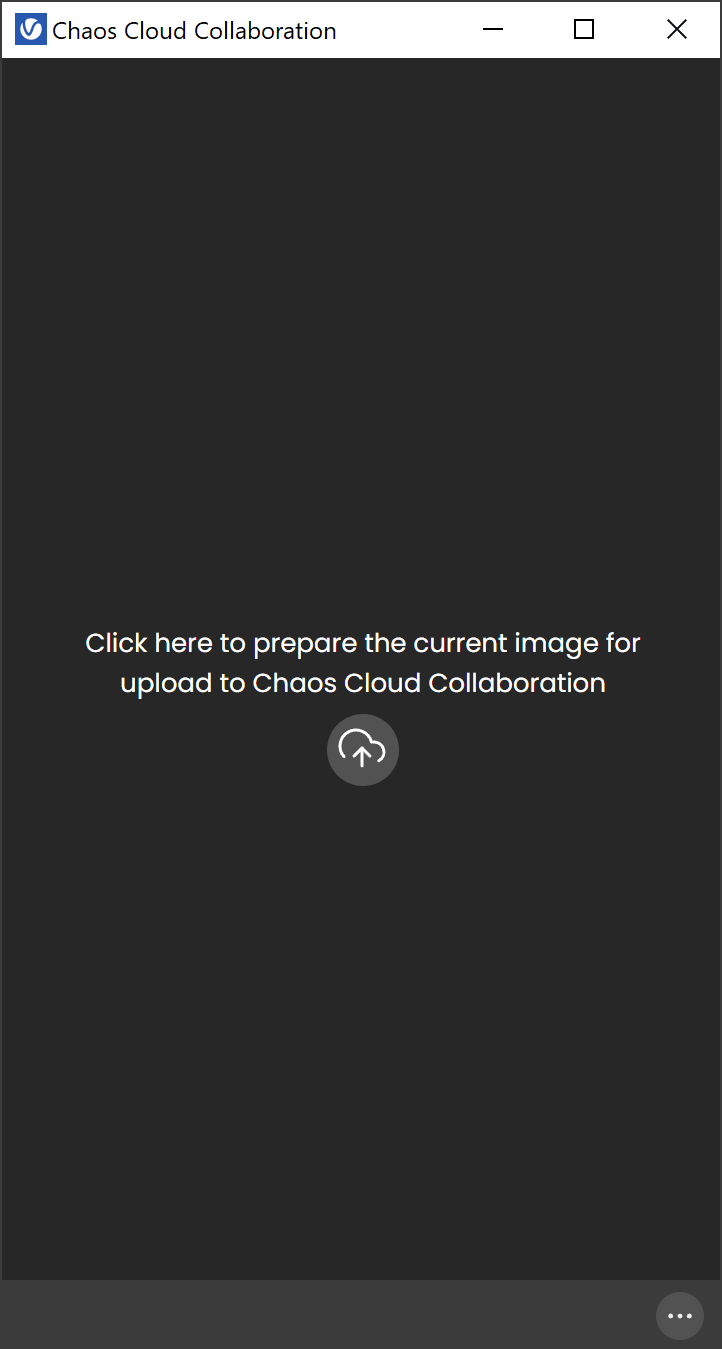
Open the Collaboration window from the Asset Editor and use the Chaos Collaboration button or the VFB save option in order to upload your images.
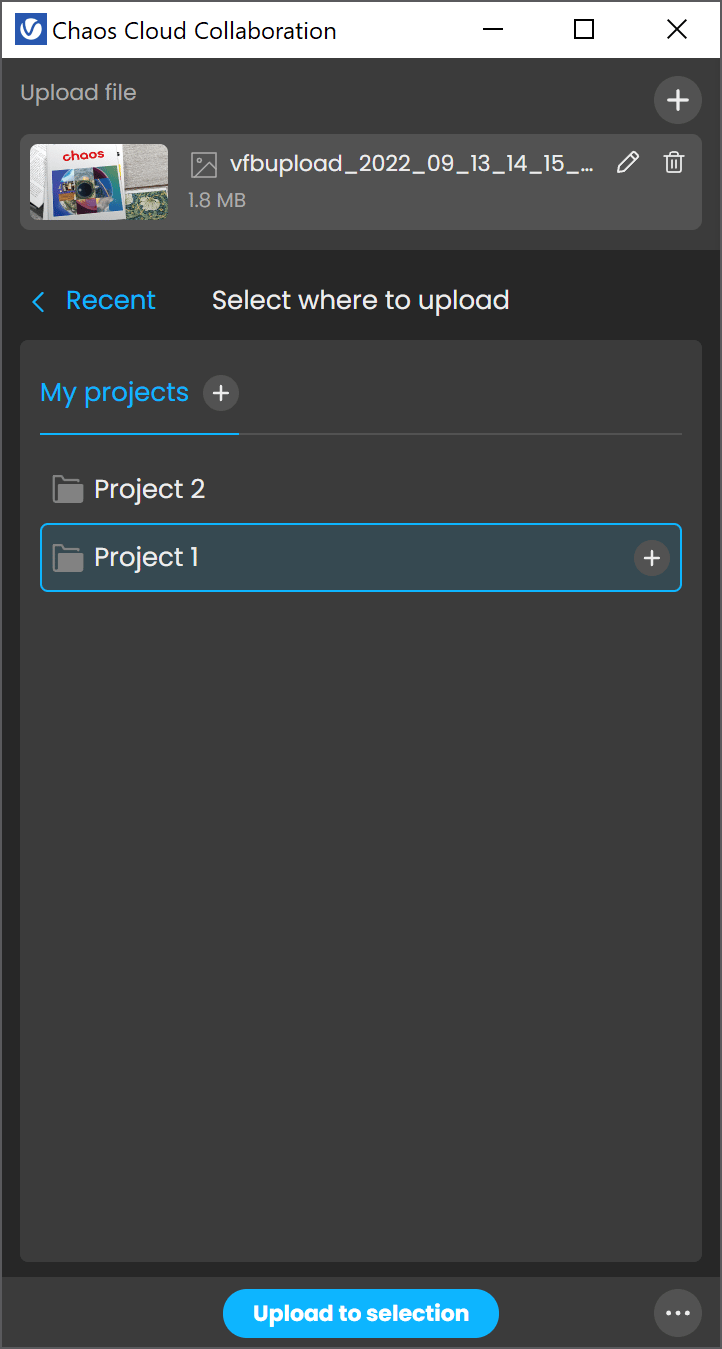
The Collaboration window has several section. The section Upload files contains a list of uploaded images and the Recent folder contains only the recent project.

– Deletes the current image from the upload list.

– In the Upload files, uploads the current image from the VFB to Chaos Cloud Collaboration. In Browse, creates a new project or folder.
Upload to selection – Uploads the images to Chaos Cloud Collaboration.
New upload – Clears the Collaboration tab and prepares it for new upload of images.
Open in browser – Opens the uploaded images in Chaos Cloud Collaboration.
Virtual Tours
To use the Virtual Tours, part of Chaos Collaboration, please export the images from the VFB. Currently, there are 3 options for exporting images:
1. From VFB > File > Upload image to Chaos Collaboration;
2. From VFB > Save Current Channel dropdown > Upload image to Chaos Collaboration;
3. From VFB > History panel > Image context menu > Upload image(s) to Chaos Collaboration (from here multiple images can be sent to Chaos Collaboration).
For more information on virtual tours in Chaos Cloud, follow the link.