Use the V-Ray Frame Buffer to apply colour corrections to EXR images rendered in Chaos Cloud.
Overview
You can use the V-Ray Frame Buffer to apply colour corrections to EXR images rendered in Chaos Cloud. V-Ray versions newer than 4.12 bake all colour corrections into the images. In older versions, EXR and VRIMG files contain raw image data with no colour corrections saved by default. Save your colour correction presets separately so you can apply them later. This article explains how to save a colour-corrected image from the VFB in older V-Ray versions.
Video
Generate different image formats with the VFB
Chaos Cloud supports all output image formats available in your 3D host app except Deep EXR, Tile EXR, TIFF and TGA. To save an image in an unsupported format, follow these steps:
- Generate your output in EXR or VRIMG format.
- Open the EXR or VRIMG files in the host app's VFB, then use the Save Current Channel button to save the image in the format you need.
Apply colour corrections to EXR images rendered in Chaos Cloud
Chaos Cloud Rendering creates EXR and JPG versions of submitted render jobs by default, unless you set another format in your 3D editing platform. Load the EXR image in the VFB to apply colour corrections manually or with a saved preset.
If you enable the Include additional JPG output toggle on the Options page, Chaos Cloud Rendering creates an additional high-quality JPG file at no extra cost.
Manual colour corrections
To apply colour corrections manually, load the EXR image in the VFB using File > Load image. The Layers panel is open by default. Use different layers to add colour corrections and adjust the image's appearance.
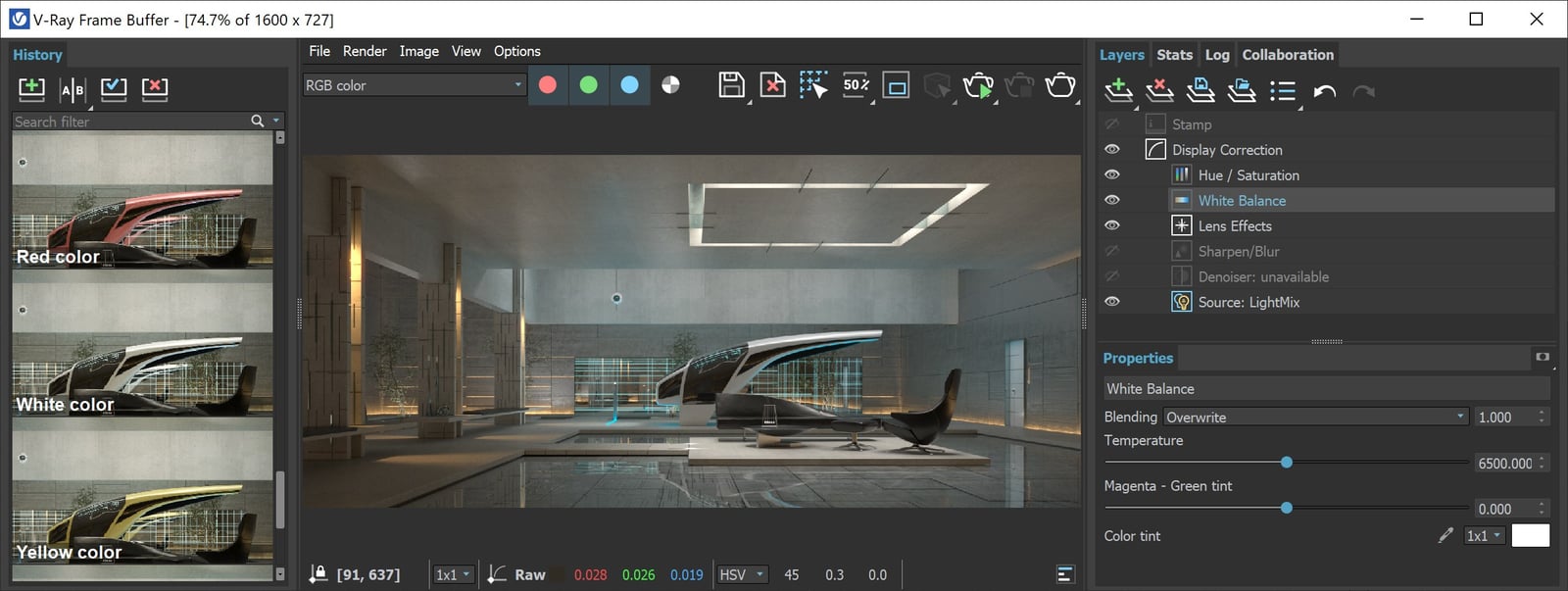

When you finish, use the Save current channel () button in the VFB to save the processed image in your chosen image format.
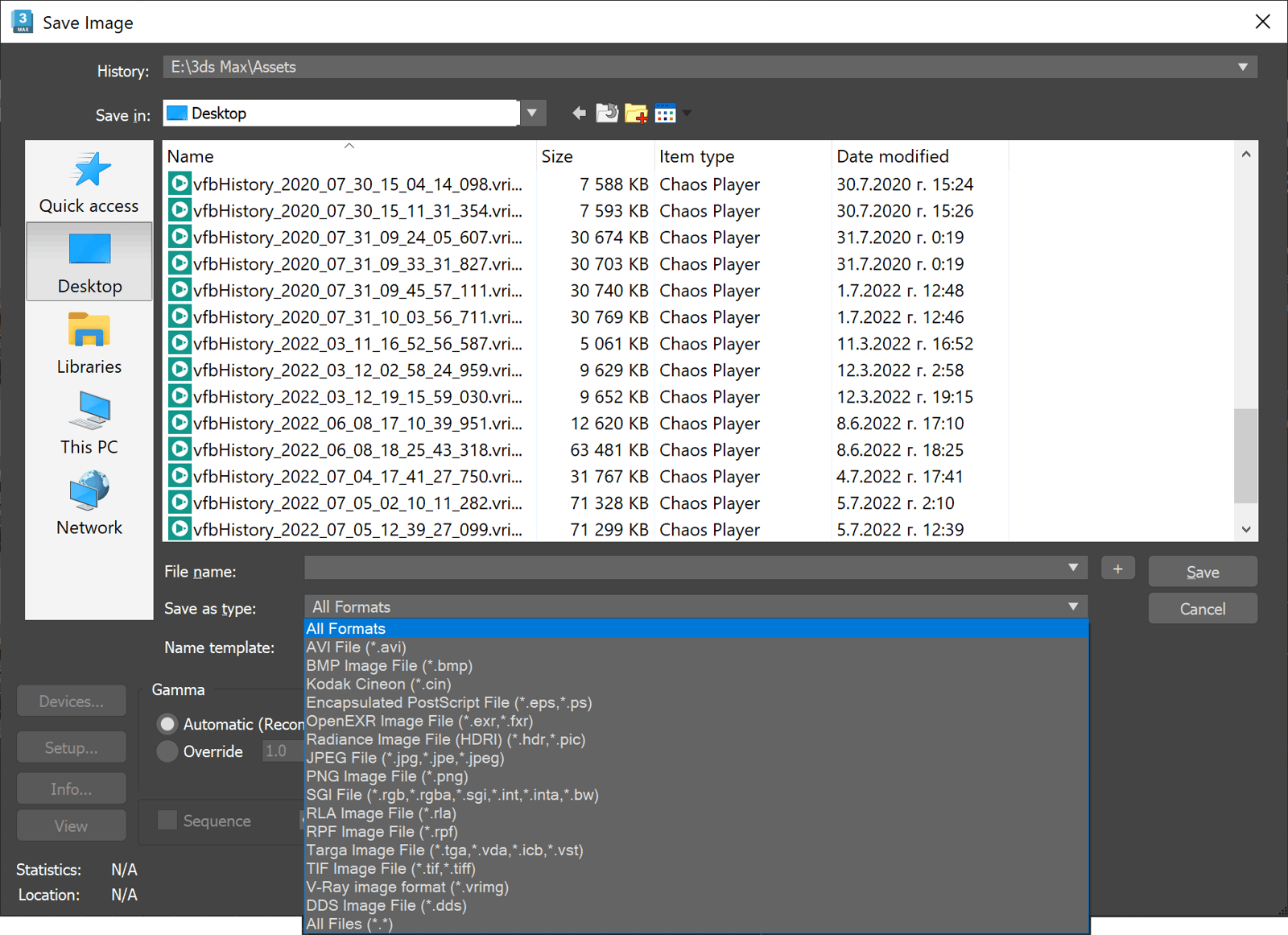
Presets
You can save colour corrections as a preset and apply them later. Jobs submitted from SketchUp include a .vccglb file containing the colour corrections, packaged with the render output. To load a colour correction preset, right-click Globals... and select Load.


You can also use the buttons to save and load individual colour corrections. After you apply a preset, use the Save current channel () button to save the image in your chosen format.
For more detail, see the VFB colour correction guide.
