V-Ray for SketchUp
Chaos Cosmos Browser
This page gives information about Chaos Cosmos Browser in SketchUp.
Last updated 1 September 2026
This page gives information about Chaos Cosmos Browser in SketchUp.
Overview
Chaos Cosmos Content System delivers an asset library of high-quality, render-ready 3D content carefully selected from the rich Chaos ecosystem. It allows Chaos users from their respective Chaos products to browse, place, and render 3D assets in their visualization projects. The asset categories span across vegetation, materials, furniture, accessories, lighting fixtures, vehicles, people, animals, architecture, presets (i.e. ready-to-use predefined sets of 3D models like grass and dandelion lawns, tree avenues, river bed, wild bushes, palm forest, hedges, group of people and more), enmesh-patterns and HDRI skies, organized in four main categories and nine spaces.
In addition, all assets go through a rigorous process of selection and Chaos quality checks to make sure that they work seamlessly in different Chaos renderers (V-Ray 5 and later, V-Ray GPU, Corona, Vision, as well as Chaos Vantage) and host apps (3ds Max, Cinema 4D, Revit, Rhino, SketchUp, Maya, Houdini, etc).
youtu.be
UI Paths
||V-Ray Asset Editor|| > Shortcuts menu > Open Chaos Cosmos Browser

||V-Ray for SketchUp Toolbar|| > Chaos Cosmos

SketchUp Menus Ribbon
||Extensions|| > V-Ray > Chaos Cosmos
Installation
Chaos Cosmos Browser is part of the installations of all Chaos renderers - V-Ray, Corona, and Vantage - and does not require any other specific actions. You can access the downloadable content of the Chaos Cosmos Platform from within the host platform once the renderer's installation is complete.
Usage
To start using the Chaos Cosmos Browser, you have to sign in. Press the Profile icon button at the top-right corner and enter your Chaos credentials in the newly opened browser tab.

Light theme - Switch your theme from dark to light from the context menu.

Search And Filter
Switch between default and AI Mode Search options to enhance the provided results.

Default Search
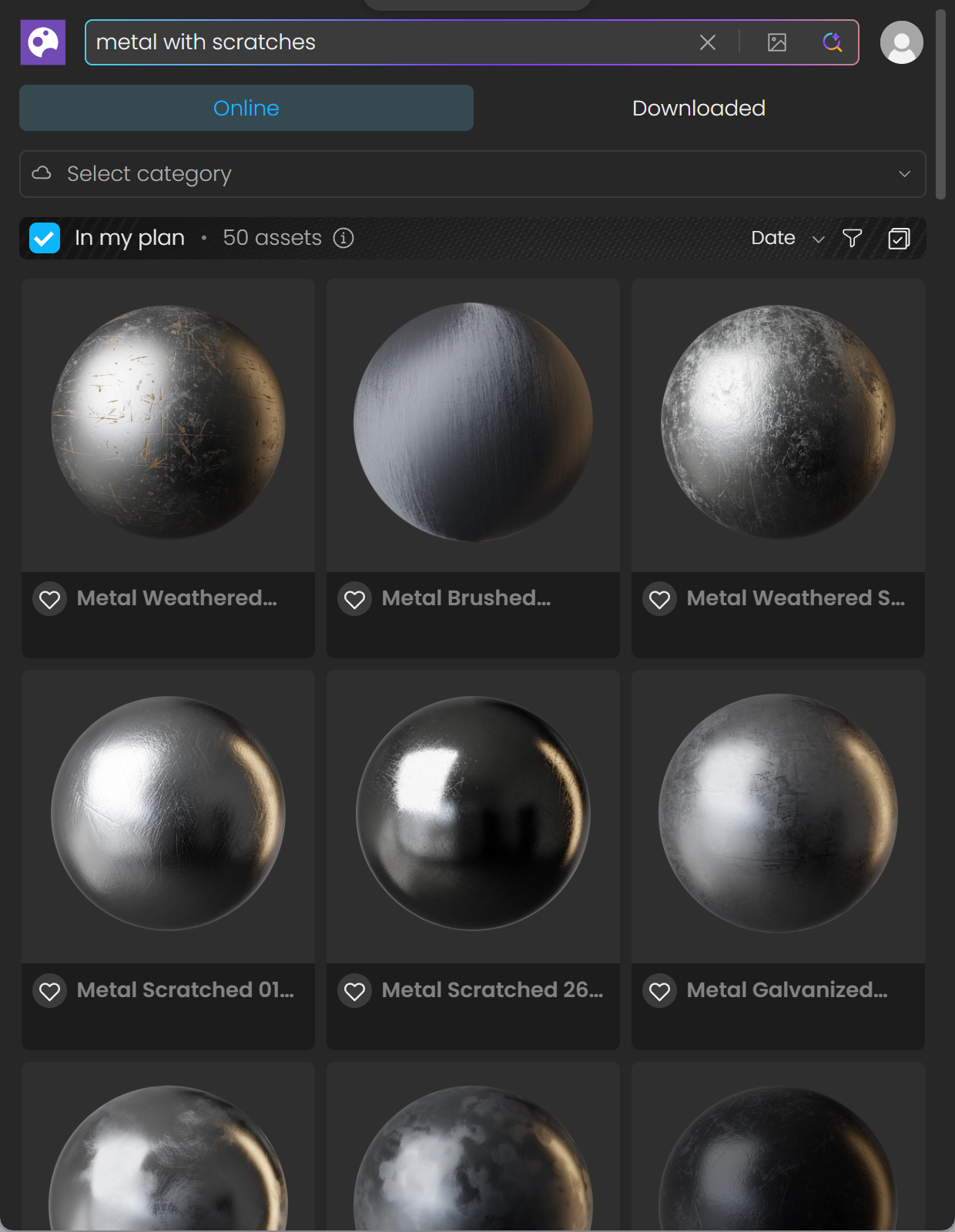
AI Mode Search
The results show all available assets, regardless of the current subscription plan.
Use the In my plan filter to show only the assets available in your subscription plan.
Click on the Upgrade now button to open the pricing plans page and see what upgrades are available.


Use the categories menu to refine the search depending on the type of asset you are looking for, or you can select a themed Collection or Creator by which to filter.
The Filters menu provides options to filter by Color, by the Space where you might typically find assets, Surfaces they are often found on, and preset Tags.
At the top of the menu, you can also see the Liked filter and the Updates available filter.
Filters are combined with each other, they are not displayed simultaneously. If you filter by the color yellow and the liked assets, Cosmos shows you liked assets that are also yellow. Keep in mind that variants might have different filter tags, depending on their individual look (e.g., vegetation variants often have a summer and autumn variant, with one being tagged as summer and green, and the other as orange and autumn).
To remove all filters, use the Clear all button at the bottom of the Cosmos Browser.

Once you choose an asset, you have to download it. Hover over it and click on the blue icon at the upper-right corner. Another way to download an asset is to click on it. This reveals additional information. You can see the category/space/color of the asset and other additional information.

Once the download is complete, a pop-up window states that the asset is downloaded successfully. Use the Import button to bring the asset into the host platform. That starts the component placement tool and allows you to place multiple asset instances wherever you want in the scene.
Upon placement, the Cosmos asset becomes a Sketchup Component, and you can scale, move, and rotate it.
Note that downloaded assets can be reused across different host platforms. They are saved locally at the following directory: C:\Users\[User]\Documents\Chaos Cosmos\Packages.

Multiple Asset Selection

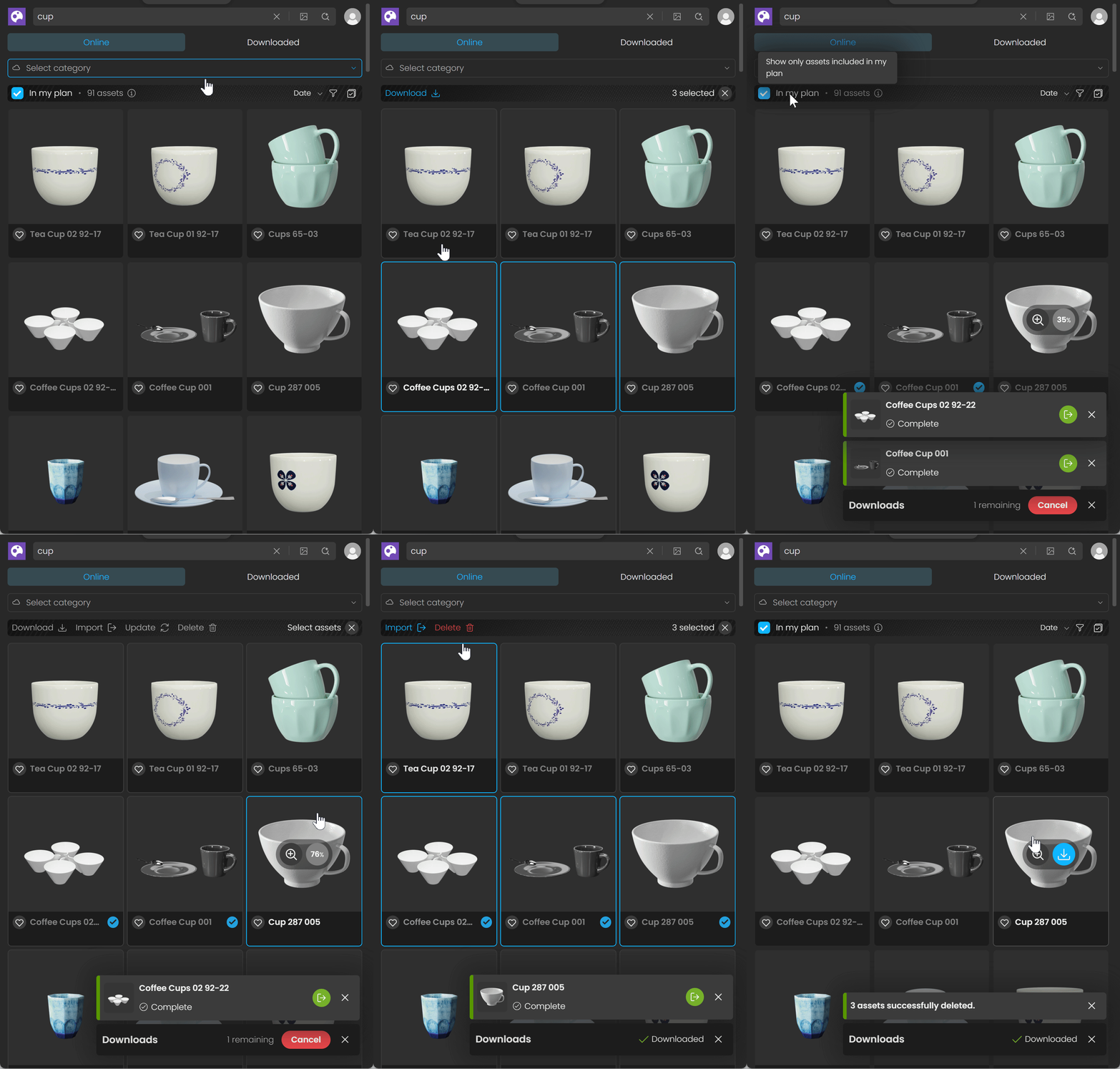
Opening the Chaos Cosmos Browser through a host platform provides the option of multiple asset selection.
Use the button to enable the Multi-Selection Mode. In this mode, you can select several assets to download, update, delete or import at once.