Use the Diffuse Coat layer in V-Ray for SketchUp to control a material's colour, roughness and opacity.
Overview
Create a Diffuse Coat material layer with Add Layer. This layer is not available in the Creation menu of the V-Ray Asset Editor.
Parameters
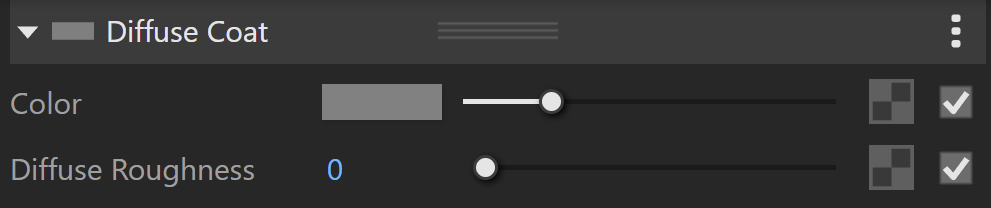
Diffuse Coat
Colour sets the material colour. For dielectric materials, it sets the diffuse colour. For metals, it sets the specular reflection colour.
Diffuse Roughness controls the Diffuse BRDF Falloff. Use it to simulate rough or dusty surfaces, such as skin or the moon's surface. It affects only the diffuse portion of non-metallic materials.
Opacity
Opacity sets how opaque or transparent the material is. You can assign a texture map to this channel.
Custom Source lets V-Ray use an alpha channel to control the material's opacity when enabled.
Diffuse Texture Alpha uses the diffuse texture's alpha channel to control opacity. It works the same way as the legacy Diffuse Map Alpha as Transparency option in V-Ray versions before 3.60.
Opacity Texture Alpha uses the opacity texture's alpha channel instead of its default texture intensity. This option is ignored if the source slot has no texture.
Mode controls how opacity is sampled.
Clip (Very fast) shades the surface as fully opaque or fully transparent based on the opacity map value, without randomness. It also disables opacity texture filtering. This is the fastest mode, but it may increase flickering in animations.
Stochastic (Optimal) randomly shades the surface as fully opaque or fully transparent. On average, the result matches the intended transparency. It reduces lighting calculations, but may add noise where the opacity map has greyscale values. The opacity texture is filtered as normal.

Multipliers
Mode sets how the multipliers blend textures and colours.
Multiply blends the texture with black.
Blend Amount blends the texture with the colour you specify.
Color controls the intensity of the Diffuse colour.
Opacity controls the intensity of the overall material Opacity.
