Use the Filter Generator to create filters for Lens Effects in V-Ray for SketchUp.
Overview
The Filter Generator creates HDR images in *.hdr format for Lens Effects.
Installation
Windows | C:\Program Files\Chaos\V-Ray\V-Ray for SketchUp\extension\vray\bin\filter_generator.exe |
Windows | C:\Program Files\Chaos\V-Ray\V-Ray for SketchUp\extension\vray\bin\filter_generator.exe |
macOS | /Applications/Chaos/V-Ray/V-Ray for SketchUp/extension/vray/bin/filter_generator.bin |
File options
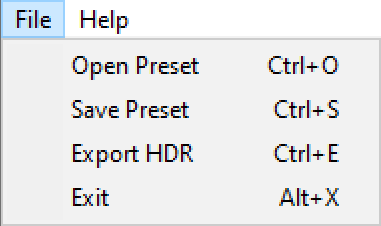
Use the file menu to save and load presets and export the final filter kernel.
Radial Symmetric Pattern parameters
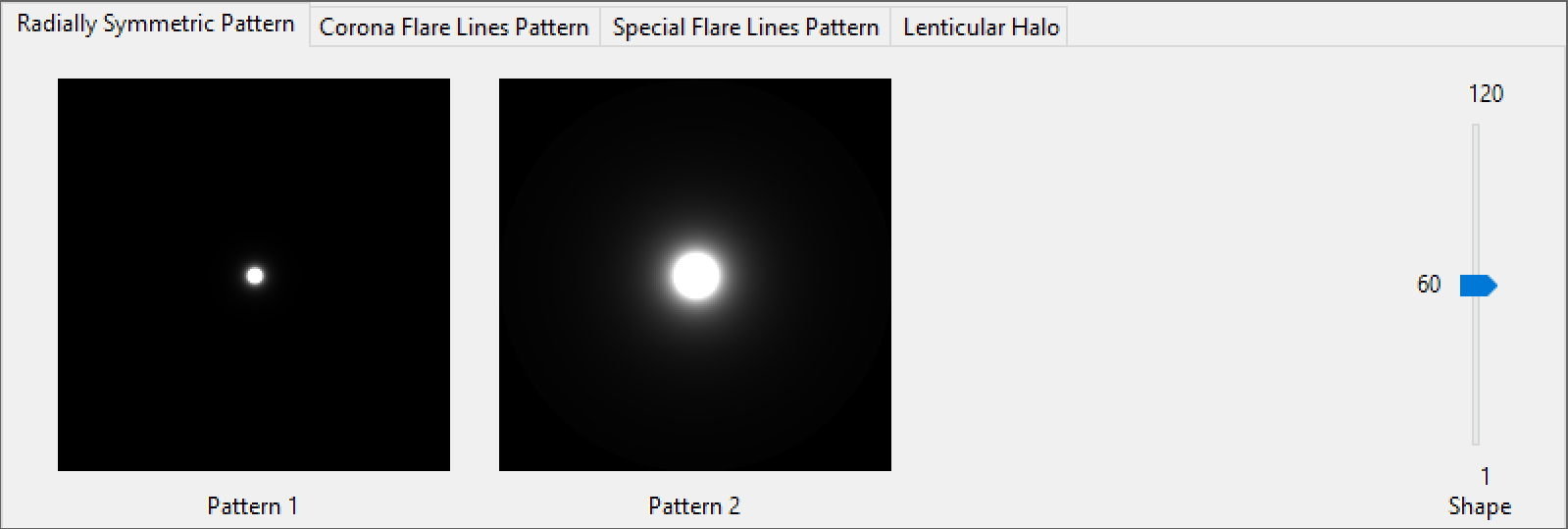
The Radial Symmetric Pattern parameters control the overall scale of the lens filter.
Shape adjusts the pattern size.
Corona Flare Lines Pattern parameters
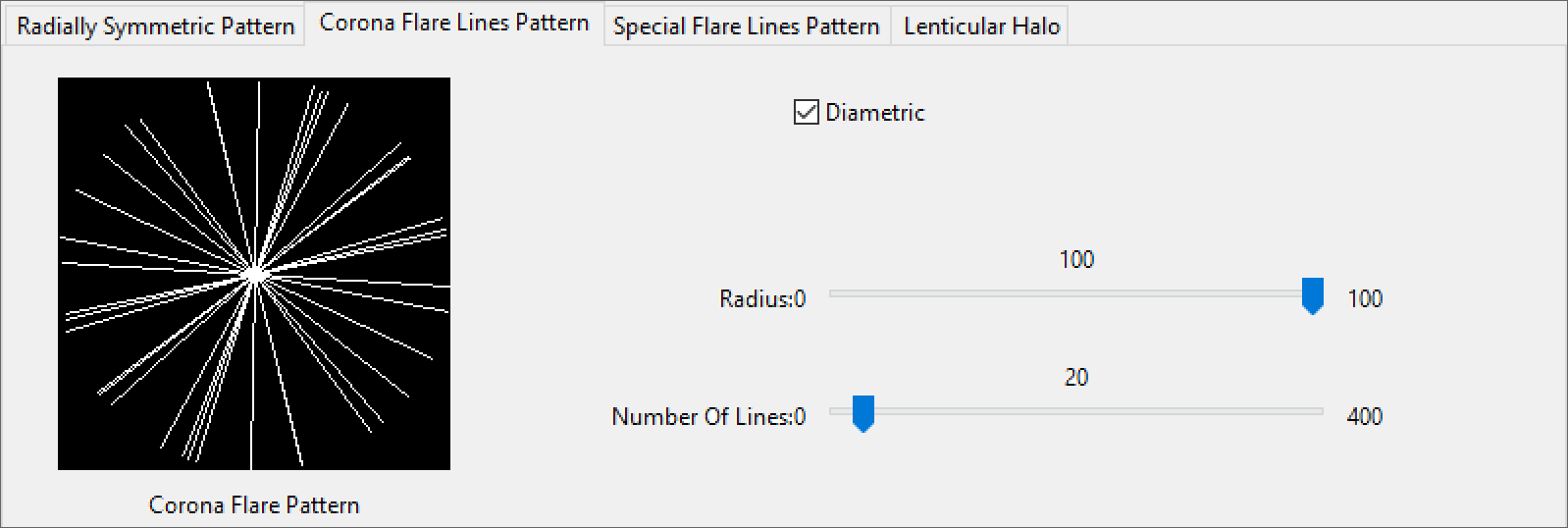
The Corona Flare Pattern parameters control how many rays extend from the light source.
Diametric mirrors the pattern across the centre when enabled.
Radius controls the pattern radius.
Number Of Lines controls how many lines the pattern contains.
Example: Corona Flare Lines Pattern
This example shows how Number of Lines affects the lens effect. Higher values produce more rays from the light source. Lower values produce fewer rays.
The last image also has Diametric enabled. This mirrors the ray pattern across the centre to produce symmetrical flares.
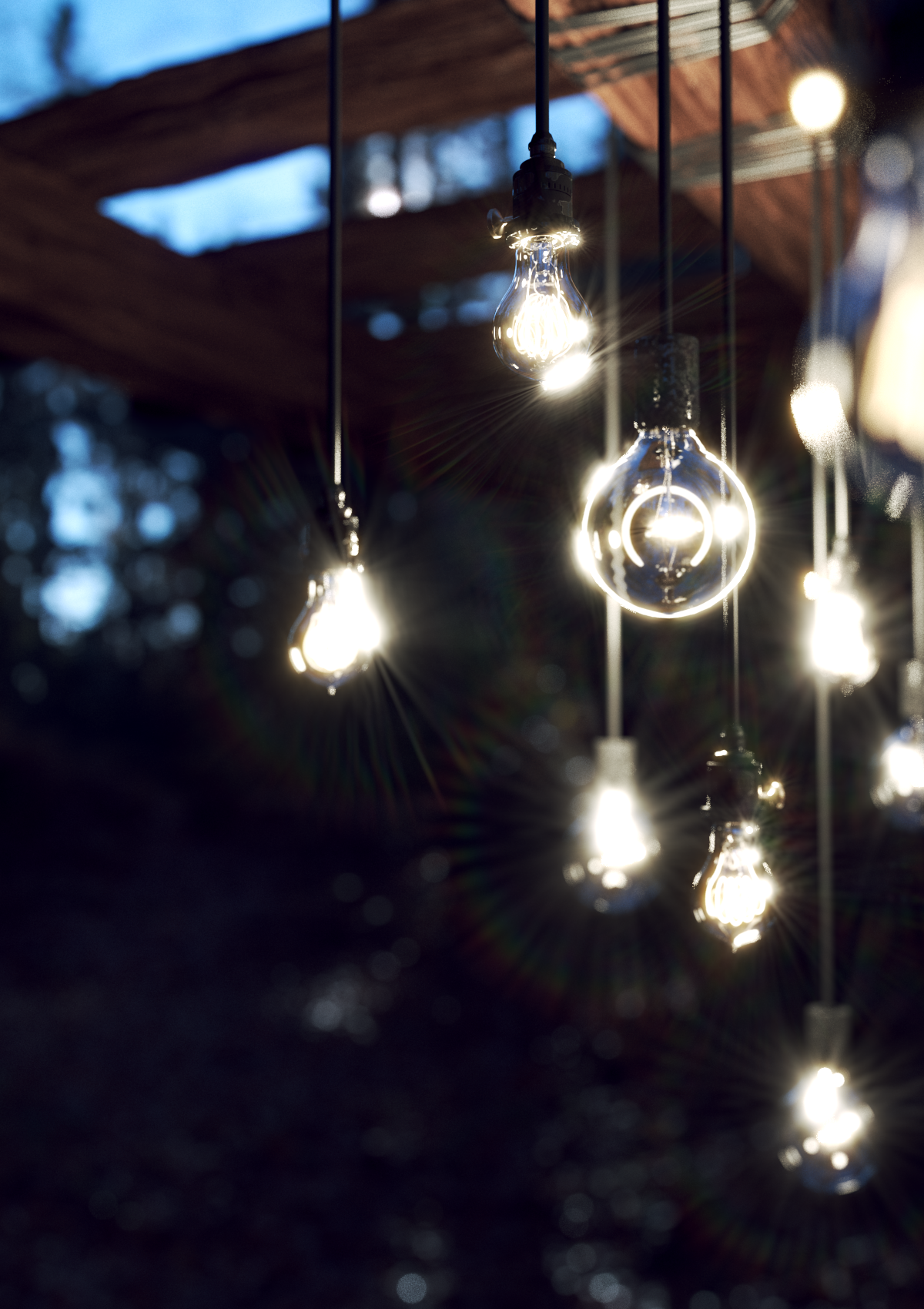
Number Of Lines
= 100,
Diametric
is off
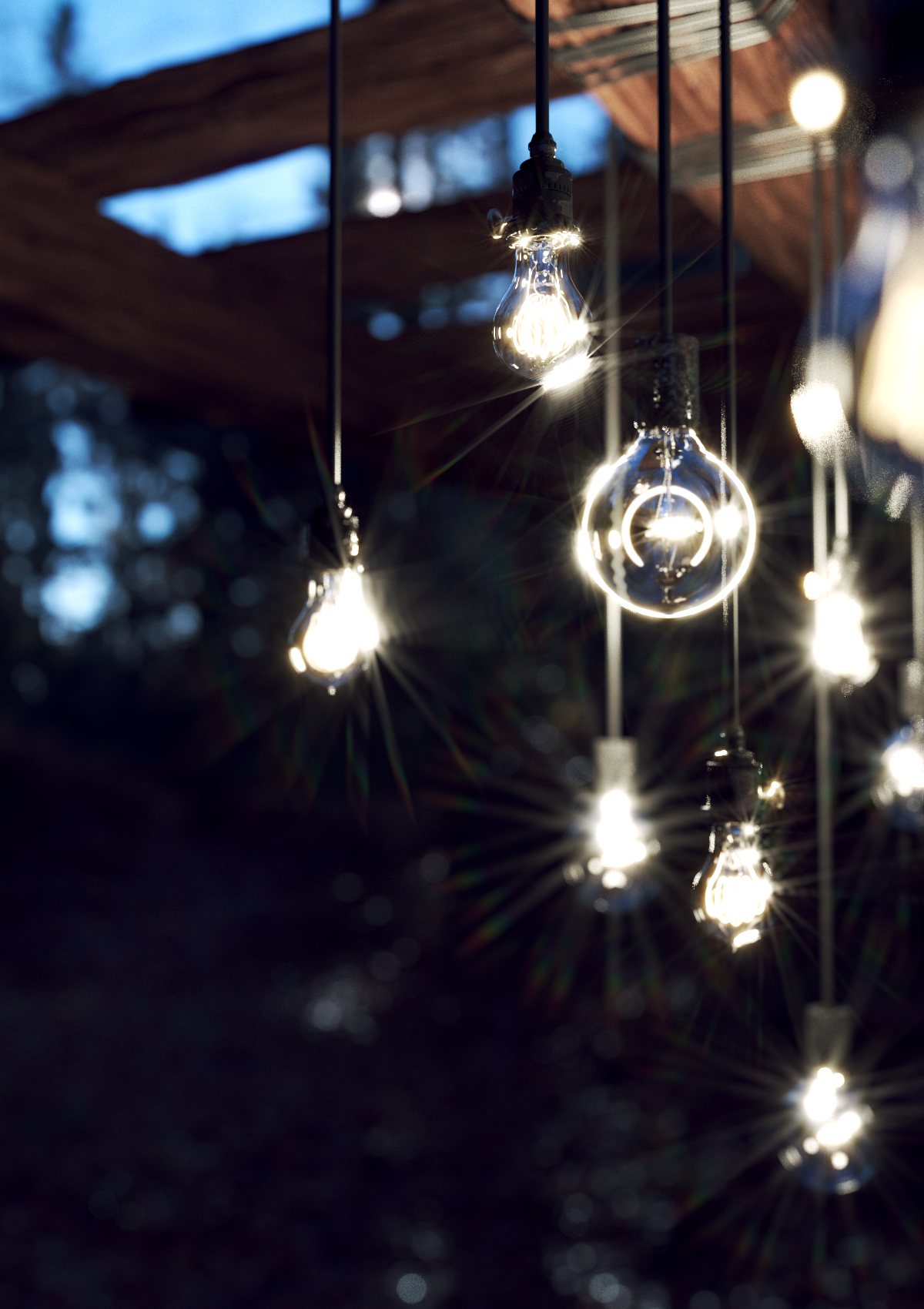
Number Of Lines
= 20,
Diametric
is off
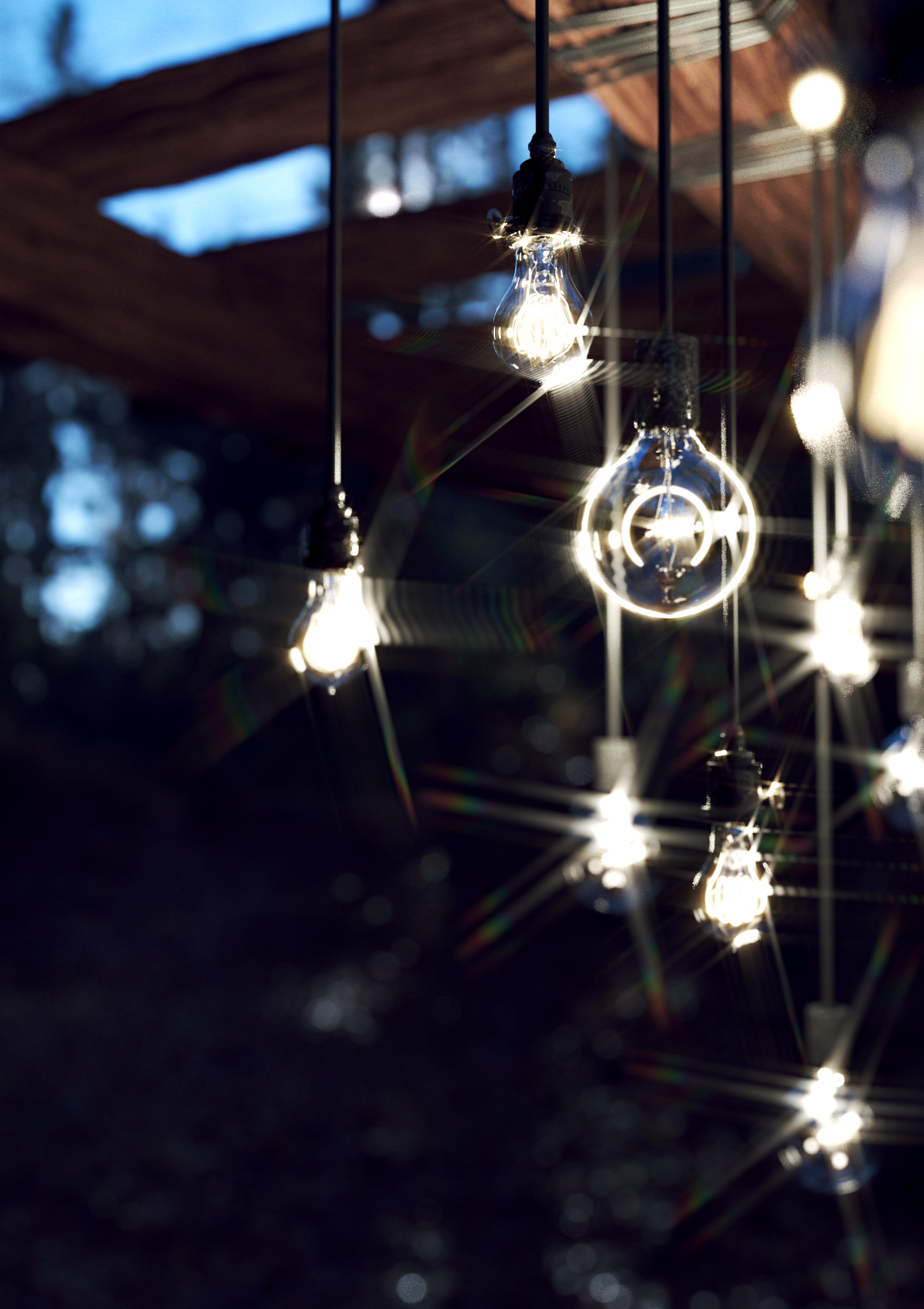
Number Of Lines
= 5,
Diametric
is off
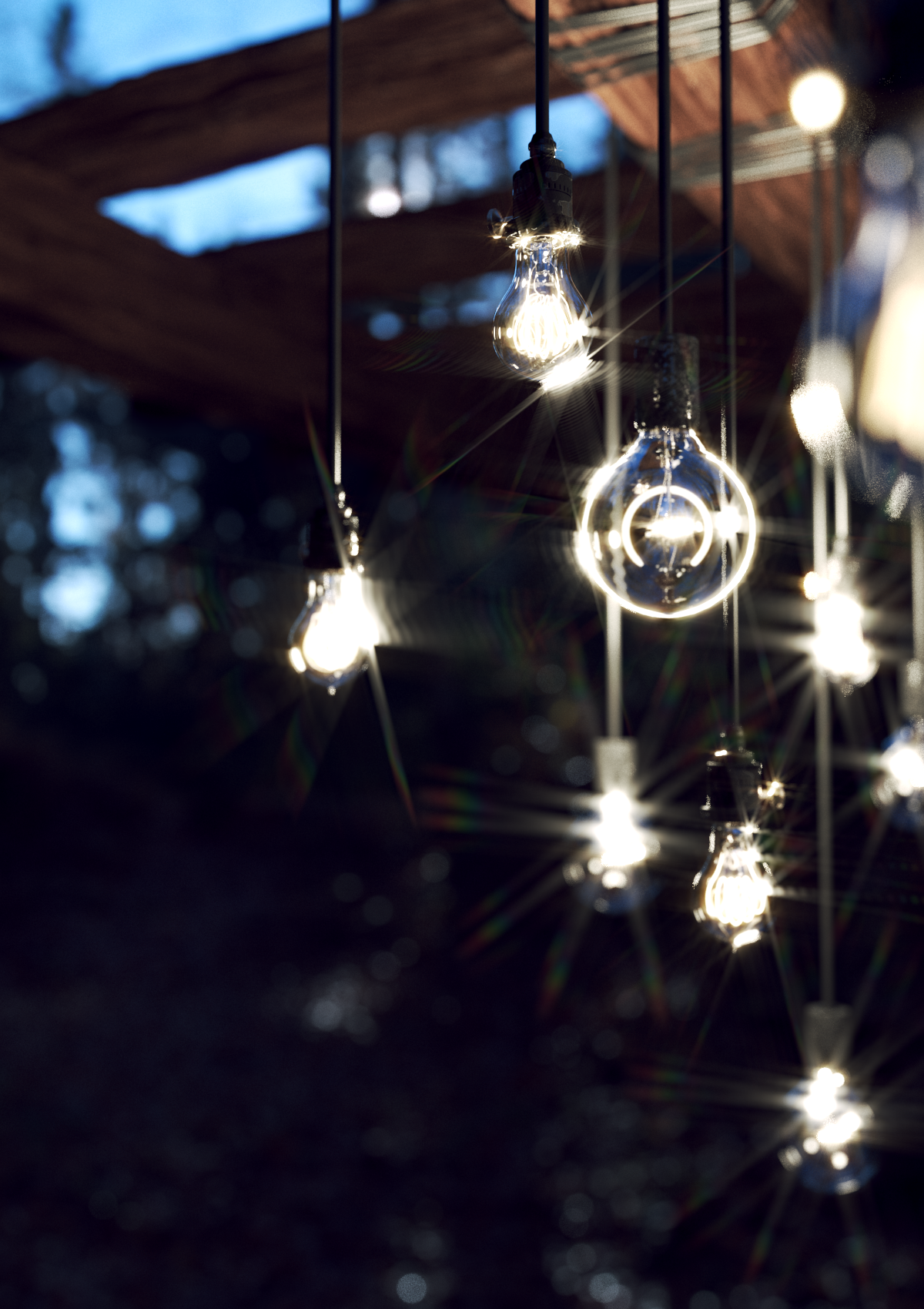
Number Of Lines
= 5,
Diametric
is on
Special Flare Lines Pattern parameters
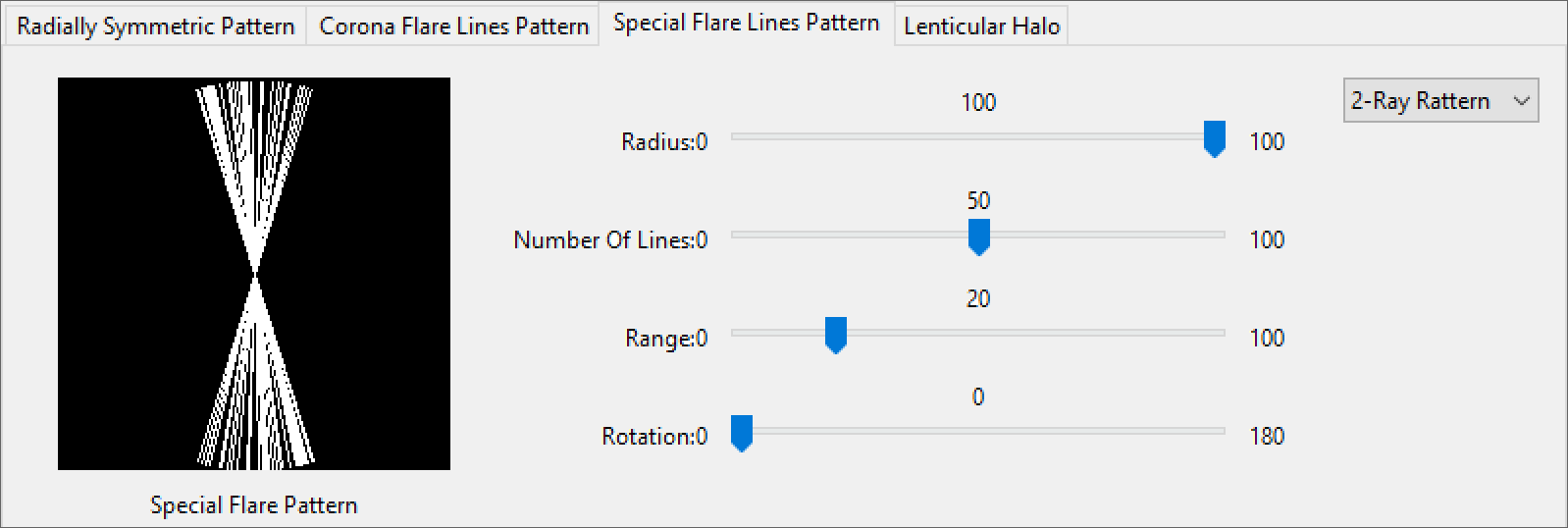
The Special Flare Pattern parameters control the pattern of the special flare lines.
Ray Pattern Dropdown sets the number of ray groups.
Radius sets the scale of the Special Flare Lines lens kernel as a percentage.
Number of Lines sets how many lines each ray pattern uses.
Range controls the spread of the Ray Pattern.
Rotation rotates the entire Special Flare Lines Pattern in degrees.
Example: Special Flare Lines Pattern
This example shows how Range and Ray Pattern affect the lens appearance. Number of Lines is set to 10 in all images.
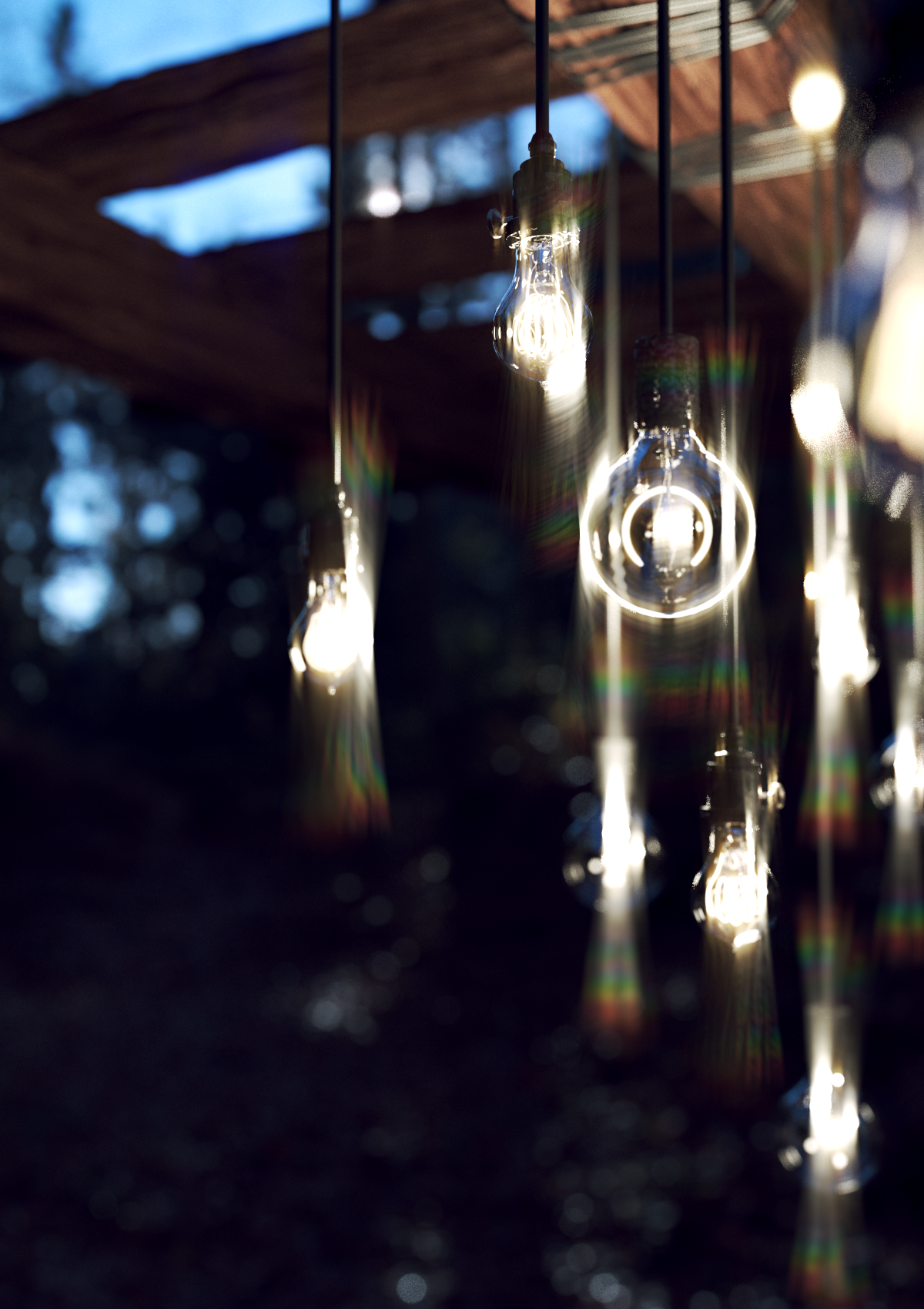
Range
= 10,
Ray Pattern
= 2
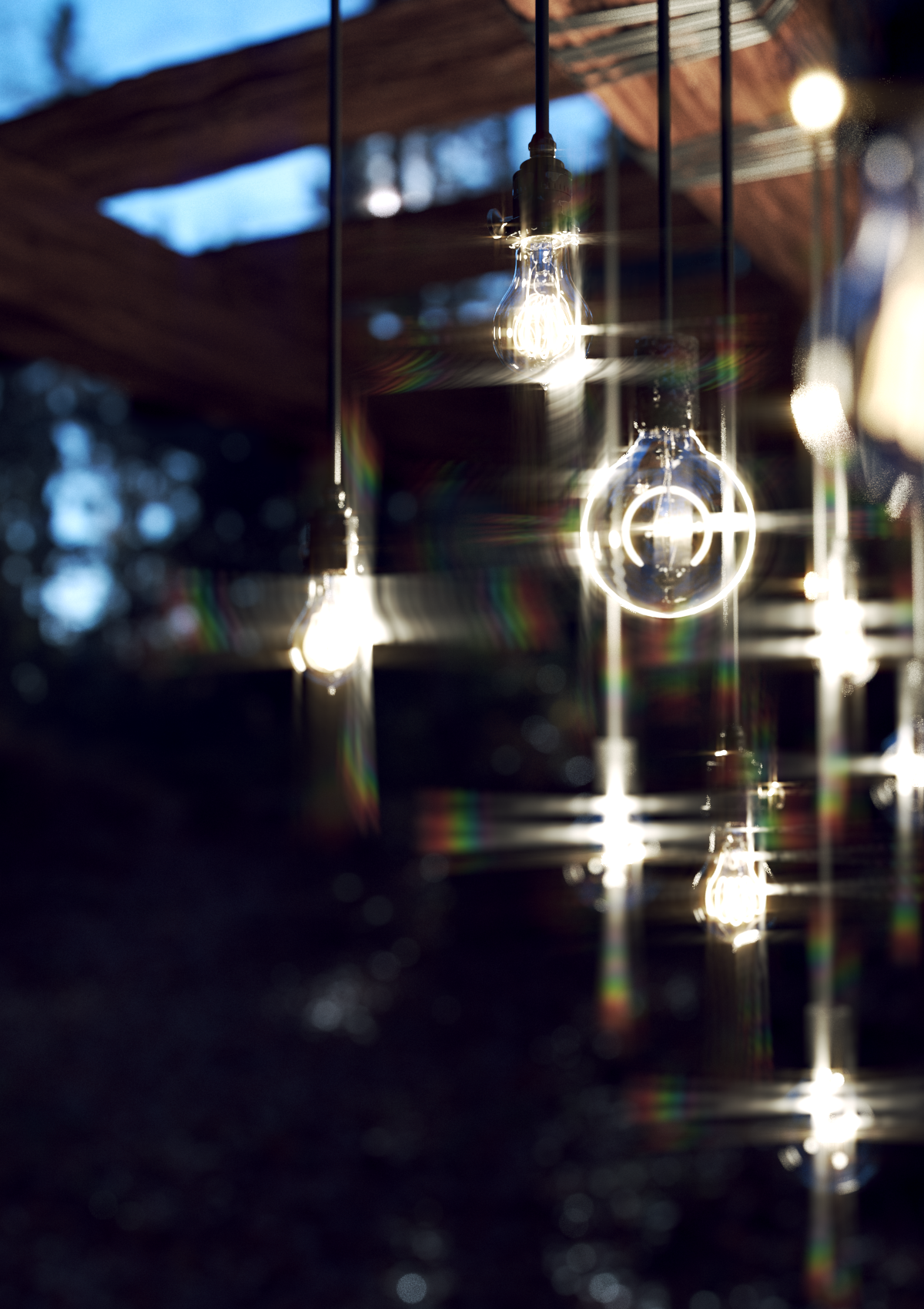
Range
= 10,
Ray Pattern
= 4
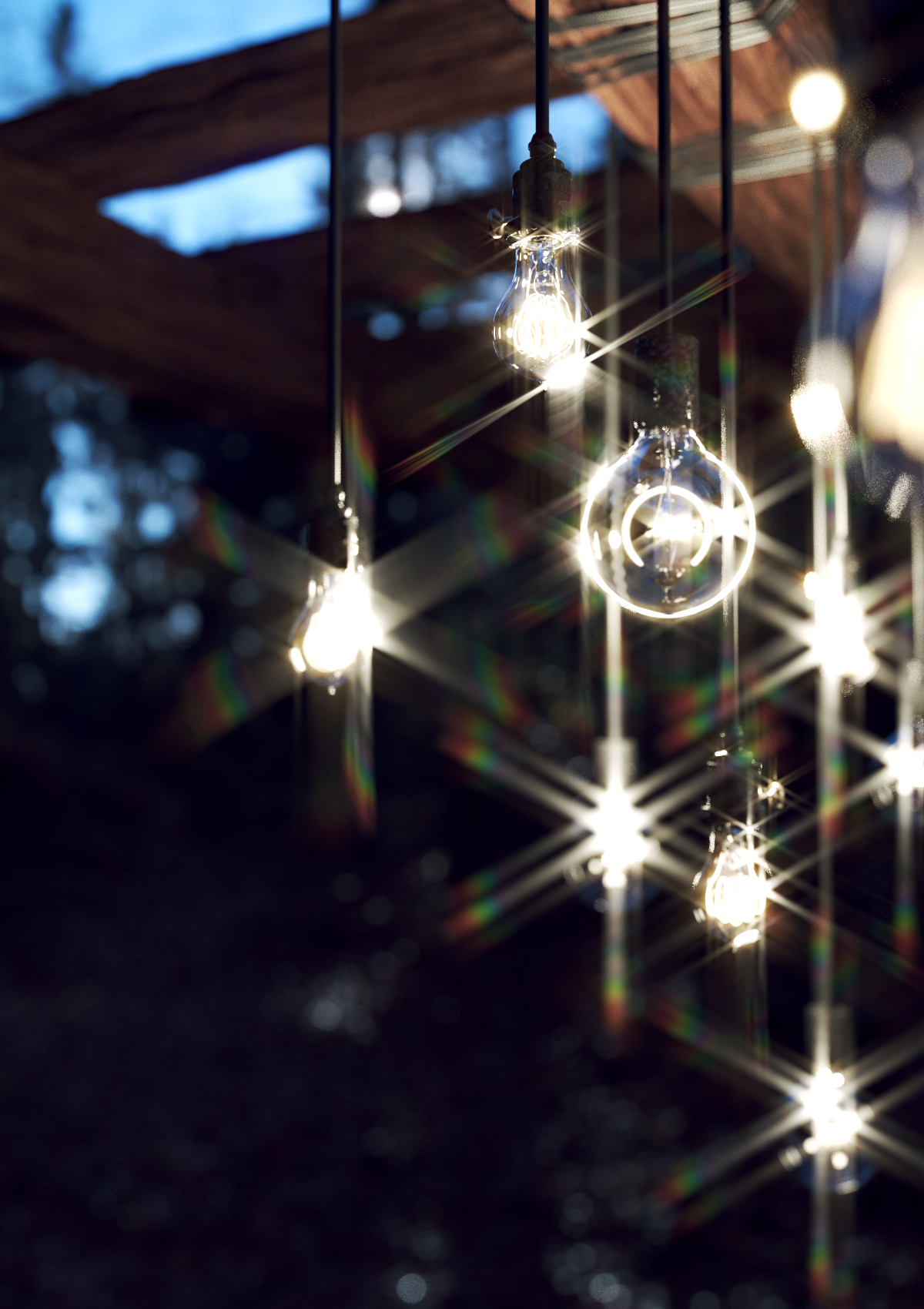
Range
= 10,
Ray Pattern
= 6
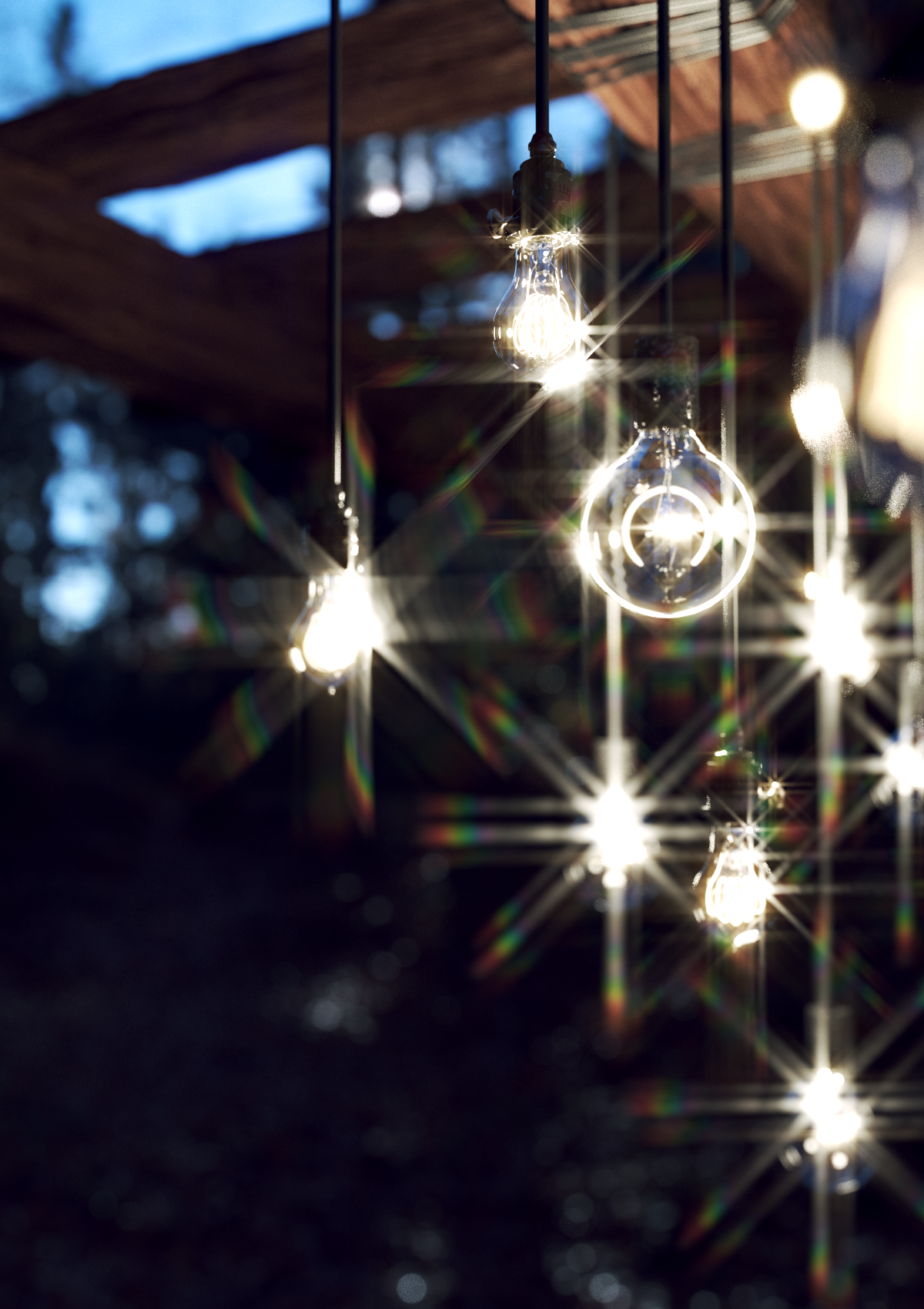
Range
= 10,
Ray Pattern
= 8
Lenticular Halo parameters
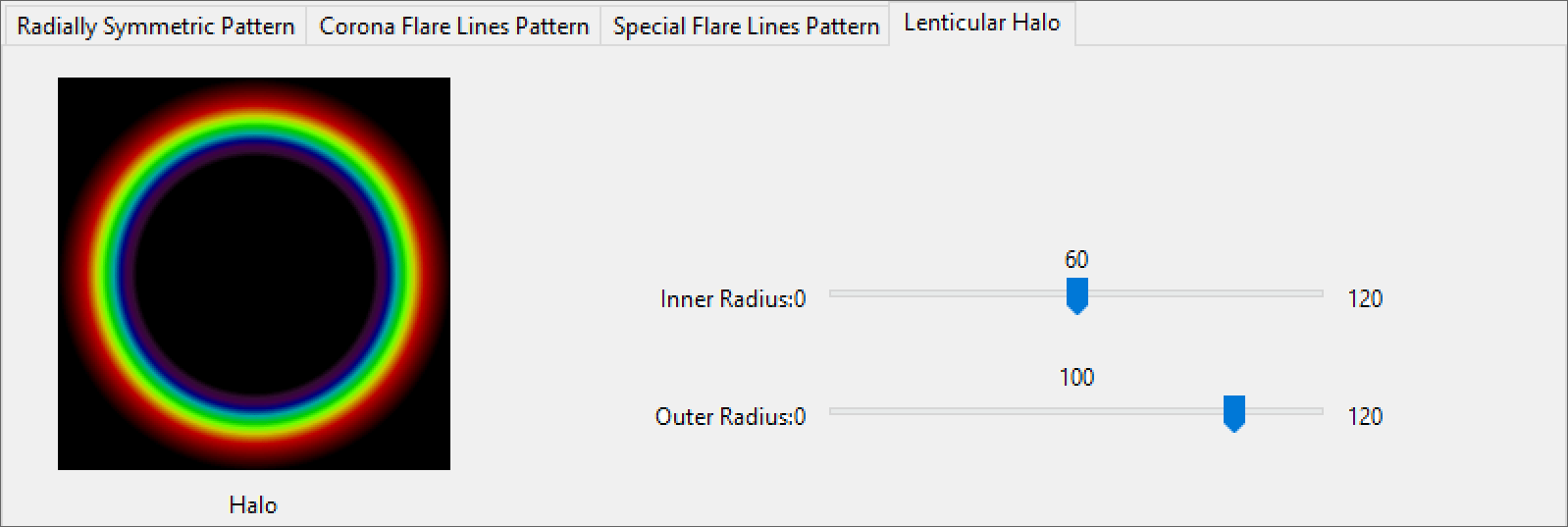
The Lenticular Halo parameters control the halo's boundaries.
Inner Radius sets the inner boundary of the Lenticular Halo.
Outer Radius sets the outer boundary of the Lenticular Halo.
Example: Lenticular Halo
This example shows how the inner and outer boundary values affect the Lenticular Halo. Inner Radius is set to 20 in all images.
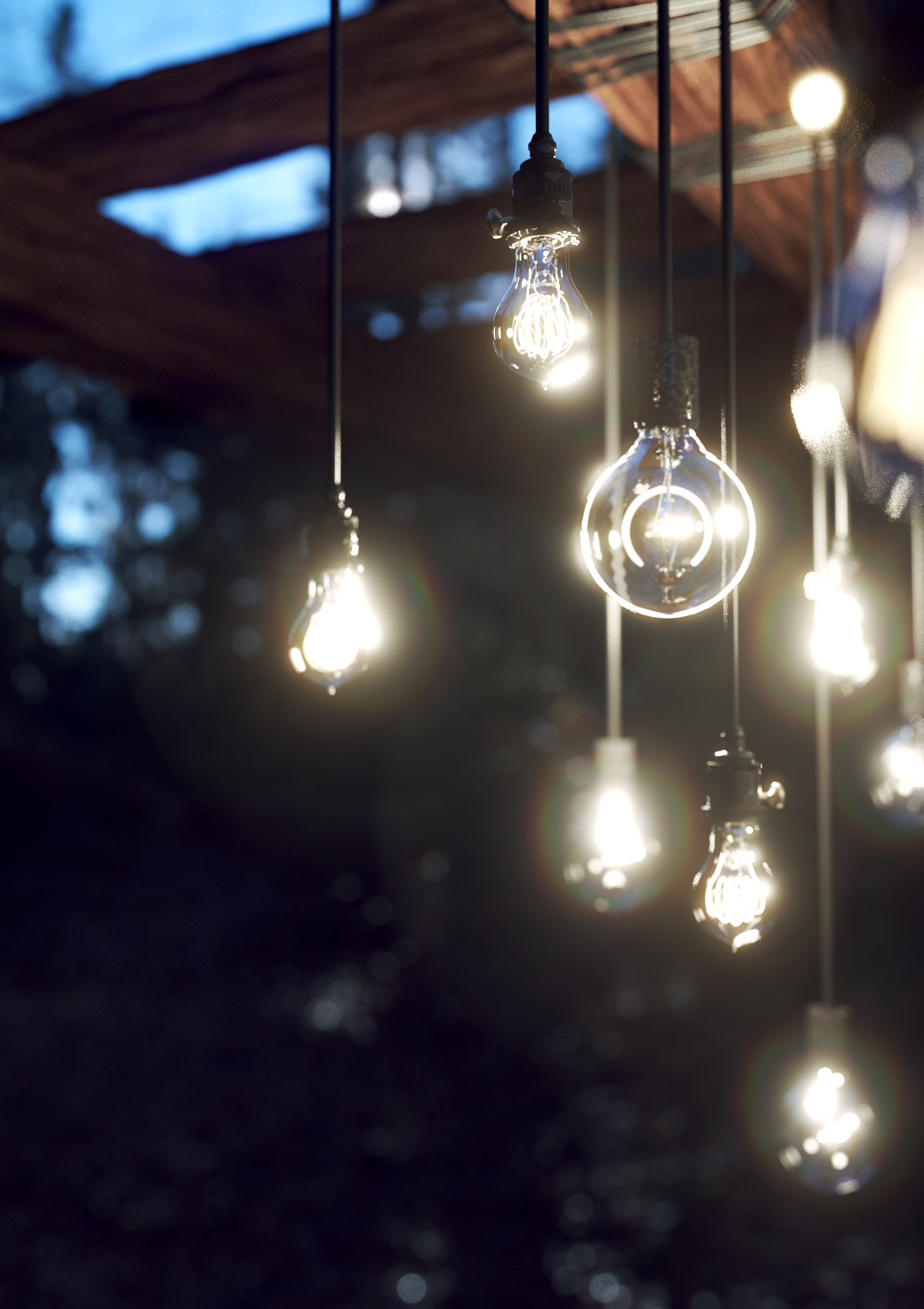
Outer Radius
= 40
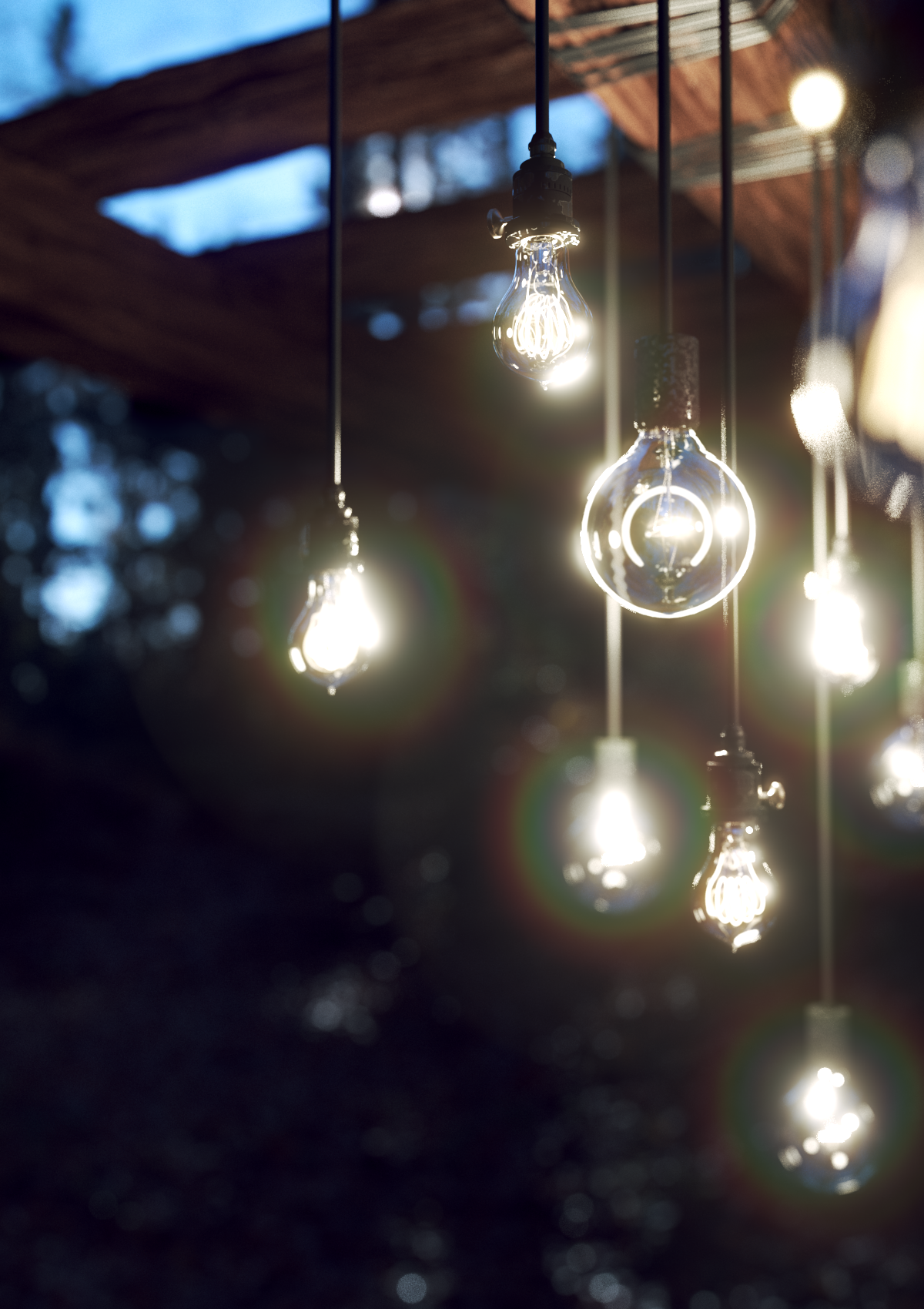
Outer Radius
= 60
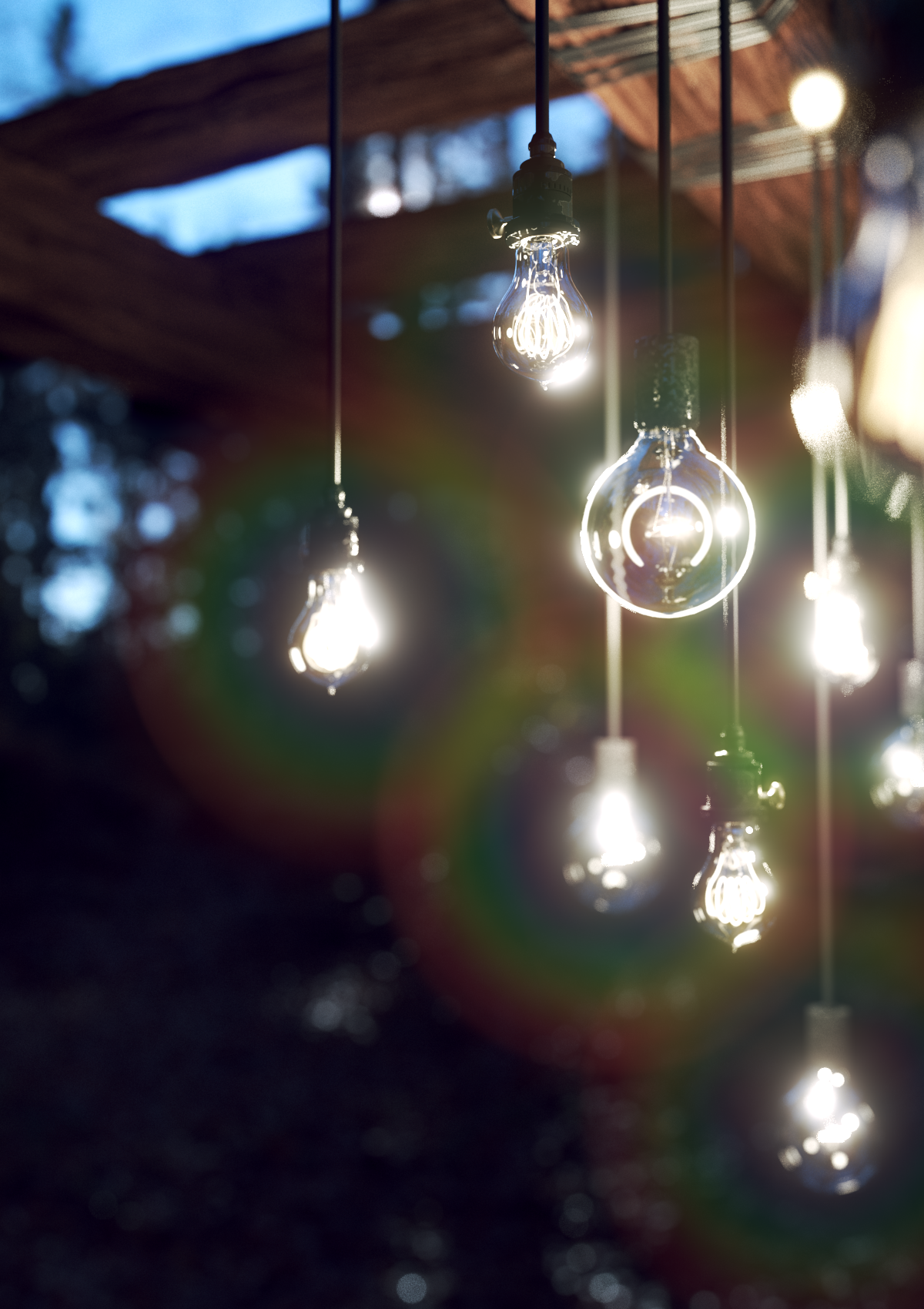
Outer Radius
= 120
Mix parameters
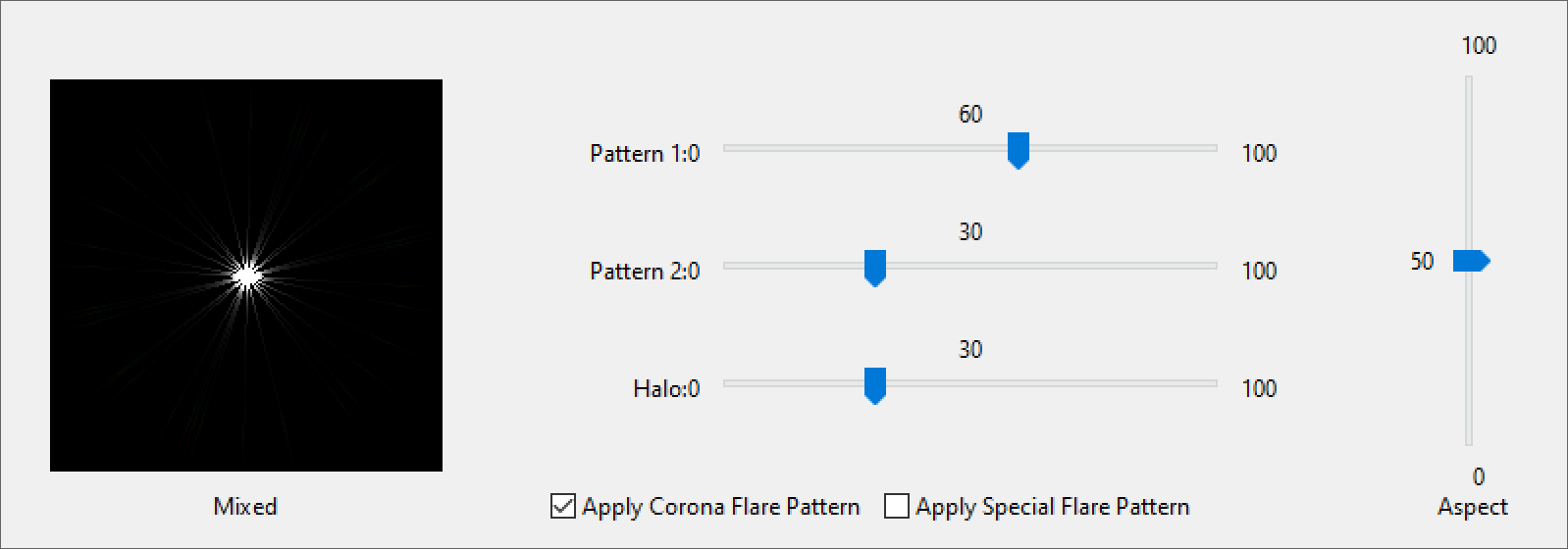
The Mix parameters control how the lens parameters combine in the final filter kernel.
Pattern 1 sets the percentage of Radial Symmetric Pattern 1 mixed into the final filter kernel.
Pattern 2 sets the percentage of Radial Symmetric Pattern 2 mixed into the final filter kernel.
Halo sets the percentage of the Lenticular Halo mixed into the final filter kernel.
Aspect sets the aspect ratio of the final filter kernel.
Apply Corona Flare Pattern enables kernel filtering with the Corona Flare Pattern.
Apply Special Flare Pattern enables kernel filtering with the Special Flare Pattern.
Example: Special Flare Pattern
These examples show how lens parameters combine to create the final filter kernel.
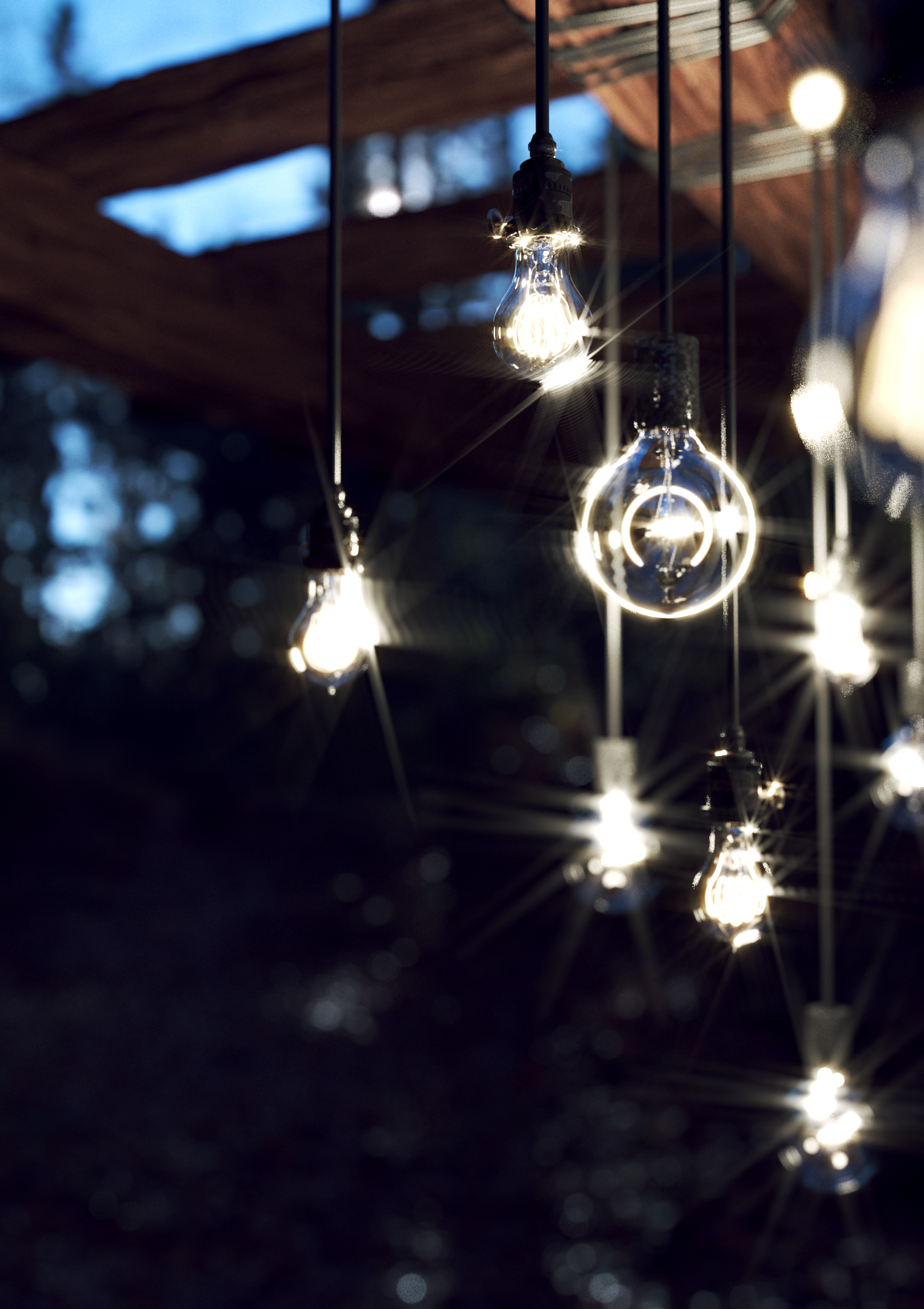
Apply Corona Flare Pattern
is on,
Halo
= 0,
Diametric
is on,
Number of Lines
= 5

Apply Special Flare Pattern
is on,
Halo
= 0,
Number of Lines
= 10,
Range
= 40,
Ray Pattern
= 6

Apply Corona Flare Pattern
is on,
Apply Special Flare Pattern
is on,
Halo
= 0,
Number of Lines
= 10,
Range
= 40,
Ray Pattern
= 6
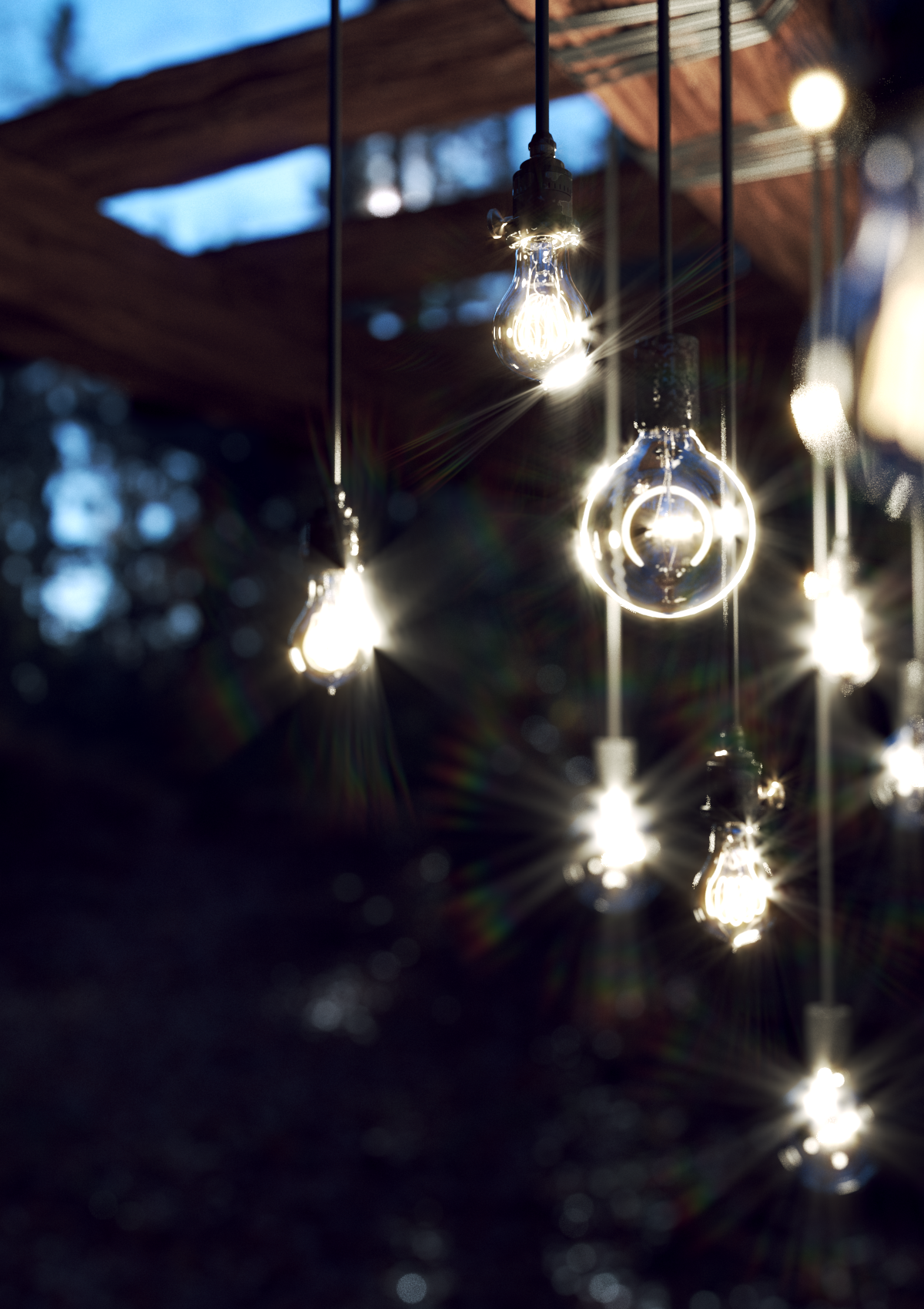
Apply Corona Flare Pattern
is on,
Apply Special Flare Pattern
is on,
Halo
= 35,
Number of Lines
= 10,
Range
= 40,
Ray Pattern
= 6
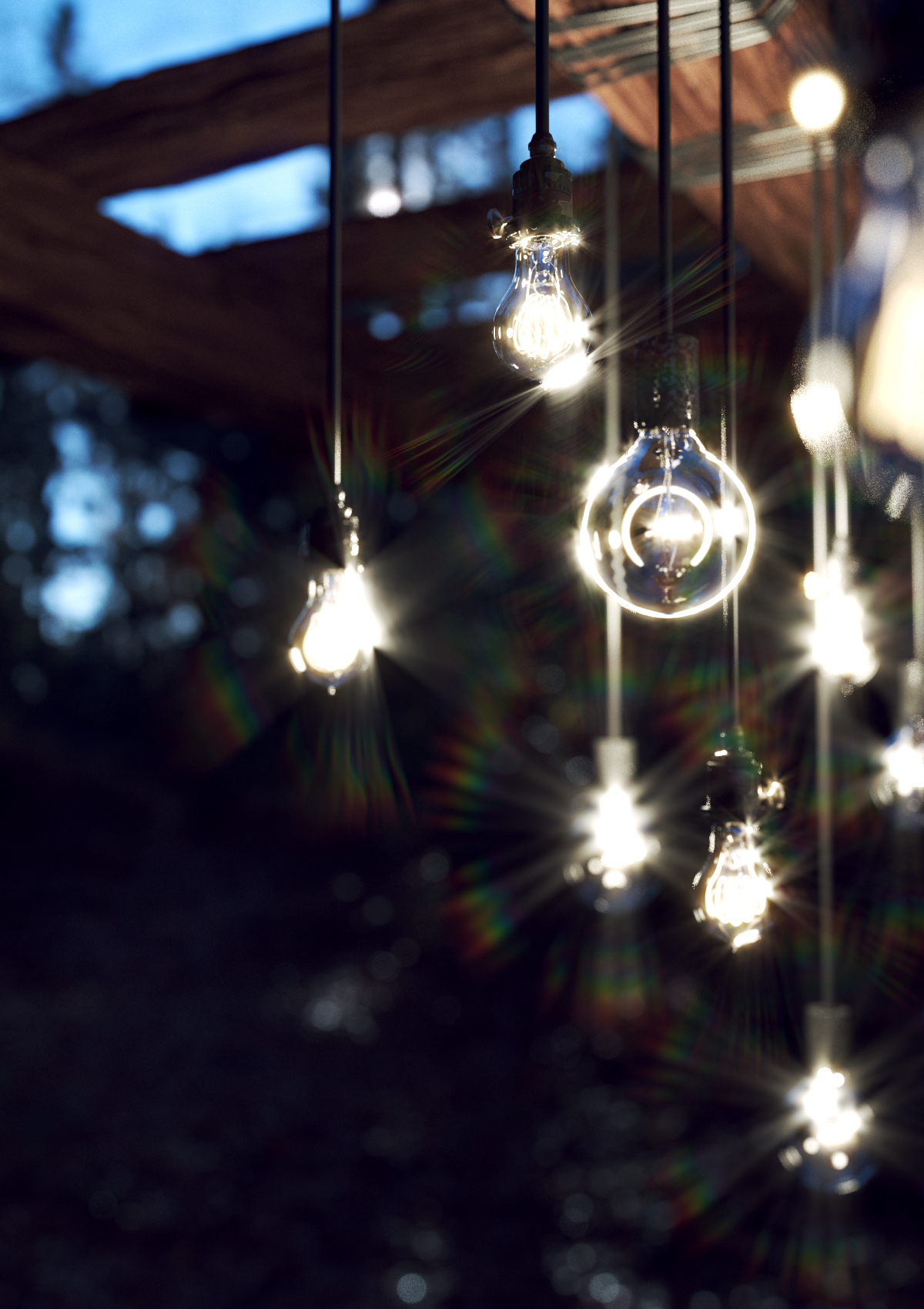
Apply Corona Flare Pattern
is on,
Apply Special Flare Pattern
is on,
Halo
= 70
Number of Lines
= 10,
Range
= 40,
Ray Pattern
= 6