Use the Refraction rollout to adjust refraction and translucency in the Generic material in V-Ray for SketchUp.
Refraction
Some options are available only in Advanced mode.
Refraction Color sets the refraction colour. The reflection colour also affects the result. Set the colour to black to disable the refraction layer. See the Refraction Color example below.
IOR* sets the material's index of refraction, which describes how light bends as it crosses the surface. At 1.0, light does not change direction. See the IOR example below.
Refraction Glossiness* sets the sharpness of refractions. A value of 1.0 produces perfect glass-like refraction. Lower values produce blurry or glossy refractions. See the Refraction Glossiness example below.
Thin-Walled simulates transparent materials with a single surface. Enable it with Translucency set to SSS to simulate thin translucent surfaces such as soap bubbles, leaves and curtains. SSS Color sets the backside colour, and SSS Amount controls the translucency effect. See the Thin-Walled example below.

Example: Refraction Color
This example shows how Refraction Color affects glass materials. The material has a grey Diffuse Color and a white Reflection Color, with Fresnel enabled.

Refraction Color
= Black (0, 0, 0),
No refraction
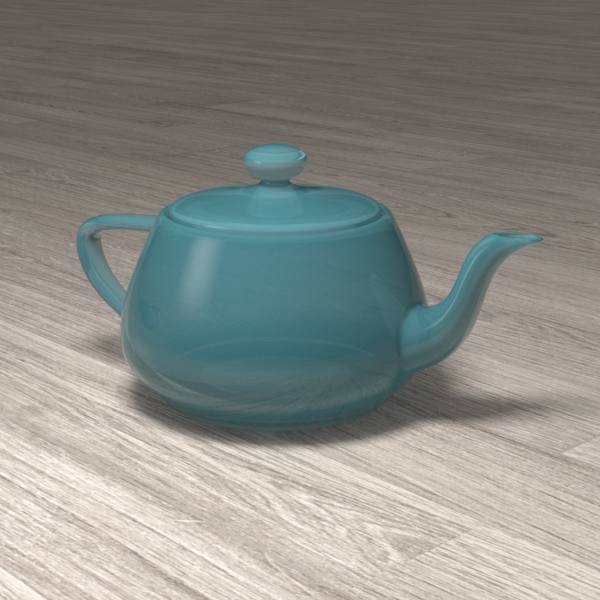
Refraction Color
= Light Blue (192, 192, 192)

Refraction Color
= White (255, 255, 255)
Example: IOR
This example shows how Refraction IOR affects the material. Light bends more as IOR moves away from 1.0. At an index of refraction (IOR) of 1.0, the rendered object is transparent. For transparent objects, an opacity map may be a better choice than refraction.

Refraction IOR
= 0.8

Refraction IOR
= 1.0

Refraction IOR
= 1.8
Example: Refraction Glossiness
This example shows how Refraction Glossiness affects the material. Lower values blur refractions and make the material look like frosted glass.
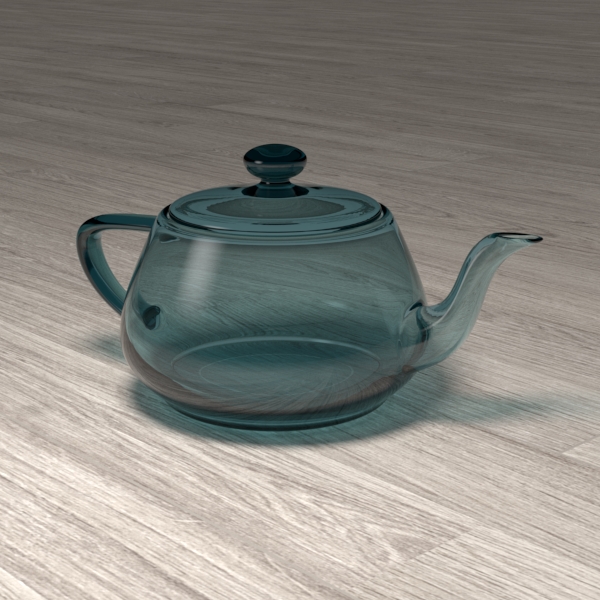
Refraction Glossiness
= 1.0

Refraction Glossiness
= 0.9

Refraction Glossiness
= 0.7
Example: Thin-Walled
This example shows the effect of Refraction Thin-Walled.

SSS Amount
= 0

SSS Amount
= 0.25

SSS Amount
= 1
Example: Thin-Walled Color
This example shows the effect of the Refraction Thin-Walled colour option.

SSS Amount
= 0.5,
Color
= R82 G82 B81
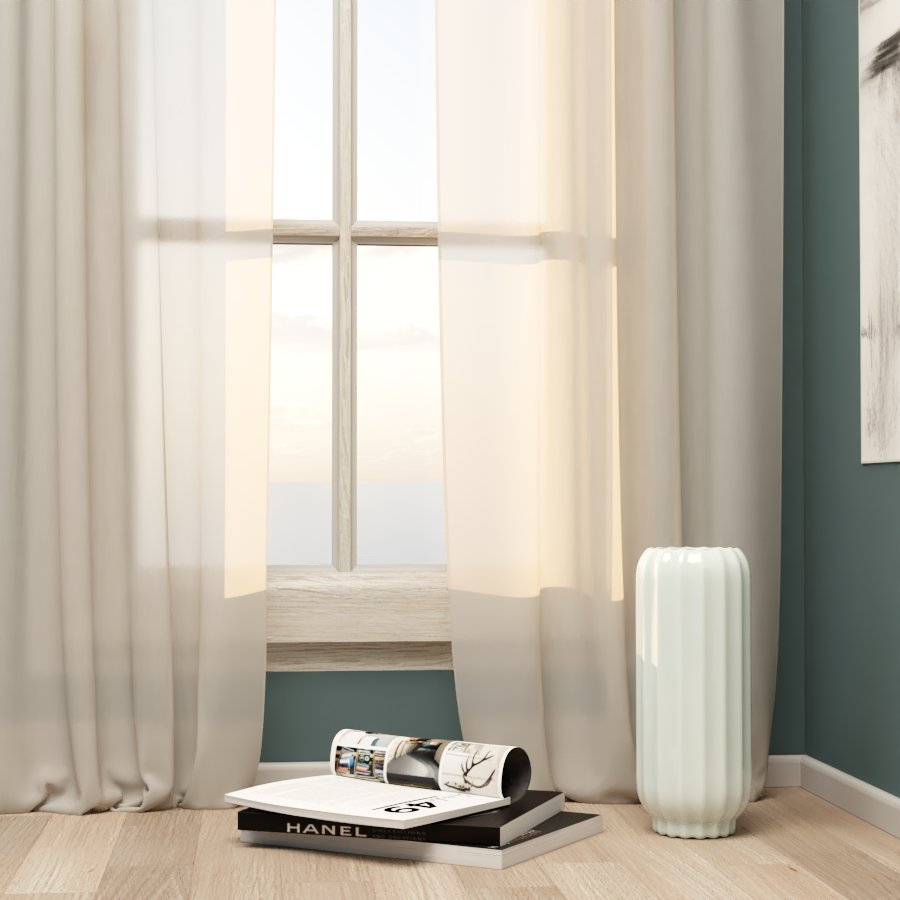
SSS Amount
= 0.5,
Color
= R195 G178 B153

SSS Amount
= 0.5,
Color
= R255 G210 B143
Translucency
Choose the algorithm used to calculate translucency, also called sub-surface scattering.
None
No sub-surface scattering occurs.
Fog Color controls how much light weakens as it passes through the material. This makes thick objects look less transparent than thin objects. The effect depends on the objects' absolute size and varies by scene unless you enable Fog Units Scaling. The fog colour also controls the object's appearance when you use fog scattering. See the Fog Color example below.
Fog Depth (cm) controls the fog effect. Smaller values reduce the effect and make the material more transparent. Larger values increase the effect and make the material more opaque. See the Fog Depth (cm) example below.

Example: Fog Color
This example shows the effect of the fog colour. In the two images on the right, thick areas of the object are darker because the fog absorbs light.

Fog colour = White (255, 255, 255), no light absorption

Fog colour = Dark Gray (192, 192, 192)

Fog colour = Blue (70, 129, 137)
Example: Depth (cm)
This example shows the effect of Refraction depth. A value that is too low produces incorrect results. Reflection depth also affects areas with total internal reflection.
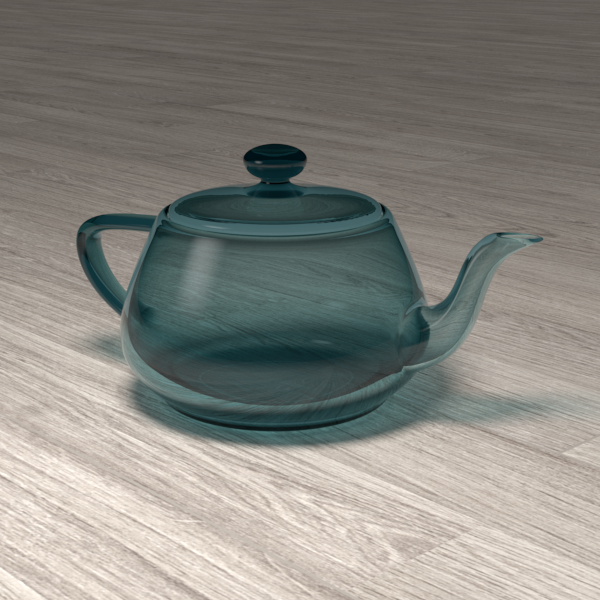
Refraction depth = 2, Reflection depth = 5

Refraction depth = 4, Reflection depth = 5

Refraction depth = 8, Reflection depth = 5
Volumetric
Volumetric enables volumetric scattering for liquids and other highly transparent materials that scatter refracted light. Refraction Color must be different from black for the effect to be visible.
Fog Color controls how much light weakens as it passes through the material. This makes thick objects look less transparent than thin objects. The effect depends on the objects' absolute size and varies by scene unless you enable Fog Units Scaling. The fog colour also controls the object's appearance when you use fog scattering.
Depth (cm) controls the strength of the fog effect. Higher values reduce the effect and make the material more transparent. Smaller values increase the effect and make the material more opaque.
Scatter Color adds a colour filter in Volumetric scattering mode. In SSS translucency mode, it sets the main sub-surface colour and may determine the material's overall appearance. See the Scatter Color example below.
SSS Amount controls how much the scattering effect contributes.
Illumination controls how direct illumination is calculated for Volumetric translucency.
Uniform distributes light evenly within the material for a softer, more diffused appearance. See the Uniform example below.
Directional sends more light in the direction of the incoming illumination for a more realistic effect in highly translucent materials. See the Directional example below.

Example: Volumetric Translucency (Scatter Color)
This example shows how Scatter works in Volumetric Translucency mode.

Scatter Color = Yellow

Scatter Color = Orange
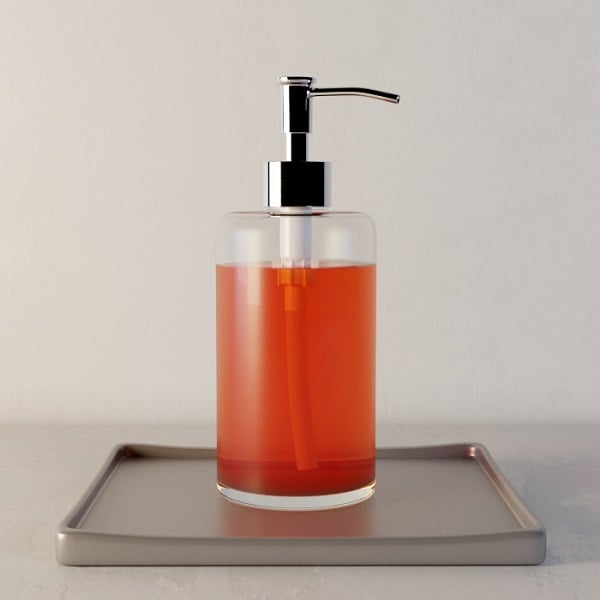
Scatter Color = Red
Example: Uniform
This example shows light distributed evenly within the water material.
Example: Directional
This example shows directional light distribution within the water material.
SSS
SSS enables scattering in non-transparent materials such as skin, wax, marble and other relatively opaque materials. It works independently of Refraction Color and Refraction Glossiness.
Scatter Radius controls how deep rays travel within the material when calculating light for sub-surface scattering.
Scale (cm) controls the strength of sub-surface scattering. Greyscale values work best. See the Scale example below.
SSS Color adds a tint to the scattering effect. Fog Color is the main control for the scattering colour.
SSS Amount controls how much the scattering effect contributes.

Example: Scale (cm)
This example shows the effect of Scale in SSS Translucency Mode.
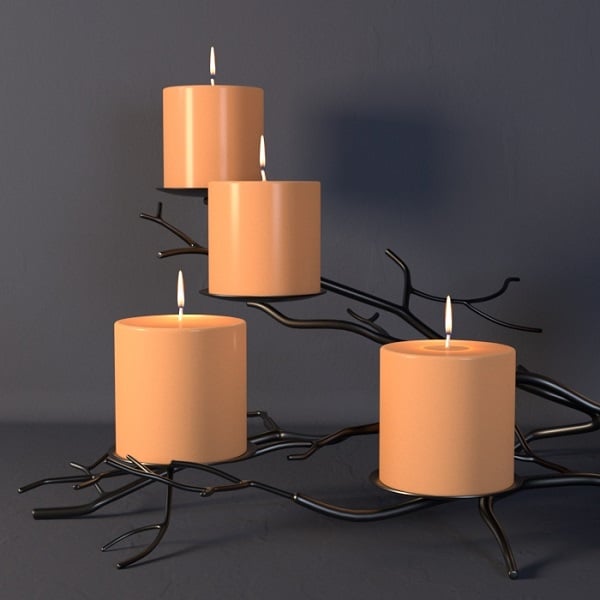
Scale
= 0.5

Scale
= 3

Scale
= 10
Affect Shadows lets the material cast transparent shadows based on the refraction and fog colours. It works only with V-Ray shadows and lights.
Fog Units Scaling makes fog colour attenuation depend on the current system unit when enabled.
Max Depth sets how many times a ray can be refracted. Scenes with many refractive and reflective surfaces may need higher values to render correctly.
Affect Channels sets which channels the material's transparency affects.
Color Only makes the material's transparency affect only the final render's RGB channel.
Color+Alpha transmits the alpha of refracted objects instead of displaying an opaque alpha. This currently works only with clear (non-glossy) refractions.
All Channels makes the material's transparency affect all channels and render elements.
Trace Refractions turns refraction tracing on or off for the current material. Turning it off disables refraction but leaves transparent shadows enabled. To make shadows opaque, clear the Affect Shadows checkbox or set Refraction Color to black.

Abbe
Enable this option to calculate true light wavelength dispersion. See the Abbe example below.
Abbe controls the dispersion effect. Lower values widen the dispersion. Higher values narrow it.

Example: Abbe
This example shows dispersion in the V-Ray material and the effect of Abbe.
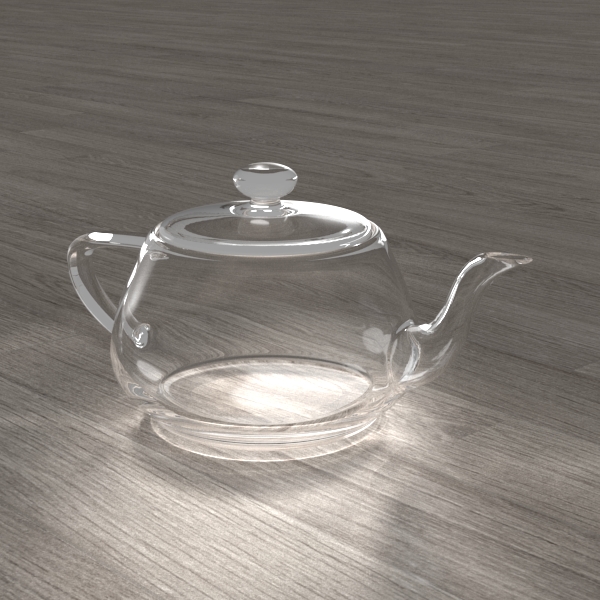
Dispersion = disabled

Dispersion = enabled, Abbe = 25

Dispersion = enabled, Abbe = 1
Legacy parameters
These legacy parameters are available only for scenes created with V-Ray 5.2 or earlier.
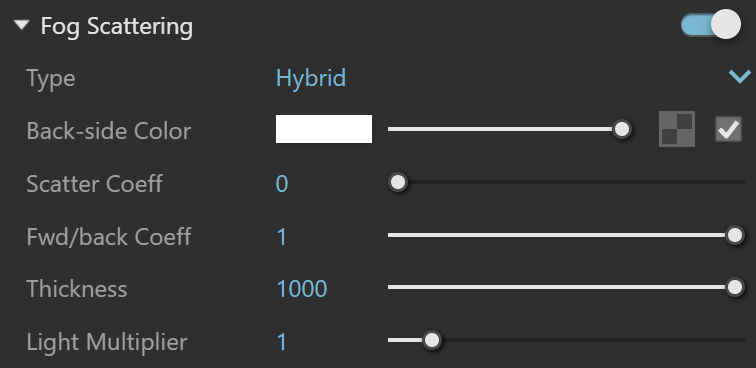
Fog Scattering enables Refraction translucency.
Type selects the algorithm for calculating Fog Scattering, also called sub-surface scattering. Enable Refraction and set Refraction Fog to a colour other than white for the effect to be visible.
Hard (wax) model suits hard materials such as marble.
Hybrid is the most realistic SSS model. Use it to simulate materials such as skin, milk, fruit and juice.
Back-side Color adds a tint to the SSS effect. The sub-surface scattering colour normally depends on the fog colour.
Scatter Coeff controls scattering inside the object. At 0.0, rays scatter in all directions. At 1.0, a ray cannot change direction inside the sub-surface volume.
Fwd/back Coeff controls a ray's scattering direction. At 0.0, a ray can only move forwards, away from the surface and into the object. At 0.5, it has an equal chance of moving forwards or backwards. At 1.0, it scatters backwards, towards the surface and out of the object.
Thickness limits how far rays are traced below the surface. Use it when you do not want or need to trace the whole sub-surface volume.
Light Multiplier multiplies the translucency effect.
Fog Bias changes how the fog colour is applied. Negative values make thin parts more transparent and thick parts more opaque. Positive values make thin parts more opaque and thick parts more transparent.
Notes
- Values are calculated in inches, the default SketchUp unit.
- Creating a Bitmap texture in this material slot automatically adjusts its colour space. Copying and pasting, replacing or wrapping a texture does not trigger this adjustment.