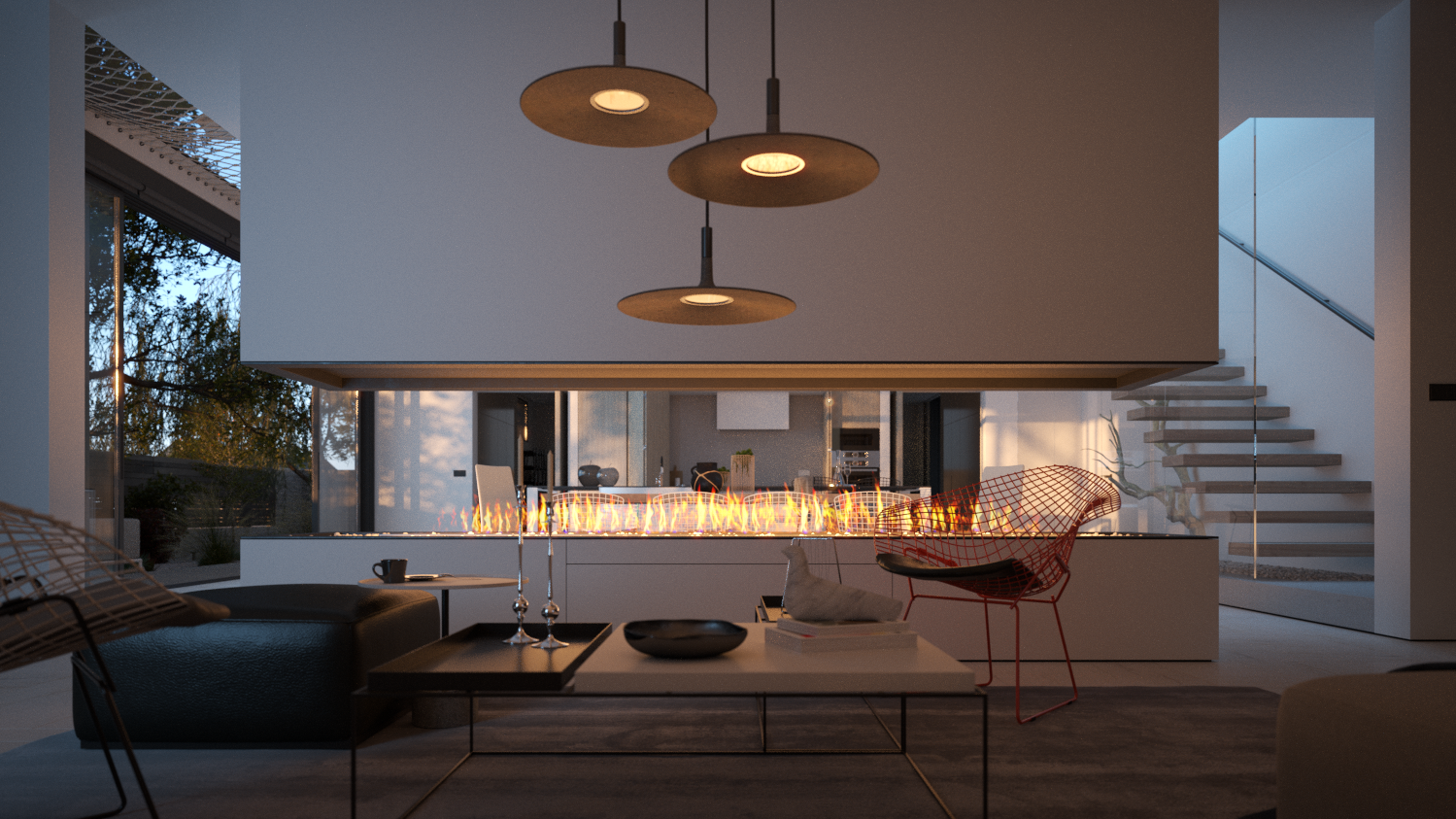
This tutorial covers the easiest steps to create a simple fire material.
Overview
One of the easiest ways to create a fire material with V-Ray is to use the Emissive material and plug Bitmap textures to it.
The Emissive material perfectly recreates self-illuminated surfaces such as fire. The Bitmap gives the colour, form and texture of the fire material.
Note that a suitable fire image with good resolution parameters is needed for the bitmap texture. Download the image used for this tutorial from the Download button below.
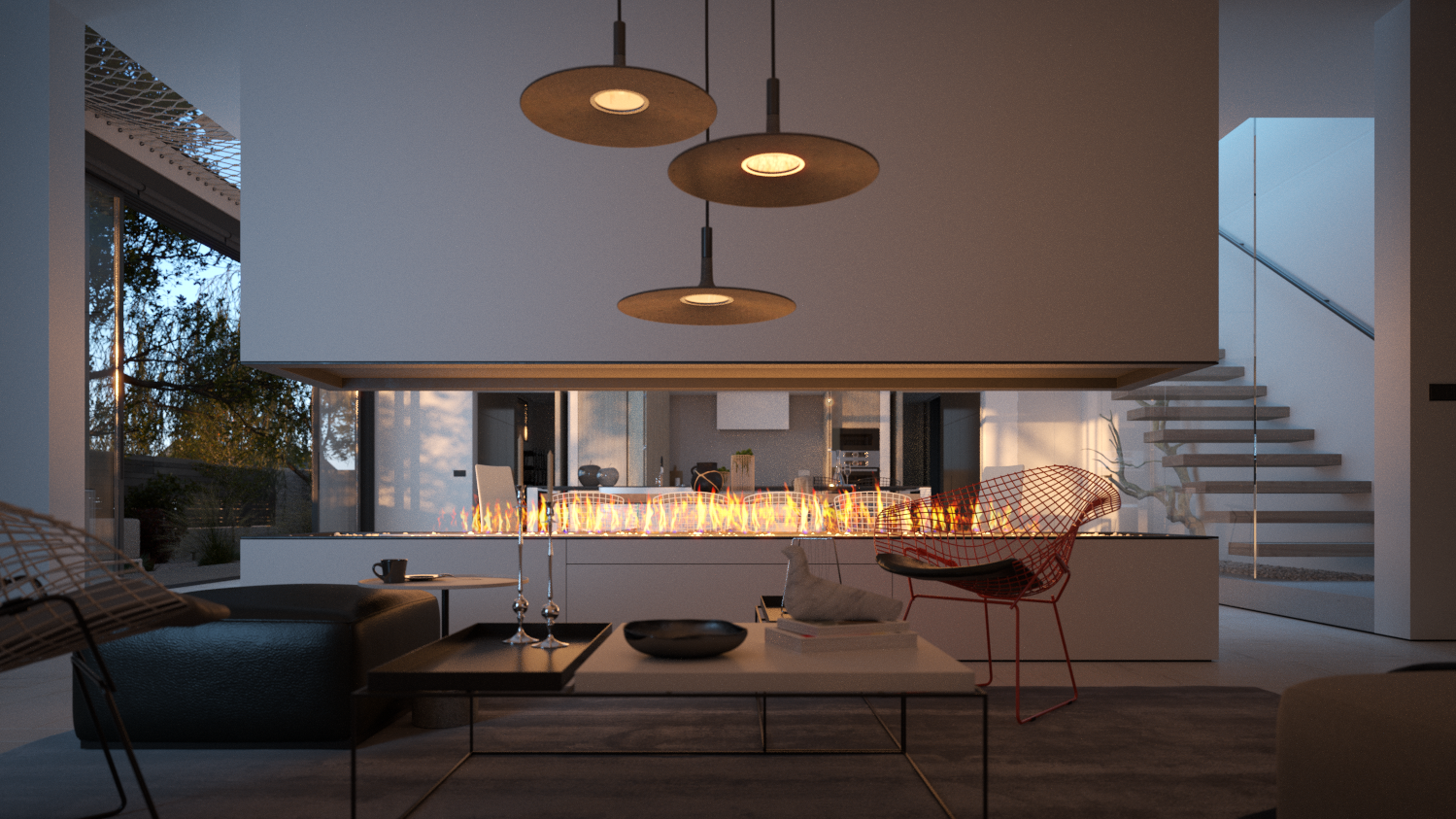
The scene used for this tutorial contains a simple room setting. The frontal shot is taken with our V-Ray Physical Camera that uses real-world camera settings for further realism. Most of the geometries are taken from our extensive Chaos Cosmos 3D assets library.
To download scene files: Download Assets
Want to follow along but don’t have a licence?: Download Free Trial
Workflow
- Create a simple plane for the fireplace and select it in the viewport.
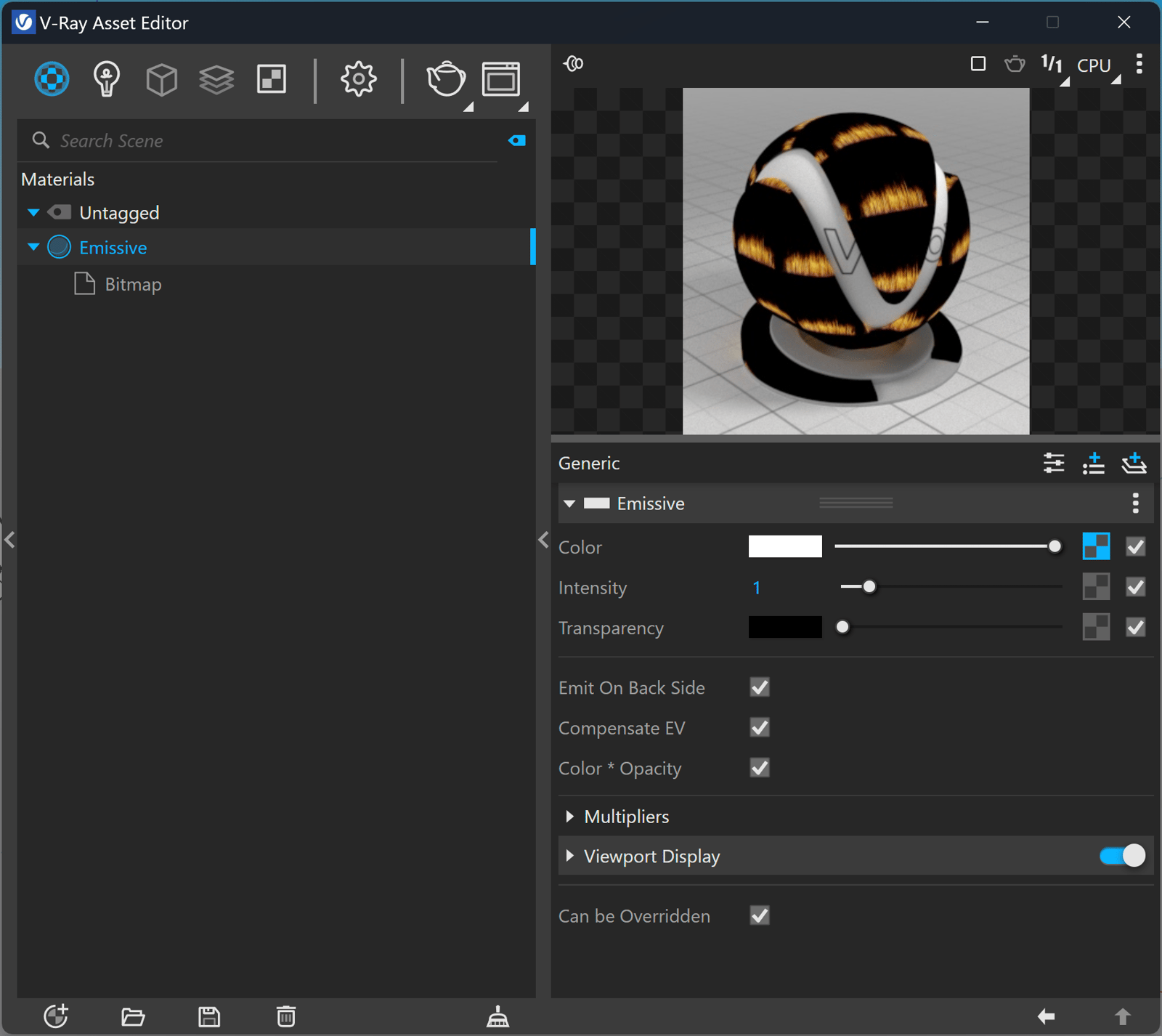
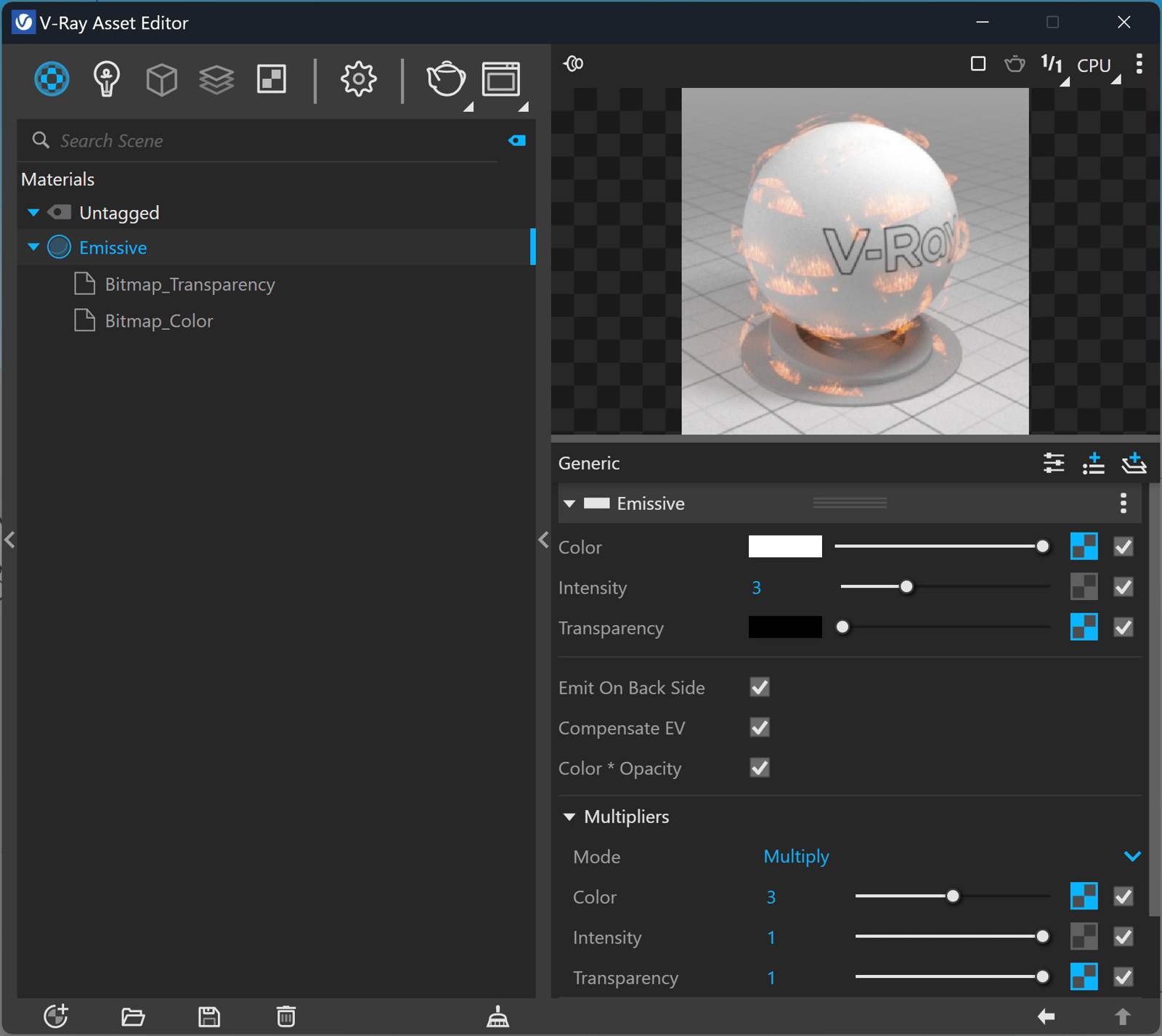
- In the Asset Editor, create an Emissive material and name it Fire. Assign the material to the selected plane.
- Plug a Bitmap texture to the Emissive Color slot and load a fire image.
- Right-click on the plane in the viewport and select V-Ray UV Tool > Tri-Planar Projection (Fit) to fit the Bitmap into the plane.
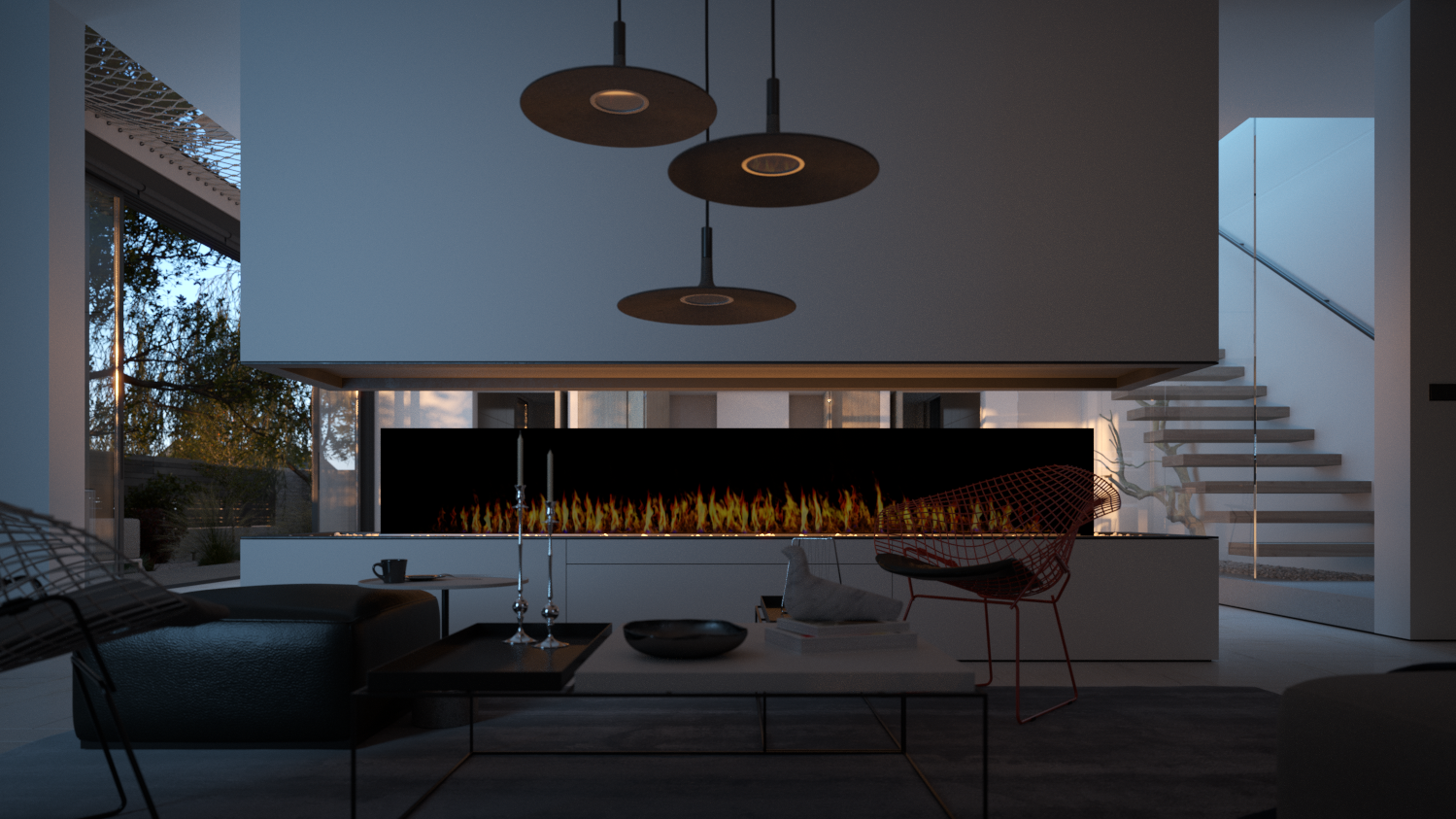
Render.
Notice the black background surrounding the flames. To remove it and make the flames more pronounced, you have to manipulate the flames' transparency. There are two approaches for that: either use a new Bitmap as a transparency texture or use the same bitmap that is already bringing colour to the Emissive and invert its colours.
Let’s try the second approach.
- Copy the Bitmap texture and paste it as a copy in the Transparency slot of the Emissive material.
- Enable the Invert Texture option from the Color Management rollout of the transparency texture.
Now let’s make some final tweaks on the Emissive material.
- Keep the Compensate EV option enabled. This way it is easier to find the right values when tweaking the material.
- You can also boost or lower the Color and Intensity multipliers to make the flames stronger or weaker. Let's adjust the multiplier to 3 here to boost the colour.
- Keep the Emit On Back Side option enabled so the flames emit light from the back side of the plane as well.
Final Result
With just a few quick and simple steps you have a fire material.