Learn how Multi Material works with proxies in V-Ray for SketchUp.
Overview
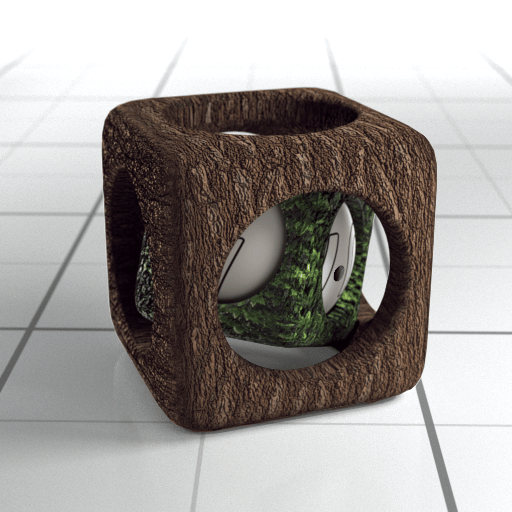
V-Ray uses Multi Material when you create a proxy. If the geometry has multiple materials assigned, V-Ray assigns an object ID to each geometry. It automatically creates a Multi Material with the same ID and Number of the material.
UI paths
||V-Ray Asset Editor|| > Materials (right-click) > Multi Material
||V-Ray Asset Editor|| > Create Asset (left-click) > Materials > Multi Material
Materials
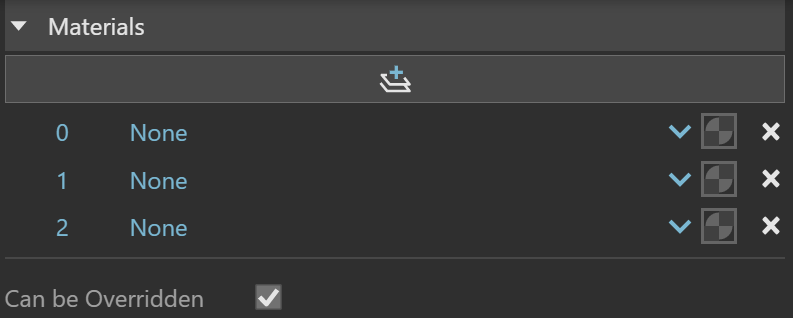
Use the Add Material button to add materials to the stack.
Layers appear in ascending order. To reorder a layer, click its layer number and edit it. Use the dropdown selection to assign materials to layers.
Override control
When Can be Overridden is disabled, the Material Override option in Render Settings does not override the material.
Note
- Displacement of sub-materials is not supported.
- Multi materials have no binding options. The V-Ray texture helper map always appears in the SketchUp viewport. You can replace it with another map in the SketchUp material editor without affecting the render result.