Explore design ideas with Veras in SketchUp. This article explains its controls and how to send a viewport screenshot or render to Veras.
Overview
Veras is an AI visualisation tool integrated with Enscape for architects and interior designers. It works directly with your Enscape model to help you explore design ideas at different stages. You can control geometry and material overrides, use presets, maintain visual consistency and select custom renders.
UI paths
||V-Ray Toolbar|| > Viewport to AI Visualization
||V-Ray Toolbar|| > Render to AI Visualization

||V-Ray Asset Editor|| > Shortcuts menu > Open Chaos Veras
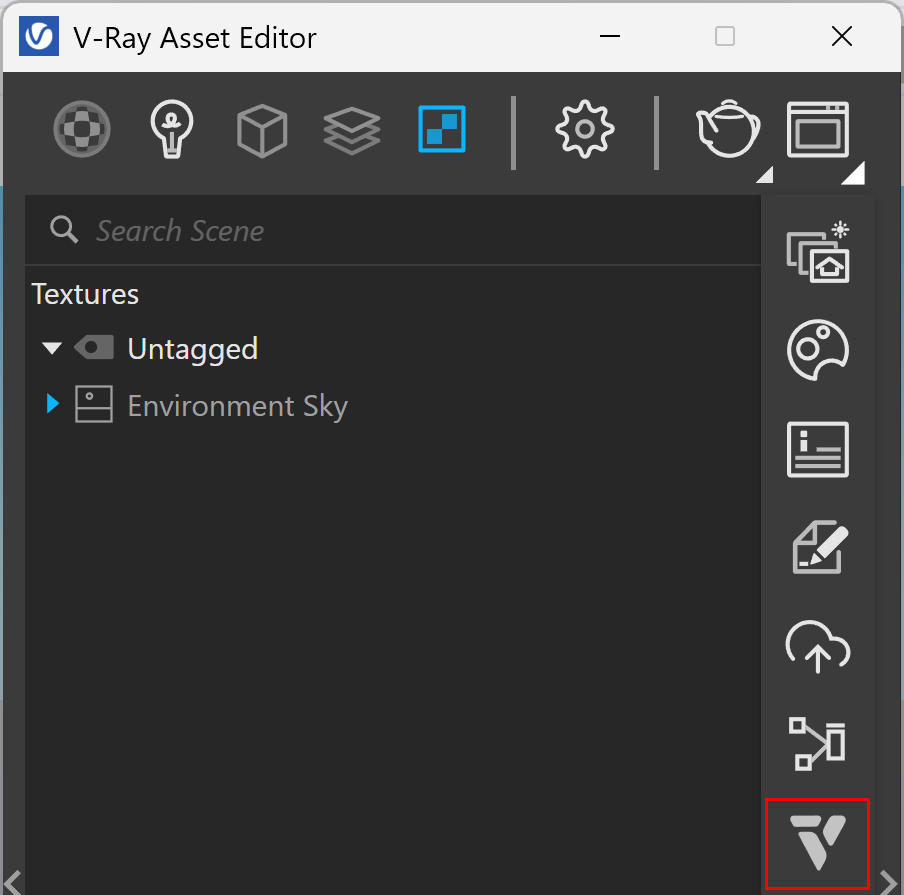
SketchUp Menus Ribbon
||Extensions|| > V-Ray > AI > Viewport to AI Visualization
||Extensions|| > V-Ray > AI > Render to AI Visualization
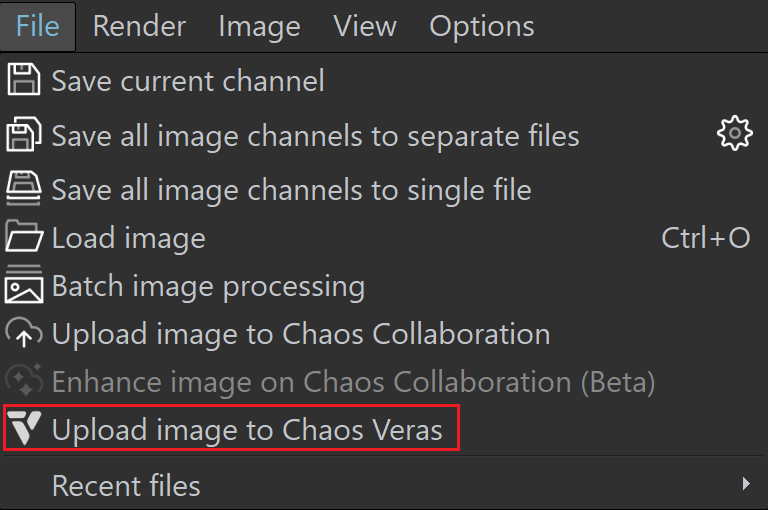
||VFB|| > History tab (right-click menu) > Right-click on the history image > Upload image to Chaos Veras
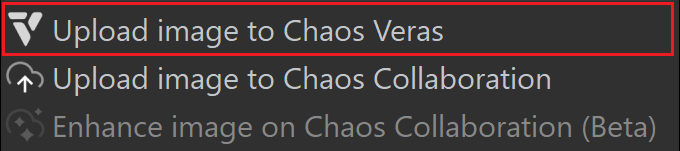
||VFB|| > Image Enhancers (dropdown menu) > Upload image to Chaos Veras
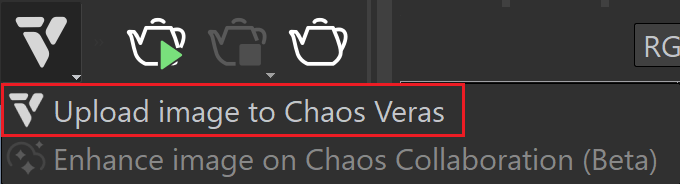
||VFB|| > File > Upload image to Chaos Veras
Workflow
Each access option opens the Chaos Veras window.
Viewport to AI Visualization opens the Chaos Veras window and sends a viewport screenshot as the source for image generation.
Render to AI Visualization opens the Chaos Veras window and sends the latest render as the source for image generation.
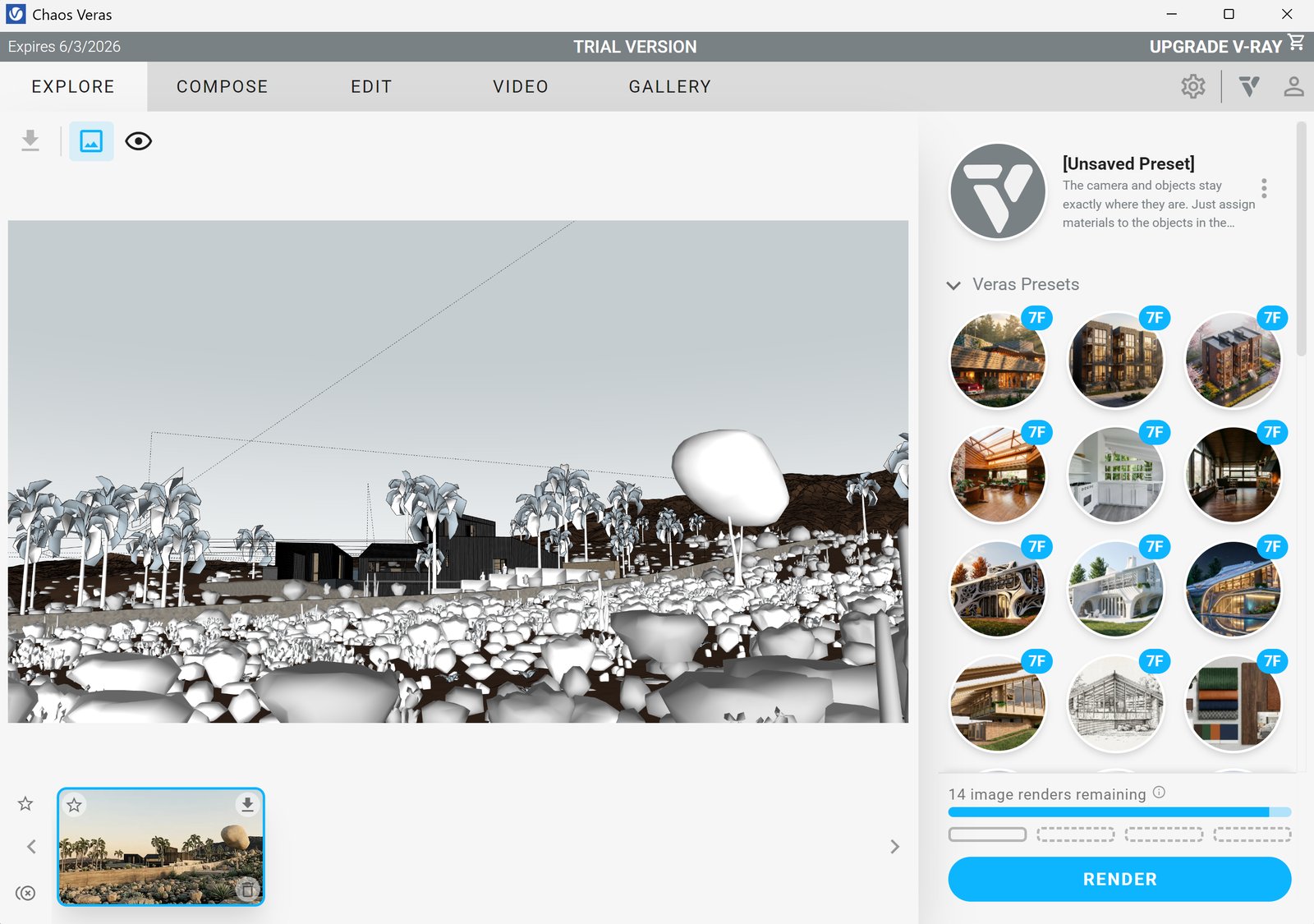
Viewport to AI Visualization
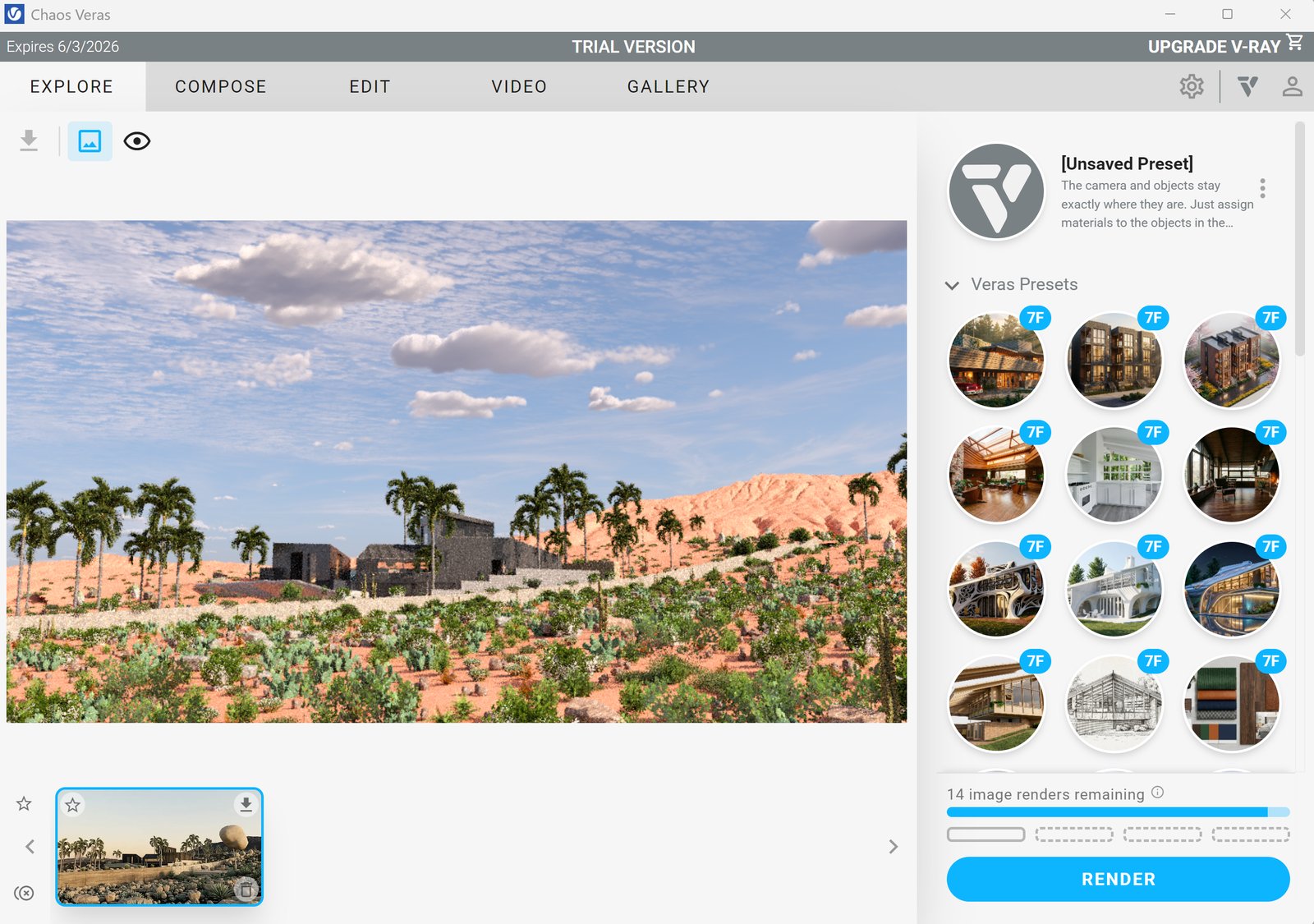
Render to AI Visualization