Use the Wrapper Material in V-Ray for SketchUp to set additional surface properties for each material.
Overview
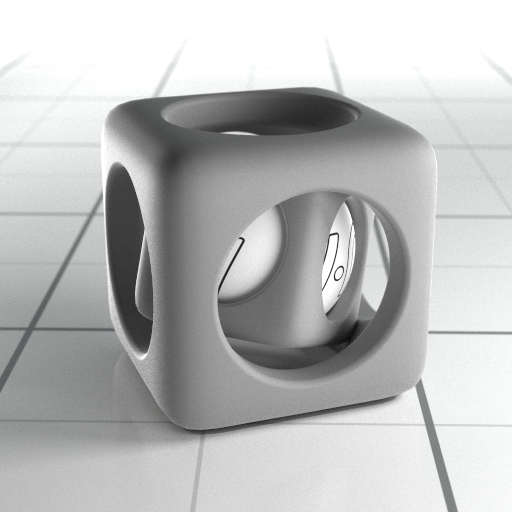
The Wrapper Material lets you set additional surface properties for each material.

UI paths
||V-Ray Asset Editor|| > Materials (right-click) > Wrapper
||V-Ray Asset Editor|| > Create Asset (left-click) > Materials > Wrapper
Parameters
Some options are available only in Advanced mode.
Base material sets the surface material.
Alpha contribution controls how the object appears in the rendered image's alpha channel.
Normal (1). A value of 1.0 derives the alpha channel from the base material's transparency.
Ignore in Alpha (0). A value of 0.0 hides the object from the alpha channel and shows the alpha of the objects behind it.
Black Alpha (-1). A value of -1.0 uses the base material's transparency to cut out the alpha of the objects behind it. Matte objects typically have an alpha contribution of -1.0. This option works independently of Matte surface. A surface can have an alpha contribution of -1.0 without being a matte surface.
Ignore Objects in Secondary prevents this material from reflecting or refracting other scene objects. When enabled, all reflection and refraction rays sample the corresponding environment colour or texture instead.

Matte
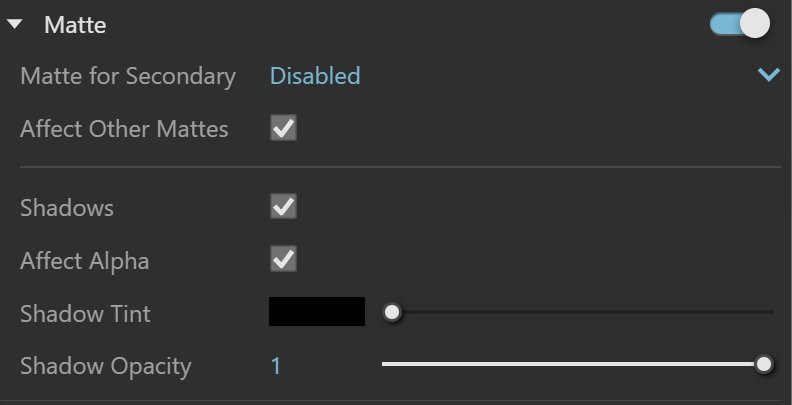
Matte makes the material show the background instead of the base material when viewed directly. The base material still determines global illumination (GI), caustics and reflections.
Matte for Secondaries controls how the Wrapper Material appears in reflections and refractions. Normally, these show the base material. When enabled, they show the environment, with the environment map projected onto the matte geometry.
Disabled shows the base material in reflections and refractions.
Matte for Reflection and Refractions makes the material appear as a matte in reflections and refractions.
Environment Projection shows a material with environment projection in reflections and refractions.
Affect Other Mattes makes the object appear as a matte object to other matte objects in reflections, refractions and GI. When enabled, refractions for the matte object may not be calculated. The object sees itself as a matte object and cannot see refractions on the other side.
Shadows makes shadows visible on the matte surface.
Affect Alpha lets shadows affect the matte surface's alpha contribution. Areas in full shadow produce white alpha. Completely unoccluded areas produce black alpha. GI shadows from skylight are also calculated. The photon map and light map GI engines do not support GI shadows on matte objects when used as primary engines. You can safely use them as secondary engines with matte surfaces.
Shadow Tint sets the tint of shadows on the matte surface.
Shadow Opacity sets an optional brightness value for shadows on the matte surface. A value of 0.0 makes shadows invisible. A value of 1.0 produces full shadows.
GI affect
Generate GI controls the Global Illumination the material creates.
Receive GI controls the Global Illumination the material receives.
GI Quality Multiplier sets the GI quality for specific objects so you can adjust their render quality.
Use Irradiance Map controls whether the object with this material uses the precalculated irradiance map. When disabled, V-Ray traces Brute Force primary GI rays instead. Irradiance Map Subdivs controls the number of samples for this local calculation. This option only affects the render when Irradiance Map is used.

Caustics affect
Generate caustics lets the material generate caustics.
Receive caustics lets the material receive caustics.

Override control
Can be Overridden controls whether Material Override in the Render Settings can override this material. Disable it to prevent the override.
Notes
- In V-Ray 5, matte objects always show the background. From V-Ray 6 onwards, matte objects show the V-Ray Dome light instead when the scene contains a V-Ray Dome light.