V-Ray for Unreal
Chaos Cloud in Unreal
This page provides information about submitting render and bake jobs to Chaos Cloud from V-Ray for Unreal.
Last updated 24 February 2026
This page provides information about submitting render and bake jobs to Chaos Cloud from V-Ray for Unreal.
Overview
Chaos Cloud enables you to render or bake large scenes with cloud-based V-Ray. You can concentrate on designing and creating your scene, and Chaos Cloud will take care of maintaining everything necessary to run V-Ray, without hogging your local hardware and software resources. Submitting render or bake jobs to Chaos Cloud can be done easily and directly from V-Ray for Unreal's interface.
Render in Chaos Cloud
You can use the dedicated Render in Chaos Cloud button to submit render jobs to the cloud directly from Unreal. The button is located on the drop-down menu next to the V-Ray Render button in V-Ray Toolbar.
ІІV-Ray toolbar drop-downІІ > Render in Chaos Cloud

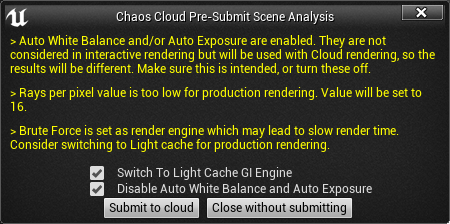
Clicking on the Render in Chaos Cloud button will open the Chaos Cloud Pre-Submit Scene Analysis dialog where issues with the scene will be listed. You will be prompted if you want the export to correct them. If you check any of the suggested optimizations they will be applied to the V-Ray Settings in the scene as well. Click on Submit to cloud to send your opened scene to Chaos Cloud for analysis or Close without submitting to cancel the upload.
Once the scene is successfully analyzed, you have to finalize some of the settings of the render job before it starts rendering in Chaos Cloud.
The cost for rendering a job can be limited by using the Job Credit Limit setting.
When ready, click the Submit button.

When you are presented with the following message your render job is submitted successfully and it will start rendering in the cloud.
Clicking on View Job redirects you to the Projects tab of Chaos Cloud. There you can monitor the status of your render jobs, download them, organize them in projects, resubmit, or delete them.

Render Animation in Chaos Cloud
To render animations in Chaos Cloud you have to do so from Unreal Sequencer editor. From inside the Sequence editor you click on the Render to movie button to open the Render Movie Settings. From the Capture Settings panel > Output Format select the V-Ray animation export option. Inside the VRscene Export Options set the Render type to Render in cloud.
ІІSequencer EditorІІ > ІІToolbarІІ > Render Movie > VRScene Export Options > Render in Cloud

Clicking on the Capture Movie button will open the Chaos Cloud Pre-Submit Scene Analysis dialog where issues with the scene will be listed. You will be prompted if you want the export to correct them. If you check any of the suggested optimizations they will be applied to the V-Ray Settings in the scene as well. Click on Submit to cloud to send your animation to Chaos Cloud for analysis or Close without submitting to cancel the upload.
Once the scene is successfully analyzed, you have to finalize some of the settings of the render job before it starts rendering in Chaos Cloud.
The Frame range and Frame steps are populated automatically based on the settings in the Render Movie Settings in the Sequencer Editor.
When ready, click the Submit button.

When you are presented with the following message your render job is submitted successfully and it will start rendering in the cloud.
Clicking on View Job redirects you to the Projects tab of Chaos Cloud. There you can monitor the status of your render jobs, download them, organize them in projects, resubmit, or delete them.
Bake in Chaos Cloud
You can use the dedicated Bake in Chaos Cloud button to submit light bake render jobs to the cloud directly from Unreal. The button is located on the drop-down menu next to the V-Ray Render button in V-Ray Toolbar.
ІІV-Ray toolbar drop-downІІ > Bake in Chaos Cloud

When you click on the Bake in Chaos Cloud button the scene is exported to the Chaos Cloud and the Chaos Cloud Bake Result dialogue opens. There the current bake session will be listed in a drop-down menu. You can click on the Refresh button to force a check in Chaos Cloud and update the status.
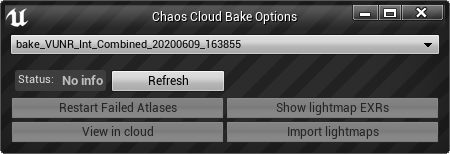
After a bake has been submitted to Chaos Cloud a new projects is created with the following naming convention:
bake_LEVELNAME_DATESTAMP_TIMESTAMP

Chaos Cloud Bake Results
The Chaos Cloud Bake Result button opens a dialogue window that provide you with information about the light bake render jobs to the cloud directly from Unreal. The button is located on the drop-down menu next to the V-Ray Render button in V-Ray Toolbar.
ІІV-Ray toolbar drop-downІІ > Bake in Chaos Cloud

Chaos Cloud Bake Result Options
Bake Session selection –List of previous light bake sessions for the currently opened level. You can specify from which session to import the generated light maps using the Import lightmaps button.
Status –Shows the status of the selected light bake session.

No info – No available information status for current light bake session.

Failed – There is an issue with render jobs and have failed in Chaos Cloud. Restart Failed Atlases button will become available

In Progress – Currently selected light bake session is rendering in Chaos Cloud.

Completed – Currently selected light bake session has completed rendering in Chaos Cloud and available to import light maps.

Refresh – Forces a check for the selected light bake session in Chaos Cloud and updates the status if necessary.
Restart Failed Atlases – Restarts jobs that have failed in Chaos Cloud. Button will be greyed out unless the status of the selected light bake session is Failed.
View in cloud – Opens the currently selected light bake session in Chaos Cloud web interface. You will be asked to log in to your Chaos Cloud account if you have not done it beforehand.
Show lightmap EXRs – Downloads the rendered atlases from Chaos Cloud for the selected light bake session, extracts the lightmap EXRs per actor node and opens them in a new explorer window. Download location is PROJECT_LOCATION/Saved/ChaosCloud/Bake/BAKE_SESSION_NAME/Downloads and extract location is PROJECT_LOCATION/Saved/ChaosCloud/Bake/BAKE_SESSION_NAME/PerNodeExrs
Import lightmaps – Imports and applies baked lightmaps in the level. If you have not previous pressed the Show lightmap EXRs button it will download the rendered atlases from Chaos Cloud for the selected light bake session, extracts the lightmap EXRs, imports and applies them to actors in the level. Download location is PROJECT_LOCATION/Saved/ChaosCloud/Bake/BAKE_SESSION_NAME/Downloads and extract location is PROJECT_LOCATION/Saved/ChaosCloud/Bake/BAKE_SESSION_NAME/PerNodeExrs