V-Ray for Unreal
User Interface
This page provides details on the V-Ray for Unreal UI and how it is integrated into the Unreal interface.
Last updated 24 February 2026
This page provides details on the V-Ray for Unreal UI and how it is integrated into the Unreal interface.
Overview
The V-Ray for Unreal toolbar gives you access to all of the settings and options available in V-Ray.

V-Ray Toolbar
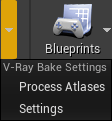
The V-Ray toolbar allows you to render using V-Ray’s Interactive renderer and bake lighting with V-Ray Bake. From the V-Ray drop-down menu you can access the V-Ray frame buffer, open the V-Ray Settings tab, open the V-Ray Project Settings and open the VRScene Export Options. From the V-Ray Bake drop-down you can access the V-Ray Bake Settings tab.


Button States
The V-Ray button and V-Ray Bake button have five states depending on the process that is currently running:
Button State | Description |
|---|
Button State | Description |
|---|---|
Idle/Neutral – V-Ray is in idle mode, not processing or rendering the scene. | |
Preparing – V-Ray is preparing the scene for rendering. Meshes, textures, materials and lights are cached into memory. | |
Rendering – V-Ray is rendering the sceene. Click on the button to stop rendering at any time. | |
Busy – V-Ray is unloading resources and exits rendering. | |
Finished – V-Ray has reached the specified parameters in V-Ray Settings. | |
Idle/Neutral – V-Ray is in idle mode, not processing or rendering the scene. | |
Preparing – V-Ray is preparing the scene for baking. Meshes, textures, materials and lights are cached into memory. | |
Rendering – V-Ray is baking the scene. Click on the button to stop rendering at any time. | |
Busy – V-Ray is unloading resources, exits rendering and processes lightmaps. | |
Finished – V-Ray has finished baking all atlases and lightmaps. |
V-Ray Assets Category
The V-Ray Assets category in the Modes tab allows you to quickly create V-Ray related actors.
V-Ray Light Dome – A dome light (also considered an area light) creates light within a dome or spherical shape to create a traditional global illumination setup. This Light is frequently used to load HDRI environment images.
V-Ray Light Mesh – A Mesh light creates a light source from an object's surface area.
V-Ray Light Rectangle – A V-Ray specific light source object that can be used to create physically accurate area lights of different shapes.
V-Ray Physical Camera – Simulates a real-world camera with equivalent parameters such as f-stop, shutter speed, and lens focal length.
V-Ray Settings Environment – Control the color and texture for background in the viewport and also the color and texture used during GI and reflection/refraction calculations at render time.
V-Ray Sun and Sky – A Sun light is a spherical light source placed at a specific location which simulates the sun in the sky.

V-Ray Settings
V-Ray Settings provide access to all render options available in V-Ray for Unreal. For more information, see the V-Ray Settings page.

V-Ray Project Settings
In V-Ray Project Settings you set global option for the entire Unreal project. For more information, see the V-Ray Project Settings page.

V-Ray Bake Settings
V-Ray Light Bake or just V-Ray Bake is the process of creating lightmaps with complex light interactions and diffuse interreflection using the V-Ray render engine and it's GI and Lighting calculations. For more information, see the V-Ray Bake Settings page.

Import vrscene Dialogue
The V-Ray Scene Import Options window appears when you are importing .vrscene files into Unreal.
For more information, see the Import a VRayScene page.

Exporting vrscene Dialogue
The V-Ray Scene Export Options window appears when you export .vrscene files from Unreal.
For more information, see the Exporting a VRayScene page.
