KeyShot Studio
Display Style
On the Geometry View Ribbon, click on the Display Style dropdown to change the Display Style of models in the Geometry View. The style choices are: Shaded, Flat, Shaded Wireframe, Wireframe, Bounding, MatCap or MatCap+Color.
Last updated 3 August 2026
On the Geometry View Ribbon, click on the Display Style dropdown  to change the Display Style of models in the Geometry View. The style choices are: Shaded, Flat, Shaded Wireframe, Wireframe, Bounding, MatCap or MatCap+Color.
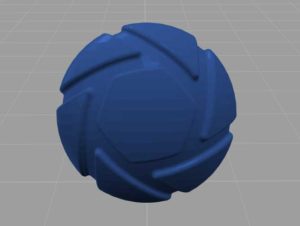
Shaded
The Shaded Display State displays the geometry with solid colors and shaded areas.
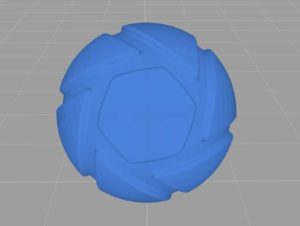
Flat
The Flat DisplayState displays the geometry with solid colors and no shading.
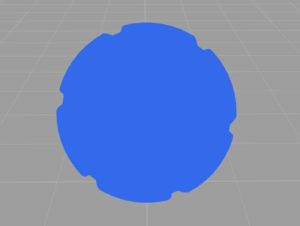
Shaded Wireframe
The Shaded Wireframe Display State displays the geometry with solid colors and shaded areas with the geometry wireframe on top.
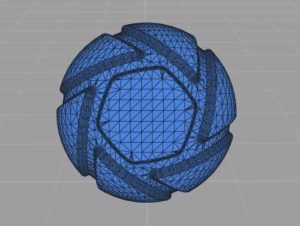
Wireframe
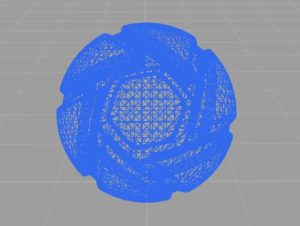
The Wireframe Display State displays the geometry with only a representation of the wireframe.
Bounding Box
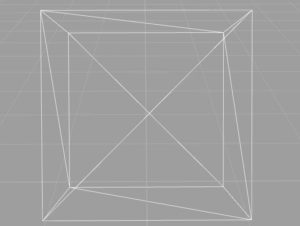
The Bounding Box Display State displays the geometry with wireframe box representations of the extents of the model and part geometry.
MatCap
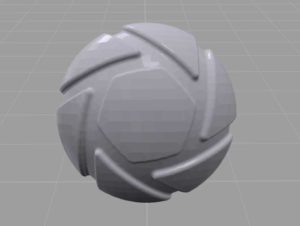
The MatCap Display State displays the geometry with a MatCap shading. If you want to use another MatCap this can be set via Geometry View Settings
MatCap+Color
The MatCap+Color Display State displays the geometry with a MatCap shading, where the colors of the objects also are displayed.