KeyShot Studio
Duplicating Models/Parts
This action duplicates the model along with any assigned materials and animations, to the same level in the Scene Tree.
Last updated 3 August 2026
Duplicate Entire Models/Groups
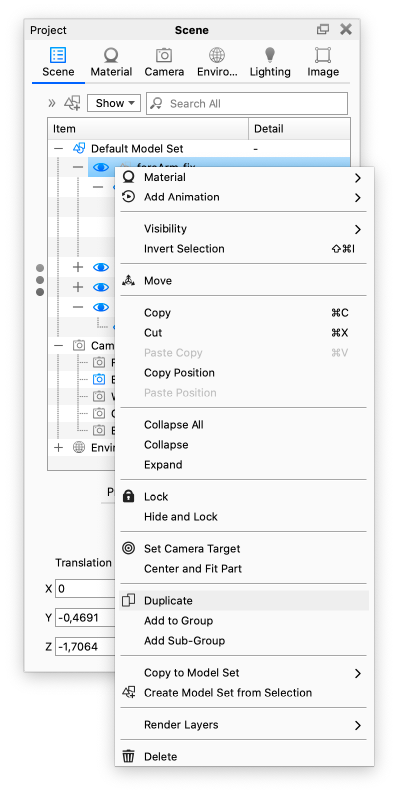
- Select the Model/Group(s) in the Scene Tree
- Right-click and select Duplicate.
This action duplicates the model along with any assigned materials and animations, to the same level in the Scene Tree.
Duplicate Part or Selection of Parts
This can be done both in the Real-time View and the Scene Tree
- Select the part(s) you want to duplicate
- Right-click and select Duplicate/Duplicate Selection
This will duplicate each part into the group where their original is located.
Hotkey
Finally there is a hotkey for duplicating (Ctrl+W/Cmd+W), which will duplicate the selection as described above.
Instanced Geometry
When you duplicate parts or models, KeyShot Studio will create instanced geometry. This means that KeyShot Studio uses the same geometry data for all instances of a part. Certain features such as Rounded Edges and Update geometry (either from the import dialog or LiveLinking) will apply to all instances of the geometry. If you want to “break the link” to the other instances you can do that by using one of the Geometry tools on the part.