When you import or open a scene, KeyShot Studio checks for its resources, such as textures. If they are missing from the expected location, the Resolve Missing Resources dialog opens. Choose their new location to avoid finding and replacing each resource manually.
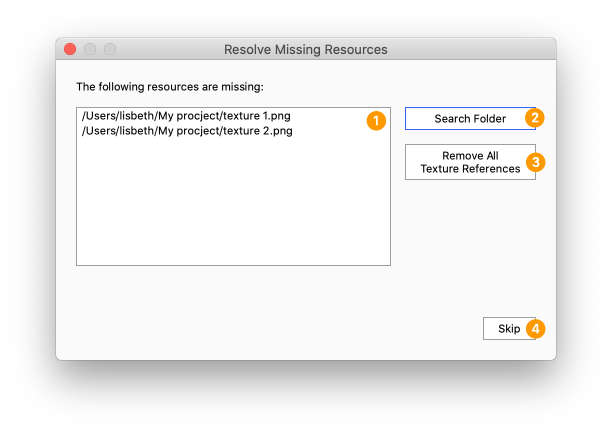
- List: Shows all resources that KeyShot Studio cannot find in the expected location.
- Search folder:
- Select Search Folder and browse to the folder that now contains the resources.
- Select Open once you have found the folder.
- KeyShot Studio matches resources by name and updates the links for any missing resources it finds in that folder.
- Repeat step 1-2 of the search process if any resources are still missing.
- Once all missing resources are restored, the dialog closes automatically and the scene finishes loading.
- Remove all texture references: Selecting this option closes the dialog automatically and removes all references to missing textures in the scene.
- Skip: If you cannot or do not want to resolve the missing resources, select Skip and replace them manually.