KeyShot Studio
Moving Models and Parts
You can translate, rotate, and scale your part/model in two ways, either via the Move tool or via the position settings for the selected of the model/part below the Scene Tree in the Position tab of the Project panel.
Last updated 3 August 2026
You can translate, rotate, and scale your part/model in two ways, either via the Move tool or via the position settings for the selected of the model/part below the Scene Tree in the Position tab of the Project panel.
Move Tool
The move tool can be triggered in different ways:
- Right-click a selected part/model in the Scene Tree and choose
 Move.
Move. - Right-click a part in the Real-Time View and choose Move Selection, Move Part or Move Model, depending on what you want to move.
- Click the Move button in the Tools section of the Ribbon or in the Scene tab of the Project Panel. If no part(s) are selected, this will trigger a dialog, where you can choose which part(s) you want to move.
- Use the hotkey Ctrl+D on Windows and Cmd+D on Mac. If no part(s) are selected, this will trigger a dialog, where you can choose which part(s) you want to move.
Lean more about the Move tool.
Scene Tree – Position
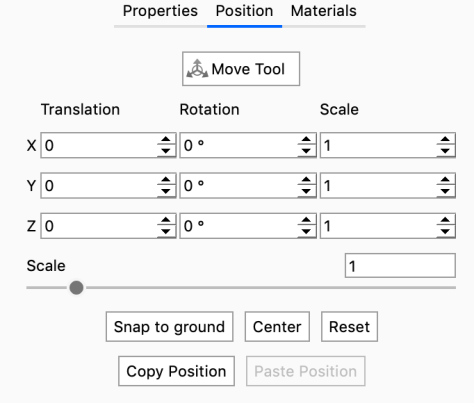
Translation XYZ Rotation XYZ Scale XYZ Scale slider Snap to Ground Center Reset Copy/Paste position |